Table of Contents
Learn what is the project feature in grok AI? how to effectively manage your projects means.
So what's so special about this feature and why is it causing such a stir in the tech world? Let's analyze it in detail.
1. What is the Grok Projects feature?
Grok Projects is a dedicated workspace that allows users to group conversations, files, and system prompts in a single location.
Instead of having to explain everything from scratch every time a new chat tab is opened, the Project allows Grok to "memorize" all the documentation you provide. With a context window of up to 256,000 tokens , Grok can devour thousands of pages of documentation or the entire source code of an application to provide you with the most accurate support.
2. Instructions on using the Project feature in Grok
Instructions on using features on Grok
The Project feature helps you create a focused workspace where Grok can gain a deep understanding of the context through separate documentation and instructions. Follow these steps:
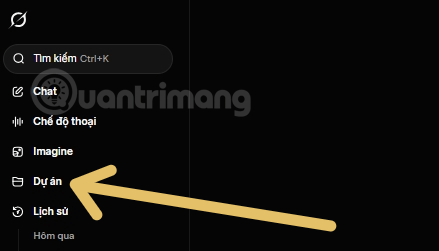
Step 1: Access the Projects feature. From Grok's main screen interface, look at the menu column on the left. Click on the Projects item (with a folder icon) to begin accessing the project management space.
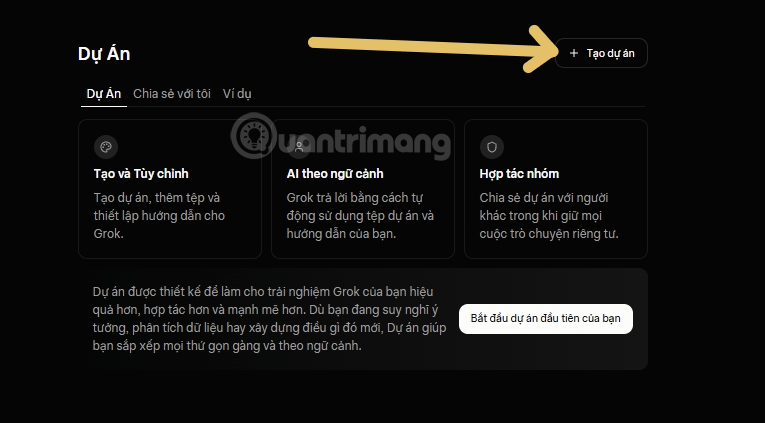
Step 2: Create a new project. In the Projects interface, click the + Create project button located in the upper right corner of the screen. Here, Grok also introduces advantages such as: Creation and customization, Contextual feedback, and Team collaboration.
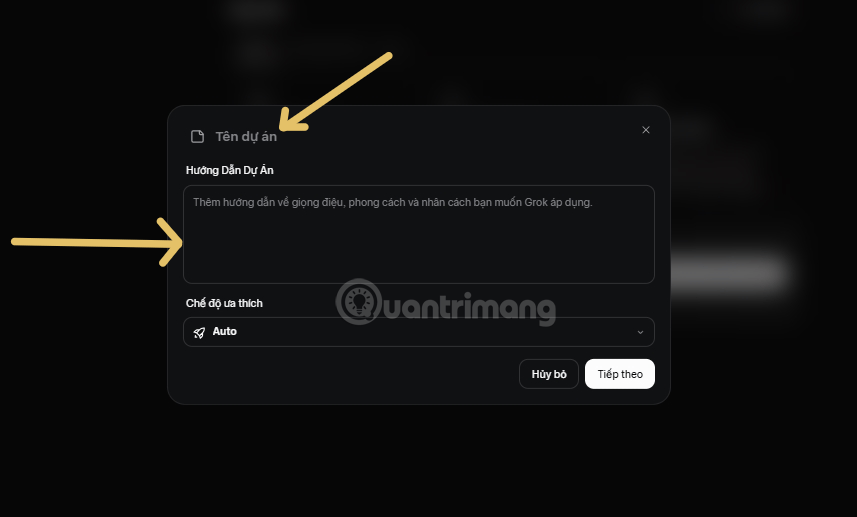
Step 3: Set up the project name and instructions. A custom table will appear:
- Project name: Give the project a memorable name (Example: Grade 8 Literature Lesson Plan).
- Project instructions: Enter a detailed description of the tone, style, and personality you want Grok to apply specifically to this project.
- Mode: You can leave it in Auto mode or select a suitable AI model. Then press Next .
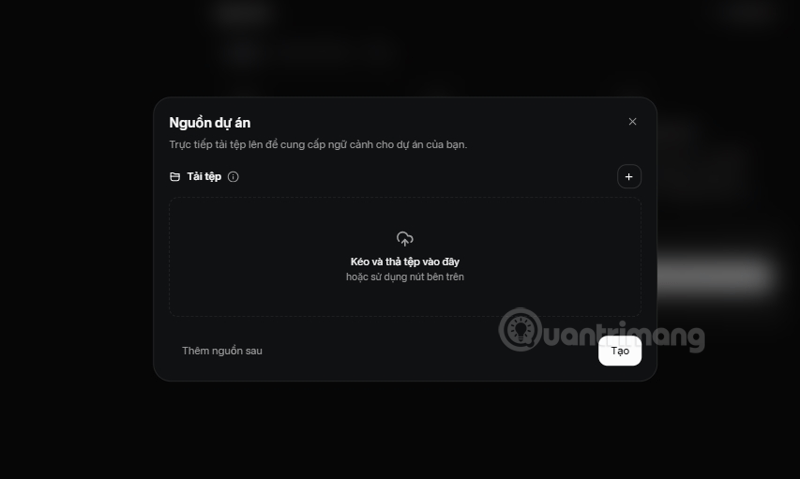
Step 4: Upload your knowledge base. On the Project Sources screen, you can drag and drop files (PDF, Code, Text, etc.) or click the + sign to upload documents. This is the knowledge base that Grok will use to answer your questions. Click Create to complete the setup.
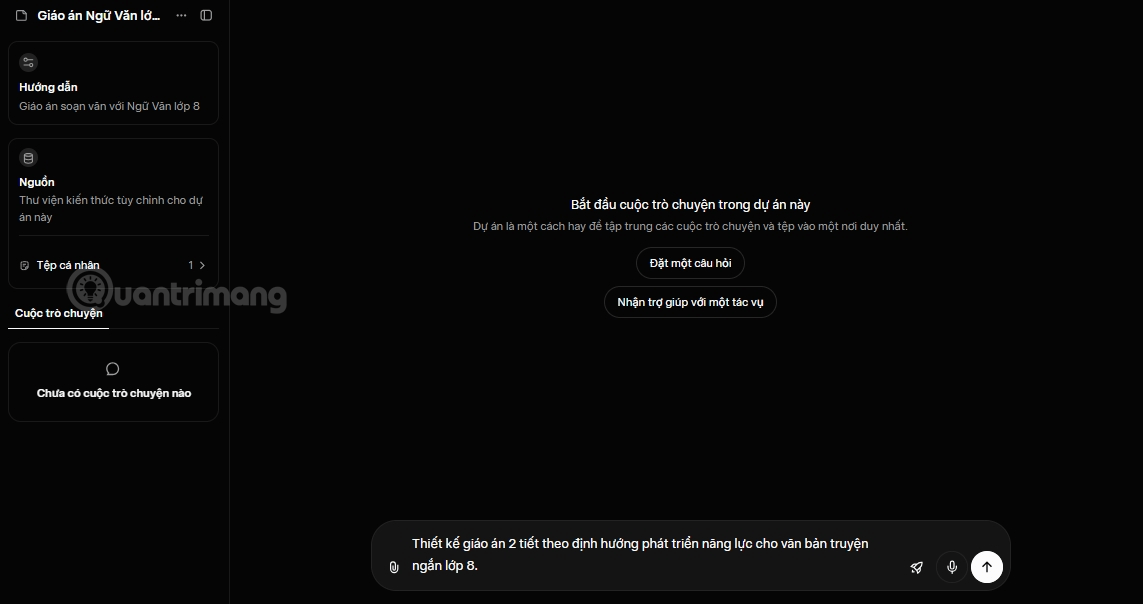
Step 5: Start a conversation in the project. After creation, you will enter the main project interface. Here, you can see the Instructions and Uploaded Data Sources in the left column. Enter your first question in the chat box below to begin (e.g., "Design a 2-lesson lesson plan.").
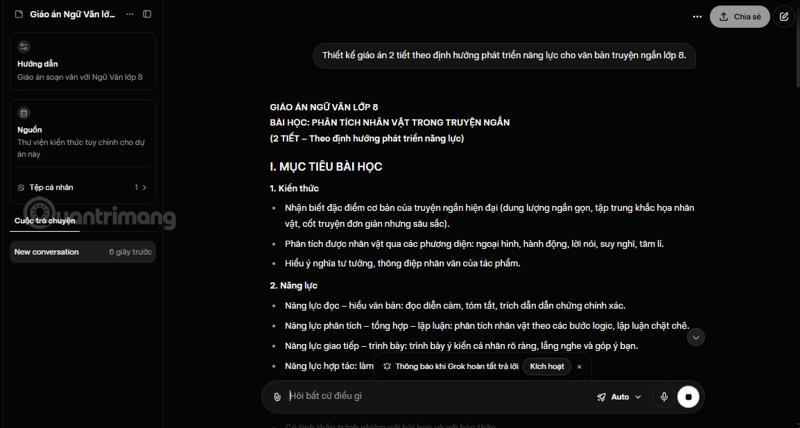
Step 6: Interact and refine the content. Grok will respond based on the information you have provided. If you want to edit the request or provide more information, you can click the Edit icon (pencil) below the question.
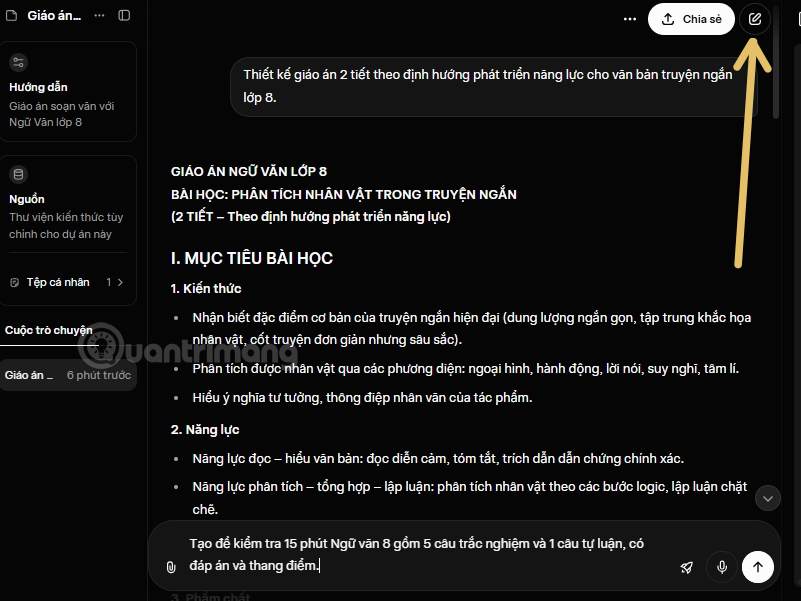
Step 7: Managing Multiple Conversation Threads Within a Project Within a project, you can create multiple different chat threads to avoid information confusion. Click the New Conversation icon in the upper right corner to start a new discussion thread while maintaining the context of that project.
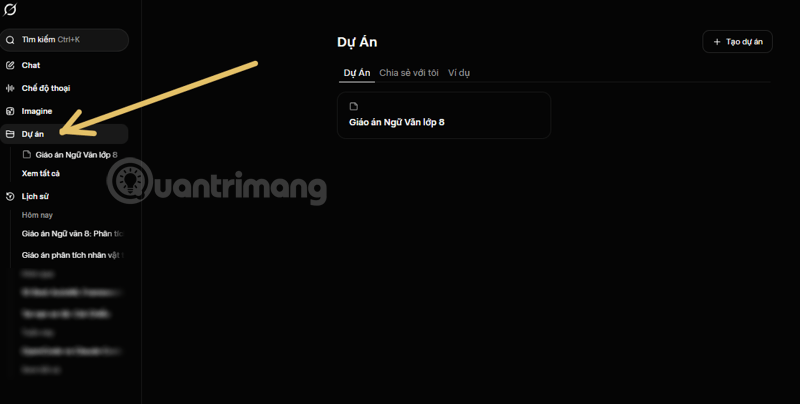
Step 8: Manage your project list. All projects you've created will be stored in the Projects section. You can easily return to old projects from the left-hand menu to resume your work at any time.
3. The Difference: Project vs. Casual Conversation
If you're still wondering why not just use regular chat for faster results, take a look at the comparison table below:
| Characteristic | Casual conversation | Projects feature |
| Purpose | Quick Q&A, real-time news updates. | Implement long-term projects and conduct in-depth research. |
| Memory | You tend to lose context when the conversation gets too long. | Remember the entire content of the project for the long term. |
| Supporting documents | Upload individual files using each command. | Store a private knowledge repository (PDF, Code, CSV) for the project. |
| Instructions | The requirements regarding style and objectives must be reiterated. | Set up a separate set of rules that apply to all chats. |
| Organization | The conversations were disjointed and difficult to manage. | Manage scientific projects by "folder". |
3. How does Grok Projects help users?
Optimized for Developers
- You can create a project named "App Mobile X", upload all the API documentation and source code. Grok will become a real software engineer, understanding your project architecture to debug or write new features without ever getting off track.
A powerful tool for content creators
- If you're an editor, incorporate the Brand Guidelines and sample articles into the Project. Grok will ensure every draft produced is perfectly in tune with the right tone and mood, saving you 80% of your editing time.
Data analysis and market research
- With real-time data access from the X platform integrated into the Project, Grok can track market fluctuations based on the internal documentation you provide. This is the perfect combination of secure information and global trends.
4. How to use Grok Projects most effectively
To maximize its power, AI experts advise:
- Set up clear Custom Instructions: Don't just say "Help me," say "You are a marketing expert with 10 years of experience, please use the data in this PDF file to create a plan."
- Leverage DeepSearch: In your project, enable DeepSearch so Grok can both cross-reference your documentation and search for additional corroborating evidence on the internet.
- Break down the project: Don't try to cram everything into one place. Separate the "Learning English" project from the "Business Plan" project to prevent the AI from getting overwhelmed with information.
Editor's concluding remarks:
Grok Projects is more than just a feature; it's Elon Musk's assertion that Grok is a professional workflow tool, directly competing with Claude Projects or ChatGPT Workspaces. If you want to work smarter, not harder, it's time to "Grok" your projects.
Would you like me to give you a detailed guide on how to set up a perfect "System Guide" for your first project on Grok?
Final Thoughts
Use this guide as a practical checklist for what is the project feature in grok ai? how to effectively manage your projects with grok. Work through the steps in order, verify each result, and adjust the options to match your needs.
FAQ
What do you need before following this What Is the Project Feature in Grok AI? How to Effectively Manage Your Projects with Grok guide?
Review the required tools, accounts, settings, or materials mentioned in the article. Learn what is the project feature in grok AI? how to effectively manage your projects means.
What are the main steps for what is the project feature in grok ai? how to effectively manage your projects with grok?
Follow the sections in order, especially 1. What is the Grok Projects feature?, 2. Instructions on using the Project feature in Grok, Instructions on using features on Grok. Complete each step before continuing and verify the result as you go.
What should you do if the process does not work as expected?
Recheck the prerequisites, update the relevant app or service, review the settings, and repeat the step that caused the issue. Use any troubleshooting notes included in the guide.
Related Articles
 Negative Prompt AI Techniques5 minutes read
 How to Enable the Memory Feature on Grok to Personalize Your Own AI Assistant6 minutes read
 How to Disable the Automatic Video Creation Feature in Grok6 minutes read
 Instructions for Using Trello to Manage Projects and Life23 minutes read
 Tips for Using Project in Claude Effectively to Create a Personal AI Space8 minutes read
 More Professional, Easier Programming with Grok's Files Feature6 minutes read
Reader Comments 0
Sign in with email or Google to join the discussion.