Table of Contents
Today we'll take a deeper look at the 500 Internal Server Error and show you some ways to quickly get your website back up and running.
The 500 Internal Server Error is terrifying. It always seems to appear at the most inopportune times and you're suddenly left scrambling to get your website back online. We've all been there.
As soon as your website is down, you lose traffic and customers. Not to mention it negatively impacts your brand. So today we're going to take a closer look at the 500 Internal Server Error and show you some ways to get your website back up and running quickly.
What is 500 Internal Server Error?
The HTTP 500 status code is a general message that indicates that the server encountered an unexpected situation that prevented it from fulfilling the request. This error occurs when the server recognizes a problem but cannot be more specific about it.
When you visit a website, your browser sends a request to the server hosting that website. The server receives this request, processes it, and sends back the requested resources (PHP, HTML, CSS, etc.) along with HTTP headers.
The HTTP protocol also includes HTTP status codes. Status codes are a way to tell you the status of a request. It could be a status code 200 which means "Everything is OK" or a status code 500 which means something went wrong.
You can find many different types of 500 status error codes (500, 501, 502, 503, 504, etc.) and each one has a different meaning. In this case, the 500 Internal Server Error indicates that the server encountered an unexpected situation that prevented it from fulfilling the request.
Variations of the 500 Internal Server Error
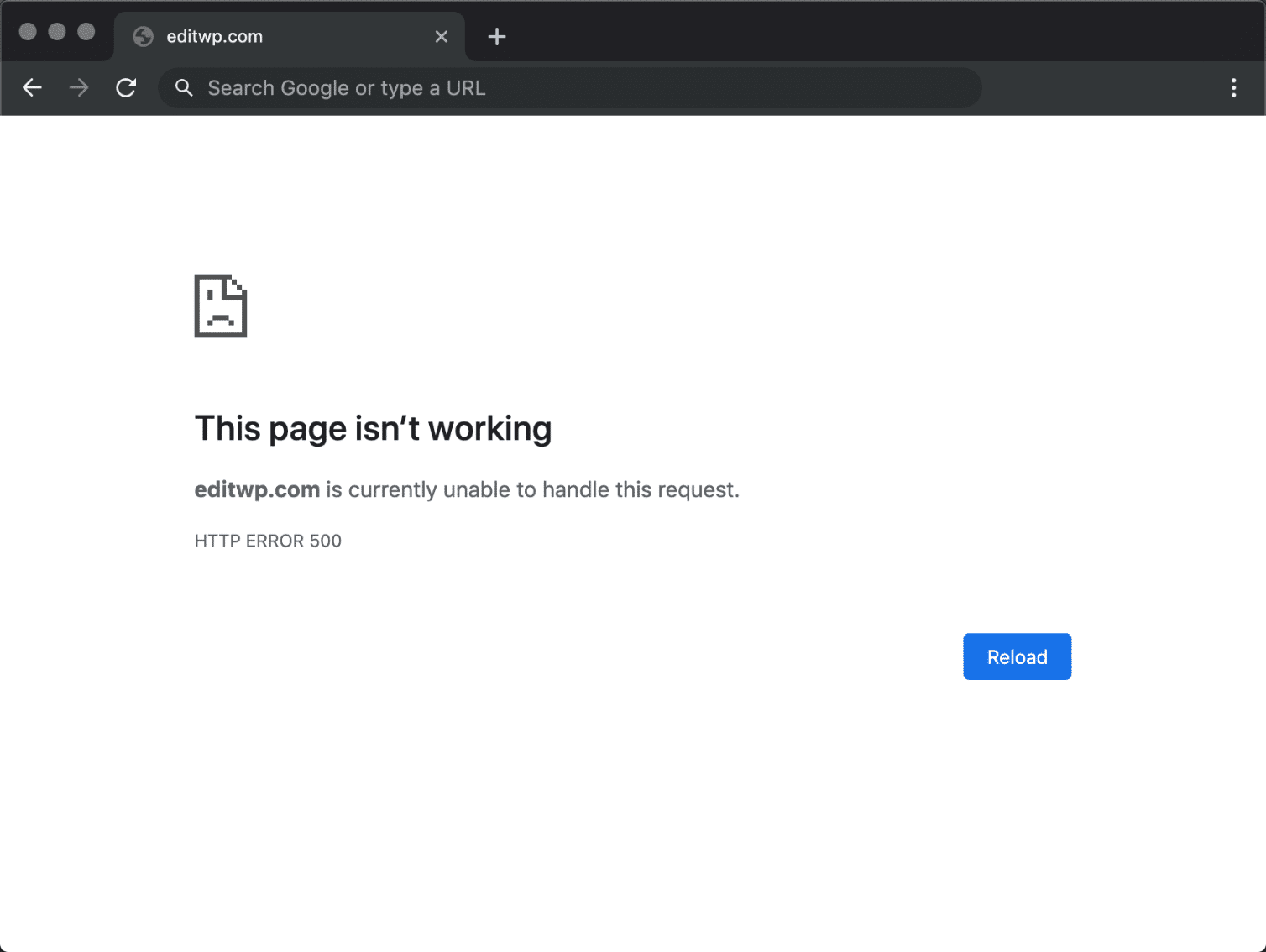
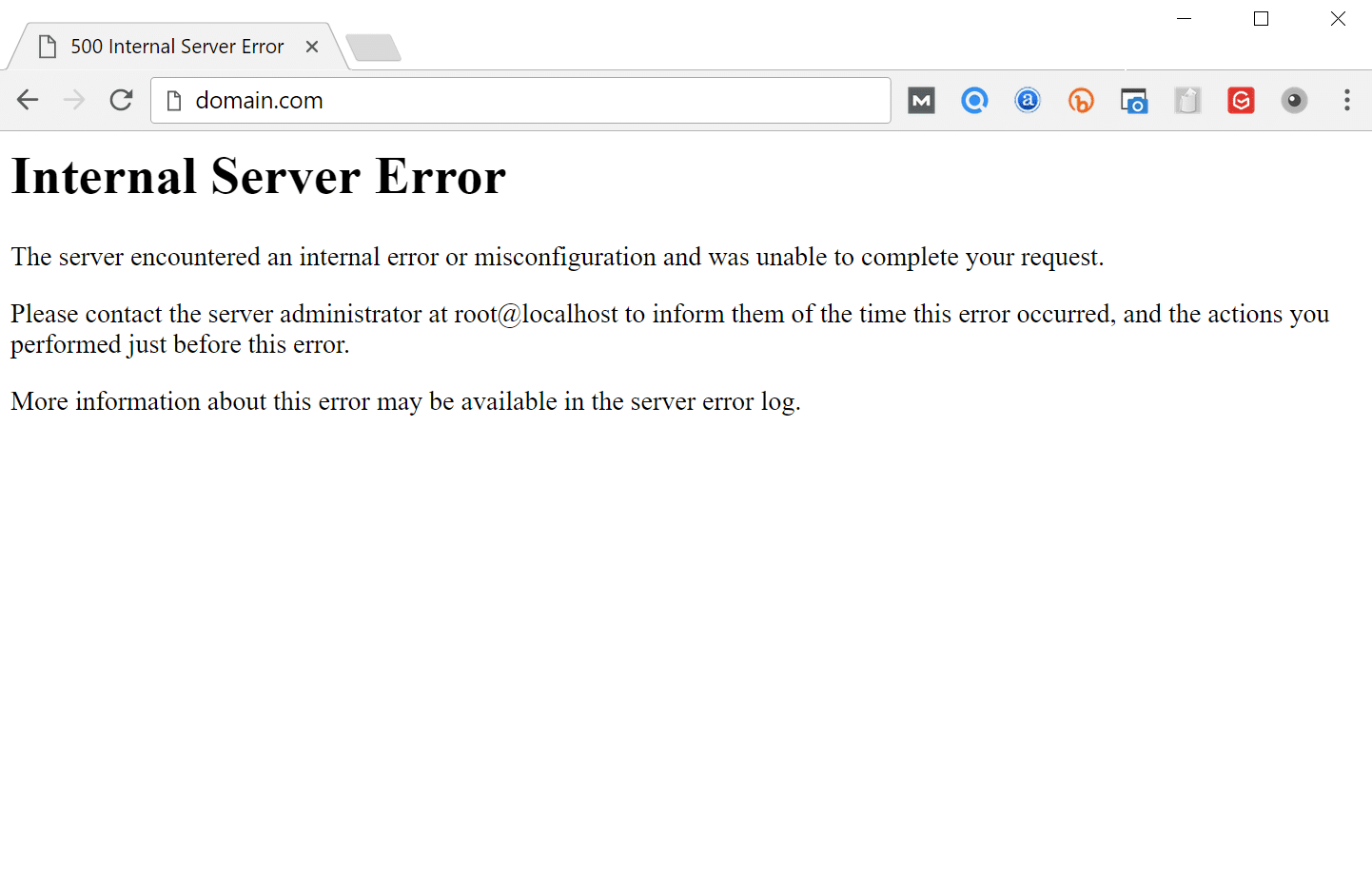
Due to differences between web servers, operating systems, and browsers, the 500 Internal Server Error can appear in many different ways. But they all convey the same message. Here are just a few of the many different variations you might see on the web:
- '500 Internal Server Error'
- 'HTTP 500'
- 'Internal Server Error'
- 'HTTP 500 – Internal Server Error'
- '500 Error'
- 'HTTP Error 500'
- '500 – Internal Server Error'
- '500 Internal Server Error. Sorry something went wrong.'
- '500. That's an error. There was an error. Please try again later. That's all we know.'
- 'The website cannot display the page – HTTP 500.'
- 'Is currently unable to handle this request. HTTP ERROR 500.'
You may also see this message along with it:
The server encountered an internal error or misconfiguration and was unable to complete your request. Please contact your server administrator, webmaster@domain.com, and inform them of the time the error occurred and any actions you may have taken that may have caused the error. Additional information about this error may be available in the server error log.
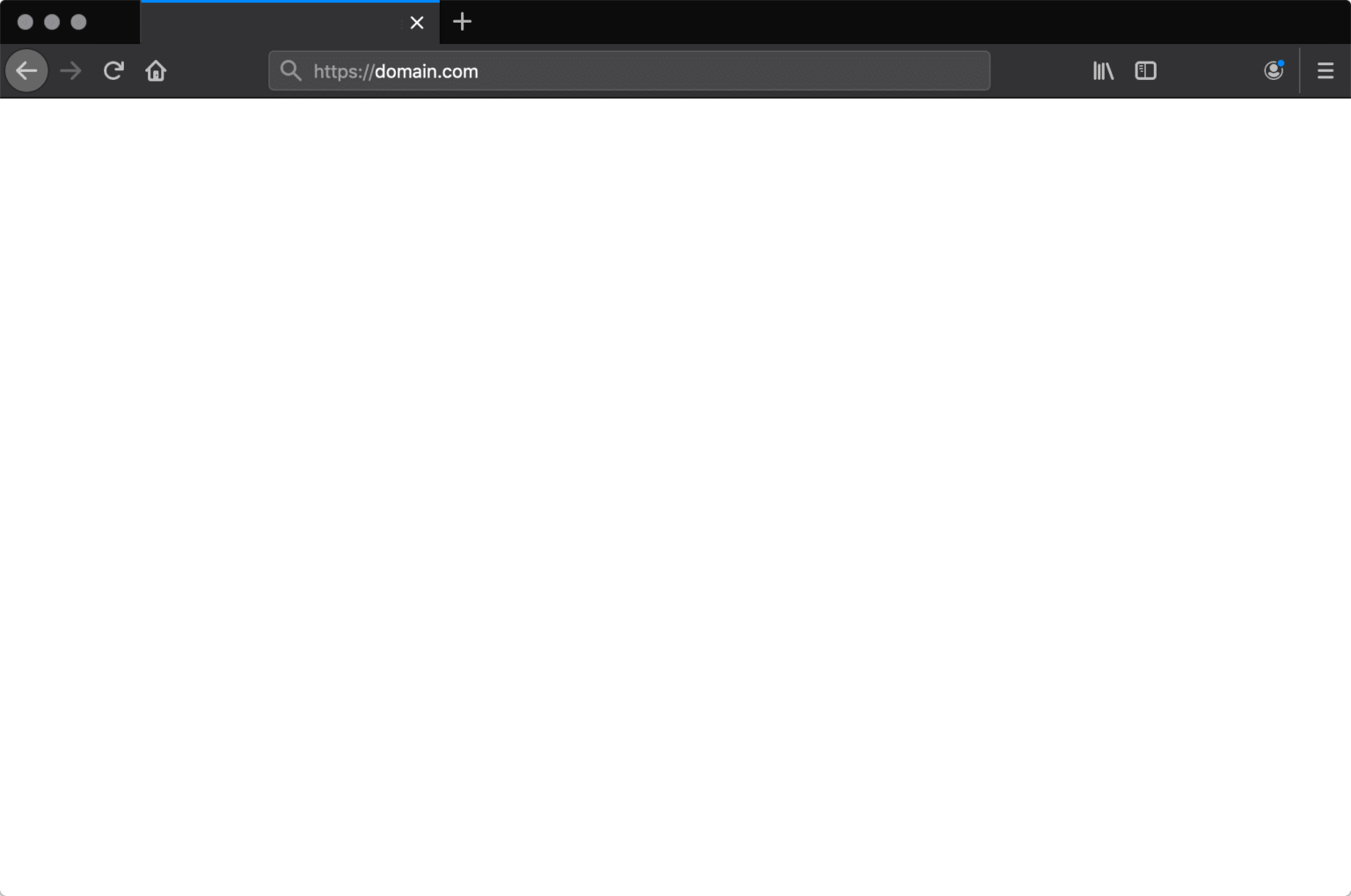
Sometimes, you may just see a blank white screen. When dealing with 500 Internal Server Error, this is actually quite common on browsers like Firefox and Safari.
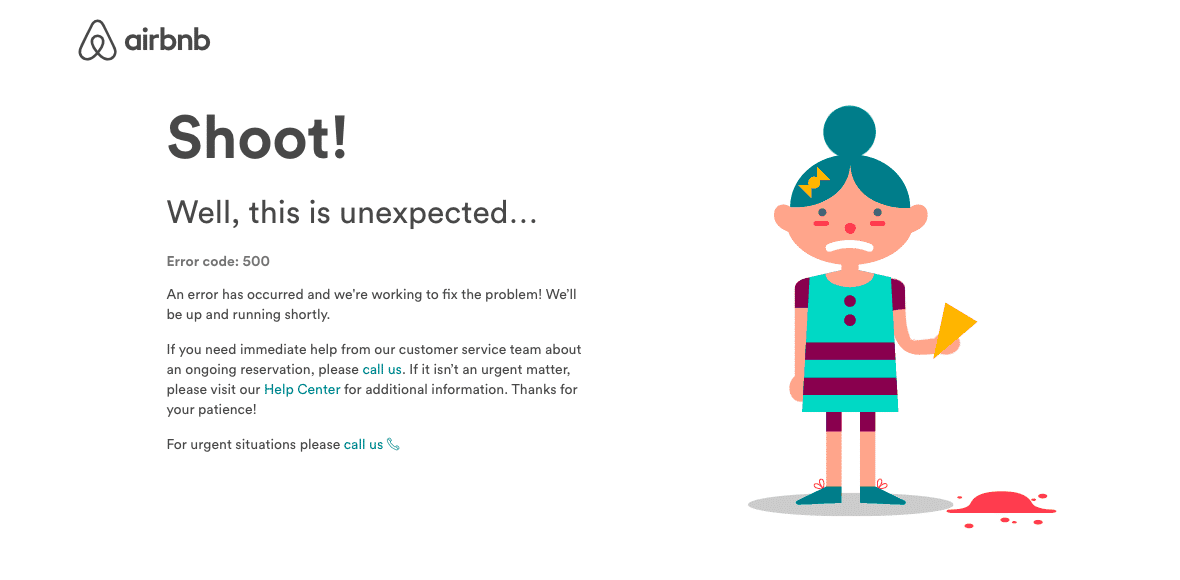
Larger brands may even have their own custom 500 Internal Server Error messages, such as this one from Airbnb.
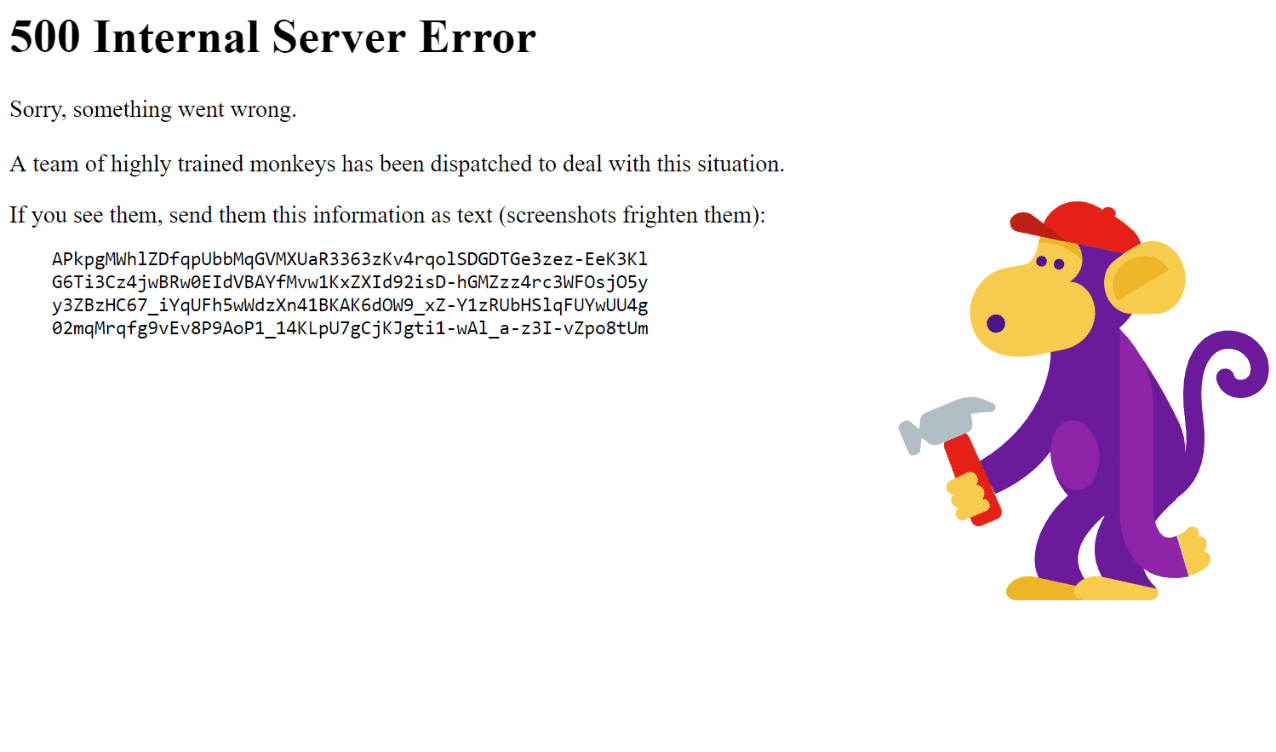
Even the mighty YouTube is not safe from the 500 Internal Server Error.
What causes 500 Internal Server Error?
The 500 Internal Server error can be caused by a number of things. If you're experiencing this error, it's likely that one (or more) of the following factors are causing the problem:
- Browser cache.
- The database login information is incorrect.
- Database corrupted.
- Corrupted files in WordPress installation.
- Problem with your database server.
- Corrupt WordPress core files.
- Corrupt.htaccess file and PHP memory limit.
- Problems with third-party plugins and themes.
- PHP timeout or fatal PHP error with third-party plugins.
- Incorrect file and directory permissions.
- Your server's PHP memory limit has been exhausted.
- The.htaccess file is corrupted or damaged.
- Error in CGI and Perl script.
Error 500 affects SEO
Unlike the 503 error, which is used in WordPress maintenance mode and asks Google to check again later, the 500 error can have a negative impact on SEO if not fixed immediately.
If your site is only down for about 10 minutes and is crawled repeatedly, the crawler will simply fetch the page from cache. Or Google may not even have a chance to recrawl it before it comes back up. In this case, you're absolutely fine.
That said, if the site is down for a long period of time, such as more than 6 hours, Google may view the 500 error as a site-level issue that needs to be addressed. This can impact rankings. If you are concerned about recurring 500 errors, you should find out why they occur in the first place. Some of the solutions below may help.
How to fix 500 Internal Server Error
Where should you start troubleshooting when you see a 500 Internal Server Error on your website? Usually, 500 errors occur on the server itself, but in my experience, these errors come from two causes: One is user error (client-side issues), and the other is server issues. So let's take a closer look at both.
Let's take a look at the common causes and fixes for 500 Internal Server Error to get your website back up and running quickly.
1. Try reloading the page
This may seem a little obvious to some, but one of the easiest and first things you should try when you get a 500 Internal Server Error is to simply wait about a minute and reload the page (F5 or Ctrl + F5). It's possible that the server or host is overloaded and the site should be back up and running in no time. While you're waiting, you can also quickly try another browser to rule out that as the problem.
Another thing you can do is paste the website into Downforeveryoneorjustme.com. This site will tell you whether the website is down or if it is your fault. A tool like this will check the HTTP status code returned by the server. If the status code is anything other than 200 "Everything is OK" then it will return an outage message.
2. Clear browser cache
Clearing your browser cache is always a useful troubleshooting step before diving into debugging your website. Here are instructions on how to clear cache in different browsers:
- How to clear cache and cookies on Chrome, Firefox, Coc Coc and Safari
- Instructions for clearing Microsoft Edge browser cache
3. Check server logs
You should also take advantage of your error logs. This can help you quickly narrow down the problem, especially if the problem is coming from a plugin on your site.
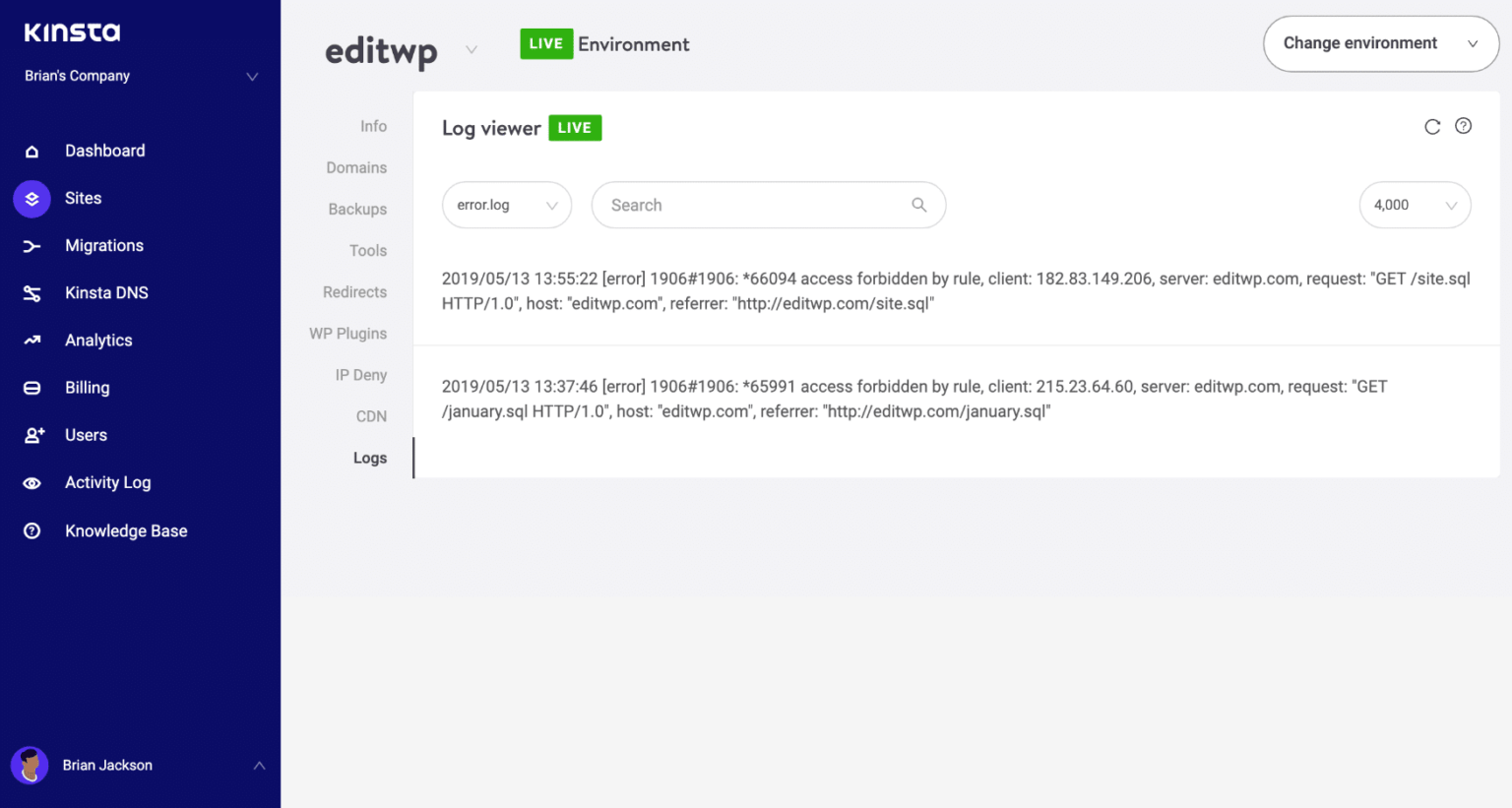
If your server doesn't have logging, you can also enable WordPress debug mode by adding the following code to your wp-config.php file to enable logging:
Define( 'WP_DEBUG', true ); define( 'WP_DEBUG_LOG', true ); define( 'WP_DEBUG_DISPLAY', false );Logs are usually located in the /wp-content folder.
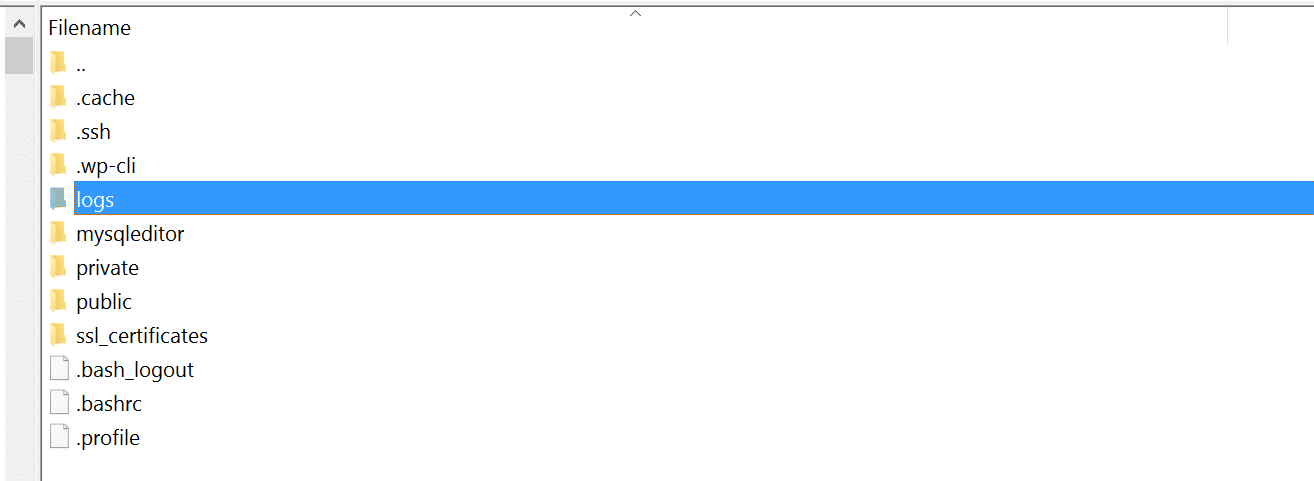
You can also check the log files in Apache and Nginx, usually located here:
- Apache: /var/log/apache2/error.log
- Nginx: /var/log/nginx/error.log
4. Check for errors when establishing a database connection
The 500 Internal Server Error can also be caused by a database connection error. Depending on your browser, you may see different errors. However, both will generate an HTTP 500 status code regardless in your server logs.
Here is an example of what the 'error establishing database connection' message looks like in your browser. The entire page is blank because it cannot retrieve data to display the page because the connection is not working properly. This not only breaks the user interface of the site, but also prevents you from accessing the WordPress dashboard.
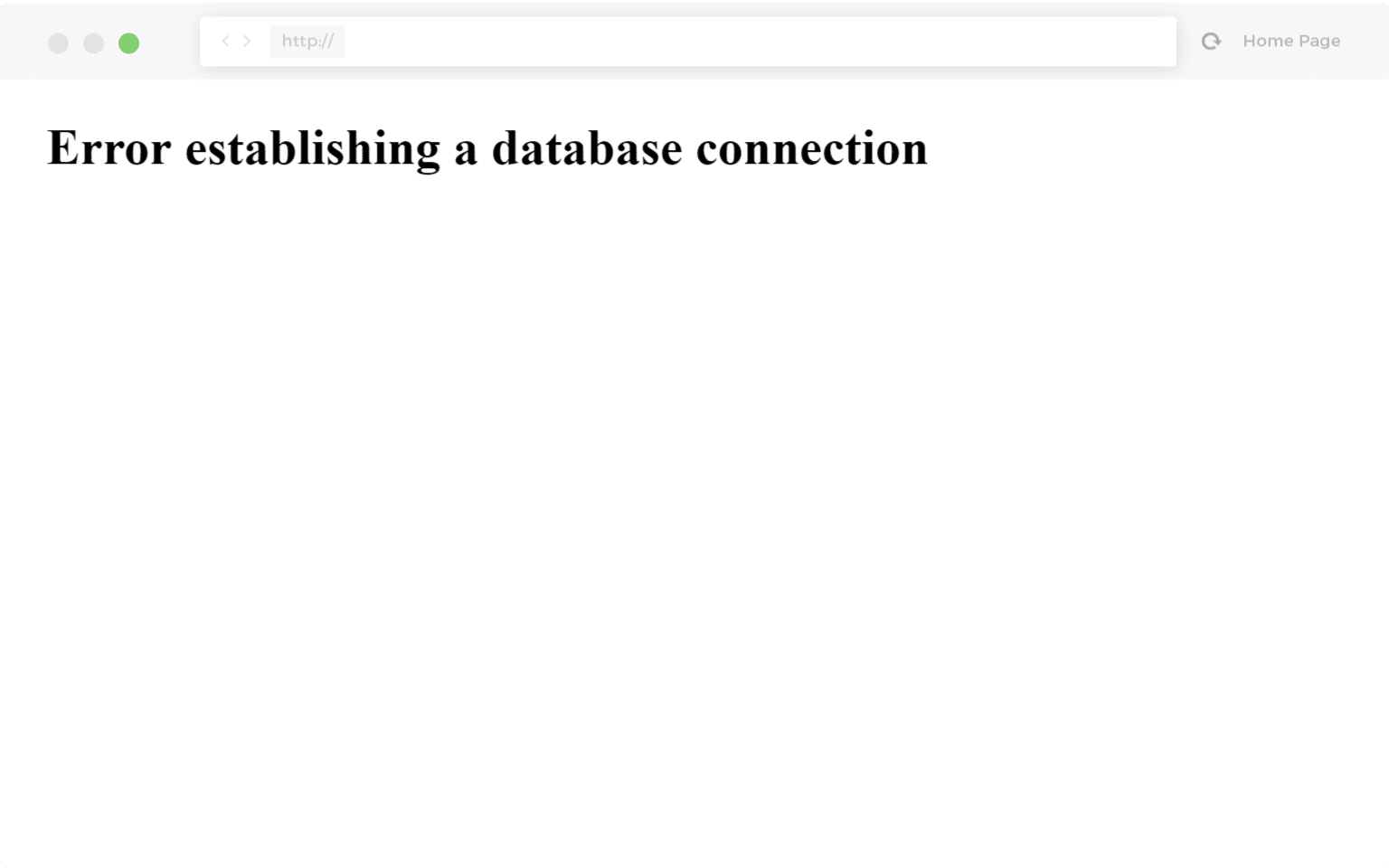
So why exactly does this happen? Here are a few common reasons.
- The most common problem is that your database login information is incorrect. The website uses separate login information to connect to the MySQL database.
- Your WordPress database is corrupted. With so many moving parts with themes, plugins, and users constantly deleting and installing them, sometimes the database becomes corrupted. This could be due to an individual missing or corrupted table, or maybe some information has been accidentally deleted.
- You may encounter file errors in your WordPress installation. This can sometimes even happen due to hackers.
- Database server issues. Some issues can occur on the web server side, such as the database being overloaded due to a traffic spike or becoming unresponsive due to too many concurrent connections. This is actually quite common with shared hosting because they use the same resources for multiple users on the same server.
5. Check plugins and themes
Third-party plugins and themes can easily cause a 500 Internal Server Error. Oftentimes, you'll see the error right after installing a new app or running an update. This is one reason why you should use a staging environment for updates, or at least run updates one at a time. Otherwise, when you get a 500 Internal Server Error, you'll be left scrambling to figure out which plugin is causing the error.
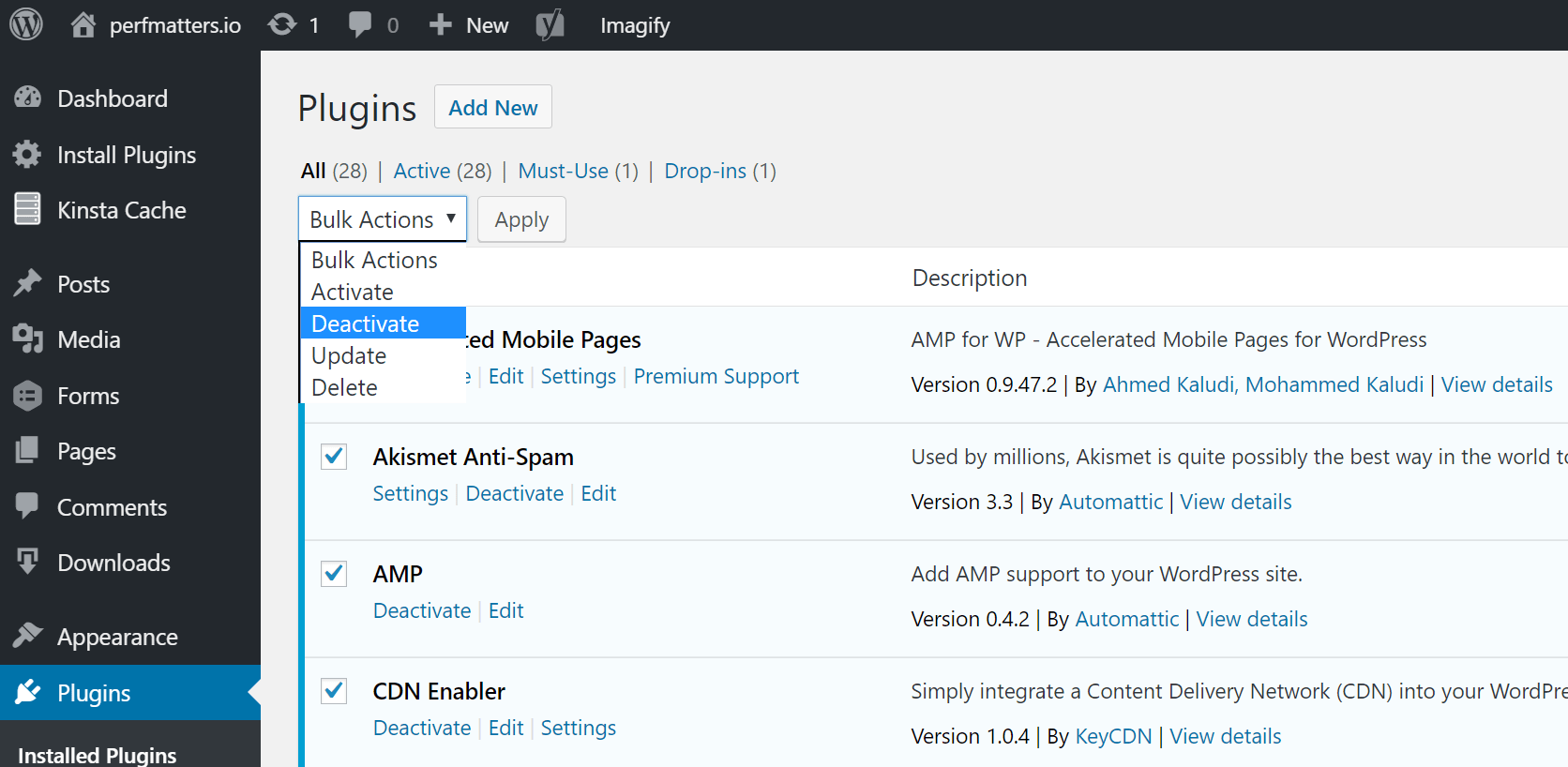
A couple of ways you can fix this issue is to disable all plugins. Remember, you won't lose any data if you just disable one plugin. If you can still access your admin, a quick way to do this is to browse to "Plugins" And select "Deactivate" From the bulk actions menu. This will disable all of your plugins.
6. Reinstall WordPress core
Sometimes WordPress core files can become corrupted, especially on older sites. It's actually quite easy to just reload the WordPress core without affecting your plugins or themes. Of course, make sure to backup before proceeding.
7. Check for permission related errors
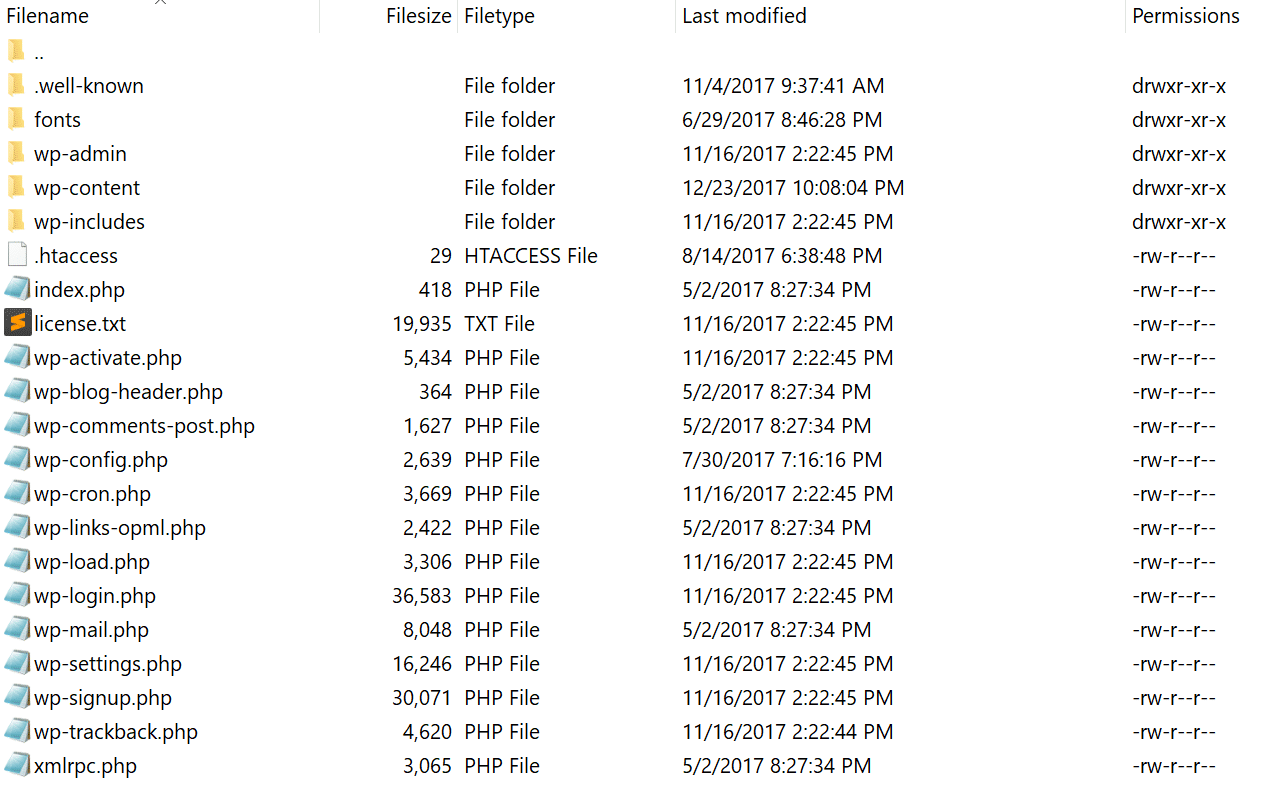
File or folder permission errors on the server can also cause a 500 Internal Server Error. Here are some typical recommendations for file and folder permissions in WordPress:
- All files should be 644 (-rw-r–r–) or 640.
- All directories should be 755 (drwxr-xr-x) or 750.
- Never assign 777 permissions to any folder, even when uploading to folders.
- Wp-config.php can also be set to 440 or 400 to prevent other users on the server from reading the file.
You can easily check your file permissions using an FTP client (as shown below). You can also contact your server support team and ask them to quickly run a GREP file permissions check on your folders and files to ensure they are set up correctly.
8. Increase PHP memory limit
The 500 Internal Server Error can also be caused by the PHP memory limit on your server being exhausted. You can try increasing the limit. Follow the instructions below to learn how to change this limit:
Increase PHP memory limit in cPanel
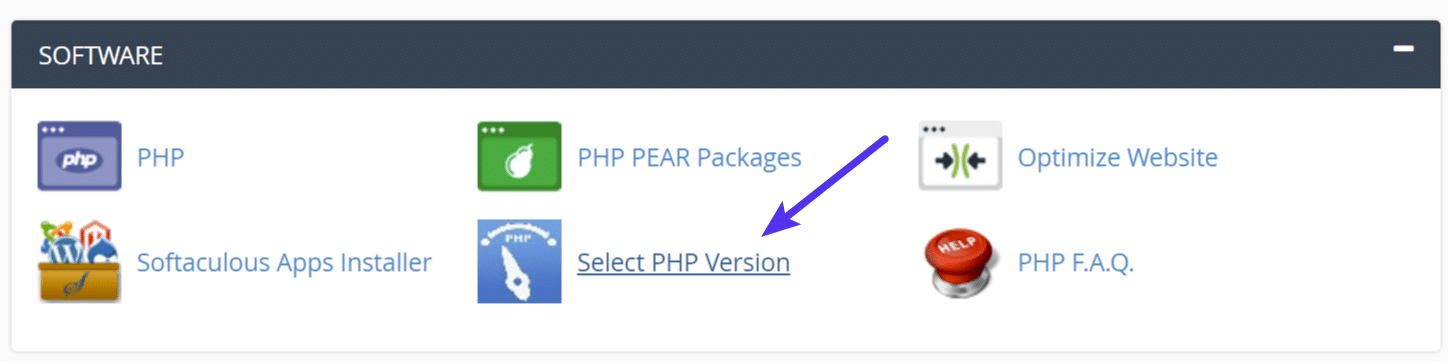
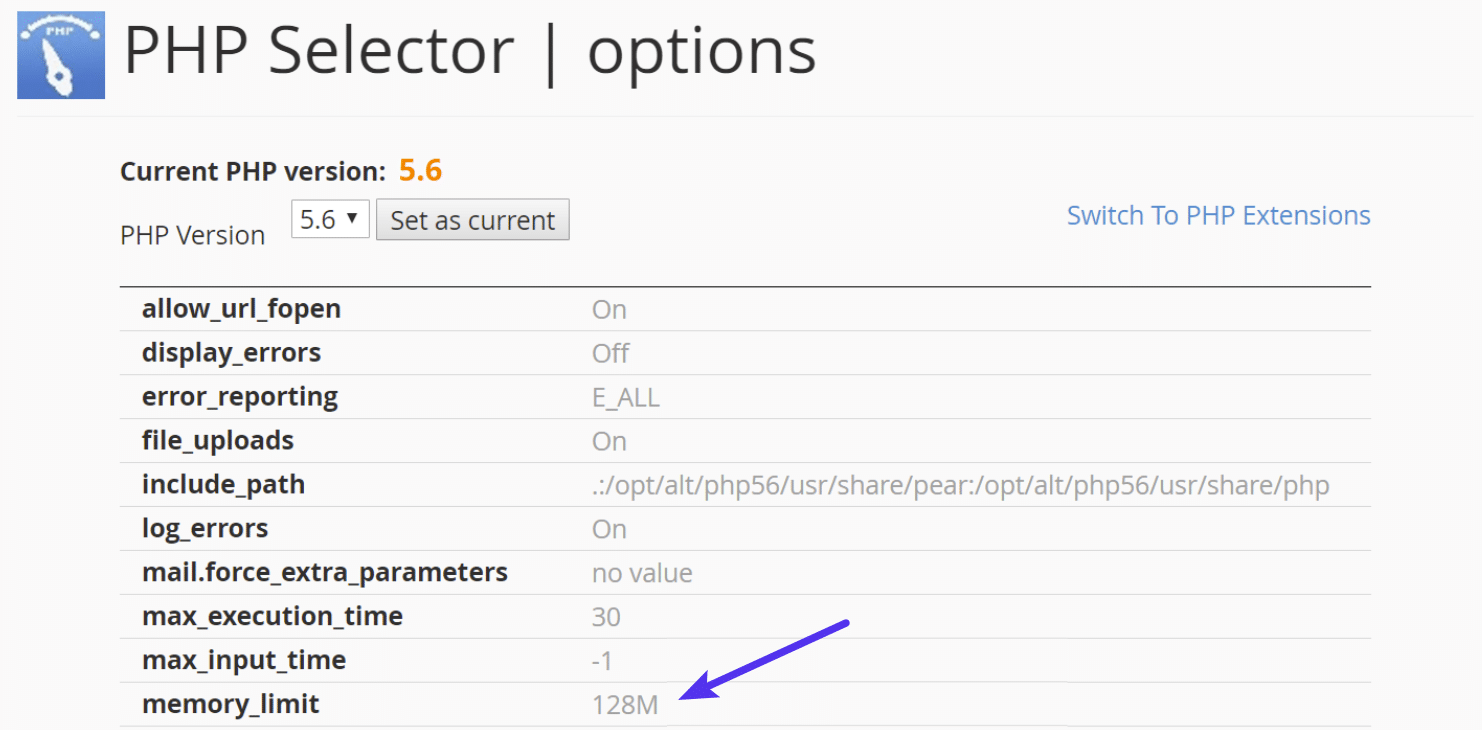
If you are running a host using cPanel, you can easily change this limit from the user interface. Under Software , click "Select PHP Version" .
Click "Switch to PHP Options" .
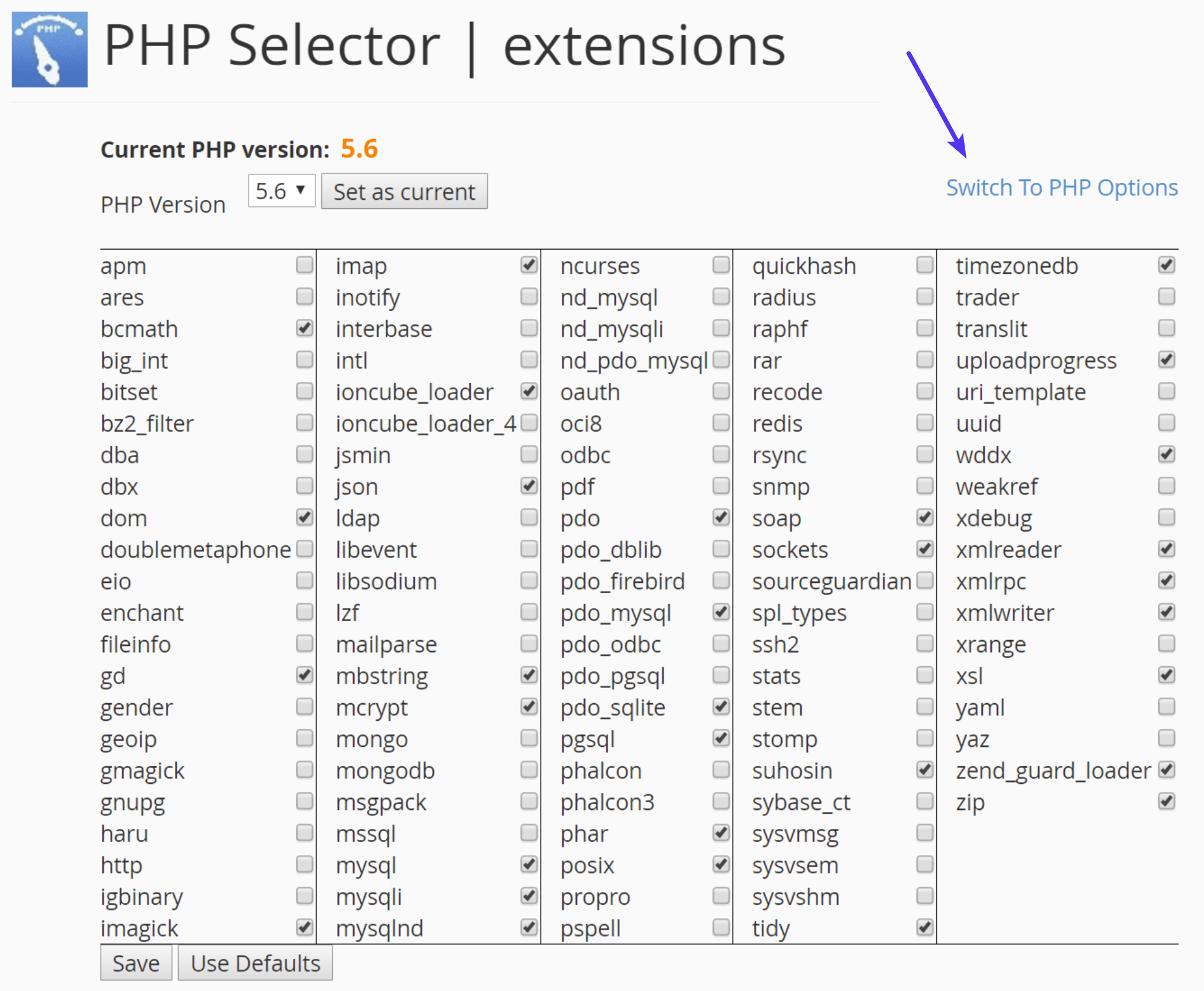
Then you can click on the memory_limit property and change its value. Then click "Save".
Increase PHP Memory Limit in Apache
The.htaccess file is a special hidden file that contains various settings that you can use to tweak your server's behavior, even at the directory level. First, log in to your site via FTP or SSH, check your root directory, and see if there is a.htaccess file there.
If so, you can edit that file to add the necessary code to increase the PHP memory limit. It is most likely set to 64M or lower, you can try increasing this value.
Php_value memory_limit 128M9. Edit the .htaccess file
If you are using an Apache server, it is possible that your.htaccess file is corrupted or damaged. Follow the steps below to create a new file from scratch.
First, log in to your website via FTP or SSH and rename the.htaccess file to.htaccess_old.
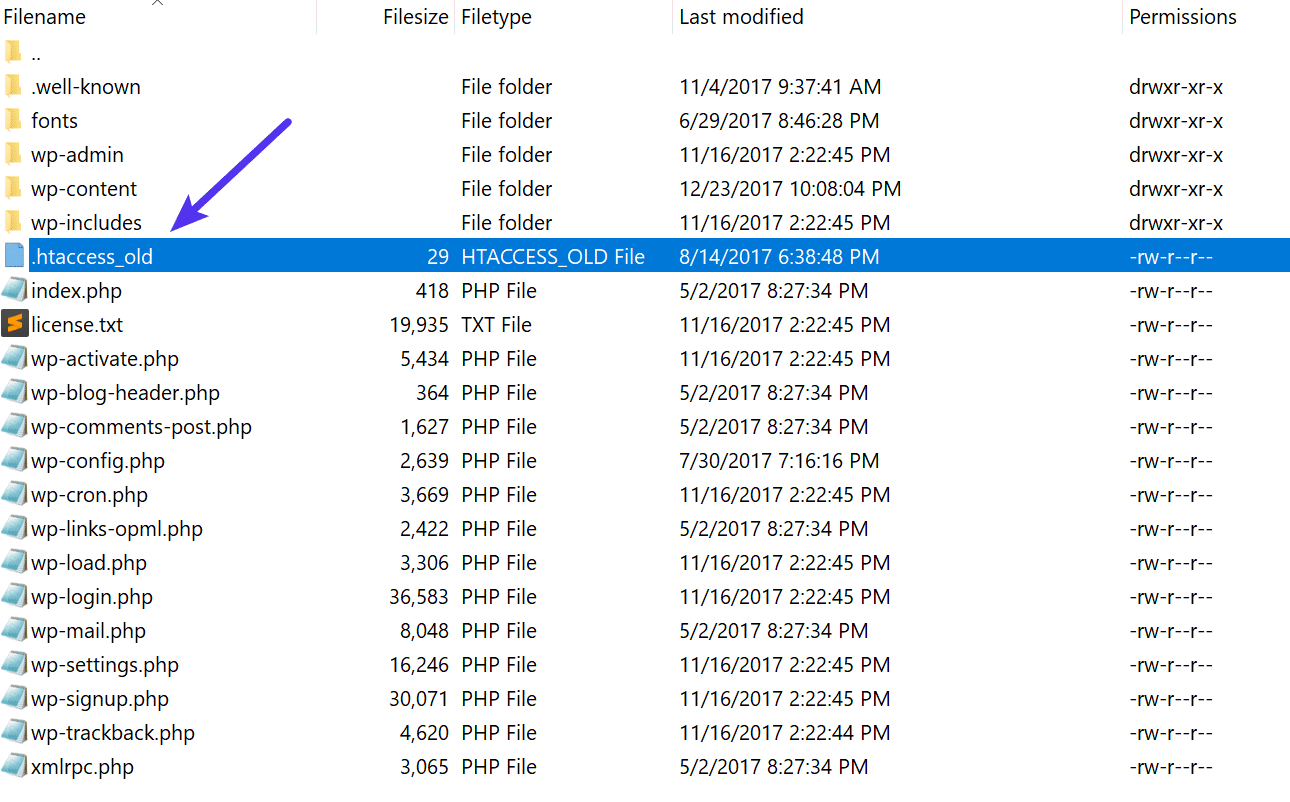
Normally, to recreate this file, you would just save the permalinks in WordPress. However, if you are getting a 500 Internal Server Error, you probably won't be able to access your WordPress admin, so this isn't a viable option. So, you can create a new.htaccess file and enter the following content. Then upload the file to your server.
# BEGIN WordPress RewriteEngine On RewriteBase / RewriteRule ^index.php$ - [L] RewriteCond %{REQUEST_FILENAME} !-f RewriteCond %{REQUEST_FILENAME} !-d RewriteRule . /index.php [L] # END WordPress10. Fix coding or syntax errors in CGI/Perl scripts
500 errors caused by problems with CGI and Perl are much less common than they used to be. However, it is still worth mentioning, especially for cPanel users, where there are still many one-click CGI scripts in use.
Here are a few tips when working with CGI scripts:
- When editing, always use a plain text editor, such as Atom, Sublime, or Notepad++. This ensures they are always in ASCII format.
- Make sure chmod 755 permissions are used correctly on CGI scripts and directories.
- Upload CGI scripts in ASCII mode (you can choose in FTP editor) to cgi-bin directory on server.
- Confirm that the Perl modules you need for your script are installed and supported.
11. Check with your hosting provider about server issues
Finally, since the 500 Internal Server Error can also be caused by a PHP error or a critical PHP error with third-party plugins, you can always check with your hosting provider. Sometimes these errors can be difficult to fix without an expert.
PHP timeouts can also occur due to a lack of PHP threads, although this usually results in a 504 error, not a 500 error. These errors determine how many concurrent requests your site can handle at a given time. Simply put, each uncached request to your site is handled by one PHP thread.
When PHP threads get busy on a website, they start to form a queue. When you reach the PHP thread limit, the queue will start pushing out older requests, which can lead to 500 errors or incomplete requests.
Good luck!
See more articles below:
- Wifi icon missing on Windows 10 Taskbar, here's how to fix it
- Fix errors on Firefox browser using Safe Mode
- Instructions to fix error 3194 when restoring or updating iPhone, iPad
FAQ
What Is 500 Internal Server Error and How to Fix It: Explained?
In practical terms, today we'll take a deeper look at the 500 Internal Server Error and show you some ways to quickly get your website back up and running.
Why does what is 500 internal server error and how to fix it matter?
The article highlights that so today we're going to take a closer look at the 500 Internal Server Error and show you some ways to get your website back up and running quickly.
What is the main takeaway?
The main takeaway is that how to fix 500 Internal Server Error Where should you start troubleshooting when you see a 500 Internal Server Error on your website.
Related Articles
 How to Fix Video Memory Management Internal Error on Windows4 minutes read
 MS SQL Server: SQL Server EXISTS: Syntax and Examples4 minutes read
 What Is Http Error 500? Features, Uses, and Key Details5 minutes read
 Instructions for Fixing Errors 'Not Recognized as an Internal or2 minutes read
 Fix the Error Error 521: Web Server Is Down4 minutes read
 What Is Cloudflare? Why Did the Cloudflare Outage Take Down Nearly Half The?6 minutes read
Reader Comments 0
Sign in with email or Google to join the discussion.