Table of Contents
AI-generated images can contain misspelled words or text that looks like the wrong font. In Canva, you can try to separate that text from the flat image, correct it, and style the new text layer. Canva’s Grab Text tool is available only on eligible plans and supported design types; it may miss or distort letters, so inspect the exported image closely.
Select the text in the image
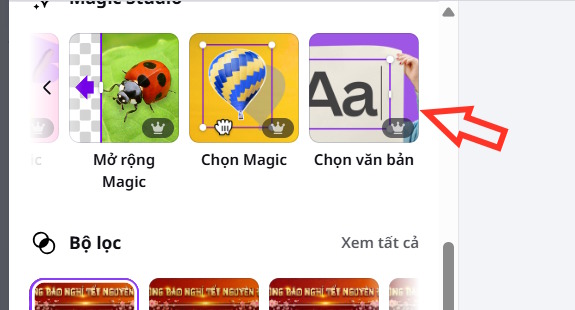
- Upload the image to Canva and open it in a supported design. If you start from a Canva AI image, use its Select text option if offered, then open the image in a design for editing. In the standard editor, select the image and look under Edit > Tools > See all > Grab Text.
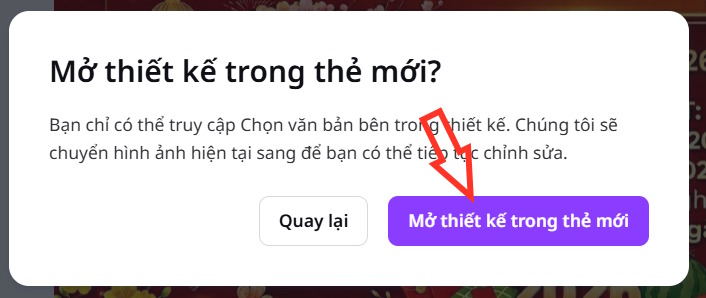
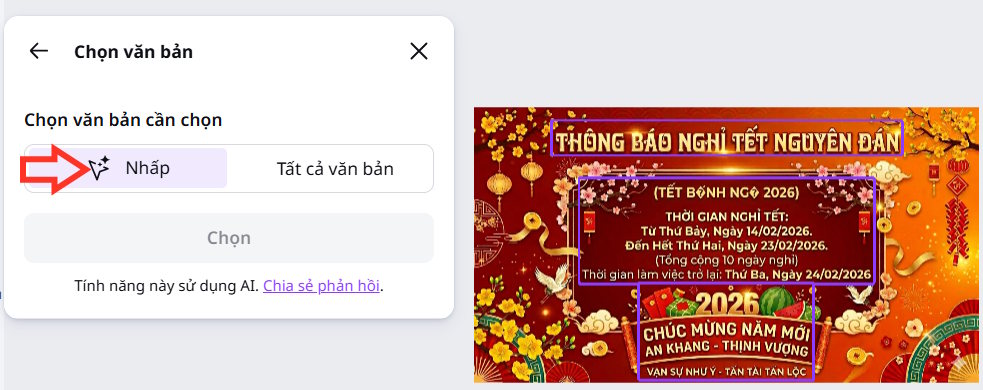
- Choose the affected words or select all the image text, then confirm with Select or Grab, depending on the interface. Choosing nearby words together may avoid awkward gaps in the original image.
Correct and format the extracted layer
Click the new text box, retype the words exactly as they should appear, and choose a font, size, color, and alignment that match the surrounding design. Move the layer if it does not sit cleanly over the old text. If the tool fails to recognize a word, you can remove the stray text from the image with an appropriate image editing tool and add a fresh Canva text box.
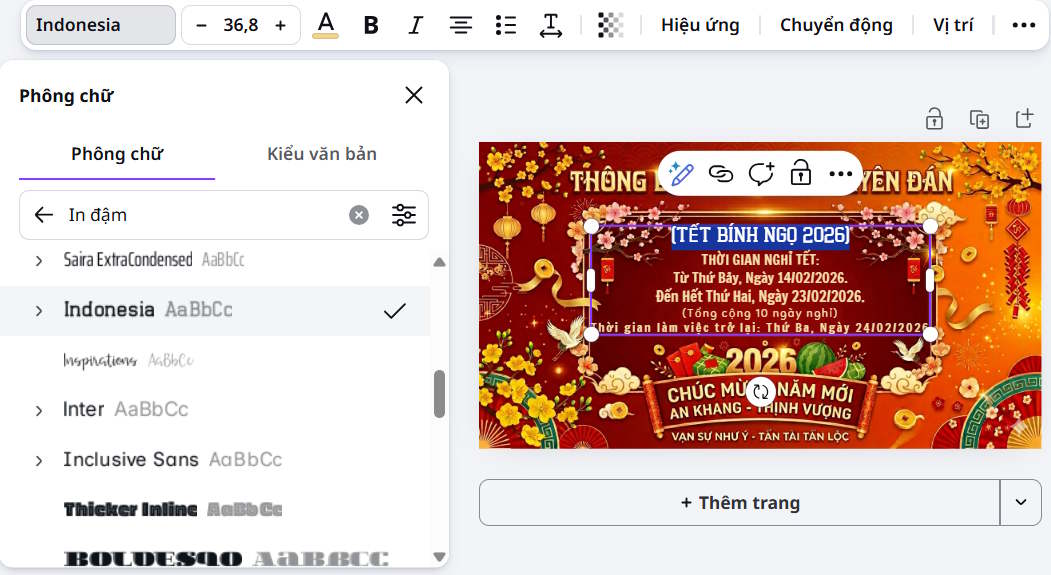
Zoom in to inspect edges where the text was lifted. Check spelling, punctuation, spacing, and whether remnants of the original letters remain. Grab Text works best on straight Latin-script text; curved text, unusual type, or a busy background can need manual repair. Download a PNG or JPG and inspect that file as well as the Canva canvas.

For a related workflow, see how to extract text from an image in Canva. If the image itself needs adjustment before editing its words, see tips for Canva’s AI image maker. Canva’s Grab Text help lists current design and plan limitations.
Related Articles
 Guide to Extracting Text from Images Using Canva AI4 minutes read
 VPN Errors: Summary of Common VPN Error Codes6 minutes read
 Enlarge Sharp Images with Magic Expand on Canva AI4 minutes read
 How to Fix Font Errors Word, Excel, Transcoding Fonts Super Fast3 minutes read
 How to Fix Font Errors on PDF Files3 minutes read
 Instructions for Creating QR Codes on Canva3 minutes read
Reader Comments 0
Sign in with email or Google to join the discussion.