Table of Contents
If Network and Sharing Center will not open, first determine whether only the old Control Panel page is affected or the network itself is failing. Windows 11 exposes most day-to-day controls in Settings > Network & internet, so an unresponsive legacy applet does not necessarily mean Wi-Fi, Ethernet or file sharing is broken.
Start with the least disruptive checks below. Do not reset the network stack, uninstall an adapter or change multiple services merely because one shortcut fails.
1. Try the supported entry points
Restart Windows once, then try each route:
- Open Settings > Network & internet for connection status and adapter settings.
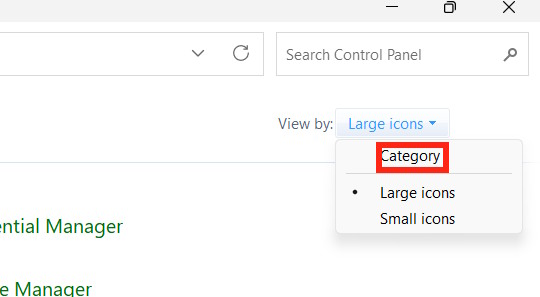
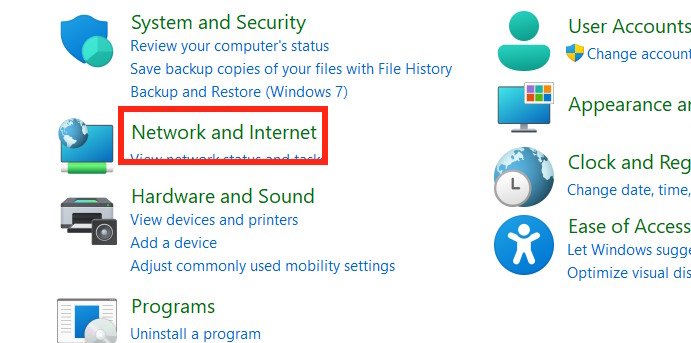
- Open Control Panel, set View by to Category, choose Network and Internet, then Network and Sharing Center.
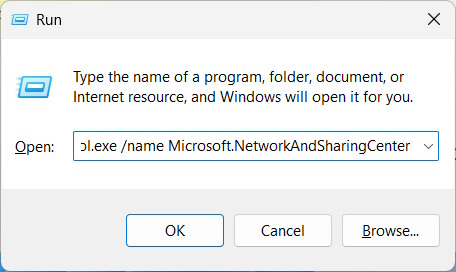
- Press Windows + R, enter
control.exe /name Microsoft.NetworkAndSharingCenter, and select OK.
If Settings opens but the Control Panel command does not, continue to the system-file repair section. If neither opens and other Settings pages also fail, the problem is broader than networking.
2. Identify the symptom before changing settings
| Symptom | Most relevant section |
|---|---|
| Internet works, but the classic page will not open | Repair Windows components and system files |
| Other computers or shared printers are missing | Check the network profile, discovery and sharing |
| Wi-Fi or Ethernet cannot reach the internet | Run connection diagnostics, then consider adapter or network reset steps |
| Only one program cannot connect | Check that program, its proxy/VPN and firewall permissions before resetting Windows networking |
3. Repair Windows components if the page itself is broken
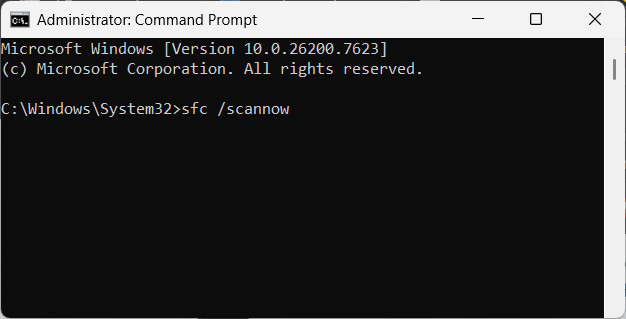
Install pending Windows updates and restart first. If the applet still fails while networking otherwise works, open Windows Terminal or Command Prompt as administrator and run these commands in order:
DISM.exe /Online /Cleanup-Image /RestoreHealth
sfc /scannow
DISM repairs the Windows component store that SFC uses as a source; SFC then verifies protected system files. Let each command finish, record its final message, and restart Windows before retesting.
TipsMake's system-file repair guide explains the supported sequence and how to interpret failures. Repeatedly running the commands without checking their results is not a diagnosis.
4. Fix device discovery only when sharing is the problem
Use these settings only on a trusted home or work network. Keep a café, airport, hotel or other untrusted connection set to Public.
- Open Settings > Network & internet, select the active connection, and confirm that its profile is Private only if you trust that network and need local sharing.
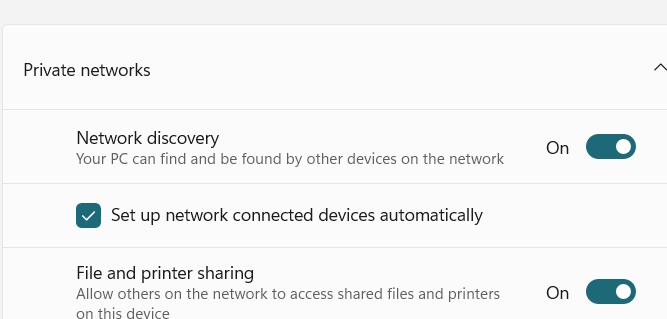
- Go to Settings > Network & internet > Advanced network settings > Advanced sharing settings.
- Under Private networks, turn on Network discovery and, if needed, File and printer sharing.
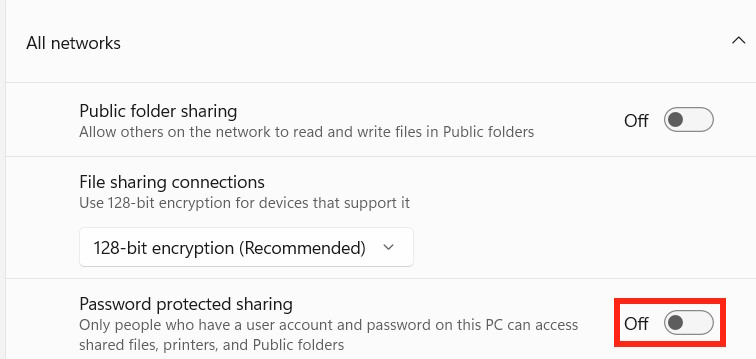
Leave Password protected sharing on unless you deliberately operate an isolated, trusted network and understand that turning it off can allow people on that network to access shared resources without a local account password.
For more detail about profiles and alternate controls, see ways to turn Network Discovery on or off.
Check discovery services only if devices remain invisible
Press Windows + R, enter services.msc, and inspect these services:
- Function Discovery Provider Host
- Function Discovery Resource Publication
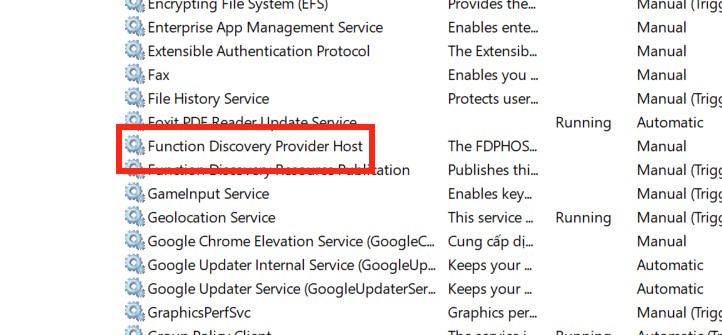
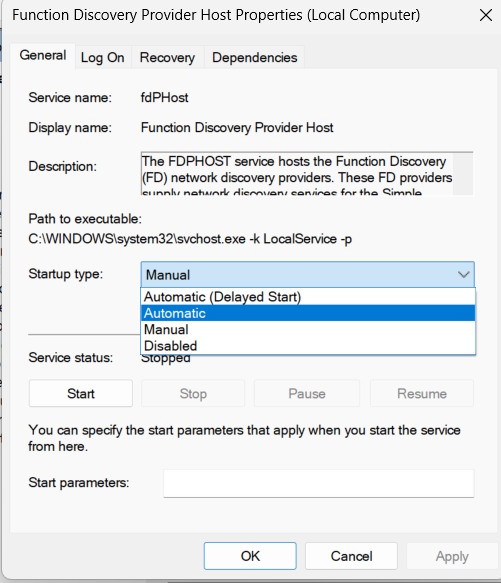
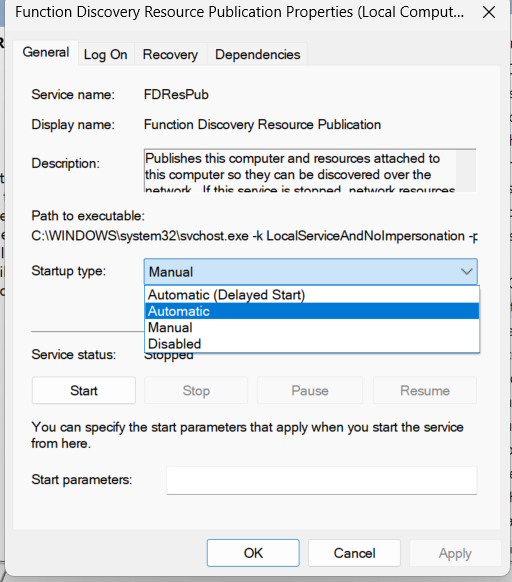
If your own changes or an optimization tool disabled them, restore the configuration required by your sharing environment and start the services. On a managed work PC, stop and contact the administrator instead; policy may intentionally control discovery. Do not bulk-enable SSDP Discovery, UPnP Device Host or unrelated services to repair a Control Panel page.
5. Diagnose an actual connection failure
When Wi-Fi or Ethernet is also broken, use the Network and Internet troubleshooter in the Windows Get Help app, then restart the router only if other devices on the same network show the same problem. Check VPN, proxy and third-party security software changes made immediately before the failure.
If every network-aware application fails and ordinary diagnostics point to a corrupted Winsock catalog, an administrator can run:
netsh winsock reset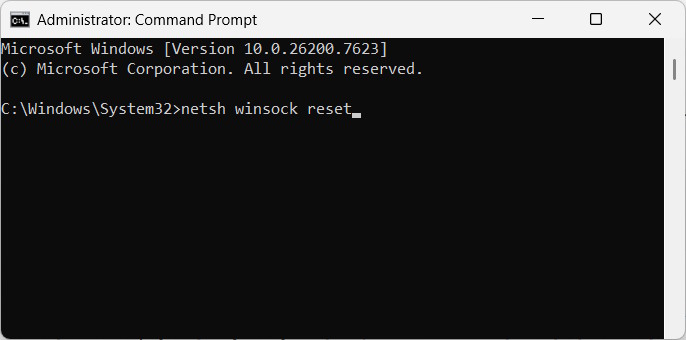
Restart after the command. A Winsock reset removes custom Layered Service Provider entries and may affect networking software. It is not a fix for a single Control Panel shortcut.
Similarly, ipconfig /flushdns only clears the DNS resolver cache; ipconfig /release and ipconfig /renew interrupt and renew a DHCP address; and netsh int ip reset resets TCP/IP configuration. Run one only when its matching symptom and diagnosis justify it.
6. Check the network adapter and driver
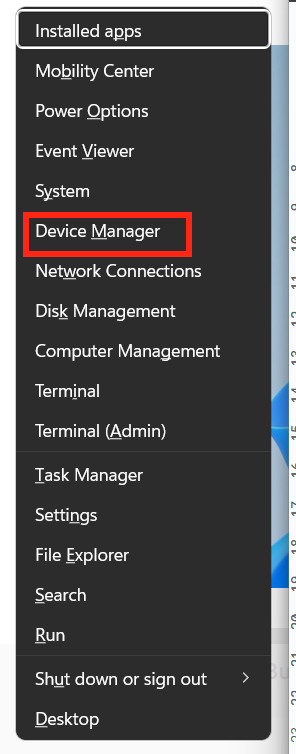
- Press Windows + X and open Device Manager.
- Expand Network adapters and inspect the Wi-Fi or Ethernet adapter for a warning symbol.
- If the problem began after a driver update, open Properties and use Roll Back Driver when available. Otherwise, check Windows Update and the PC or adapter manufacturer's support page for a driver that matches the exact model and Windows version.
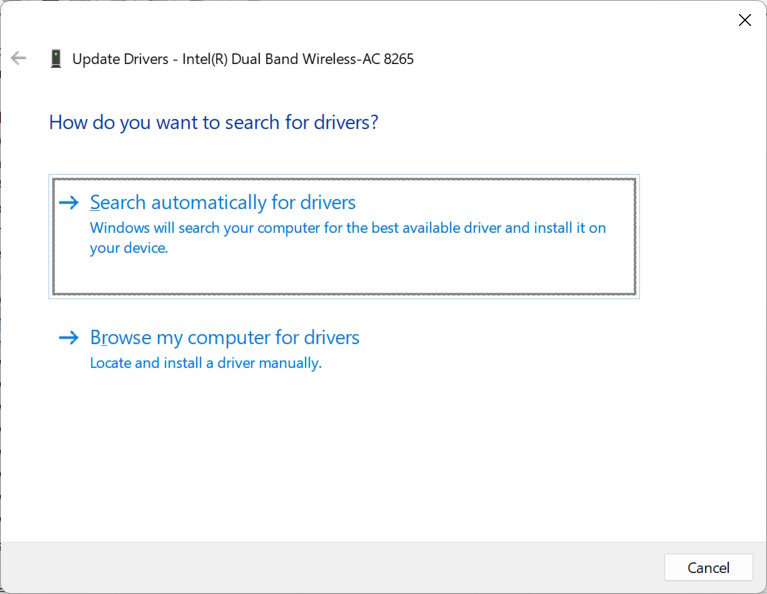
Before uninstalling a driver, download the correct replacement or confirm that Windows has an inbox driver, especially if this is the PC's only network connection. TipsMake's Windows 11 Wi-Fi troubleshooting guide covers connection-specific checks.
7. Use Network reset as a last resort
Open Settings > Network & internet > Advanced network settings > Network reset, then select Reset now. Windows removes and reinstalls network adapters and restarts the PC. You may need to recreate VPN clients, virtual switches, static IP settings or other custom networking afterward, so record those settings first.
If Network and Sharing Center still fails while Settings and connectivity work, the modern Settings pages are a valid way to manage the connection. If multiple Windows components are broken after DISM and SFC, review recent changes and consider a supported repair-install path rather than repeatedly resetting networking.
Related Articles
 How to Fix 'an Unexpected Error Occurred' Error When Opening6 minutes read
 Fix Windows Errors: Complete Guide: How to Fix the ''error Opening File8 minutes read
 Network Sharing Settings in Windows 78 minutes read
 Types of Data Center Design8 minutes read
 How to See Active Network Connections (Windows)6 minutes read
 Error Opening XML File in the Wrong Format and How to Fix the Error Effectively6 minutes read
Reader Comments 0
Sign in with email or Google to join the discussion.