Table of Contents
The autofill password mode on Edge accidentally exposes your account in public. Here is a guide to turn off autofill password on Microsoft Edge.
When you save passwords in Edge and turn on password autofill, the account login process is shortened. However, other people with access to your computer can log in to your account using the saved password with the autofill feature in Edge. Here are instructions for turning off password autofill in Microsoft Edge.
Instructions to turn off password autofill on Edge
Step 1:
Click on The 3 dots icon and select Settings In the displayed list.
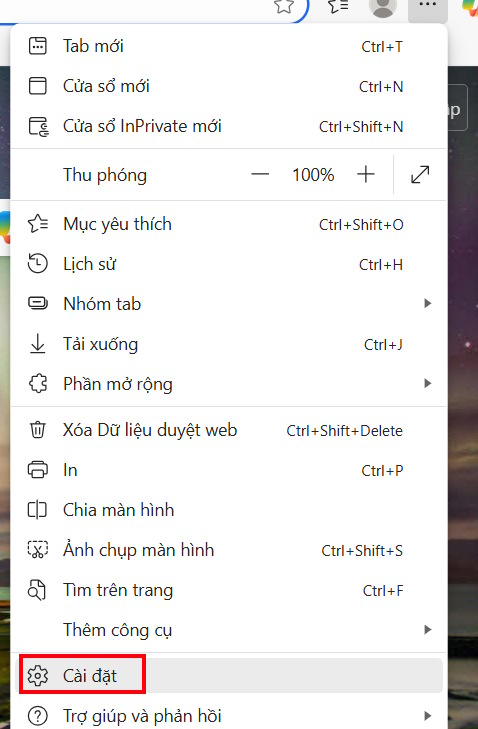
Step 2:
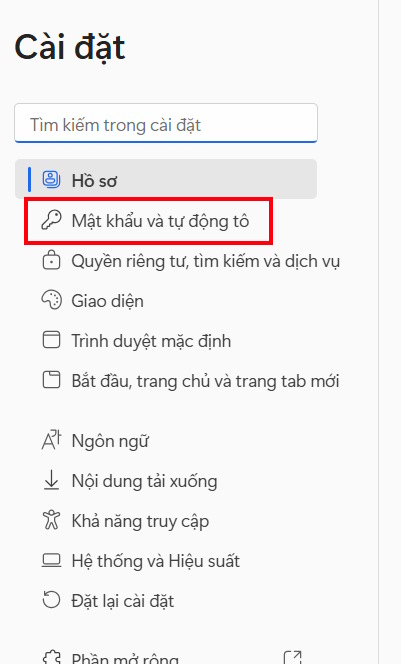
Switch to the new interface, the user clicks on the Password item and automatically fills In the left side of the interface.
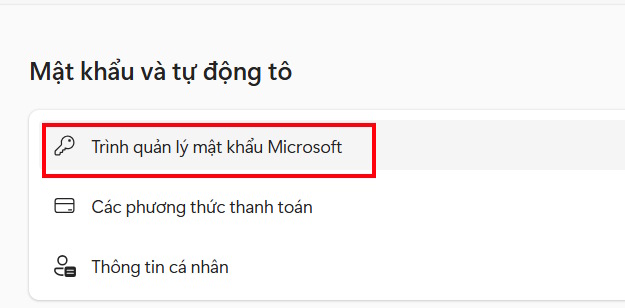
Look to the side and click on Microsoft Password Manager .
Step 3:
Tap More Settings Again to expand the settings for this mode.
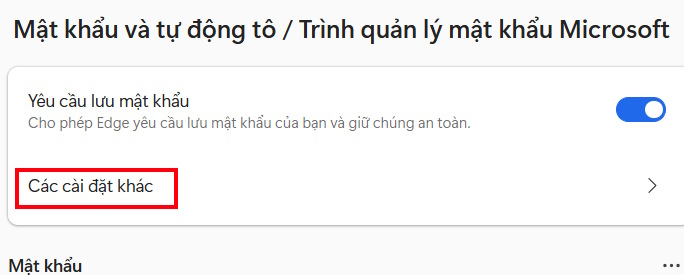
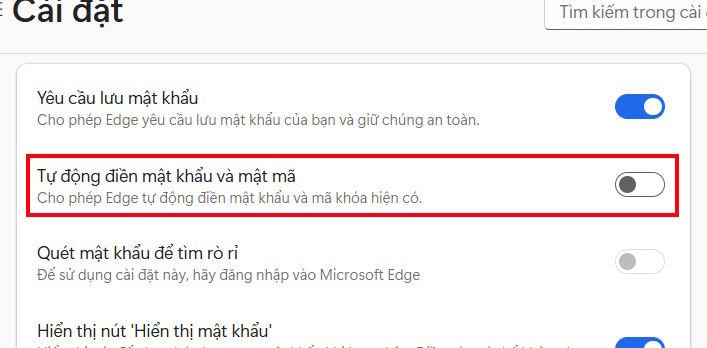
Now turn Off the Autofill passwords and passcodes setting .
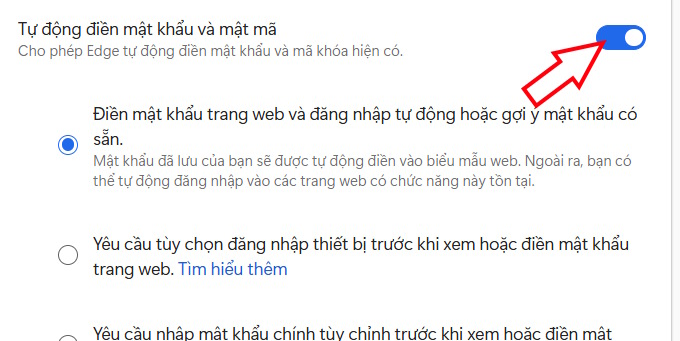
This will stop autofilling account passwords and passcodes on Edge to ensure your account information is secure. Passwords you save on Edge are still managed in a separate interface.
FAQ
How do you turn off password autofill on Microsoft Edge: step-by-step guide?
In practical terms, the autofill password mode on Edge accidentally exposes your account in public. Here is a guide to turn off autofill password on Microsoft Edge.
What should you check before getting started?
Review the requirements, compatible device or software version, and any warnings described in the guide before making changes.
What should you do if the steps do not work?
Repeat the steps in order, confirm that your app or system is up to date, and review the troubleshooting details provided above.
Related Articles
 Instructions to Enable Password Autofill on Edge: Explained4 minutes read
 How to enable or disable AI for Autofill on Microsoft Edge4 minutes read
 Why Should You Turn Off the Autofill Feature in the Password7 minutes read
 How to Turn Off Self-Running Videos on Microsoft Edge3 minutes read
 Steps to Turn Off and Block Microsoft Edge from Running in5 minutes read
 Instructions for Viewing and Managing Passwords Saved on Edge and4 minutes read
Reader Comments 0
Sign in with email or Google to join the discussion.