Table of Contents
This guide organizes the entries in "8 Microsoft Office Features That Will Help You Cut Hours of Work" and explains what each option, idea, or example offers. It also highlights practical details that matter when comparing the choices.
8. Pop Out Table (Word, Excel, PowerPoint)
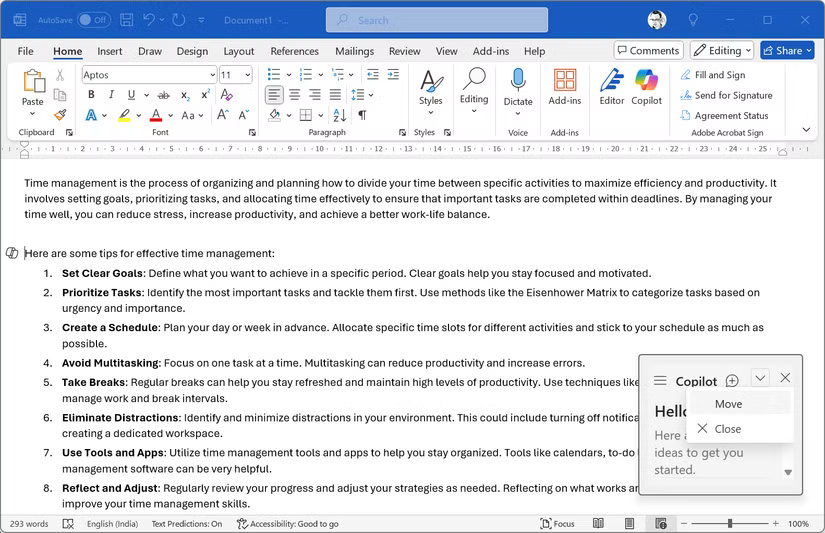
When you're working with long documents or large data sets, a clear view of your document is always helpful. Some of the tools in Microsoft Office work like Word's Editor or Clipboard panels, as they can all be moved around and positioned anywhere on the screen.
How to use the Pop-Out panel
Any menu item with a Move option can be detached and placed anywhere on the Office screen. Along with better viewing, this frees up screen space. You can also resize some tables by dragging the borders.
7. Navigate with the Alt key (Word, Excel, PowerPoint)
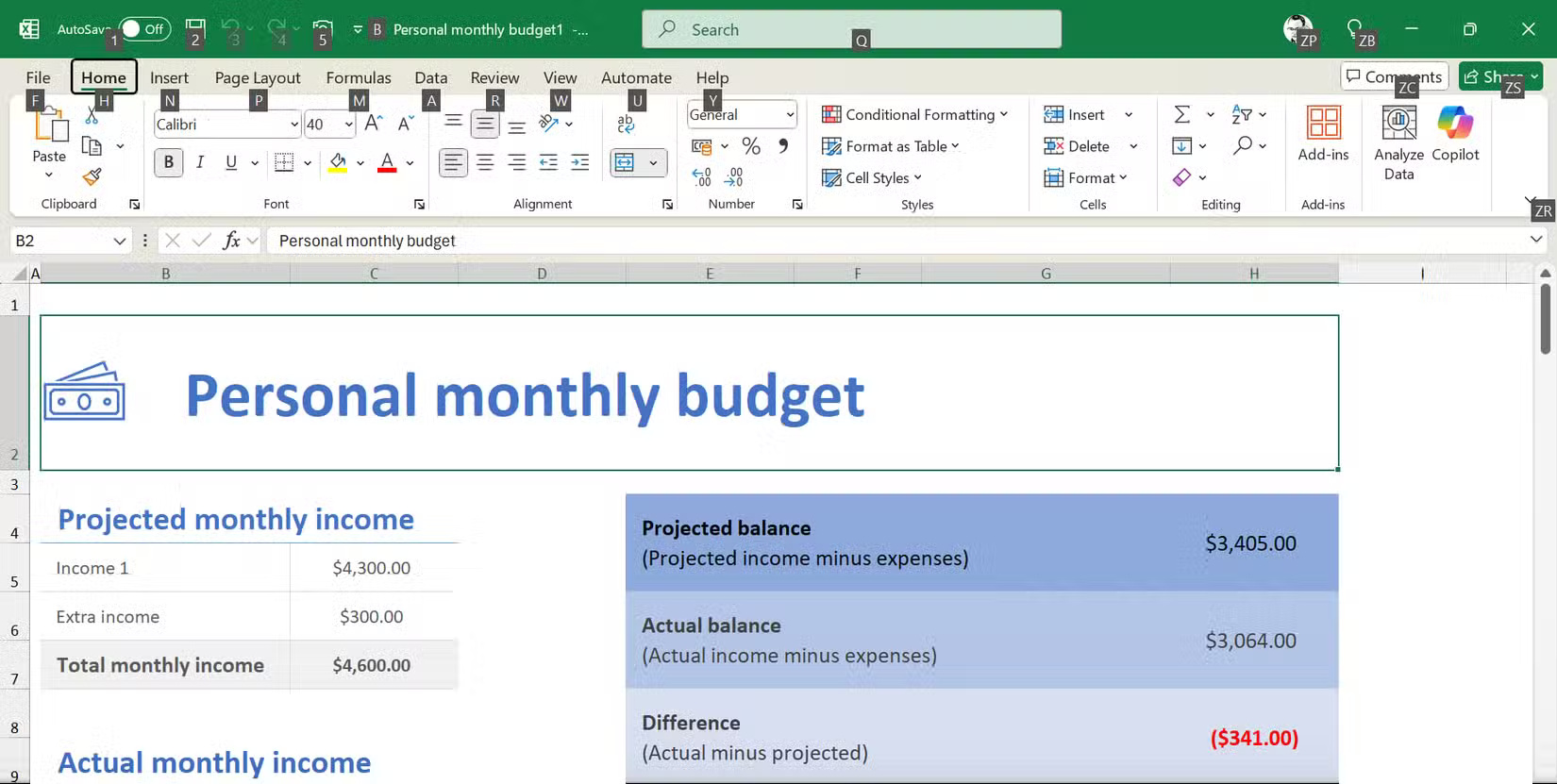
The Alt key is a secret door to using shortcuts in Office. With just a tap, you can access any ribbon command without using the mouse to navigate.
How to use the Alt key to navigate
Press Alt and letter combinations will appear on every ribbon button. This will unlock keyboard shortcuts for everything in Office.
Alt + H opens Home, Alt + N accesses Insert, and Alt + P takes you to Page Layout. Once in a tab, more letters appear for specific functions. You'll complete tasks in seconds instead of having to hunt through menus with your mouse.
Continue entering the display sequence for your target command. To exit, press Esc .
6. Paste Special > Transpose (Excel, Word)
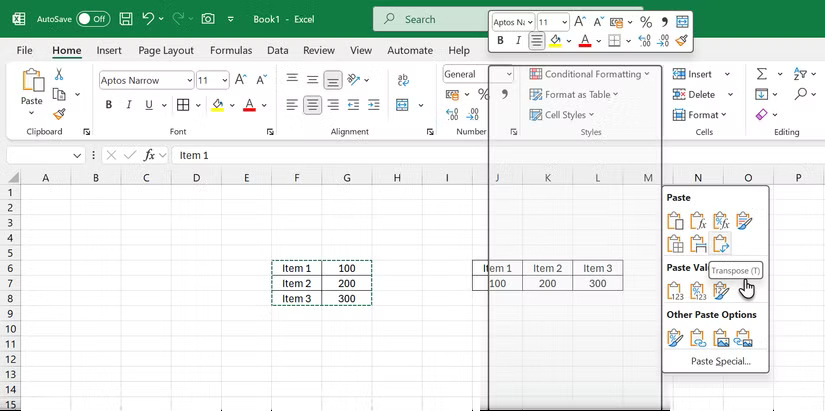
If you ever need to turn rows into columns or vice versa, Transpose is the option you should choose. In Excel, this will instantly reverse the direction of your data.
How to use Paste Special (>)Transpose in Excel
Select and copy the range you want to flip. Right-click where you want to paste it. Choose Paste Special > Transpose (or from the Home tab's Paste drop-down list, find the Transpose icon). Finally, click OK .
5. Format Painter (Word, Excel, PowerPoint)
You don't have to repeat the same formatting steps over and over again. Format Painter copies all styles from one place and applies them elsewhere with a simple swipe. It can copy font styles, sizes, colors, bold and italic styles, text highlights, paragraph formatting, and even cell borders in Excel.
How to use Format Painter
Select the text or object with the formatting you want. Click Format Painter (the paintbrush icon) on the Home tab. Your cursor will turn into a paintbrush.
Highlight or click the item you want to format. For multiple targets, double-click Format Painter, then paint wherever you like. Press Esc to stop.
4. Thesaurus and Synonyms (Word, Excel, PowerPoint)
Ever since Microsoft discontinued the handy Smart Lookup feature, Office users have been looking for an alternative.
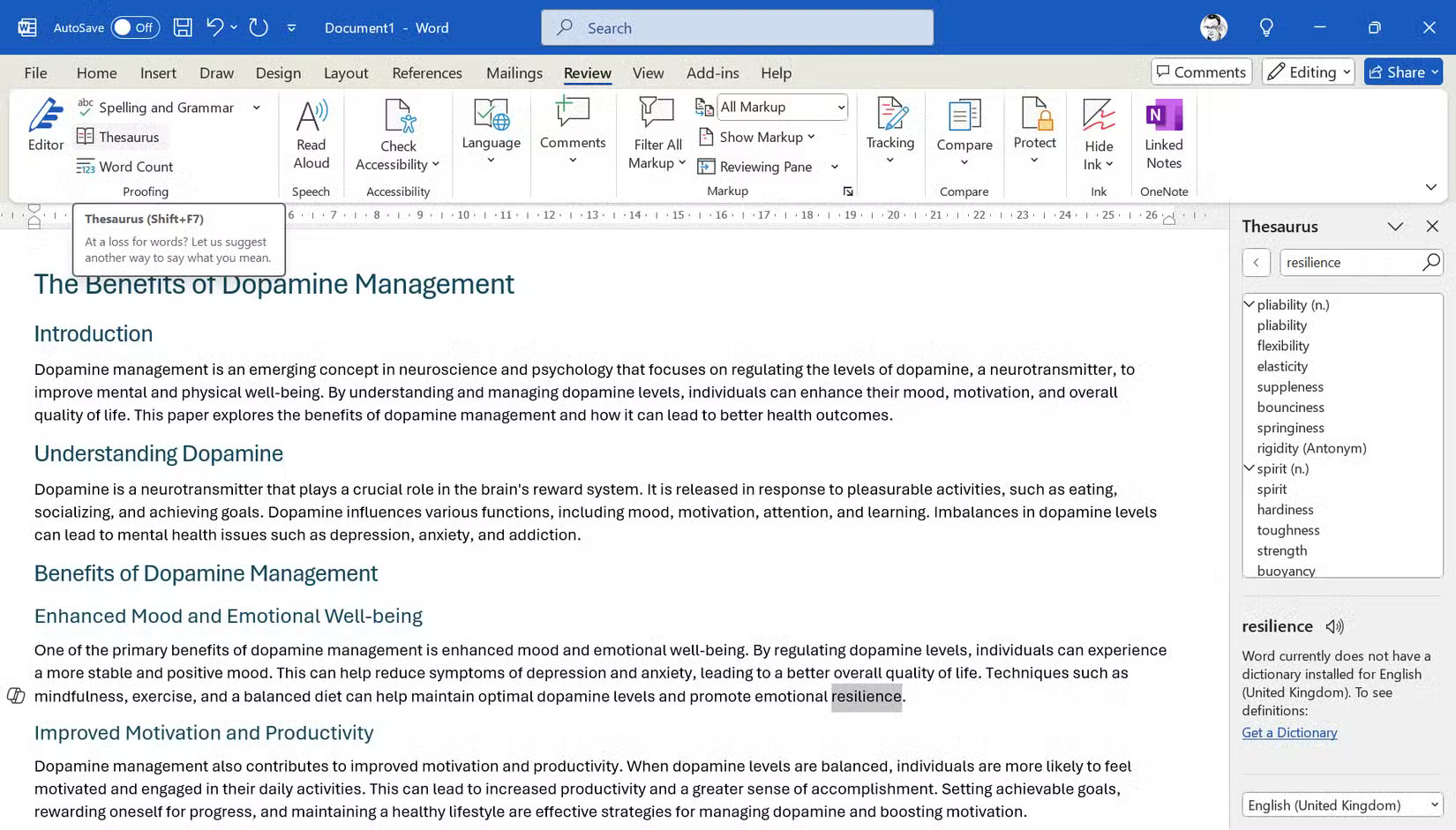
You can access synonyms in two ways: Select a word or phrase, right-click, and select Synonyms . Alternatively, go to the Review tab and click Thesaurus . A pane opens on the right side of your document with related words that you can insert directly into your document.
3. Convert text to columns (Excel, Word)
Text to Columns converts messy, concatenated data into separate, organized columns. This feature is essential when working with imported data that resides in a single column but needs to be split based on delimiters such as commas, spaces, or tabs.
How to Use Text to Columns in Word & Excel
In Excel, select your column of data and go to Data > Text to Columns . Choose whether your data is delimited (separated by specific characters) or fixed-width, then follow the wizard to specify how you want to split the data.

Word offers a similar feature for tables. Select your text, go to Insert > Table > Convert Text to Table , and specify your delimiters. This feature will instantly convert lists or comma-separated values into properly formatted tables.
2. Enter data in multiple cells (Excel, Word)
Want to enter the same value in multiple places at once? Excel has a handy trick that can save you a lot of time during data entry tasks.
How to use multiple cell entries in Excel
To fill multiple cells with the same data in Excel, start by selecting the cells you want (you can hold Ctrl and click to select non-adjacent cells). Next, enter your data into the active cell (the last cell with the double border) and press Ctrl + Enter . This will fill all selected cells with that data.
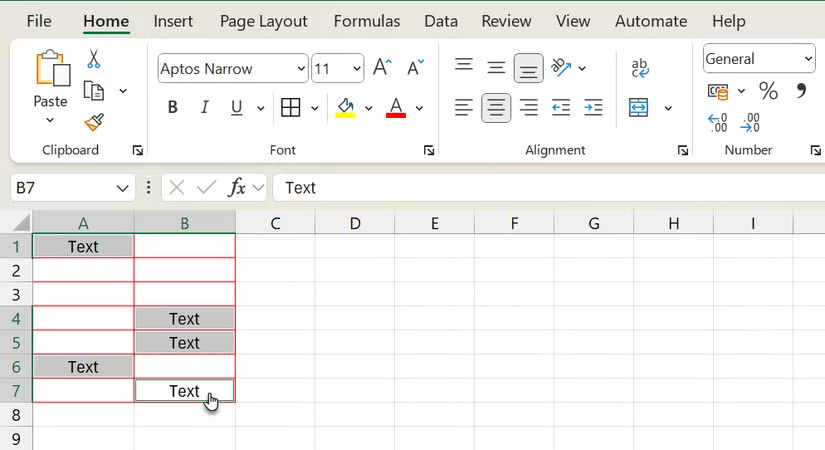
Tip : To fill data into your spreadsheet faster, you can use Flash Fill and Auto Fill .
1. Dictation (Word, Outlook, PowerPoint)
Dictation is especially useful when composing emails in Outlook, creating presentations in PowerPoint, or writing long documents in Word when typing becomes tedious. And it can also protect you from repetitive stress injuries.
How to use Dictation
Click the Microphone icon in the Home tab or press Windows + H to start dictation. Speak naturally and Office will transcribe your voice into text in real time. You can also use voice commands for punctuation and formatting, such as saying 'period,' 'comma,' or 'new line.' The voice commands in Microsoft Office's Dictation tool are easy to remember.
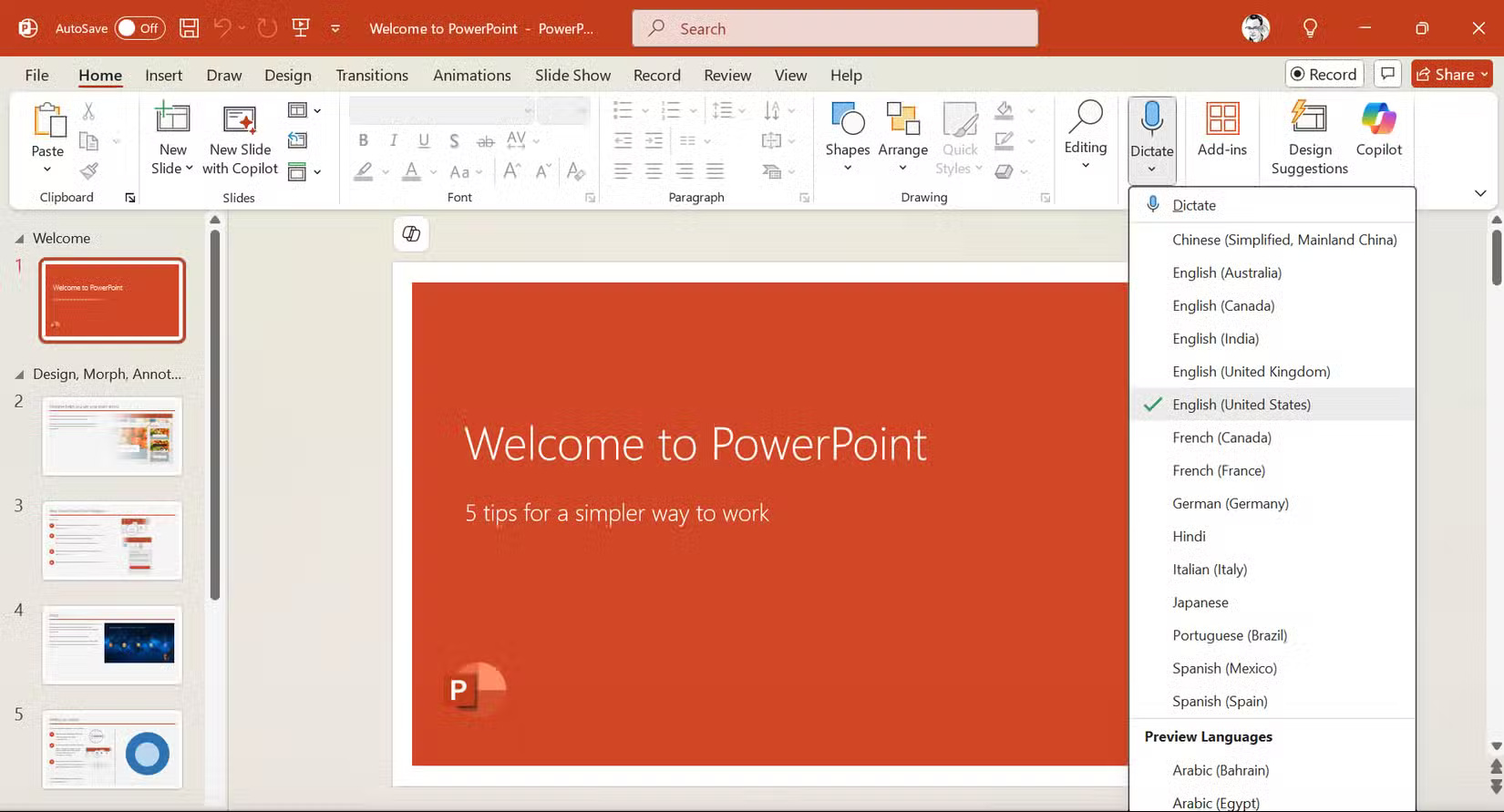
Dictation gets better with each version of Microsoft Office. It works across multiple Office apps, and supports multiple languages and accents. Use dictation when you want to quickly capture your ideas, especially for long emails or first drafts.
FAQ
What should you know about 8. Pop Out Table (Word, Excel, PowerPoint)?
When you're working with long documents or large data sets, a clear view of your document is always helpful. Some of the tools in Microsoft Office work like Word's Editor or Clipboard panels, as they can all be moved around and positioned anywhere on the screen.
How to use the Pop-Out panel?
Any menu item with a Move option can be detached and placed anywhere on the Office screen. Along with better viewing, this frees up screen space. You can also resize some tables by dragging the borders.
What should you know about 7. Navigate with the Alt key (Word, Excel, PowerPoint)?
The Alt key is a secret door to using shortcuts in Office. With just a tap, you can access any ribbon command without using the mouse to navigate.
How to use the Alt key to navigate?
Press Alt and letter combinations will appear on every ribbon button. This will unlock keyboard shortcuts for everything in Office.
Related Articles
 Link Download Microsoft Office 20195 minutes read
 Microsoft Office for iPad Has Additional Printing Features3 minutes read
 6 False Beliefs Still Exist at Work: Work Environment7 minutes read
 Instructions for Installing Microsoft Office 2007 in Ubuntu 9.044 minutes read
 Microsoft Has Just Freeed All Features on Onenote4 minutes read
 Latest Features of Microsoft Office 201925 minutes read
Reader Comments 0
Sign in with email or Google to join the discussion.