Table of Contents
7 Windows 11 Features That Should Be Enabled by Default brings together practical options worth considering. Below, you'll find clear explanations, useful context, and tips for deciding which choices best match your needs.
Key Takeaways
- Review system protection.
- Explore sudo command.
- Understand end task option.
System Protection
On Windows 11, System Protection is a recovery feature designed to help protect your computer's system files, apps, Registry, and system settings. It works by creating and managing restore points, which are essentially snapshots of your current settings at a specific point in time.
Microsoft decided to turn this feature off by default. This helps you reduce the setup footprint. However, you often won't remember to turn it on until it's too late, and for this reason, Microsoft will make the feature enabled by default on all installations.
Sudo Command
Sudo (superuser do) is a tool that allows you to run commands with elevated privileges without having to run the command line console as admin.
It's because it works similarly to the sudo command found in Unix-based operating systems like Linux and macOS if this sounds familiar. Microsoft should enable sudo on every install to make it easier to run commands without having to run the console with admin rights while Windows 11 allows you to manage this feature from the Settings app.
End Task Option
On Windows 11, when you're done using an app, you usually click the "Close" button, but when the app is unresponsive, clicking the "X" button may not work.
You'd normally open Task Manager, select the app, and force-quit it if an app freezes. However, the operating system includes an "End Task" option to quickly terminate an unresponsive app without having to open Task Manager, but this option is disabled by default because Microsoft thinks it's a developer tool.
Automatic Registry Backup
In previous versions of the operating system, the system automatically created a backup of the Registry every time the computer started properly in the "REgBack" folder. However, in Windows 10 (version 1803), Microsoft removed this feature to reduce the footprint of the setup.
Although not many users know about this behavior, it is a great feature to restore the system after a faulty update or making system changes that cause the operating system to not boot properly.
It's important to note that you can still enable this feature, but it requires modifying the Registry and creating a custom task using Task Scheduler.
File Explorer Has File Extensions
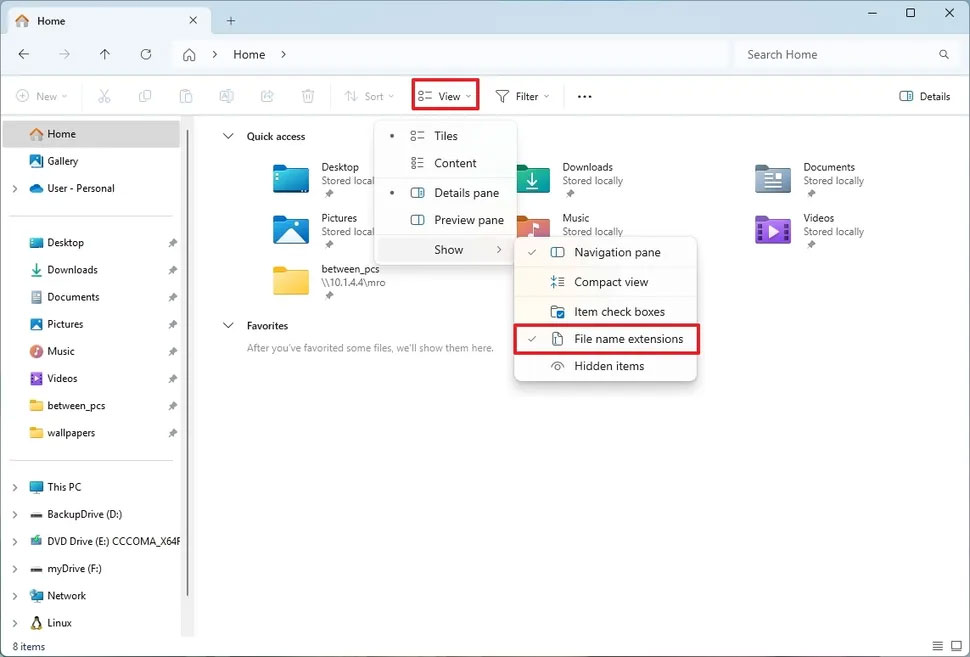
By default, File Explorer will list files in folders and subfolders without extensions (such as ".txt", ".docx", etc.), but the default configuration on all installations should be set to show extensions.
While hiding extensions for known file types can make the experience cleaner and help reduce the chance of accidentally changing the extension, you may also find some benefits to showing extensions by default.
For instance, always showing extensions for known files can help identify files quickly, make renaming files easier, and change extensions more easily, such as changing a file from ".txt" to ".bat" or ".ps1" for scripting.
Hibernate Option in Power Menu
On Windows 11, Hibernate is a feature that saves the contents of the current session loaded in memory to the main drive. This feature allows you to shut down your computer and resume that session the next time you turn on your device.
This feature is often useful for saving power on a desktop or laptop. Additionally, if your laptop is running low on battery, you can use the Hibernate option to shut down the device while keeping the current session alive until you find a power outlet to charge it.
Regardless of the reason, the system should be able to detect and enable the feature, automatically displaying the option in the power menu on supported hardware.
Taskbar Left Aligned
Starting with Windows 11, Microsoft introduced an updated version of the desktop experience that included a new design for the Taskbar and Start menu, but now, by default, the Taskbar and Start menu icons are centered.
The OS should keep left alignment with the option to change to center, since most people are used to the old alignment while you still have the option to change left alignment.
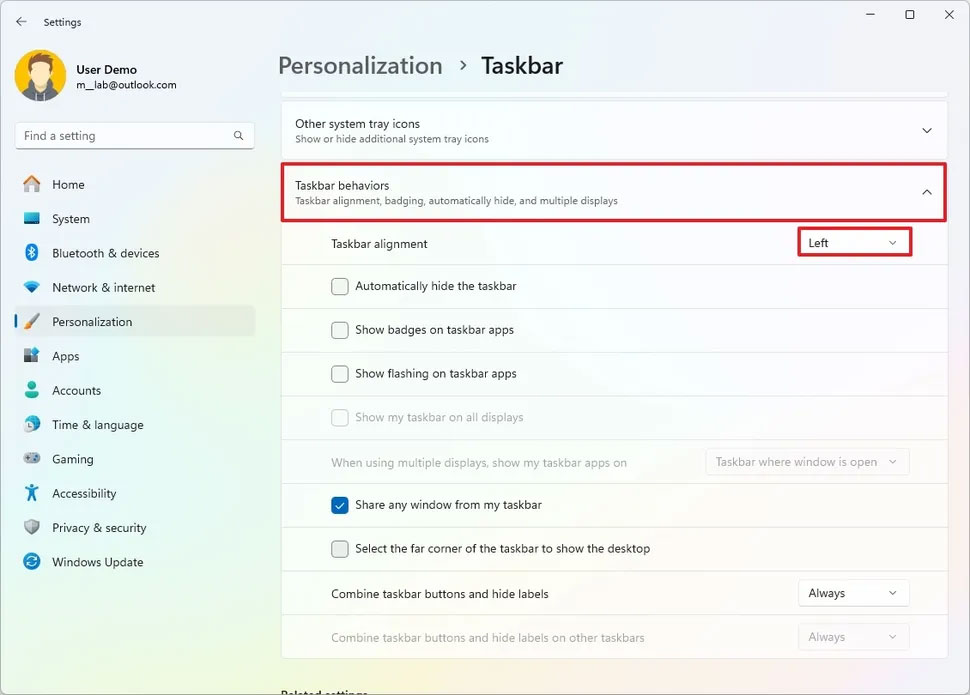
You can use the instructions: How to change Taskbar position on Windows 11 to change the Taskbar alignment on your computer if you are still new to Windows 11.
Final Thoughts
The most reliable way to handle Windows 11 features that should be enabled by default is to follow the process in order, verify each important setting, and test the result before moving on. Use the guidance above as a practical reference, then adjust the details for your device, software version, or specific goal.
FAQ
What should I know first about Windows 11 Features That Should Be Enabled by Default?
Your system will be preconfigured with a set of default settings that Microsoft believes are suitable for most users when you install a new version of Windows 11.
How do I get the best results with Windows 11 Features That Should Be Enabled by Default?
Use current software or equipment, follow the steps in order, review the recommended settings, and test one change at a time so you can identify what improves the result.
What should I do if Windows 11 Features That Should Be Enabled by Default doesn't work as expected?
Check compatibility, permissions, connectivity, and version-specific settings. Restart the relevant device or app, then repeat the process carefully before trying a more advanced fix.
Related Articles
 9 Windows Features You Should Turn on by Default7 minutes read
 How to Enable or Disable Windows Features on Windows 105 minutes read
 How to Check If Your Computer Has Windows Recall Enabled: Step-by-Step Guide5 minutes read
 To Enable Trim, Use the Trim Command on Windows3 minutes read
 How to Activate Calendar and Clock Hidden on Windows 10 Build3 minutes read
 8 PowerToys Features Microsoft Should Include by Default in Windows 117 minutes read
Reader Comments 0
Sign in with email or Google to join the discussion.