Table of Contents
Explore 3 default settings that make 4k tv screens look blurry.
Modern Smart TVs are packed with more picture settings than you might explore. Unfortunately, not all of them are designed to deliver the best possible picture. Some are configured to make the TV look appealing in the store, while others aim to reduce energy consumption. All of these affect picture quality in various ways, but the good news is that fixing them only takes a few minutes.
Turn off motion smoothing
It does more harm than good
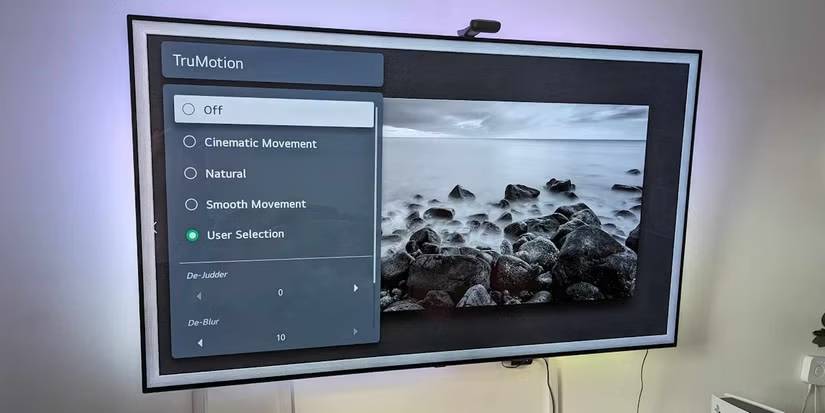
If there's one default setting that ruins the movie-watching experience more than anything else, it's motion smoothing. It goes by different names depending on the TV brand, such as Motion Plus, TruMotion, MotionFlow, or Auto Motion.
Whatever you call it, this feature is usually enabled by default on TVs. The reason is simple. Most movies you see in theaters are filmed at 24 frames per second. Meanwhile, modern TVs have higher refresh rates, up to 60 or even 120 frames per second.
Motion smoothing creates sub-frames and inserts them between actual frames to make the motion appear smoother. Ideally, this would make movies look better, but often it doesn't. That's because the TV has to guess how objects will move from one frame to the next, and it can't do this with 100% accuracy.
Those small mistakes accumulate and eventually cause the famous "long-running drama" effect. It's one of those things you either notice immediately or not notice at all. But once you realize it's there, you can't ignore it.
As you might guess, the fix is simple. Go to your TV's picture settings and completely turn off motion smoothing. Look for the Motion or Motion Clarity option on TCL TVs, TruMotion on LG models, Auto Motion Plus on Samsung models, and Action Smoothing on Roku models.
Adjust sharpness
It doesn't work the way you think
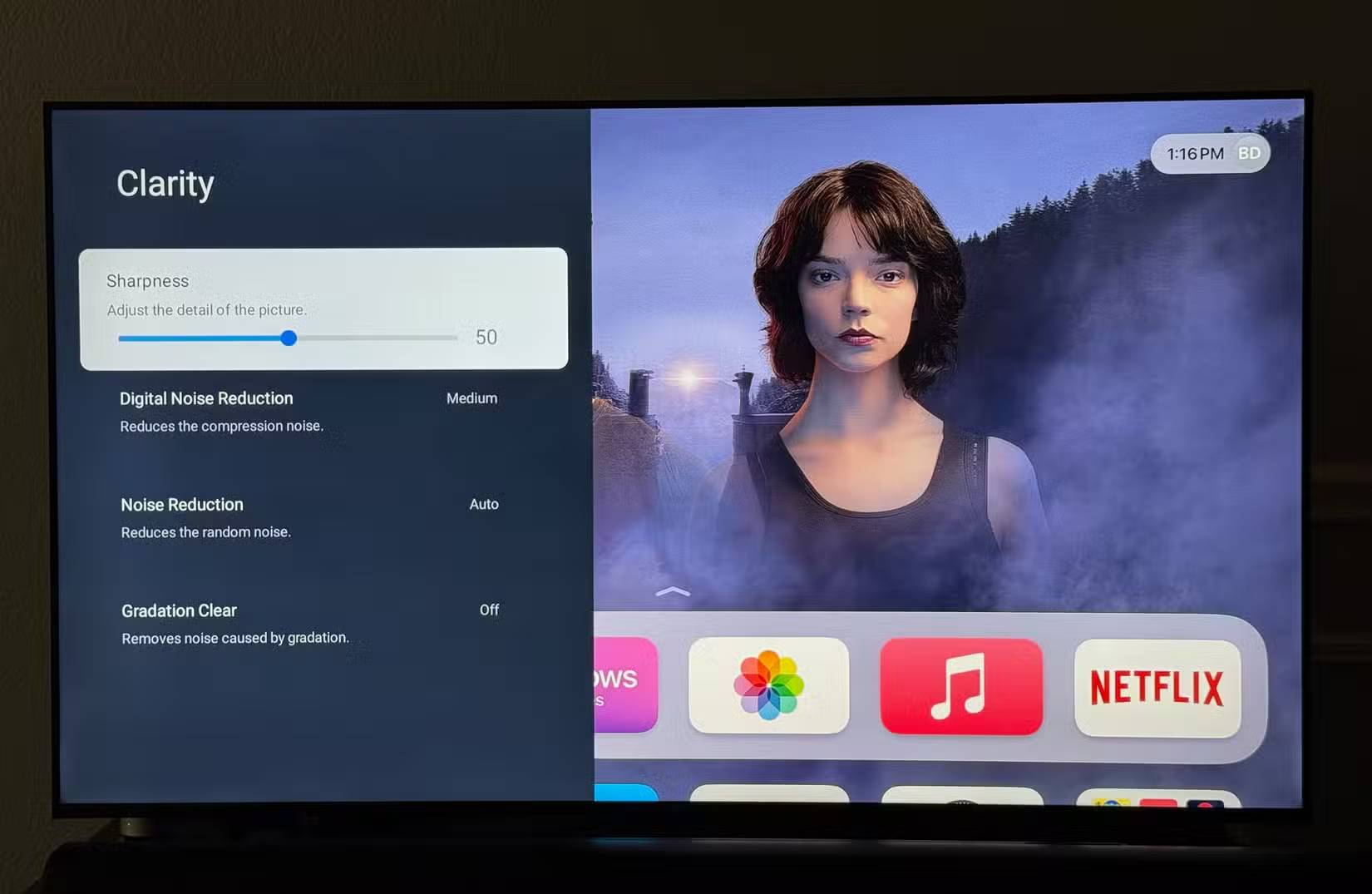
This might sound strange, but let the article explain. If faces on a 4K TV look blurry and you notice strange halos around the edges of objects, it's almost certainly due to the default sharpness setting being too high.
For TVs, higher sharpness doesn't necessarily mean more detail. Instead, increased sharpness often adds to the artificial enhancement of edges. In other words, TVs create false edges that replace parts of the original image.
Furthermore, modern 4K content already has more detail than your eyes can comfortably handle from a distance. When the sharpness is set too high, your TV simply starts adding halos around the edges and exaggerating noise. This ultimately makes the movie grainy and, ironically, slightly blurry.
However, the catch is that there isn't a single sharpness setting that works for every TV. Because each model processes images differently, you'll need to experiment a bit. On some TVs, the correct sharpness level might be around 10, while on others it might be 0.
A quick way to find the correct sharpness level is to simply switch between different picture settings such as Movie, Sports, Cinema, etc. Check which setting looks sharpest and adjust from there.
Turn off power saving mode
Why does it make your TV look dull?
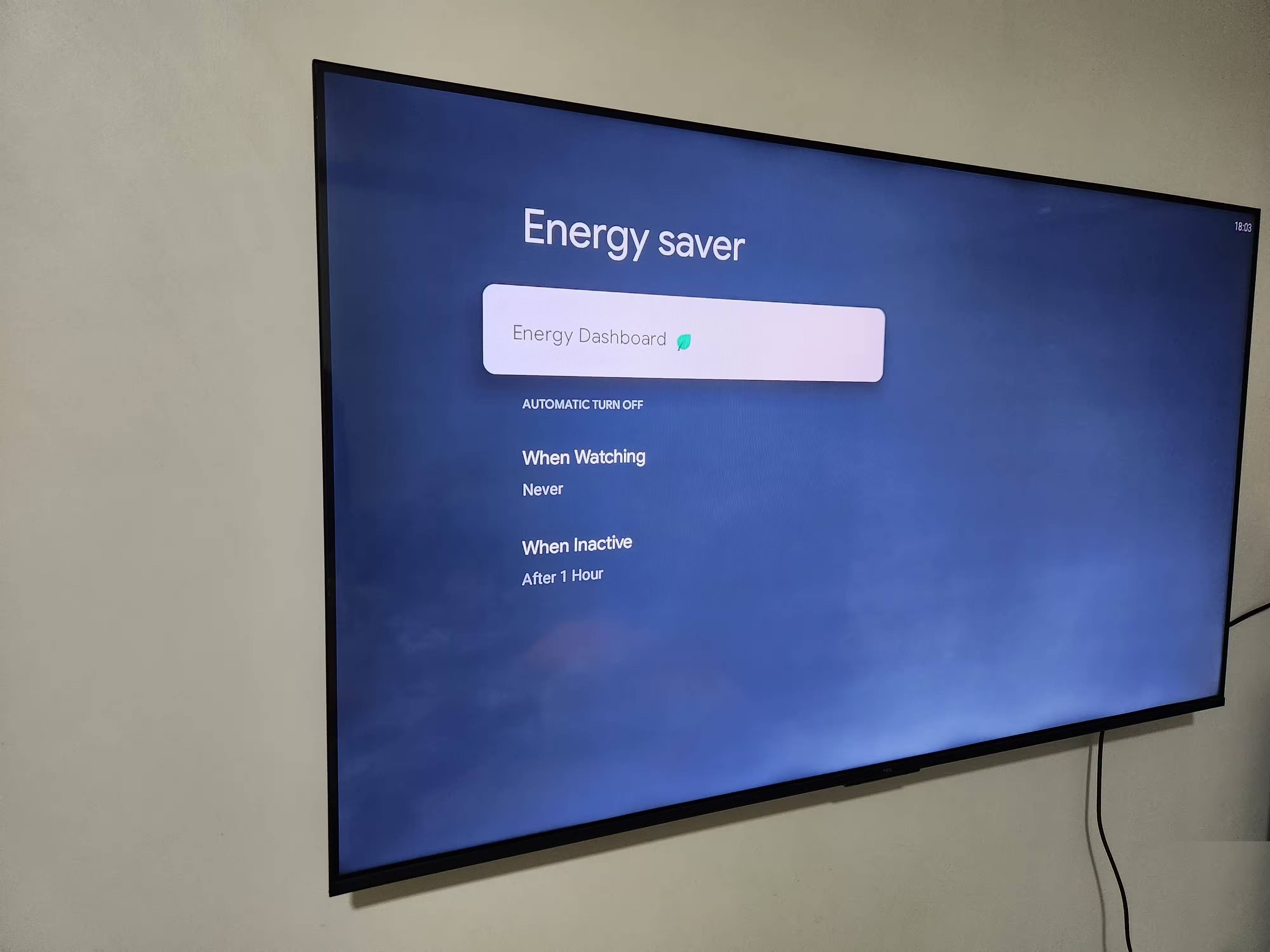
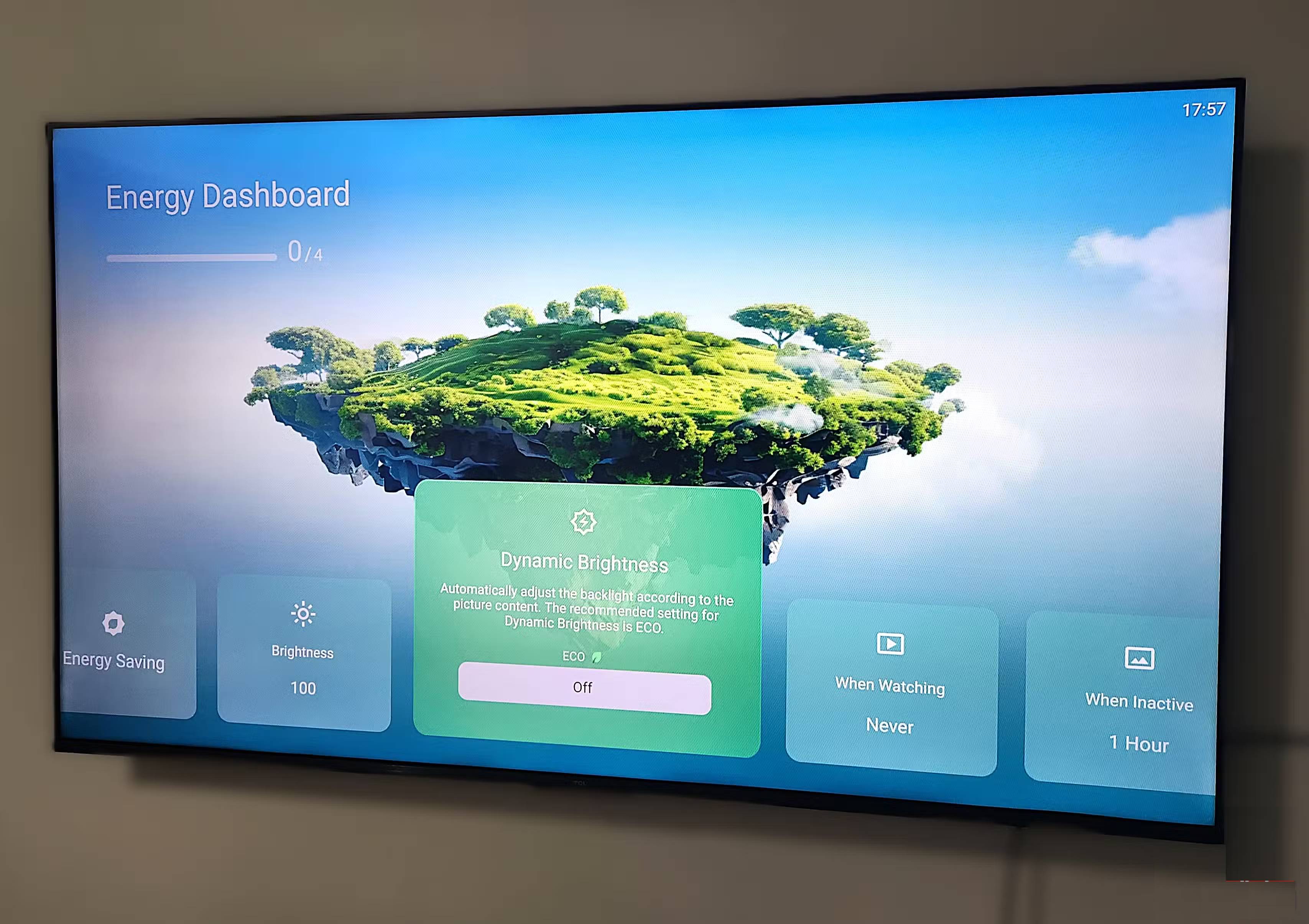
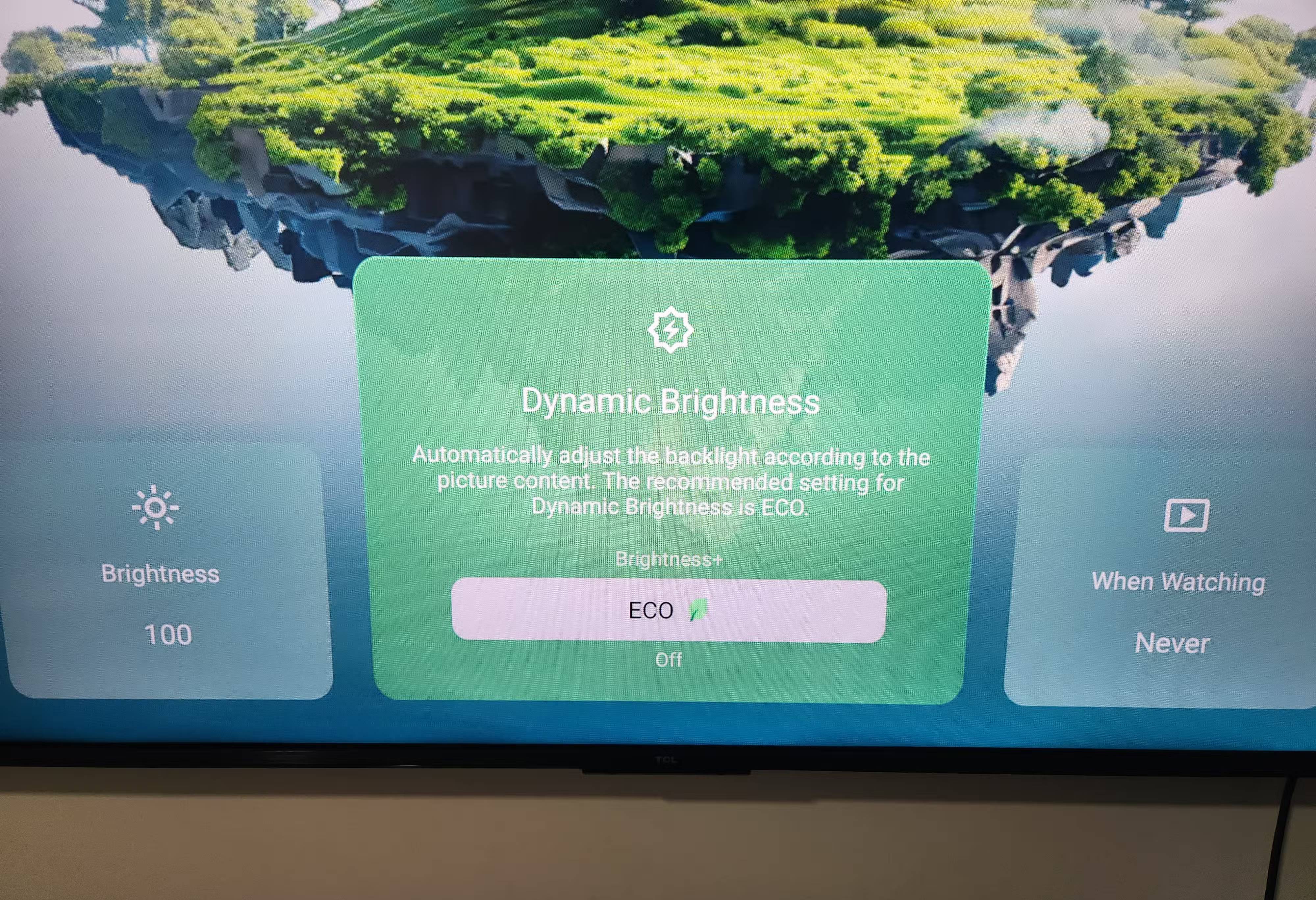
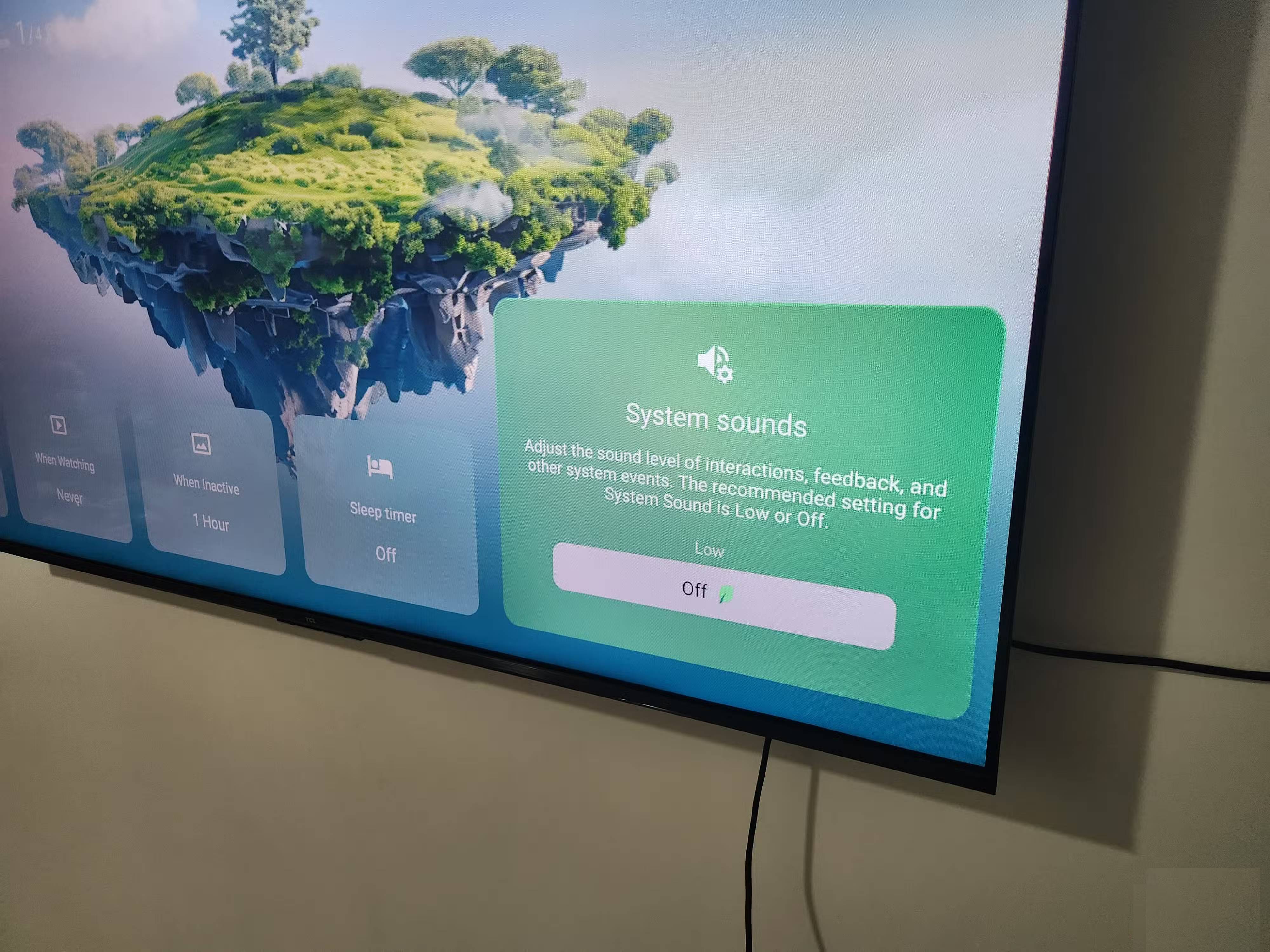
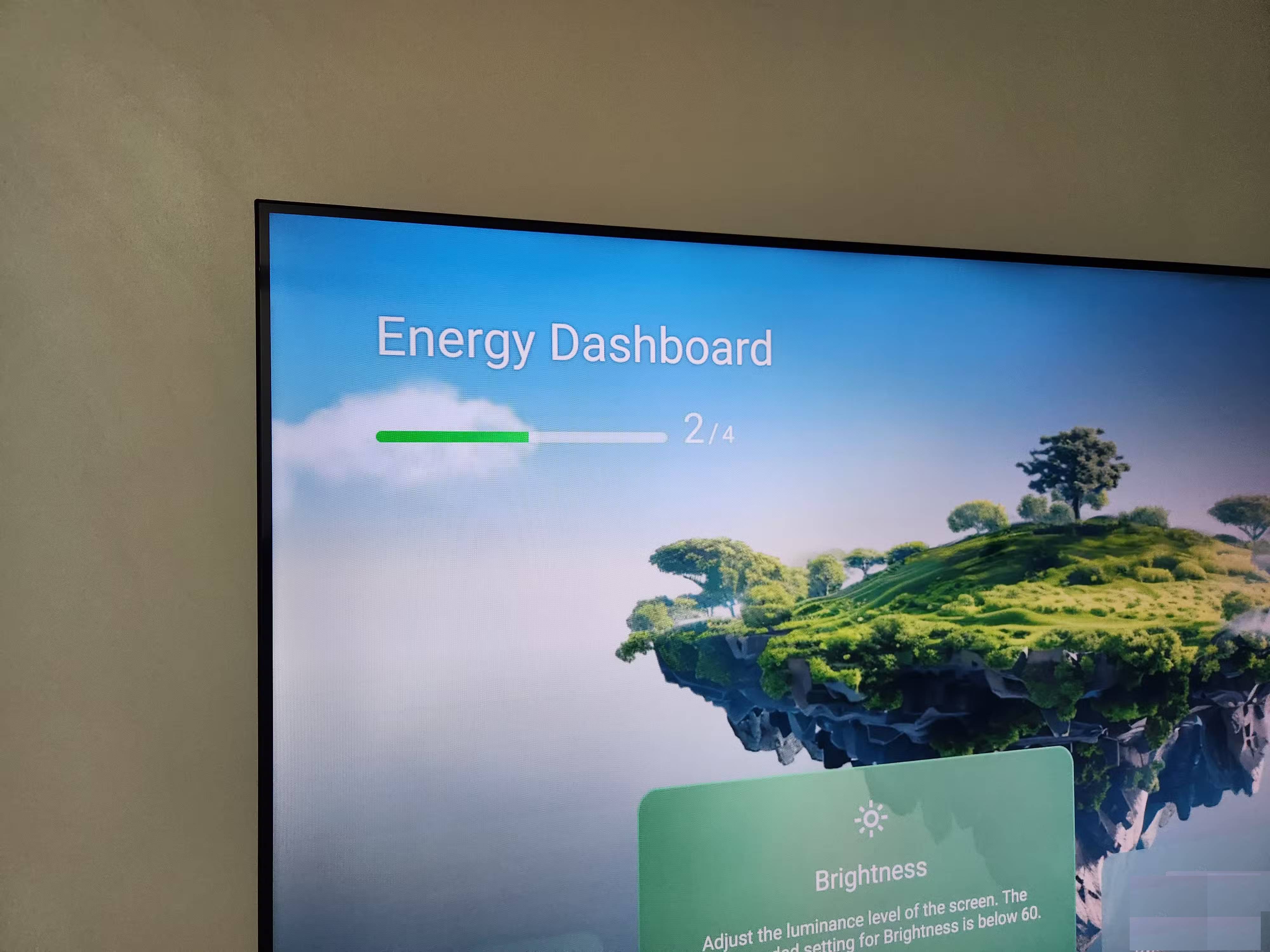
The biggest power consumer of a TV, of course, is the screen. Therefore, if you want to enjoy TV without exceeding a certain power consumption limit, you need Eco Mode. This mode is enabled by default because lower power consumption is better for the environment.
The problem lies in how Energy Saving Mode works. It constantly adjusts the TV's brightness and contrast based on the image content and sometimes even the room lighting. And that's not ideal if you're aiming for the best picture quality. The impact of Energy Saving Mode is especially noticeable with HDR content. Energy Saving Mode constantly reduces brightness, and those highlights never really stand out.
For this reason, Power Saving Mode is pointless when you've already spent a significant amount of money on that 4K TV. Furthermore, the difference in power savings is usually negligible if you only use the TV for 1 or 2 hours a day.
You won't find the Energy Saving Mode option in your TV's picture settings menu. Instead, go to the General menu, select Advanced or System , and look for the option labeled Eco Mode or Energy Dashboard .
Adjusting these three simple settings will make a big difference in your TV's picture quality. Of course, that's not all. To make your TV look even better, you should also explore different picture modes, adjust HDR settings, and make sure you're using the correct HDMI cable.
Final Thoughts
Understanding 3 default settings that make 4k tv screens look blurry makes it easier to evaluate the information and apply the most relevant recommendations. Focus on the key points above and verify details that may change over time.
FAQ
What is 3 default settings that make 4k tv screens look blurry?
Explore 3 default settings that make 4k tv screens look blurry.
What key points does this article cover?
The article focuses on Turn off motion smoothing, It does more harm than good, Adjust sharpness, with practical explanations and examples.
How can you use this information in practice?
Use the explanations to compare options, verify important details, and make a more informed decision. Apply the recommendations that best match your goals and situation.
Related Articles
 9 iPhone Settings to Change for Privacy and Convenience9 minutes read
 9 Default Windows Settings to Change Now10 minutes read
 Default Settings in Excel Should Be Changed6 minutes read
 Change These Settings on Your iPhone for Stunning Nighttime Photos!6 minutes read
 10 Windows Settings You Should Never Leave as Default8 minutes read
 Instructions to Restore Default Settings for Word, Excel4 minutes read
Reader Comments 0
Sign in with email or Google to join the discussion.