Table of Contents
Explore stop using your tv's default picture settings, including the key concepts, practical examples, important considerations, and useful guidance.
If you've already bought a Smart TV, you've probably researched its features to help narrow down your choices. Most Smart TVs have different interfaces, but you can change how they display. You shouldn't just assume your Smart TV is displaying the best version simply because you're using the default settings.
Some Smart TVs have multiple modes
You can change them based on the content you're watching
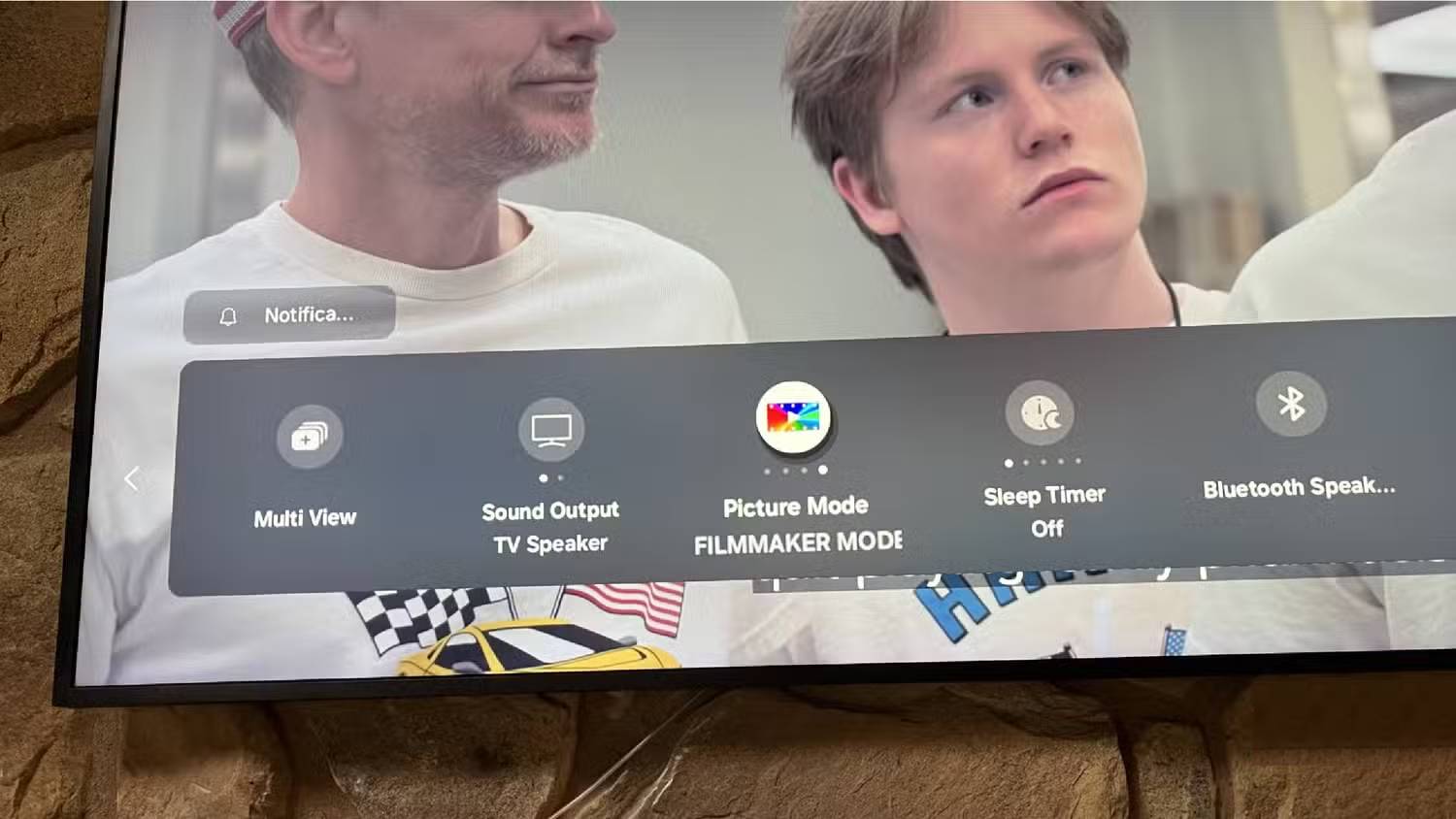
One of the reasons people like Samsung Frame TVs is because they offer a wide range of settings. It's easy to connect other devices to it, especially via USB, and it allows you to split the screen in half to watch two things at once. Many people have connected their laptop to the TV to display a sporting event on the right side of the screen and used a cable TV receiver to display another game on the other side. This is the kind of thing you have to do if you don't subscribe to YouTube TV, which allows users to watch four games simultaneously.
But perhaps what people like most about Samsung Frame TVs, besides their ability to display artwork, is the ability to change modes based on the content being watched. These modes alter the TV's image and automatically adjust the colors. Standard mode balances color, brightness, and hue, ensuring good image quality in a variety of environments.
This is the TV's default setting, and you should consider changing it based on the content you're watching. Some types of content and entertainment are better suited to other modes. Adjusting the mode based on the time of day you're watching is also a good idea due to the potential for glare. If you don't have an anti-glare TV, you'll understand what this article is about.
Adjust the settings for the content you are watching
The film can become more lifelike if you set it up correctly
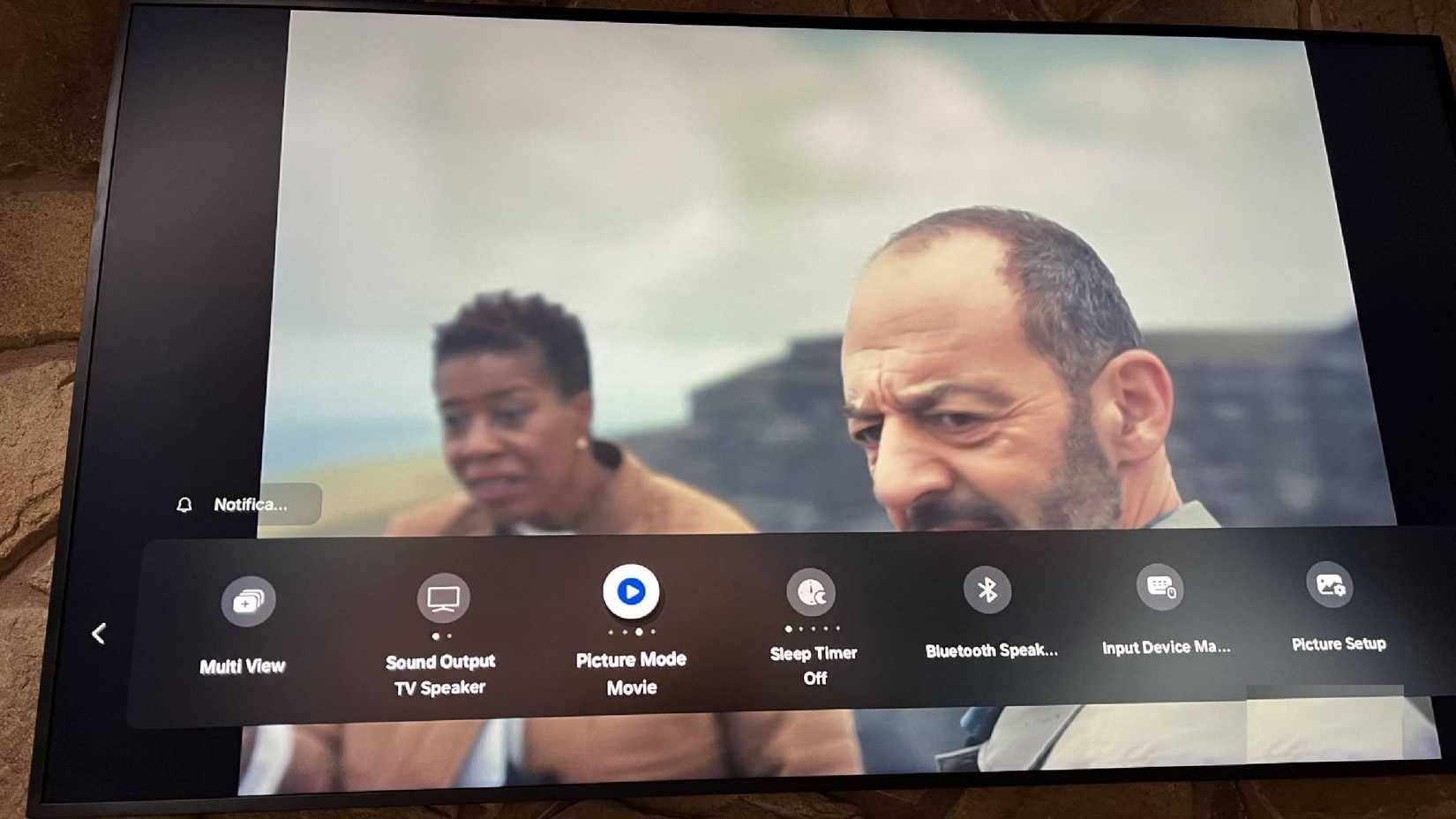
Turn off the default settings in your TV's Settings menu. This applies to all Smart TVs, regardless of the operating system. For Samsung users, the third option in the Settings menu is Picture Mode. There are four modes to choose from: Standard, Dynamic, Filmmaker, and Movie.
- Standard mode , as mentioned above, is essentially the average setting across all settings.
- Dynamic mode makes your content stand out. Brightness is automatically increased and colors are sharpened to look more vibrant.
- Filmmaker mode delivers the image the directors want you to see. This is a great option when watching live sports, as it eliminates any artificial editing and gives you the feeling of watching a live match.
- Movie mode is the ideal setting for a dark room. If you're watching something at night, this is the mode to use.
Adjust it yourself!
Brightness and color are just numbers
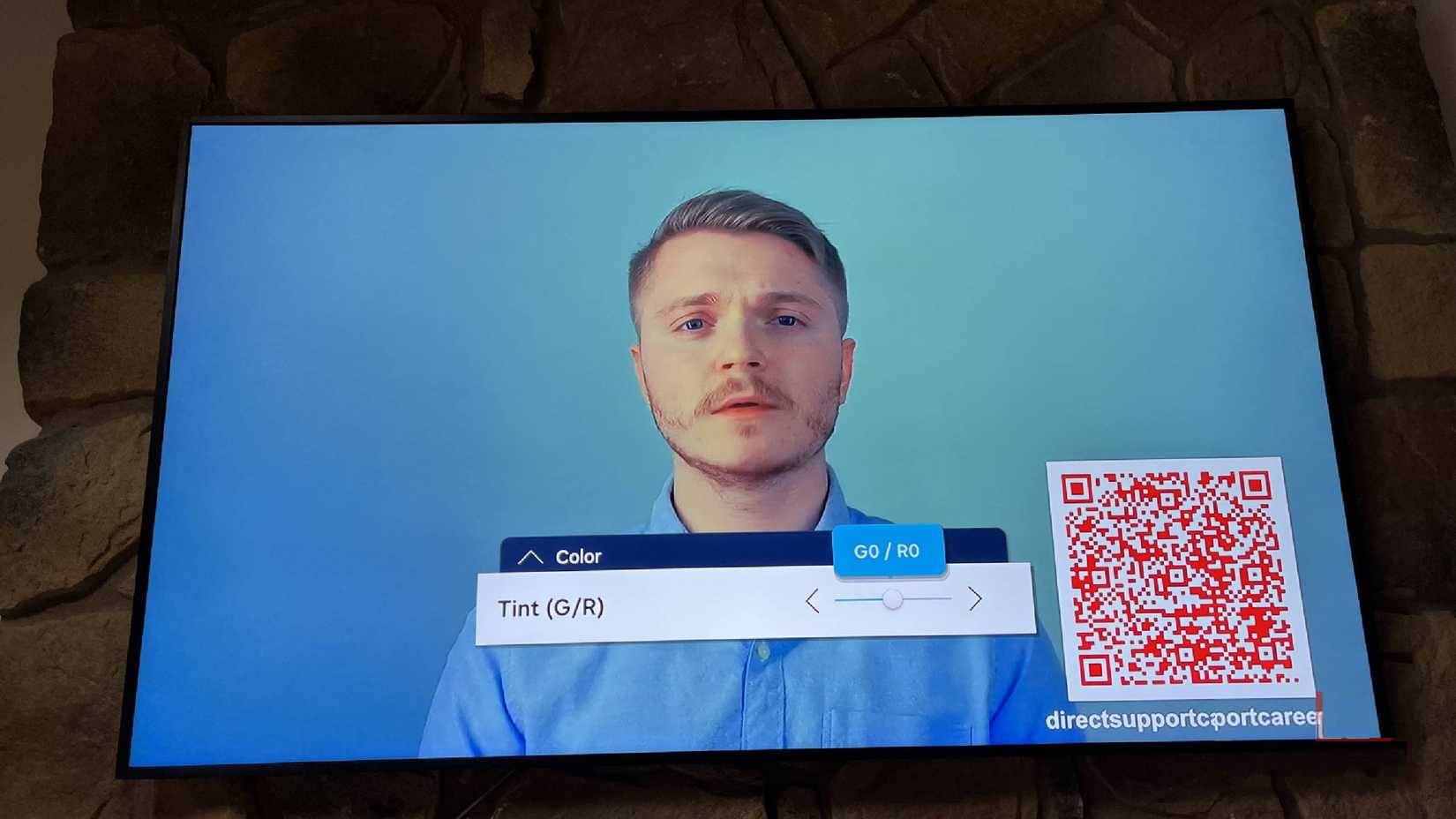
After selecting a mode, you can still go in and adjust it to better suit your content. Many TVs allow you to adjust brightness, color, saturation, and sharpness in any mode. You don't need to rely on the settings that the Smart TV provides.
Adjusting the actual settings, rather than just the mode, can help you get a clearer picture and enjoy your entertainment better. If you're watching a game on a weekend afternoon, turn on Filmmaker mode and then adjust the colors to reduce glare. It might seem like a bit of extra work, but being able to relax and watch with the best possible picture quality is well worth it.
Final Thoughts
Understanding stop using your tv's default picture settings makes it easier to evaluate the information and apply the most relevant recommendations. Focus on the key points above and verify details that may change over time.
FAQ
What is stop using your tv's default picture settings?
Explore stop using your tv's default picture settings, including the key concepts, practical examples, important considerations, and useful guidance.
What key points does this article cover?
The article focuses on Some Smart TVs have multiple modes, You can change them based on the content you're watching, Adjust the settings for the content you are watching, with practical explanations and examples.
How can you use this information in practice?
Use the explanations to compare options, verify important details, and make a more informed decision. Apply the recommendations that best match your goals and situation.
Related Articles
 3 Default Settings That Make 4K TV Screens Look Blurry: Explained8 minutes read
 9 Default Windows Settings to Change Now10 minutes read
 Settings to Adjust for Better Picture Quality on TV: Complete Guide8 minutes read
 Default Settings in Excel Should Be Changed6 minutes read
 How to Turn on Picture in Picture on Edge Is Extremely Simple: Practical Guide6 minutes read
 Chrome on Linux, Mac and Windows Will Have the Default Picture-in-Picture Mode4 minutes read
Reader Comments 0
Sign in with email or Google to join the discussion.