Table of Contents
Buying an NVMe SSD has become more complicated than before. With different PCIe generations, form factors, and specifications, it's easy to get overwhelmed or miss important details.
Buying an NVMe SSD has become more complicated than it used to be. With different PCIe generations, form factors, and specifications, it's easy to get overwhelmed or miss important details. Checking a few key things before you buy will increase your chances of finding the right drive for your needs.
7. PCIe Generation
Backward compatibility does not mean you will get the same speed
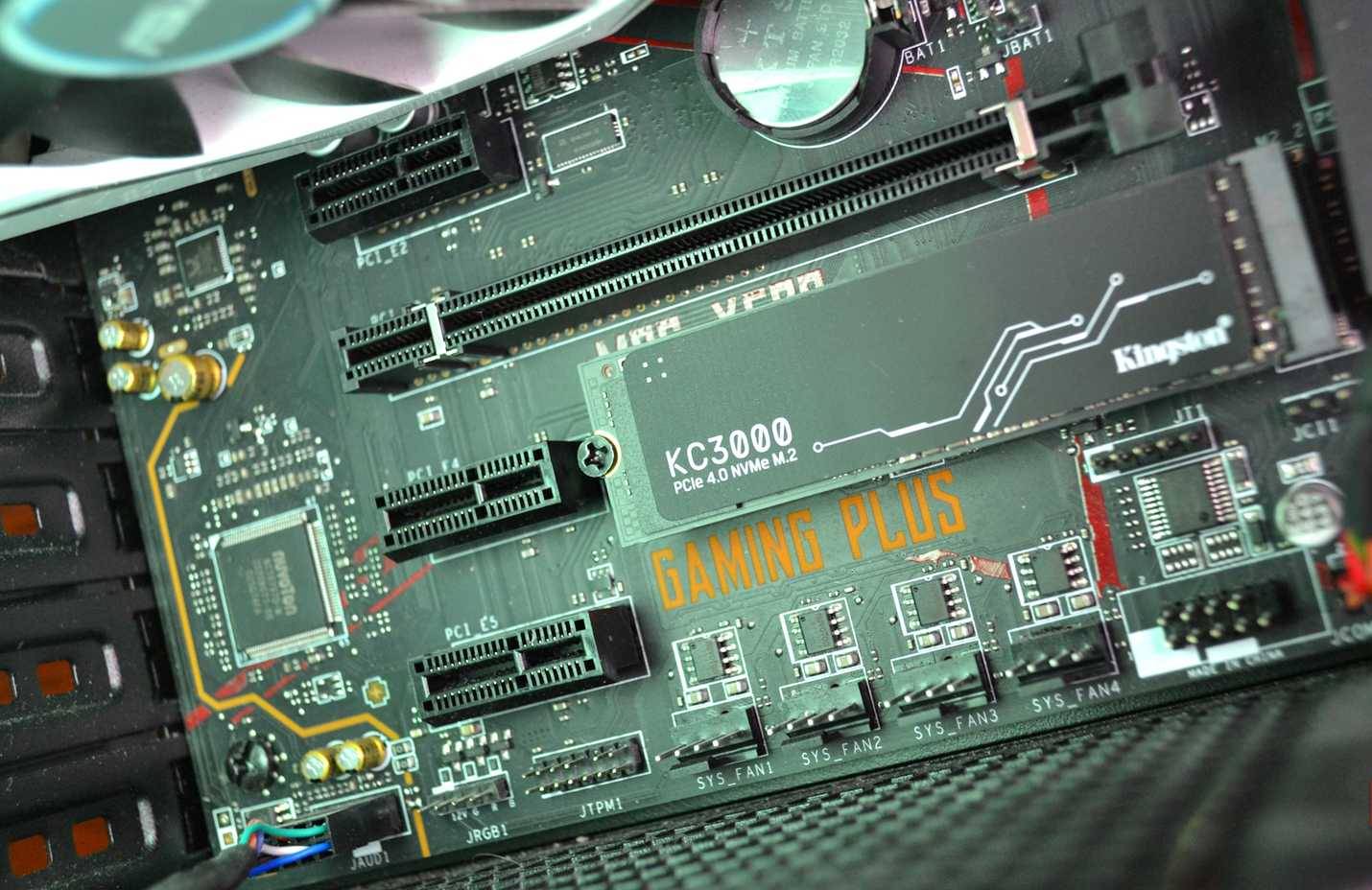
The PCIe generation is the first thing you should check when buying an NVMe SSD. This generation determines the maximum speed your drive can reach, but there is a catch. You actually need a motherboard that supports that generation to reach those speeds.
You can find three main generations of PCIe that you'll see: 3.0, 4.0, and 5.0. Each generation roughly doubles the bandwidth of the previous generation. PCIe 3.0 x4 (with 4 PCIe lanes) maxes out at around 3,500 MB/s, while 4.0 x4 can reach 7,000 MB/s, and 5.0 x4 theoretically reaches 14,000 MB/s.
Many people buy expensive PCIe 5.0 drives just to plug them into PCIe 4.0 slots—that's a waste of money. The drive will still work thanks to backward compatibility, but it will run at 4.0 speeds. You're paying extra for performance you can't get. So check your motherboard's PCIe generation before you buy.
6. Design
Check dimensions to avoid compatibility issues
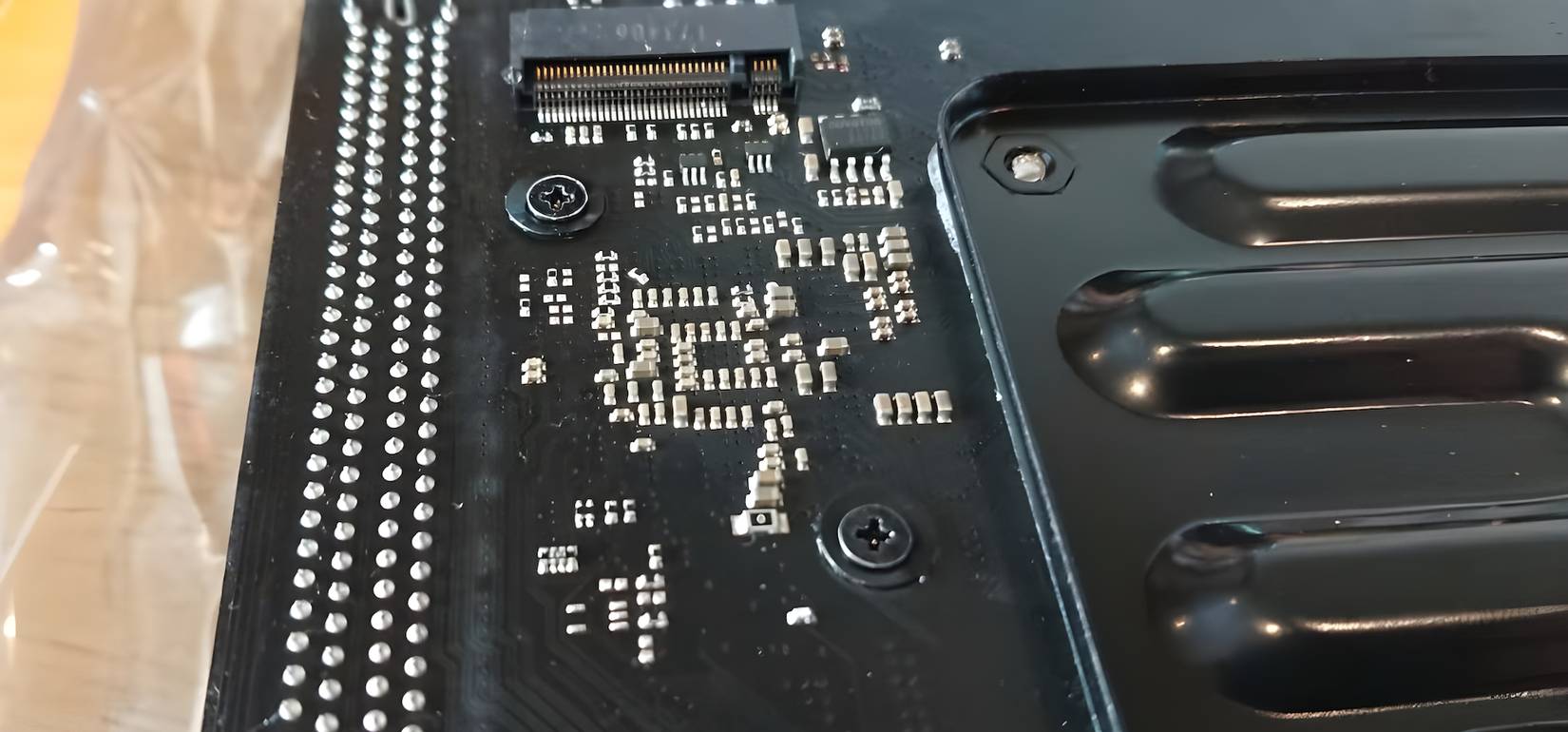
Form factor may sound technical, but it's just the physical size of the drive. If you choose the wrong one, the SSD won't fit in the slot. M.2 SSDs come in a variety of sizes, labeled with four digits. The most common size is 2280, which is 22mm wide and 80mm long. You'll also see 2242 (42mm long), 2230 (30mm long), and 22110 (110mm long), though these are less common.
Most desktop motherboards support multiple sizes and will have mounting holes of varying lengths. Check to see which size fits your particular slot. Laptops, on the other hand, can be more picky – they often only accept one size, and some lighter laptops use the smaller 2230 size to save space.
5. Speed rating
The big numbers on the box aren't the whole story.
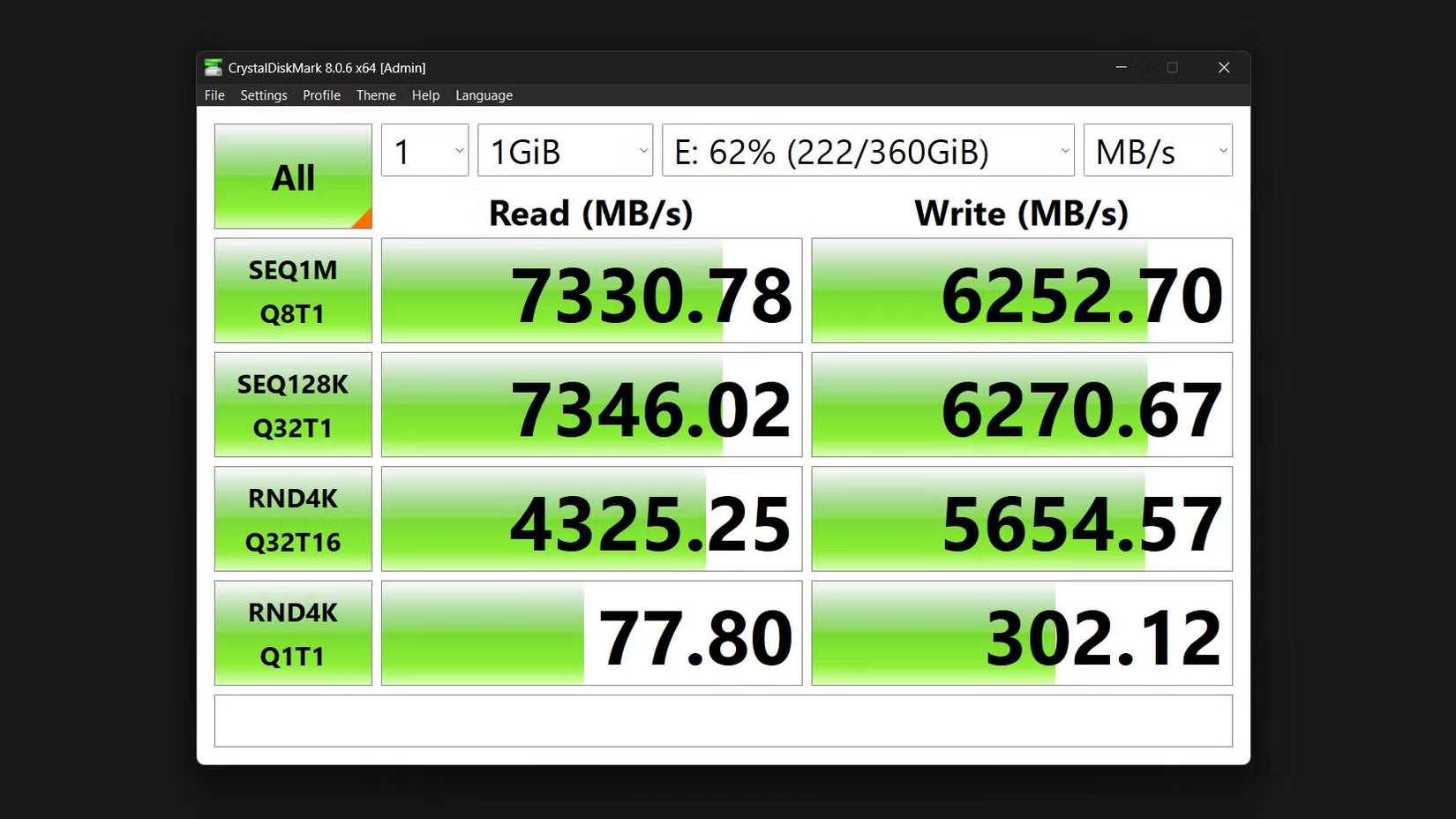
Speed ratings on product pages look impressive, but they may not reflect what you actually experience. Manufacturers advertise sequential read/write speeds. These are the numbers you see in bold because they are the highest they can claim.
Sequential speed measures how quickly a drive transfers large files in rapid succession. This is handy when moving large video files or installing games, but it's not what happens during normal use. Random read/write speeds are more important for everyday tasks like loading applications, booting the operating system, and launching games. Random speed is measured in IOPS (Input/Output Operations Per Second). This tells you how quickly a drive handles small, scattered files—the type of operations that dominate everyday computing. A drive with 7,000 MB/s sequential speeds but low IOPS may be slower than a drive with 5,000 MB/s and high IOPS.
4. Thermal management
Drives slow down when you need them most
High-speed NVMe drives generate many heat, especially PCIe 4.0 (also known as Gen 4.0) and PCIe 5.0 models. Once they reach around 70°C or higher, they start to cool down and eventually slow down to protect themselves. This reduces performance just when you need it most. That's why it's best to add a heatsink to improve NVMe SSD performance.
Some NVMe drives come with built-in heatsinks, which is convenient. Additionally, most modern motherboards come with built-in M.2 heatsinks, and B550/Z590 and above usually do. If your motherboard has a heatsink, the pre-installed drive heatsink may interfere with the motherboard's M.2 heatsink, so check the clearance before choosing a drive with a heatsink, as it may not fit on the motherboard's heatsink unless the heatsink is removable.
3. DRAM cache
This spec makes a bigger difference than you think.
DRAM (Dynamic Random Access Memory) cache is one of those specs that doesn't get much attention, but it makes a big difference in performance. DRAM stores the drive's mapping table, which tells the SSD where your files are located. This speeds up access times.
DRAM-less drives use the system's RAM via HMB (Host Memory Buffer). This is efficient, but slower and less efficient. The performance gap appears when handling small files, loading applications, or heavy multitasking.
For everyday use, such as web browsing and streaming, DRAM-free drives are acceptable. They can be used as secondary storage for games and media files without any issues. However, we do not recommend using them as an operating system drive or for workloads that involve frequent small file operations.
2. Durability
Make sure your drive lasts
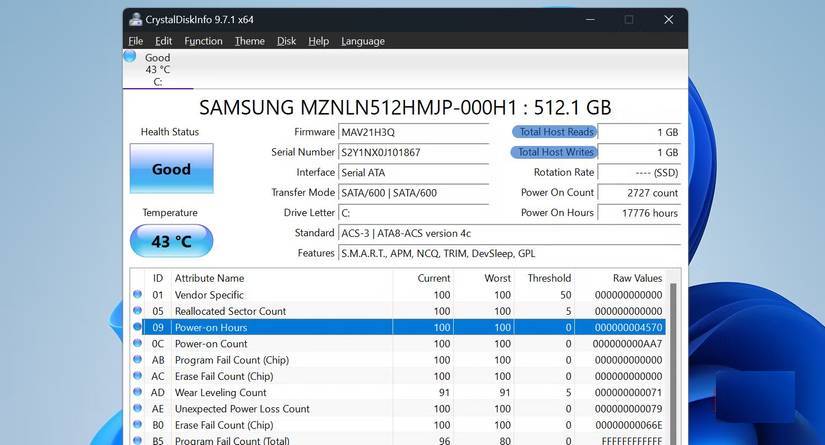
Endurance tells you how much data you can write to the drive before it wears out. This is measured in TBW (Terabytes Written) and helps estimate the remaining life of the SSD. A 500GB drive might have a rating of 300 TBW, meaning you could theoretically write 300 terabytes before the drive wears out.
NAND type affects durability. MLC (Multi-Level Cell) has a longer lifespan but costs more. TLC (Triple-Level Cell) offers a good balance of durability and price. QLC (Quad-Level Cell) is cheaper but wears out faster. However, most people never reach the TBW limit of a drive. For general use, such as gaming, web browsing, and streaming, even QLC drives can last for years.
Durability is more important if you are a content creator, run a database, or frequently write large files.
1. Price per gigabyte
The cheapest drive isn't always the best choice
Price per gigabyte is a simple calculation that tells you whether you're getting a good deal. Divide the total price by the capacity in gigabytes - a $100 1TB hard drive costs $0.10 per GB, while a $180 2TB hard drive costs $0.09 per GB.
Typically, when it comes to capacity, the most reasonable price point is 1TB, followed by 2TB. Smaller capacities like 500GB often cost more per gigabyte, while larger drives like 4TB cost more, which doesn't always justify the extra cost.
Price isn't the only factor you should consider, however. Cheap brands sometimes offer attractive prices, but cutting corners on reliability to save a few bucks isn't worth it if your hard drive fails prematurely. It's better to pay a little more for a brand with good reviews and warranty support.
FAQ
What should you know about the options in this guide?
In practical terms, buying an NVMe SSD has become more complicated than before. With different PCIe generations, form factors, and specifications, it's easy to get overwhelmed or miss important details.
Which option is the best choice?
The best choice depends on your priorities, compatibility, budget, and the specific features discussed in the comparison.
What should you compare before deciding?
Compare core features, limitations, ease of use, compatibility, and long-term value before making a decision.
Related Articles
 Steps to Check iPhone Before Buying5 minutes read
 6 Simple Ways to Get More Performance from Your NVMe SSD9 minutes read
 How to Install SSD Hard Drive NVMe M. 2?4 minutes read
 5 Things to Check Before Buying a Used iPhone8 minutes read
 3 Things to Check Before Buying a New Phone Case5 minutes read
 Why Use Sata SSD: Reasons to Use Sata SSD Hard Drive8 minutes read
Reader Comments 0
Sign in with email or Google to join the discussion.