Table of Contents
If your Smart TV doesn't look or sound great, the solution may not be to buy a new TV, but to make a few simple HDMI changes. With the right tweaks, you can get sharper pictures, better colors, and richer sound in just a few minutes.
7. Use the correct HDMI cable
The first step to getting better picture and sound is to make sure you're using the right cable. Not all HDMI cables are created equal, and the version you use may limit your resolution, refresh rate, and sound quality.
- HDMI 1.4 : Suitable for 1080p video, but limited to 4K.
- HDMI 2.0 : Handles 4K at 60Hz with HDR.
- HDMI 2.1 : Supports video up to 8K, 4K at 120Hz, VRR, and higher audio bandwidth, which is why it's especially important for gaming.
Note : Although the HDMI 2.2 standard has been released, devices that support this standard are not yet widely available, so purchasing this type of cable is not yet necessary.
6. Use the correct HDMI port on your TV
Even if your cables are top-notch, plugging them into the wrong port can limit your TV's potential. Some HDMI ports are even better. For example, if you're a gamer, you'll want your console plugged into an HDMI 2.1 slot, and if you're connecting a soundbar to your TV, your HDMI cable should be plugged into an ARC or eARC port for the best quality audio.
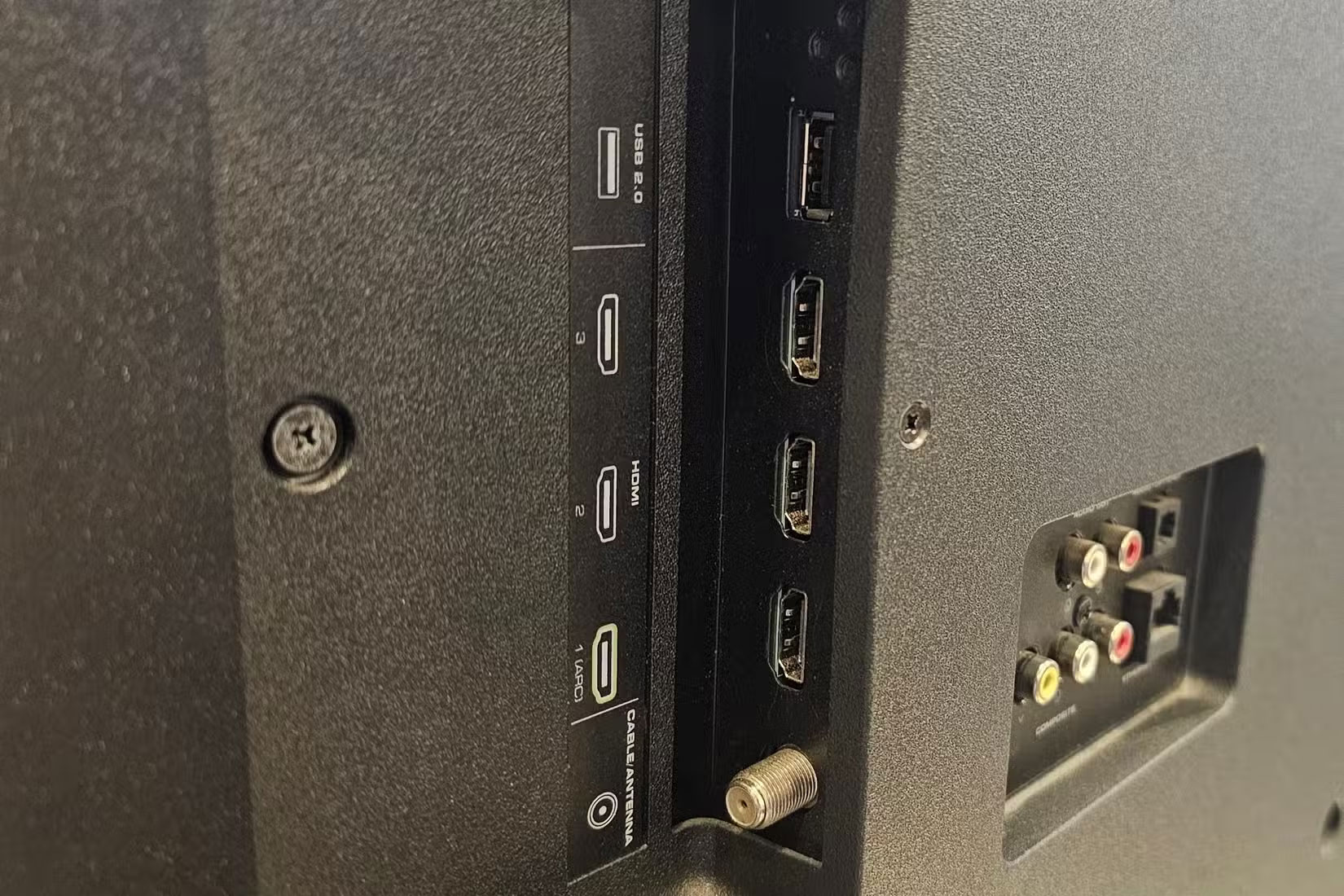
If you use the wrong port, you may accidentally reduce the resolution, refresh rate, or audio experience.
5. Turn on the correct HDMI input mode for best picture
Many TVs allow you to optimize each HDMI port for the type of device you connect.
- PC Mode : Improves the sharpness of text and graphics when connected to a computer.
- Game Mode : Reduces input lag when gaming, making controls more responsive. This mode may slightly change the color or brightness, but the faster response is worth it when gaming.
Some TVs and game consoles support Auto Low Latency Mode (ALLM) , which automatically detects when you're playing a game and switches modes.
4. Turn on HDR and Dolby Vision if available
High Dynamic Range (HDR) can make colors more vibrant, shadows more detailed, and highlights brighter. There are a few main formats you can find on your Smart TV:
- HDR10: The most popular format and supported by many devices.
- HDR10+: Adds dynamic metadata to adjust brightness scene by scene.
- Dolby Vision: Premium HDR format with dynamic metadata and higher color depth.
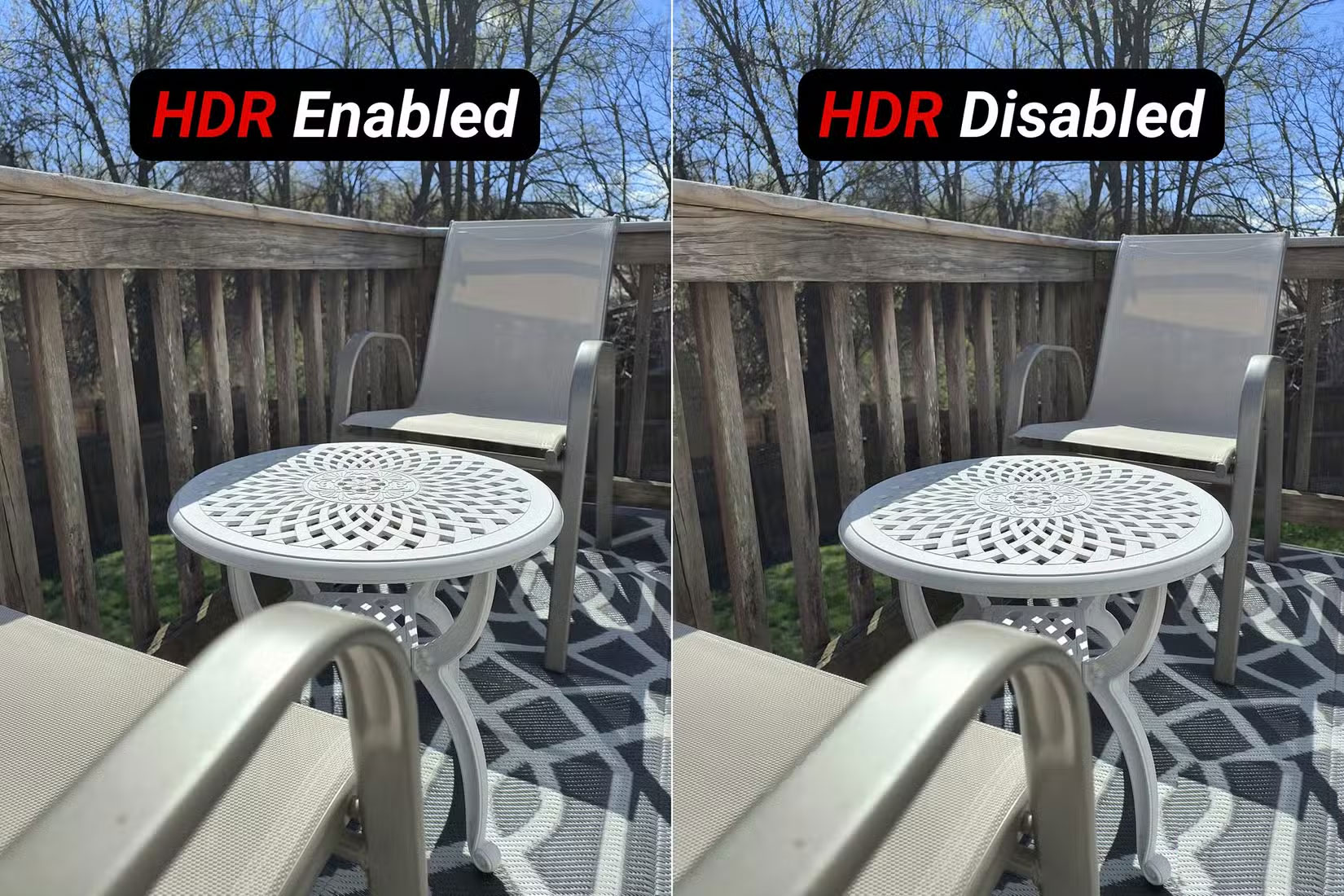
Some TVs do not enable HDR on HDMI ports by default.
3. Adjust the audio output format for the setting
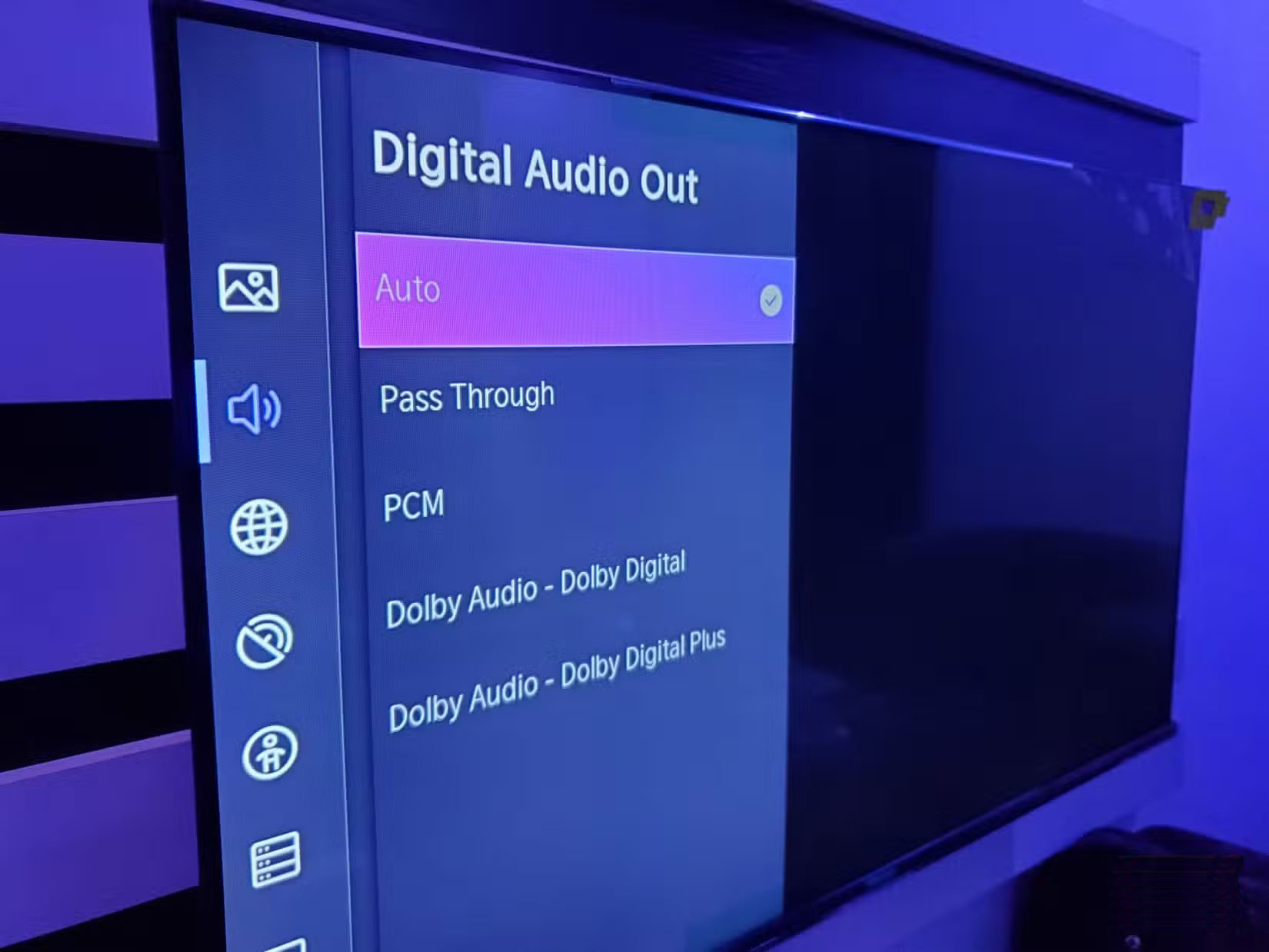
Choosing the right audio output format can make a big difference in sound quality.
- Bitstream (or Pass-Through on some TVs): This sends compressed audio (like Dolby Digital or DTS) to your sound system for decoding. Use this if your soundbar or receiver supports advanced formats like Dolby Atmos.
- PCM : Sends uncompressed stereo or multichannel audio that has been decoded by the TV. Use this if your audio system supports limited formats.
2. Always keep your TV's firmware up to date
Manufacturers often release firmware updates to improve HDMI compatibility, add new features, or fix bugs, such as handshake issues between two devices.
Most Smart TVs have an option to check for updates in the settings menu. Keeping your TV updated regularly will ensure you get the best performance from HDMI features like ALLM (Auto Low Latency Mode) or VRR (Variable Refresh Rate) if your hardware supports it.
1. Troubleshooting Common HDMI Problems
Even with proper setup, HDMI can be tricky. Here are a few quick fixes to help you avoid confusion:
- No signal : Try re-plugging the cable, changing to a different cable, or simply switching to a different port.
- Flickering Screen : Sometimes the fix is as simple as using a shorter or better quality cable.
- No Sound : Gently clean the ports and make sure the problem isn't with your soundbar or speaker setup.
- Colors are off : Adjust the TV's picture settings to fine-tune the display. Also, fine-tune the video output settings on the connected device (e.g., game console, etc.).
These tweaks take only a few minutes and are usually inexpensive.
Final Thoughts
The development covered in this article is worth following, but specifications, dates, and feature details may change until the relevant company or organization publishes an official confirmation.
FAQ
What is the main development covered in this article?
If your Smart TV doesn't look or sound great, the solution may not be to buy a new TV, but to make a few simple HDMI changes. With the right tweaks, you can get sharper pictures, better colors, and richer sound in just a few minutes.
What should you know about 7. Use the correct HDMI cable?
The first step to getting better picture and sound is to make sure you're using the right cable. Not all HDMI cables are created equal, and the version you use may limit your resolution, refresh rate, and sound quality.
Is every reported detail officially confirmed?
Not necessarily. Product leaks, preview builds, research reports, and early announcements can change. Confirm important specifications, dates, and availability through an official source before making a decision.
Related Articles
 How to Improve Smart TV Picture Quality by Replacing HDMI Cable9 minutes read
 5 Ways to Improve Soundbar Sound Instantly: Practical Guide5 minutes read
 10 Devices You Can Plug into the HDMI Port on Your Smart TV7 minutes read
 Tweaks That Make Cheap Smart TVs Look Better7 minutes read
 Don't Use Old HDMI Cables for Your New 4K TV If You Don't Want to Lose Picture Quality9 minutes read
 4 Ways AI Is Making Smart TVs Better: Complete Guide6 minutes read
Reader Comments 0
Sign in with email or Google to join the discussion.