Table of Contents
Explore don't use old hdmi cables for your new 4k tv if you don't want to lose picture.
Why is it so easy to use the wrong HDMI cable?
The simple fact is that most HDMI cables look exactly alike. Manufacturers may change the color of the casing or the insulation, but if you place any two cables in front of each other, you can barely tell them apart with the naked eye. HDMI connectors have remained virtually unchanged for years, so a cable from 2010 will still fit a TV from 2025 — and vice versa.
Therefore, old cables are very easily 'reused' in new systems. I also encountered this situation when upgrading from a 4K 60Hz TV to a 4K 120Hz OLED TV. Because I was reluctant to re-install the in-wall wiring, I kept the old cable, unaware that the cable that had worked fine before was not capable of meeting the requirements of the new TV.
Things get even worse when many cable retailers use vague phrases like '4K support' or 'high performance'. 4K at 30Hz or 60Hz? High performance compared to what? If you're lucky, the actual specifications will be printed somewhere on the cable or connector. Otherwise, you can only hope you haven't thrown the box away — or prepare to start your 'investigation' from scratch.
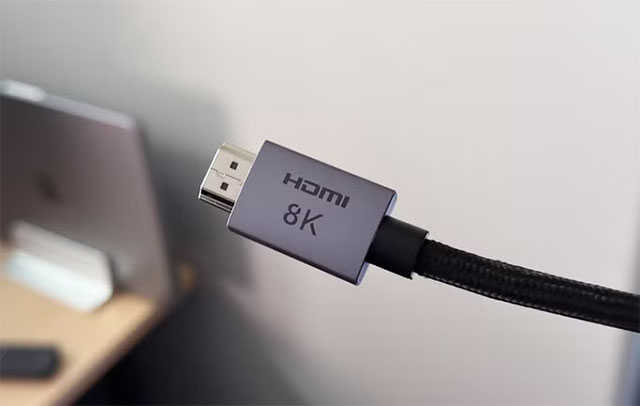
How does the HDMI version differ from a regular HDMI cable?
Each time HDMI received a major upgrade—from 1.4 to 2.0 and then 2.1—the most significant improvement was always bandwidth. HDMI 1.4 was sufficient for 4K but only at 30Hz, suitable for movies but not ideal for gaming or PCs. HDMI 2.0 brought 4K at 60Hz along with the popular HDR. HDMI 2.1 was the biggest leap, paving the way for 4K at 120Hz, 8K, VRR, ALLM, and advanced audio features like eARC.
The problem is that the naming convention for HDMI cables is… not very user-friendly:
- High Speed HDMI is compatible with basic 1080p and 4K 30Hz.
- Premium High Speed HDMI supports 4K 60Hz with HDR.
- Ultra High Speed HDMI supports 4K 120Hz, 8K, VRR, and eARC.
- Ultra96 HDMI offers bandwidth up to 96Gbps, enabling full use of HDMI 2.2 features, including uncompressed color formats.
There is also the very old HDMI 'Standard' standard, which is only suitable for low-quality 720p or 1080p, and is almost never seen these days. If you want to be sure, you can check the official certification logos on the HDMI website.
Signs that your HDMI cable is holding your system back
HDMI is backward compatible, so using a new cable with an older device is fine. But using an old cable with a new device is a different story. When the cable bandwidth is insufficient, you can encounter a variety of problems, from obvious to subtle.
The TV or monitor may not be able to achieve the resolution or refresh rate it supports; for example, a console might only display 4K 30Hz instead of 4K 60Hz or 120Hz. Features like VRR or ALLM cannot be enabled on the PS5, Xbox Series X, or gaming PC. Audio quality may not be as expected, or eARC may not work. There may even be flickering or random signal loss.
If everything is fine at low settings but starts malfunctioning when you increase the resolution or refresh rate — even though the TV and source device both support it — then the cable is most likely the bottleneck.
How can I tell exactly which HDMI cable I'm using?
Before you try plugging it in and then having to unplug it because it's wrong, check the cable itself or the connector housing. Many cables will have ' Ultra High Speed' or other official certifications printed on them. If there is no such information, it's likely an older cable that doesn't meet modern HDMI standards.
Some newer cables even have a tiny QR code on the connector, allowing you to check for authenticity. If you still have the box, that's, of course, the quickest and clearest way.
If you can't identify them, the only way is to plug and test them, but don't permanently install them until you're sure all the features you need are working properly. Also, remember that if the HDMI signal has to go through intermediate devices like a soundbar, receiver, or switch, they all need to meet the corresponding high standards; otherwise, the signal will be reduced to the lowest level in the chain. Once you've identified each cable, labeling them is a very worthwhile idea.
Final Thoughts
Use this guide as a practical checklist for don't use old hdmi cables for your new 4k tv if you don't want to lose picture quality. Work through the steps in order, verify each result, and adjust the options to match your needs.
FAQ
What do you need before following this Don't Use Old HDMI Cables for Your New 4K TV If You Don't Want to Lose Picture Quality guide?
Review the required tools, accounts, settings, or materials mentioned in the article. Explore don't use old hdmi cables for your new 4k tv if you don't want to lose picture.
What are the main steps for don't use old hdmi cables for your new 4k tv if you don't want to lose picture quality?
Follow the sections in order, especially Why is it so easy to use the wrong HDMI cable?, How does the HDMI version differ from a regular HDMI cable?, Signs that your HDMI cable is holding your system back. Complete each step before continuing and verify the result as you go.
What should you do if the process does not work as expected?
Recheck the prerequisites, update the relevant app or service, review the settings, and repeat the step that caused the issue. Use any troubleshooting notes included in the guide.
Related Articles
 How to Improve Smart TV Picture Quality by Replacing HDMI Cable9 minutes read
 How to Connect Hdmi Cables11 minutes read
 What Is HDMI? Features, Uses, and Key Details7 minutes read
 Distinguishing HDMI 2.1, 2.0 and 1.45 minutes read
 Officially Released HDMI 2.1 Standard That Supports 10K Video and Dynamic HDR3 minutes read
 Best Hdmi Cable for Monitors, Lg Tvs, Samsung and Apple Tvs8 minutes read
Reader Comments 0
Sign in with email or Google to join the discussion.