Table of Contents
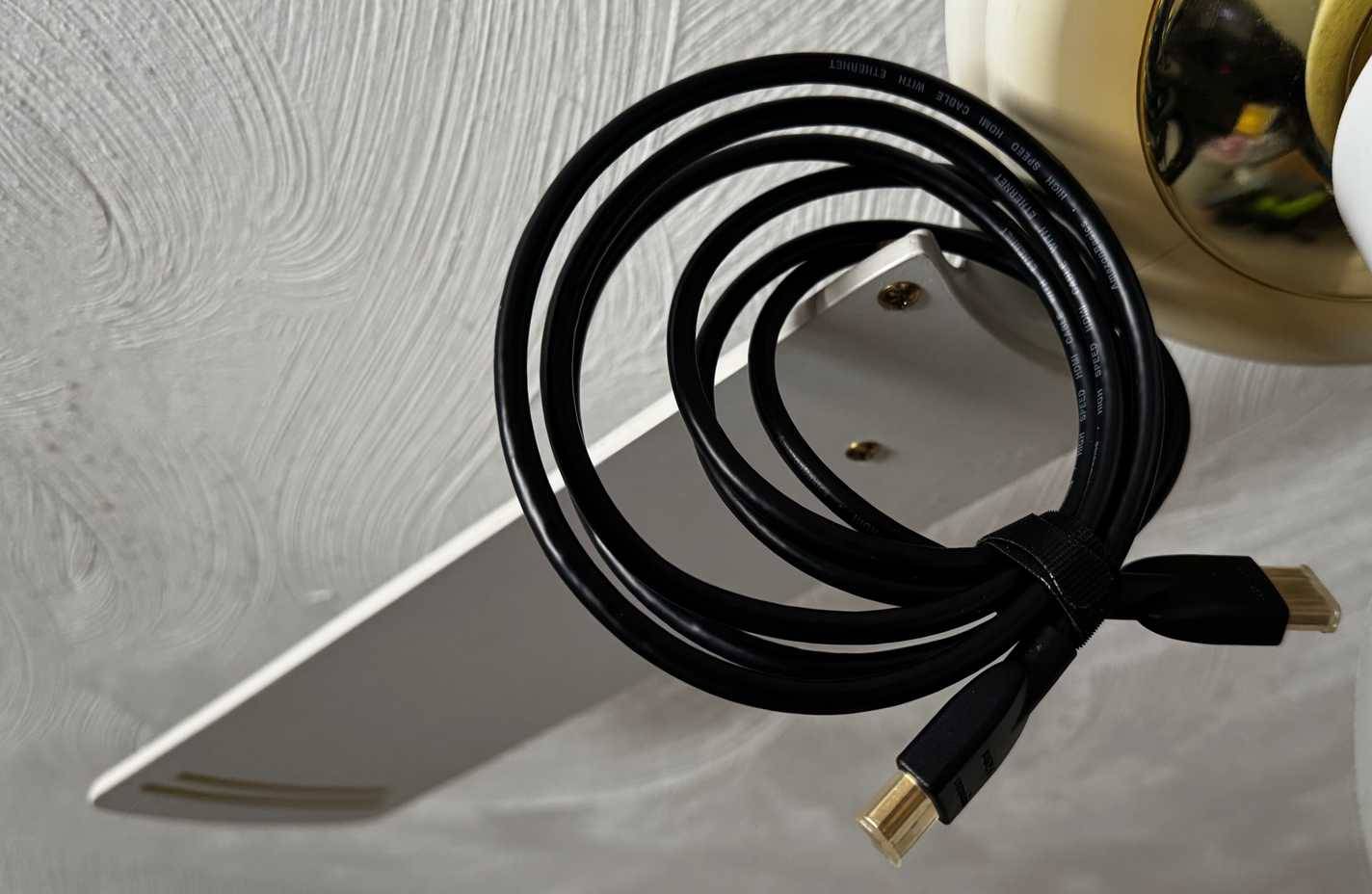
A cheap HDMI cable does not inherently produce a softer picture or duller colors. HDMI carries digital data: when two cables deliver the same video format without transmission errors, the decoded image is the same. Price, braided sleeves and gold-colored connectors do not improve the pixels.
A cable can still be the bottleneck if it cannot sustain the bandwidth required by the selected resolution, refresh rate, bit depth and color format. Typical symptoms are sparkles, flashes, intermittent black screens, audio dropouts or loss of a high-bandwidth mode. Blurry desktop text more often means the source has switched to a lower resolution or chroma format, or the TV is applying scaling.
Buy by certified cable category, not “HDMI version”
HDMI version numbers primarily describe capabilities in source and display hardware. For cables, the useful names are the official performance categories:
| Cable category | Certified bandwidth | Typical use |
|---|---|---|
| High Speed HDMI | Up to 10.2Gbps | 1080p and many lower-bandwidth 4K formats |
| Premium High Speed HDMI | 18Gbps | Feature-rich 4K at 60Hz, including supported HDR formats |
| Ultra High Speed HDMI | 48Gbps | High-bandwidth modes such as uncompressed 4K at 120Hz or 8K at 60Hz, plus features including VRR and eARC |
Look for the official certification label and verify its QR code when possible. Vague claims such as “4K cable,” “HDMI 2.1 compatible” or an impressive-looking jacket are not substitutes for tested bandwidth. HDMI Licensing Administrator explains the recognized categories in its official cable guide.
Why one display may look blurrier than another
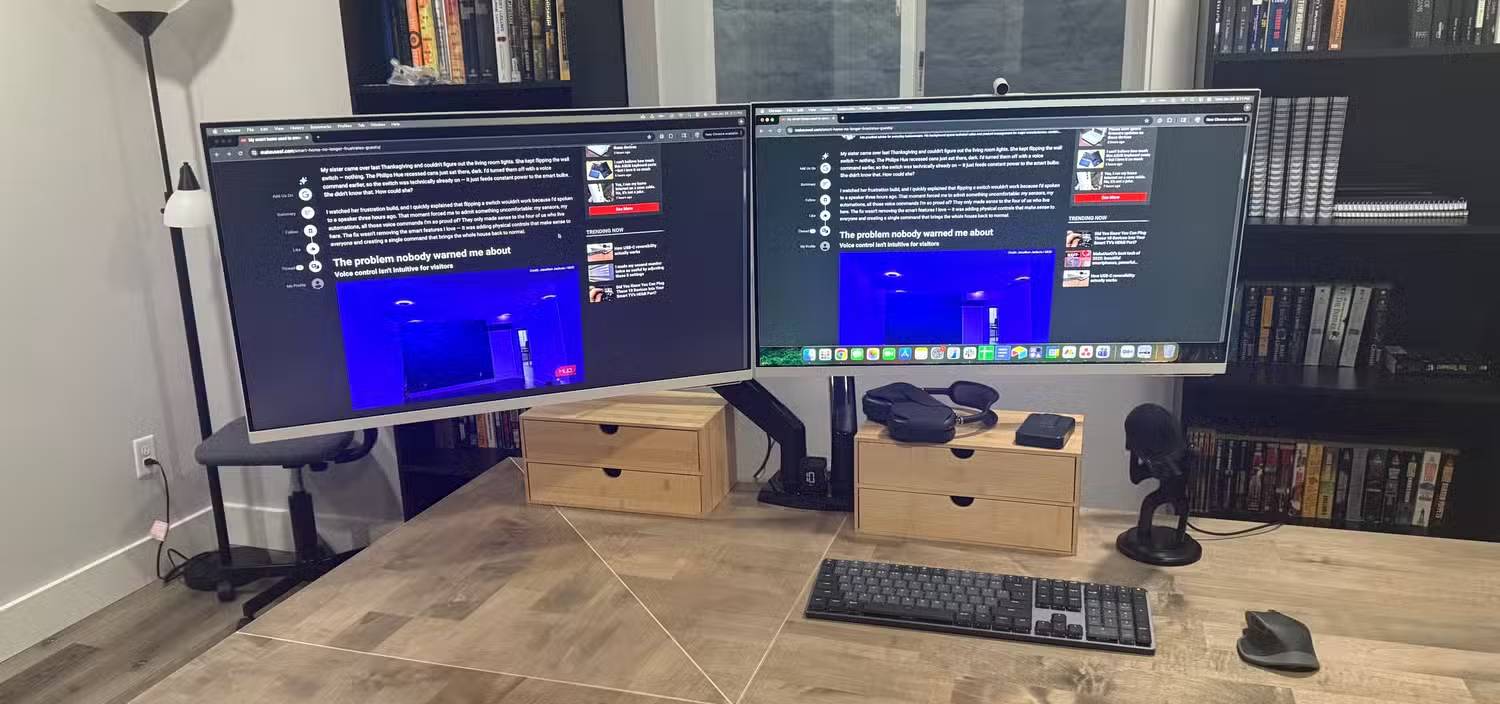
If two displays connected to the same computer look different, do not assume the cable has altered the picture. First compare the complete signal shown by the operating system and each display's information screen:
- Resolution: both displays should use their native panel resolution rather than a lower scaled mode.
- Refresh rate: confirm that the intended 60Hz, 120Hz or other mode is actually selected.
- Chroma or pixel format: a TV receiving 4:2:0 chroma can make colored edges and small text look smeared. For desktop use, select RGB or YCbCr 4:4:4 when the source and TV support it.
- Input configuration: some TVs require PC mode, an enhanced-bandwidth setting or a particular HDMI port. Disable overscan so the desktop maps pixel for pixel.
- Scaling and sharpening: compare Windows scaling, GPU scaling and the TV's picture processing before judging the cable.
TipsMake's guide to using a TV as a computer monitor explains why chroma subsampling is especially visible in text.
A reliable way to test an HDMI cable
- Connect the source directly to the display, temporarily removing receivers, switches and adapters.
- Record the working resolution, refresh rate, HDR status and color format.
- Play demanding content or run a game at the target mode for at least several minutes.
- Watch for sparkles, brief black screens, signal loss and audio interruptions.
- Change only the cable, using the same source port, display port and settings, then repeat the test.
If the replacement cable makes a previously unavailable mode stable, the old cable may be inadequate or damaged. If the picture remains steadily blurry with both cables, investigate resolution, chroma, overscan and scaling instead. The TipsMake checklist for fixing an HDMI no-signal problem covers ports and intermediate equipment as well.
What anecdotal cable swaps can—and cannot—show
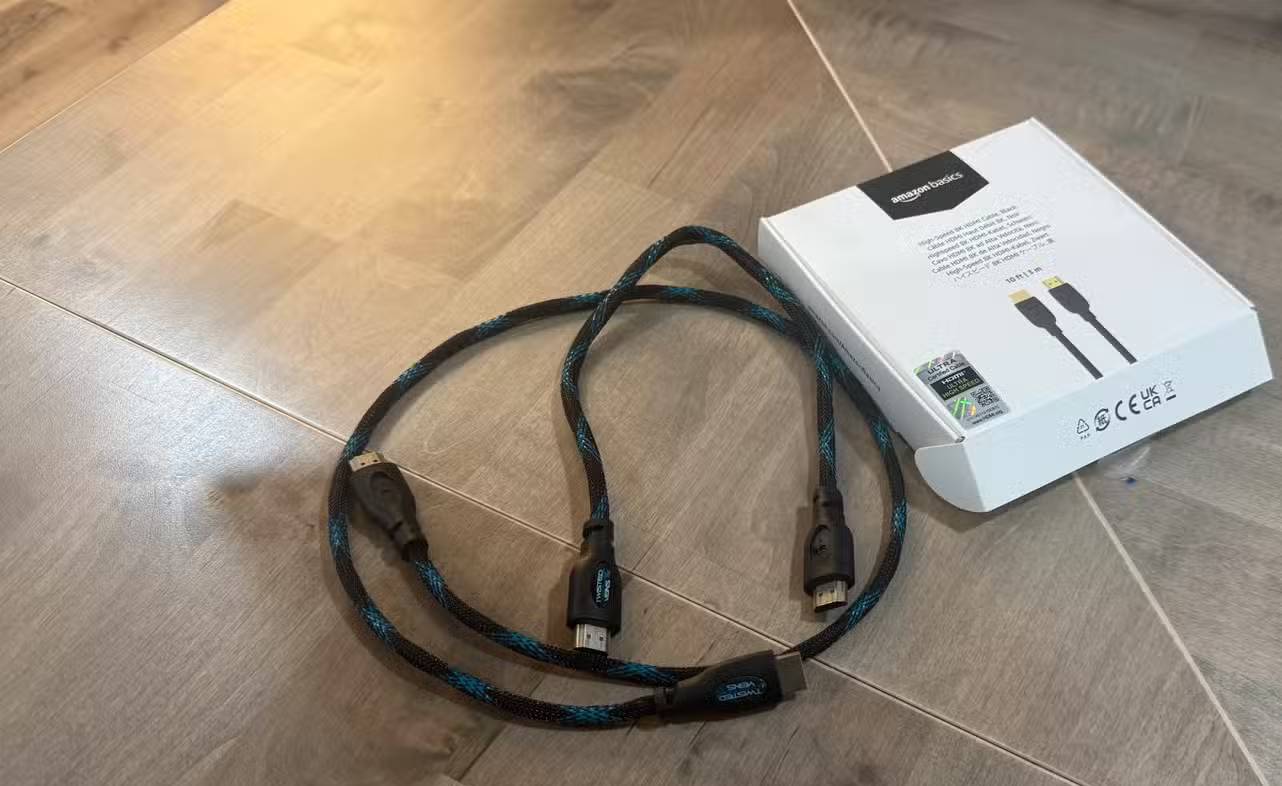
Swapping an old cable for a newer one can appear to transform a setup. The useful conclusion is that the original connection could not hold the selected mode reliably, or that reconnecting caused the devices to negotiate different settings. Without confirming the input format before and after, the comparison does not prove that one functioning digital cable has richer blacks or smoother gradients than another.
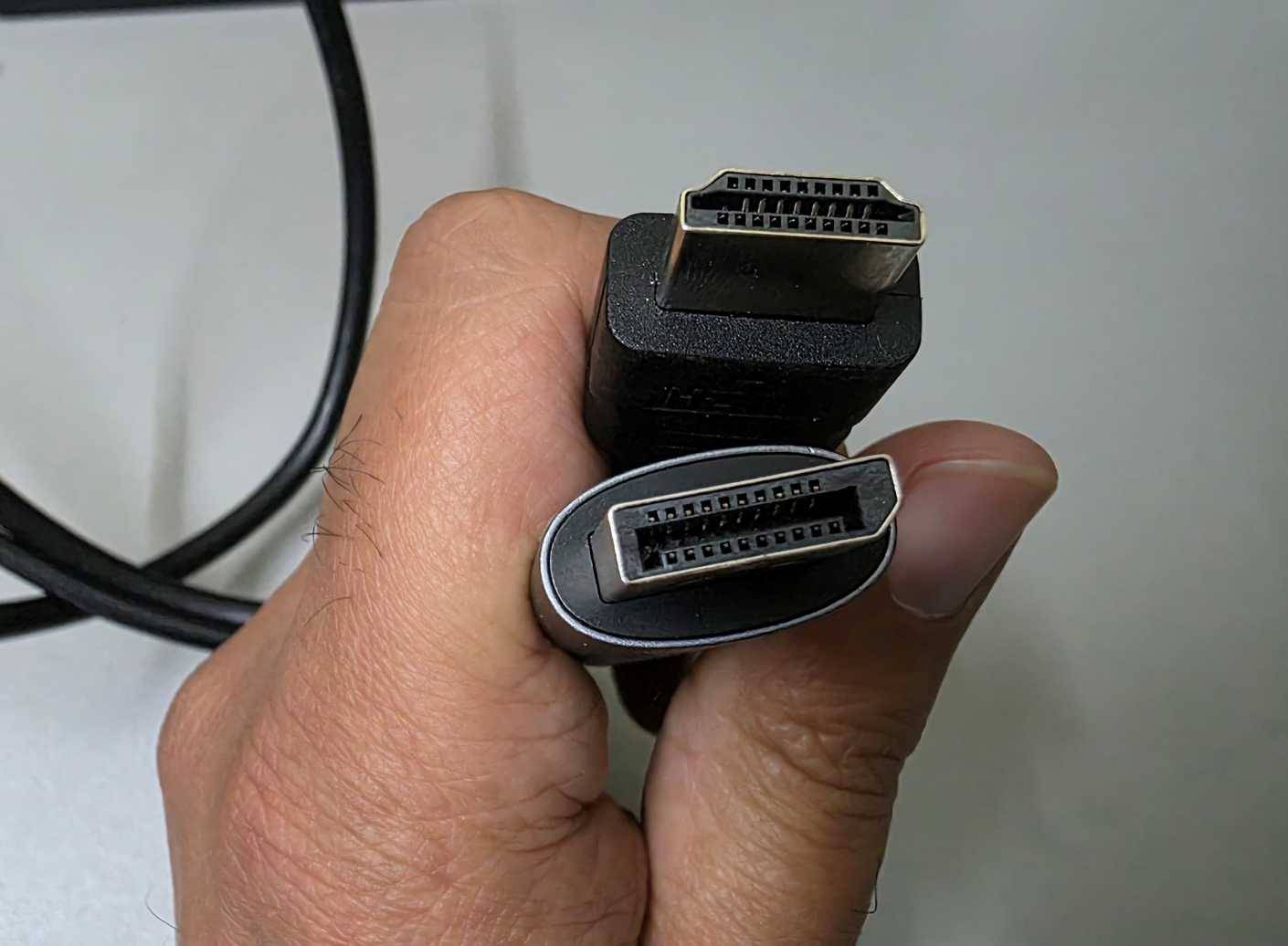
The same caution applies to USB-C-to-HDMI cables. Results depend not only on the cable but also on the computer's USB-C video capability, the adapter chipset and its maximum output format. A bundled cable may work perfectly because the manufacturer matched it to the display; a separately purchased adapter may cap the refresh rate or chroma format.
How much should you spend?
Pay for the required certified category, appropriate length and sound construction—not for promises of better color or detail. A modestly priced certified cable should reproduce the same error-free image as a premium-priced cable at the same settings.
Long runs are harder to operate at high data rates. For several meters or more, choose a cable certified at the exact length sold; very long 4K120 installations may require a reputable active or optical cable. Active cables are directional, so connect the labeled source and display ends correctly.
For most buyers, the simplest rule is: Premium High Speed for 4K60-class setups and Ultra High Speed for 4K120, 8K60 or other 48Gbps features. Replace a cable when it cannot maintain the mode you need, not merely because another cable costs more.
Related Articles
 Don't Use Old HDMI Cables for Your New 4K TV If You Don't Want to Lose Picture Quality9 minutes read
 How to Connect Hdmi Cables11 minutes read
 What Is HDMI? Features, Uses, and Key Details7 minutes read
 Distinguishing HDMI 2.1, 2.0 and 1.45 minutes read
 Officially Released HDMI 2.1 Standard That Supports 10K Video and Dynamic HDR3 minutes read
 What Is an HDMI Cable? How Many Types of HDMI Cables Are There? the3 minutes read
Reader Comments 0
Sign in with email or Google to join the discussion.