Table of Contents
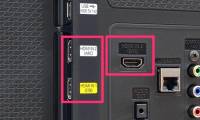
A smart TV’s HDMI inputs can display video from a console, laptop, streaming stick, or another device and usually carry sound over the same cable. Plug the device’s HDMI output into the TV, turn it on, and select the matching input with the remote. For a soundbar, start with the port marked ARC or eARC.
1. Game console
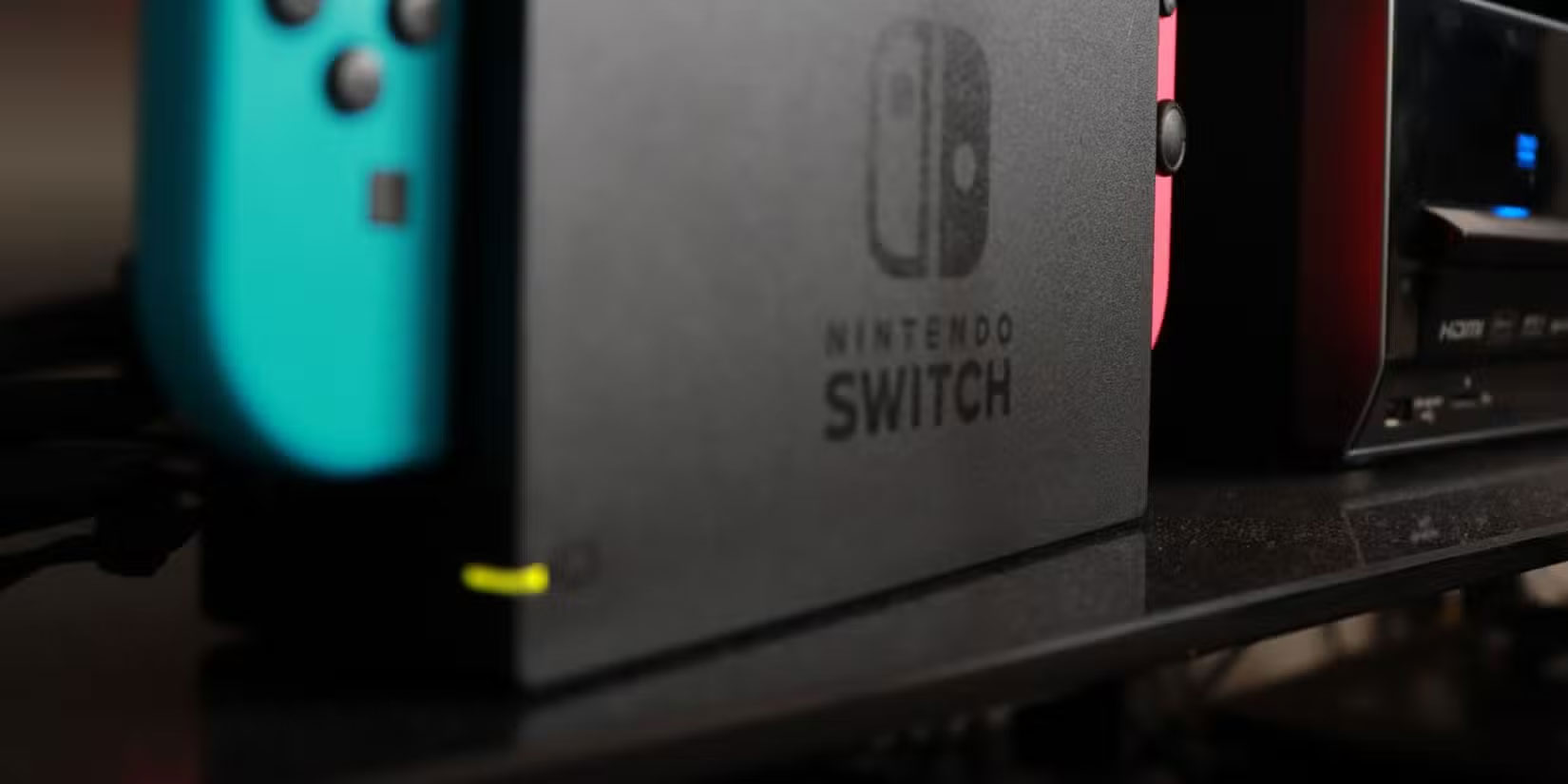
Connect the console to a port that supports the resolution and refresh rate you want. For 4K at 120 Hz on a compatible PS5 or Xbox Series X game, check the TV’s port labels and use a cable rated for the required bandwidth. The Nintendo Switch and Switch 2 use a compatible powered dock for TV output. The Switch Lite does not support TV mode.
2. Laptop
Use the laptop’s HDMI output or a USB-C video adapter if its port supports display output. To show the same screen, choose Duplicate with Win + P on Windows, or use mirroring in the Mac’s display settings. See how to connect a laptop to a TV for other options.
3. Smartphone
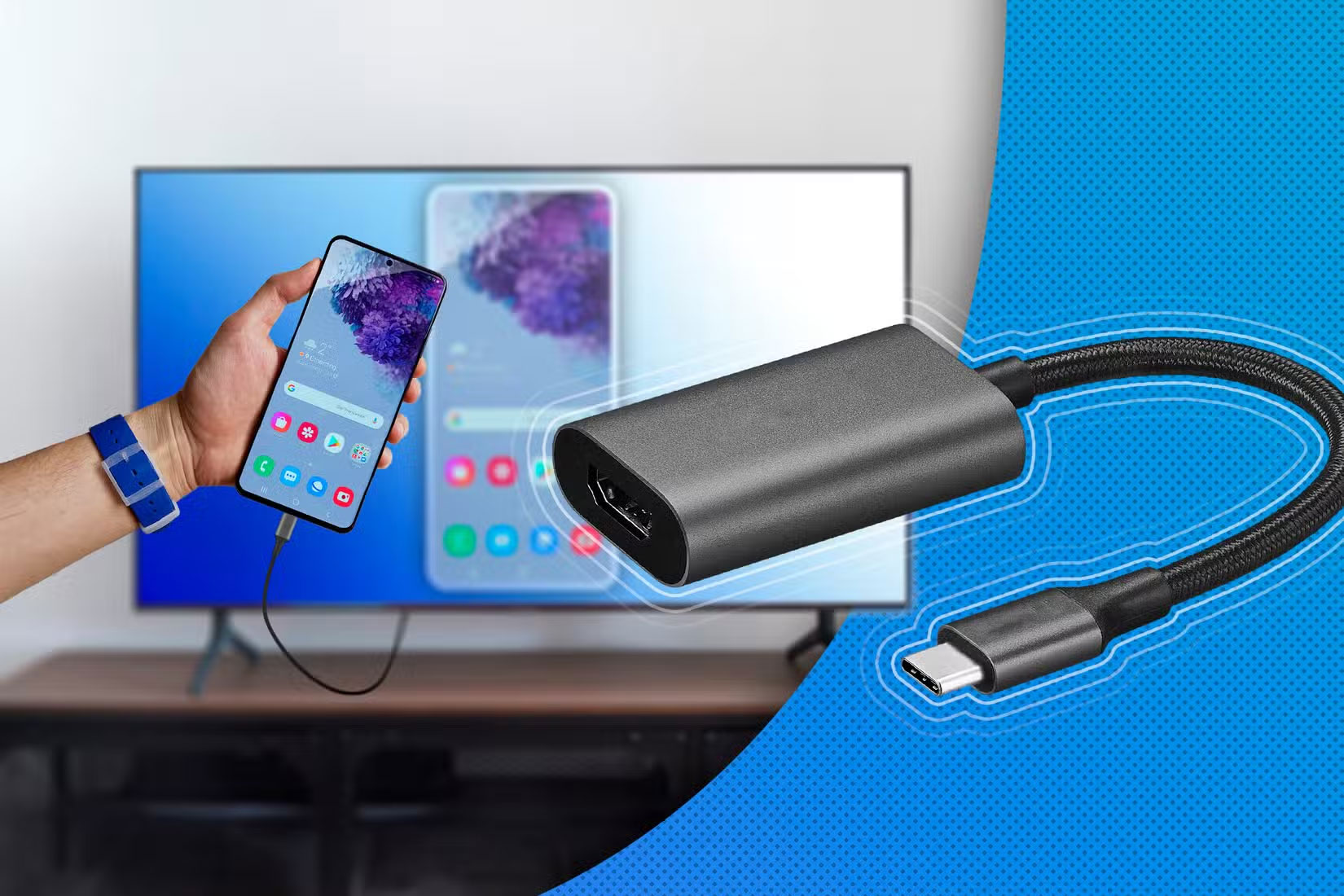
Check the exact phone model before buying an adapter. A USB-C port can charge a device without supporting external displays. Many video-capable phones output DisplayPort over USB-C and use a USB-C-to-HDMI adapter. Older iPhones with Lightning require a compatible digital AV adapter. An app may limit playback on an external display.
4. Soundbar
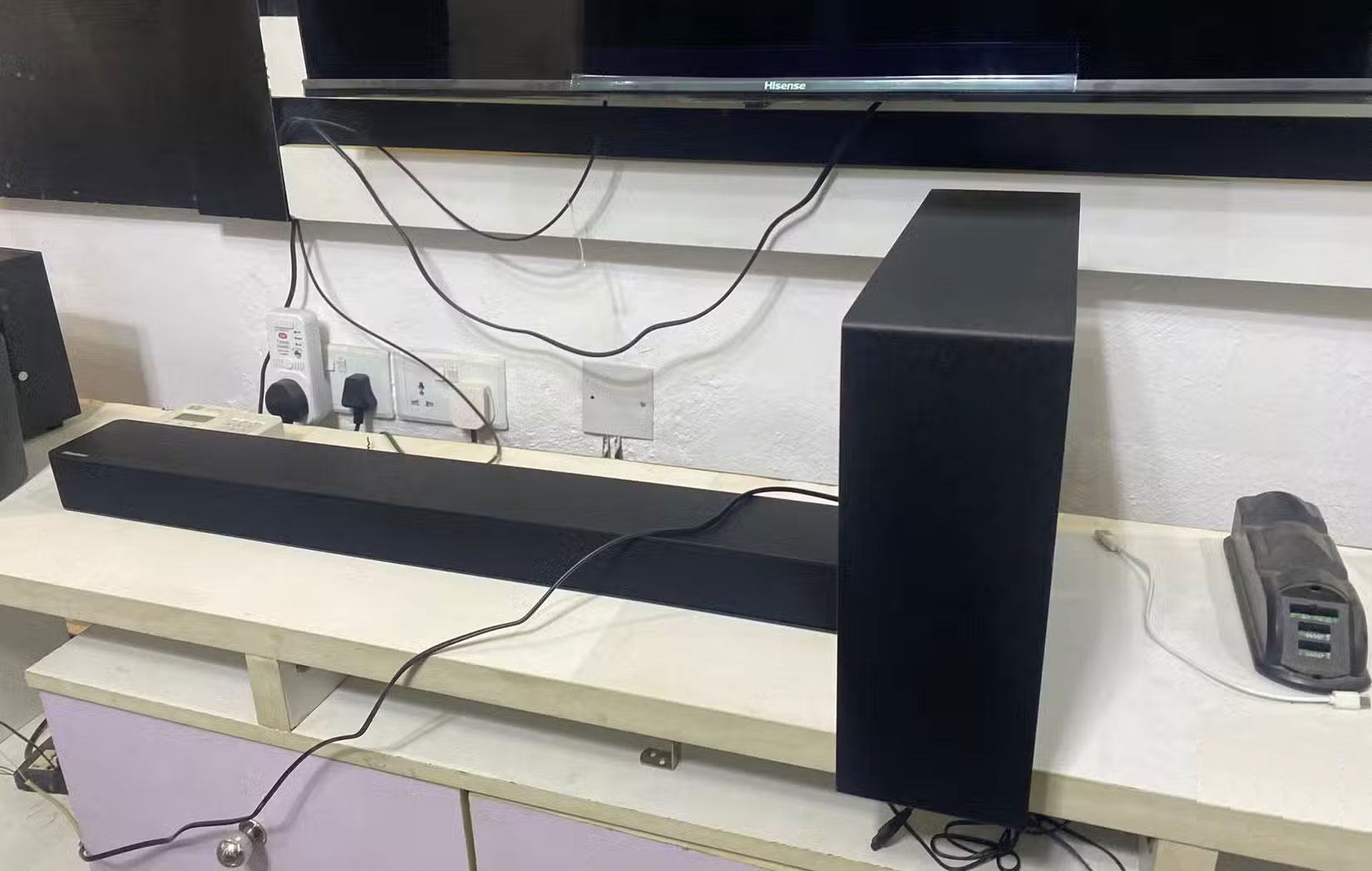
Connect the TV’s ARC or eARC port to the corresponding TV port on your soundbar. Select the external audio output in the TV’s settings. If the bar stays silent, check whether the TV requires HDMI control to be enabled. See how to identify an ARC port before replacing cables.
5. DVD or Blu-ray player
Connect a player with HDMI output directly to the TV. If it has only analog outputs, it needs an appropriate active converter. To play Ultra HD Blu-ray discs, check that the player explicitly supports that format.
6. Streaming stick or box
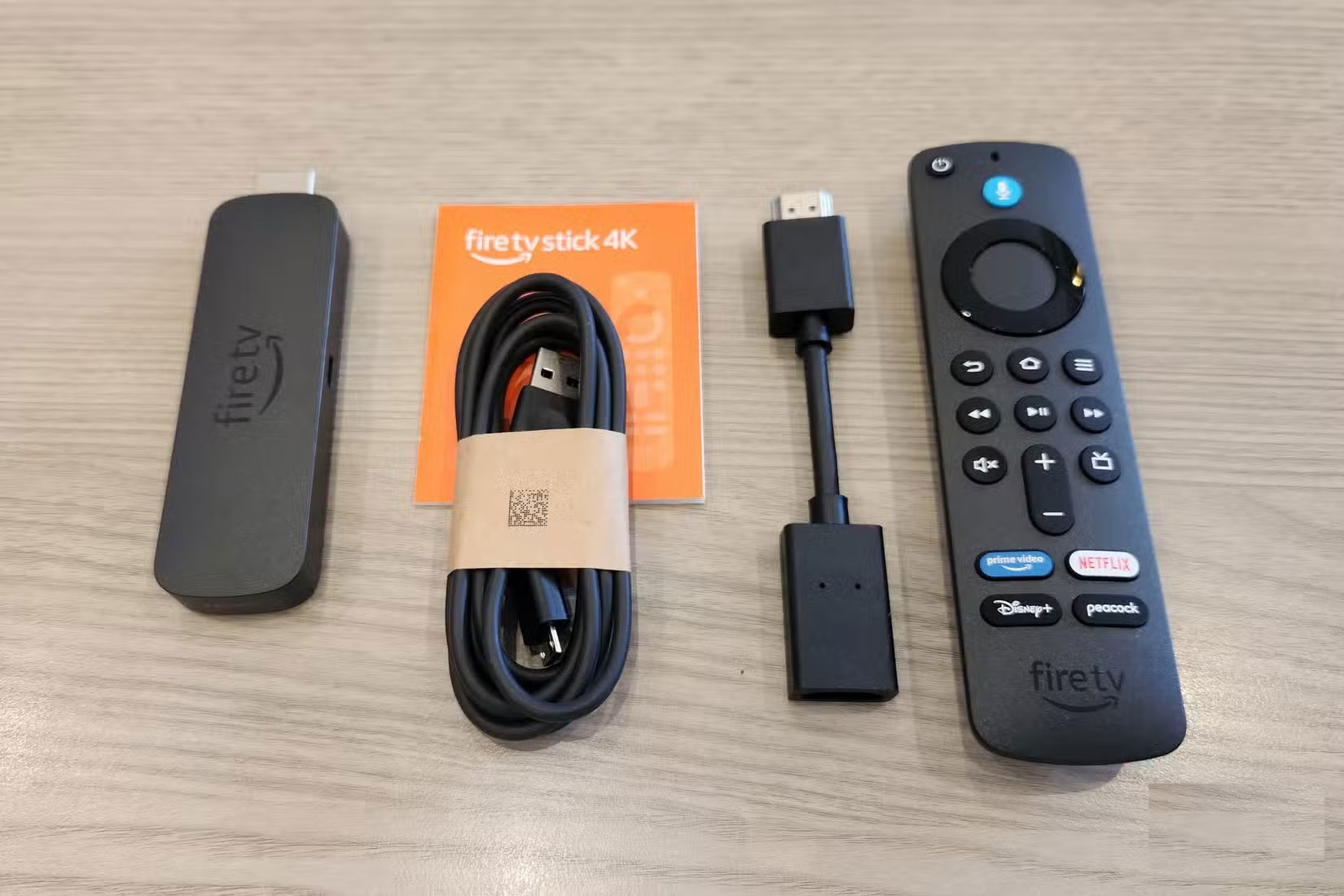
Use a streaming device when you need an app your TV does not offer or its built-in interface feels slow. Connect HDMI and use the supplied power adapter if the TV’s USB port cannot provide reliable power. Switch to the new input and follow the device’s network setup.
7. Raspberry Pi
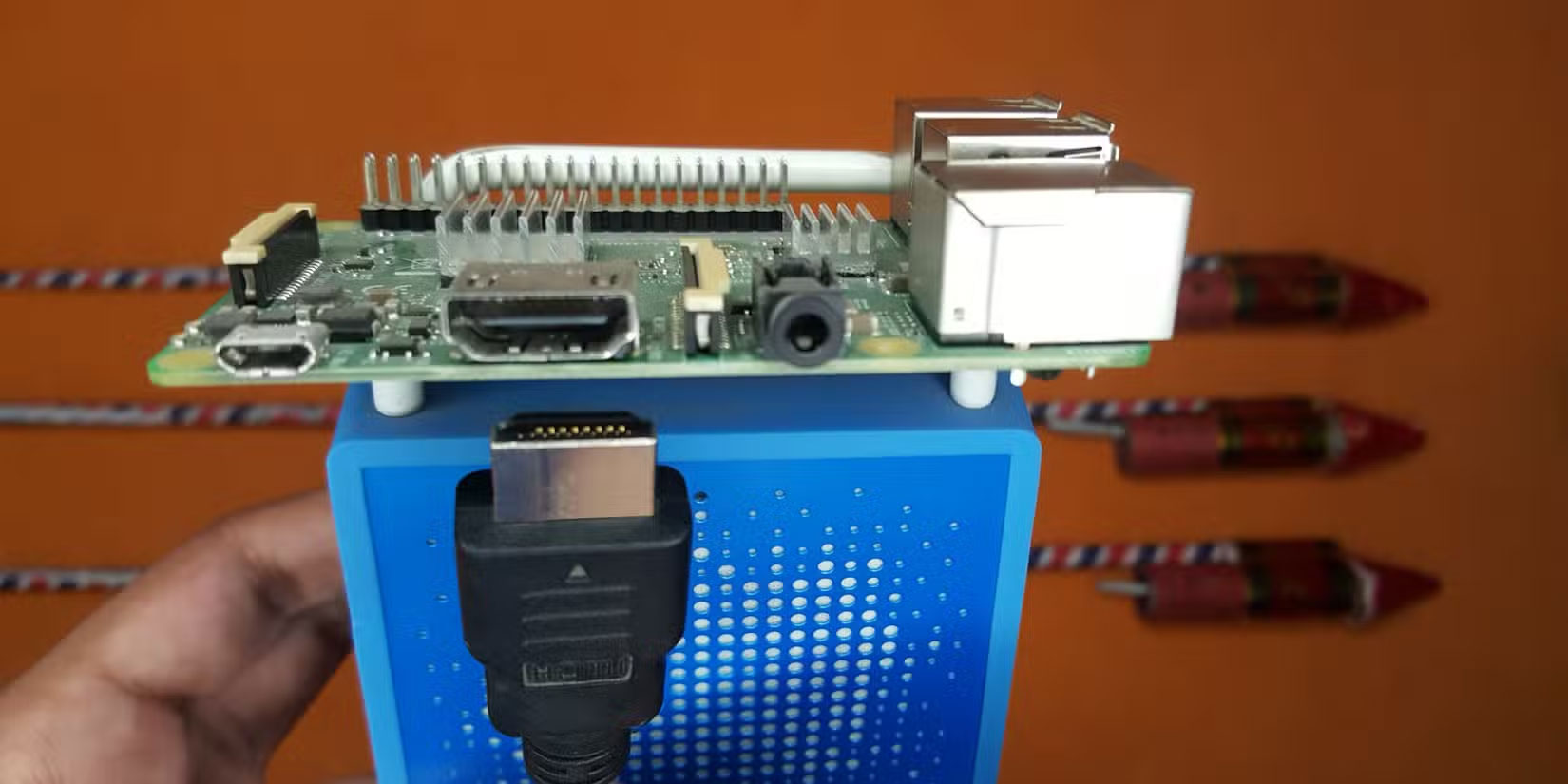
A Raspberry Pi can turn the TV into a display for a small desktop or a media project. The Pi 4 and Pi 5 use micro-HDMI. Check your model so you buy the right cable, and allow for separate power and a way to control the Pi.
8. HDMI capture card with passthrough
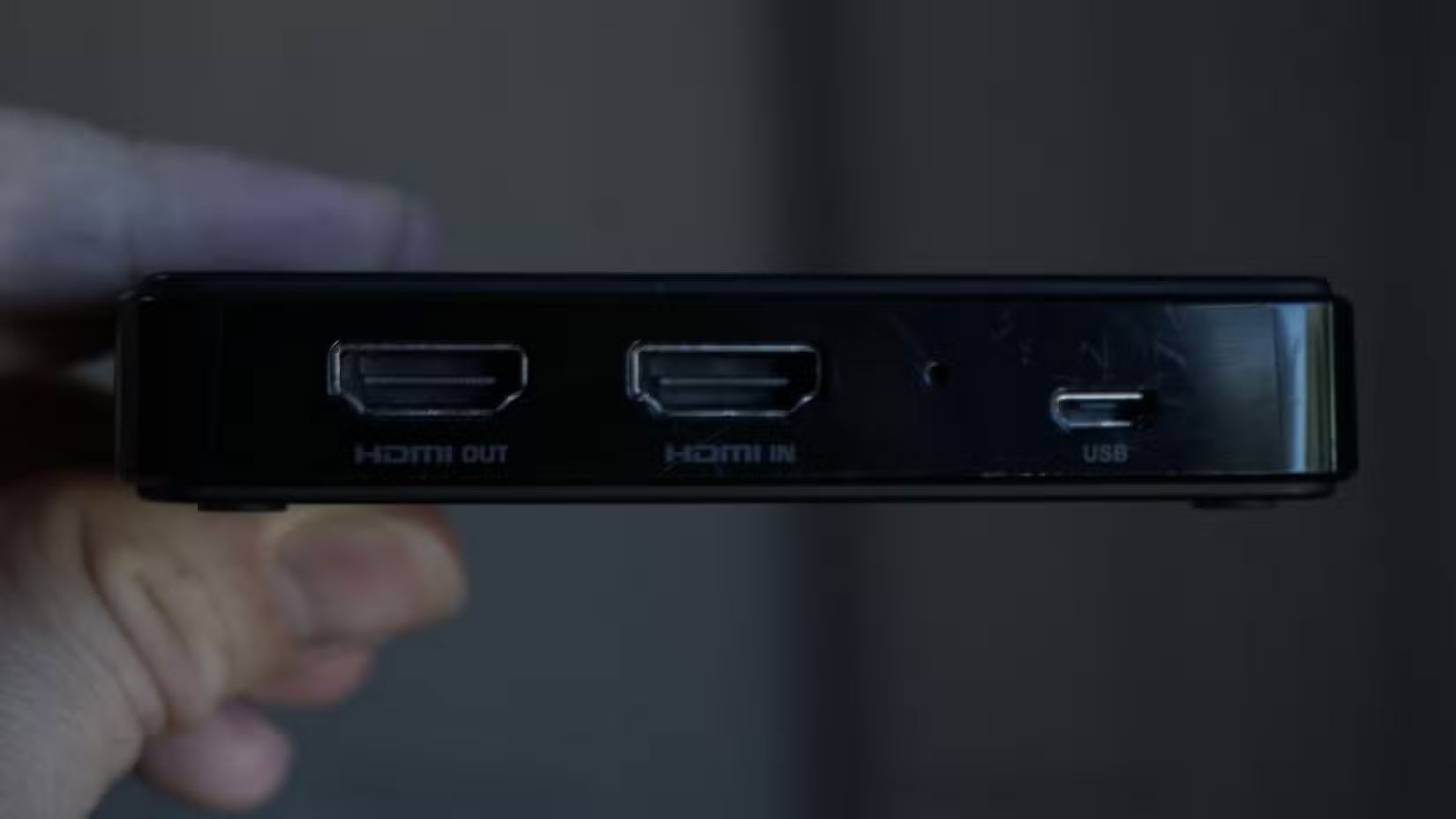
Connect a console or supported camera to the card’s HDMI input, then connect its HDMI output to the TV. The TV displays the passthrough signal. Recording usually happens on a computer connected to the capture card. Check what resolution and refresh rate the card can pass through before adding it to your setup.
9. Stick PC
A compatible stick PC gives the TV a desktop interface. It plugs into HDMI for video and typically needs separate power plus a keyboard and mouse. If the desktop edges are cut off, look for a TV setting such as Screen Fit or a PC input mode.
10. Security-camera recorder
To see your own cameras on the TV, connect the HDMI output of a compatible DVR or NVR and select that input. Use the recorder’s interface to switch between feeds or view recorded footage. Keep the TV in an area where only intended viewers can see the feed.
If the TV says “No signal”
Check the selected input, make sure the source has power, and reseat both ends of the cable. If a receiver or capture card sits between the device and TV, test a direct connection first. Once a picture appears, add the other device back and adjust the output settings if needed.

Reader Comments 0
Sign in with email or Google to join the discussion.