Table of Contents
Microsoft Excel is powerful, but it's also finicky. Even a small mistake can lead to a big problem, especially when money or sensitive data is involved. And as you know, prevention is better than cure.
5. Not structuring your workbook properly
You've probably seen messy workbooks in your life, with issues like inconsistent formatting and formulas scattered all over the place. The former can make the worksheet difficult to view, navigate, and analyze. The latter can lead to hidden errors, incorrect calculations, and hinder decision making along the way.
Those are just specific examples, but on a broader scale, a poorly structured workbook can, for example, make collaboration more difficult. It can turn an Excel spreadsheet into a frustrating puzzle as people try to find important data and formulas, while others struggle to make sense of ambiguous labels and messy layouts.
Repairs can also be time consuming, leading to wasted time, duplicate work, and even conflicts (both inside and outside the spreadsheet).
4. Not using the correct function
Some formulas work better than others in certain situations. A good example of this is the rigidity of the VLOOKUP function in Excel - it requires the lookup value to be in the first column of the table array and the lookup column to be on the right. If the table array is rearranged or you need to find a value to the right of the lookup value, you may run into problems.
In these cases, the XLOOKUP function may be better than the VLOOKUP function because it is more flexible. Take a look at the data in the screenshot below, for example:
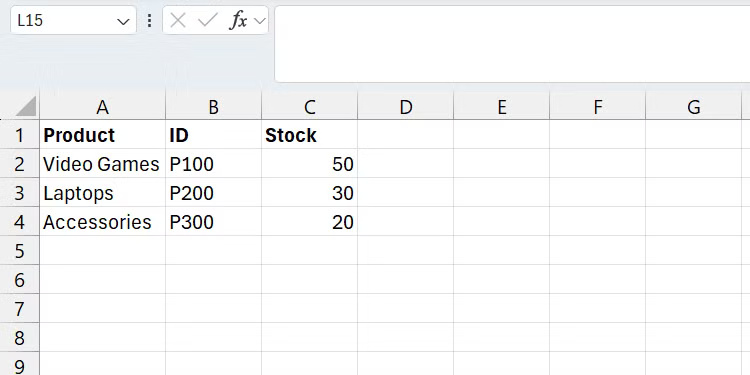
If you want to find the inventory level for video games, enter the formula below somewhere, such as cell E1 :
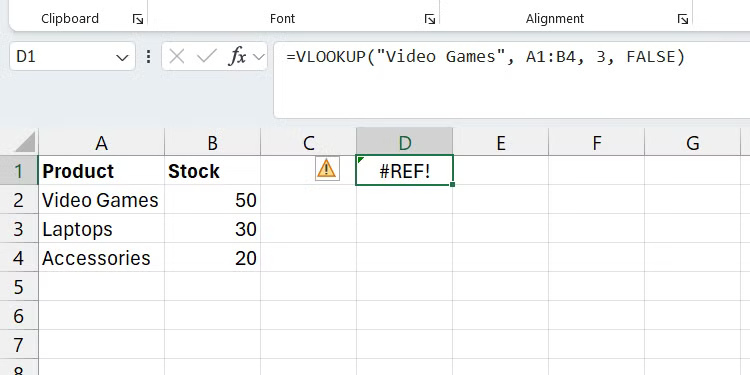
=VLOOKUP("Video Games", A1:C4, 3, FALSE)Here, the lookup column in the formula is 3 , which corresponds to column C in the Excel spreadsheet. If someone deletes column B , VLOOKUP will display an error because the value is not found.
3. Use hardcoded values in formulas
With the VLOOKUP function, we saw a problem with hardcoded values - when the values change, they don't update automatically. For example, here's the syntax to calculate the discount for a product:
original_price * (discount_rate / 100)If you hardcode the discount_rate value, it means that if the rate changes, you have to go through every place you entered it in the spreadsheet and change it manually. This is a tedious and error-prone task, especially in large spreadsheets.
2. Using the wrong cell reference
Many Excel users don't understand cell references in Excel. You have relative references (e.g. =A1 ), which change the row and column based on the cell it's copied to. You have absolute references (e.g. =$A$1 ), which don't change no matter where it's copied to. You also have mixed references (e.g. =$A1 ), where the column or row doesn't change when it's copied.
Understanding cell references is important because using incorrect cell references can lead to incorrect calculations and inconsistent data. You can imagine how time-consuming it would be to fix this error in a large Excel spreadsheet.
The following section will look at a simple example using the data in the screenshot below:
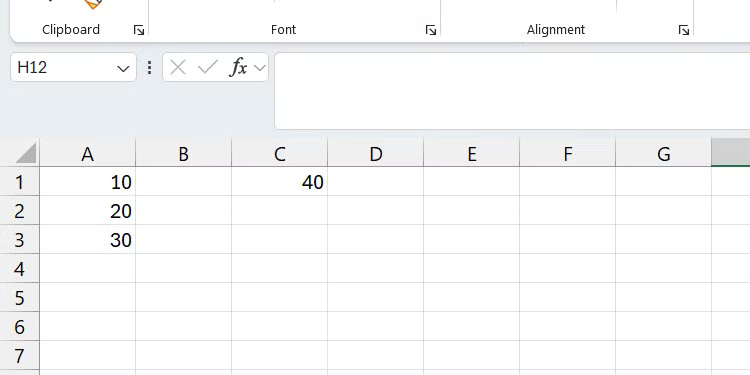
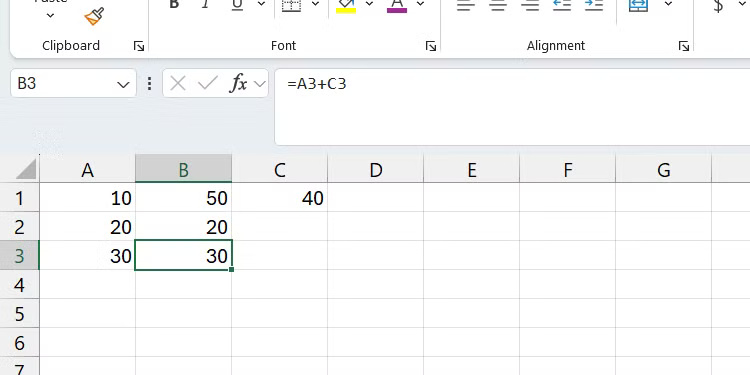
Suppose you want to add the value in cell C1 to the values in column A ( A1: A3 ). Normally, you would write the following formula in cell B1 and then copy it to B2 and B3 :
=A1+C1When you look at the results, you will immediately see that the results in the copied cells are incorrect. Since this is a relative reference, the reference from C1 was changed to C2 and C3 when the formula was copied to cells B2 and B3 .
1. Bypass data validation
Data validation ensures that users enter correct data into cells. For example, if you require them to enter numeric values in certain cells but they enter text, this can cause errors and ruin your analysis. Another example is if you require them to enter numbers within a certain range but they don't, resulting in incorrect calculations.
For instance, with data validation, you can display errors to users when they enter text into a cell that requires a numeric value or when they enter a number that is out of range. You can even use drop-down lists in Excel to limit entries to predefined options. Overall, data validation is a great way to ensure that input data is consistent and accurate.
Final Thoughts
Overall, 5 Excel Errors That Can Cost You Time and Money is best understood by considering the main facts, practical context, and limitations together. Use the details above as a clear starting point and confirm time-sensitive information when necessary.
FAQ
What does this article explain about 5 Excel Errors That Can Cost You Time and Money?
Microsoft Excel is powerful, but it's also finicky. Even a small mistake can lead to a big problem, especially when money or sensitive data is involved. And as you know, prevention is better than cure.
What should you know about 5. Not structuring your workbook properly?
You've probably seen messy workbooks in your life, with issues like inconsistent formatting and formulas scattered all over the place. The former can make the worksheet difficult to view, navigate, and analyze.
Should time-sensitive details be verified?
Yes. Software features, game codes, product specifications, prices, and research findings can change. Confirm important details with an official or primary source when accuracy affects your decision.
Related Articles
 How to Use Money in Excel, a Free and Secure Money5 minutes read
 7 Most Common Excel Errors for Office People8 minutes read
 6 Ways to Fix Excel Error Not Displaying Spreadsheet Content6 minutes read
 How to Fix Value Errors in Excel6 minutes read
 How to Fix Autofill Errors in Excel5 minutes read
 How to Fix Errors Were Detected While Saving Files in Excel 20104 minutes read
Reader Comments 0
Sign in with email or Google to join the discussion.