Table of Contents
This updated guide compares ways to change file extensions in Windows 11 and highlights the details that matter most. This article explains how to change file extensions in Windows 11, as well as discusses the difference between file extensions and file types.
Change File Extensions the Easy Way
For most people, the easiest way to change a file extension in Windows 11 is to do it from the same place you change the file name. Still, Windows does not show file extensions by default, so we'll have to make a small change to that extension first before we're given the option to edit the file extension.
1. Open File Explorer. A quick method is to use the shortcut WIN + E .
2. Select View at the top of the window, then select Show > File name extensions .
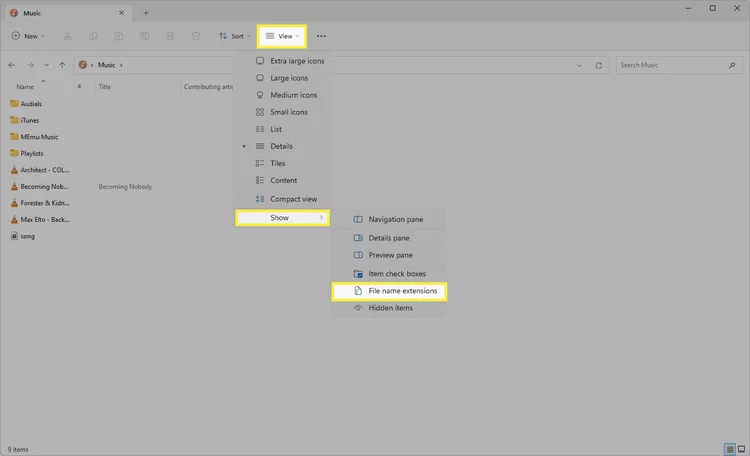
3. Now Windows 11 shows the file extension, right select the file you want to edit the extension and select Properties .
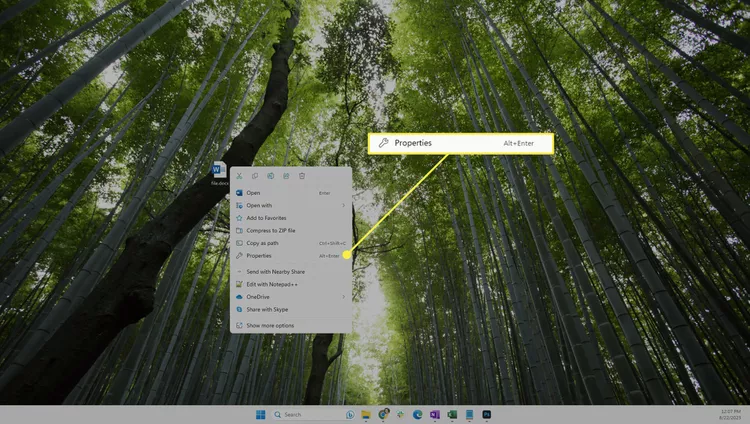
Tip : If you're in a hurry, left-choose the file once (without opening it), press F2 , edit the file extension, press Enter , then select Save .
4. In the General tab, rename the characters after the period to change the file extension.
5. choose OK , then select Yes to save.

Note : Changing the file extension does not change the file type. See the bottom of this page for more information about that.
Change File Extension from Command Prompt
If you're familiar with the Command Prompt, you may prefer to use the rename/ren command to change file extensions. This method lets you skip having to edit File Explorer options (i.e. you can hide file extensions and it will still work).
1. Open Command Prompt.
2. Change to the directory containing your file.
for instance, if Command Prompt opens to C:Usersjonfi , but the file is on the desktop, enter this command into Command Prompt:
cd C:UsersjonfiDesktop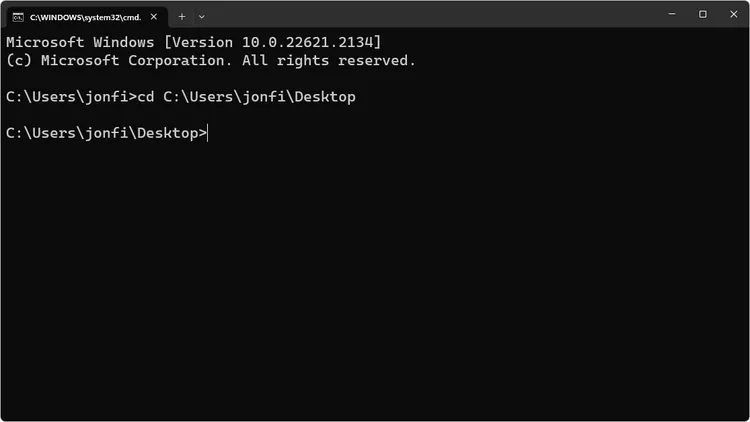
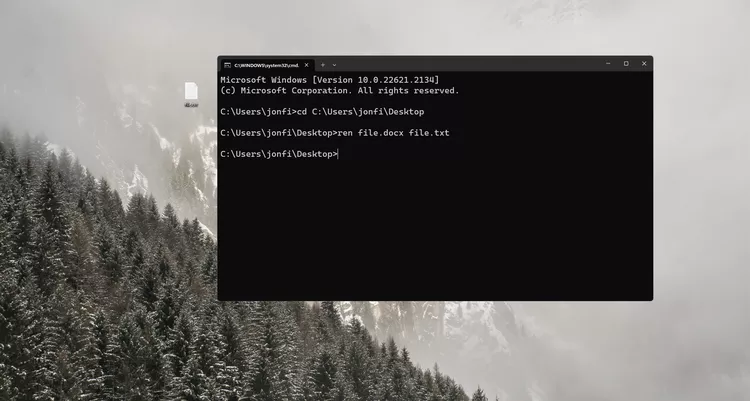
3. Type ren followed by the original file and then the new name for the file.
Here is an example of changing the file extension from DOCX to TXT:
ren file.docx file.txt4. Press Enter to change the file extension immediately.
How to Change File Extensions in Bulk
Command Prompt also makes it easy to edit the file extension for multiple files at once, assuming they're in the same folder. The trick is to use asterisks so you do not have to call out any specific file names.
1. Put all the files you want to edit in their own folder.
2. Right-select the empty area next to the files and select Open in Terminal .
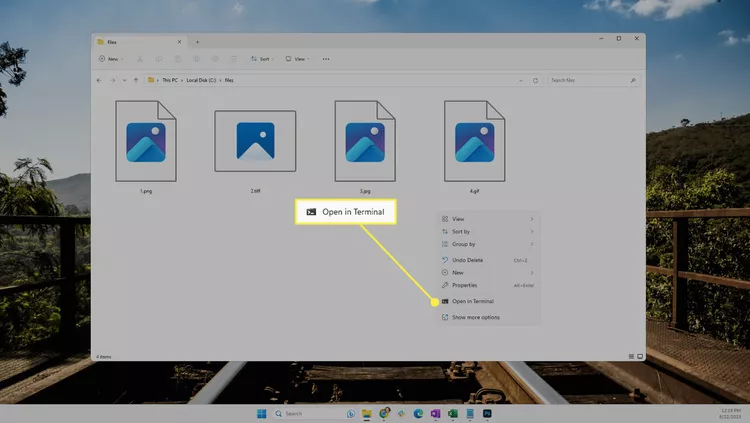
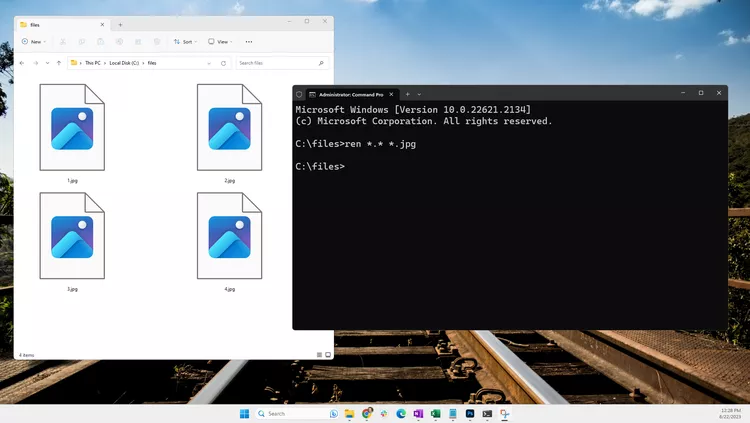
3. Confirm that Command Prompt shows the correct folder. In the example, it is C:files>.
If PowerShell opens instead, press Ctrl + Shift + 2 to get to Command Prompt. Learn more about Terminal if you need help.
Important Note : do not skip this step. If you're in the wrong directory, there's no easy way to undo the command you're about to execute.
4. Enter these command, but change *.jpg to whatever file you want:
ren *.* *.jpgWarning : This command will rename everything in this directory. ensure you are in the correct directory and want to change the file extension for every file in it.
If you just need to rename a group of similar file extensions, you can modify the command a bit. Here's what you'd enter if you wanted all GIF files to have the JPG file extension (everything else would remain the same):
ren *.gif *.jpg5. Press Enter . All file extensions will change automatically.
Convert Files to Change File Type
File converters can change file extensions. The main reason you would do this is to change the actual file format (i.e. file type), such as if you need the file to be compatible with a specific device or software program.
Here is an example of using Zamzar file converter to change the file extension of an audio file from MP3 to WAV.
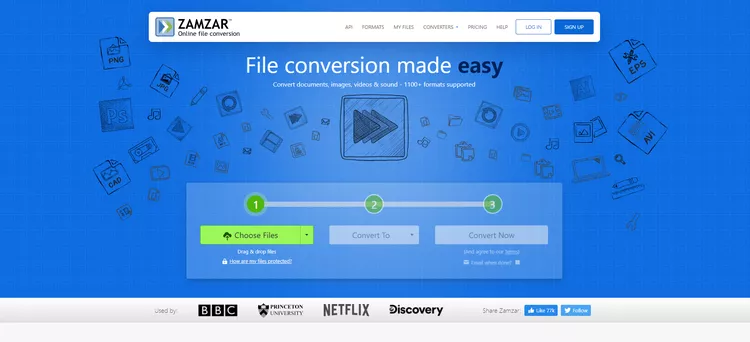
1. open Zamzar and select Choose Files .
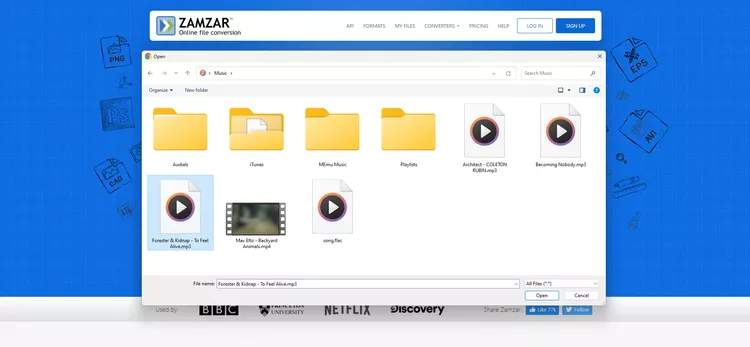
2. Select the MP3 file you want to convert to WAV, then choose Open .
3. Select Convert To , then select WAV from the list.
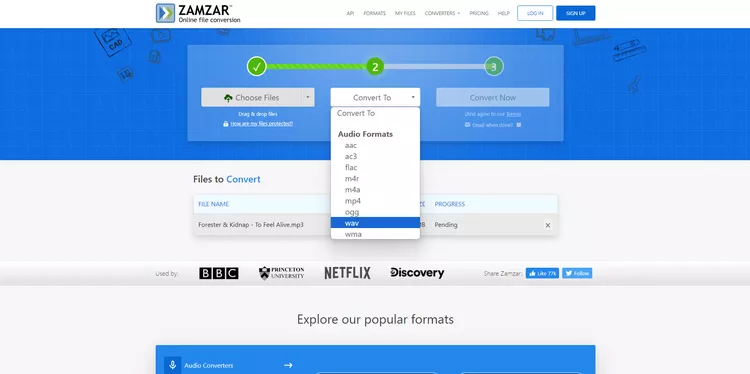
4. Select Convert Now to start converting the file.
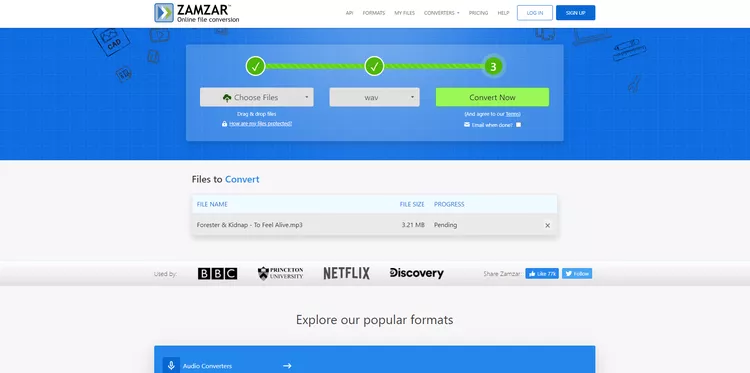
5. Select Download to save the file to your device.

Some software programs have built-in file conversion tools. This is common for programs that can open multiple file types. for instance, Adobe Photoshop can open a PNG file and convert it to over a dozen other image formats, then change the file extension (to JPG, GIF, TIFF, etc.).
FAQ
How were the ways to change file extensions in windows 11 options evaluated?
The comparison focuses on practical features, ease of use, limitations, compatibility, and the type of user each option is most likely to help.
Which option is best for beginners?
Beginners should prioritize a clear interface, useful documentation, reliable support, and the core features needed for their first project.
Should I choose a free or paid option?
Start with a free option when it covers your needs. A paid plan may be worthwhile when you need advanced tools, commercial rights, collaboration, or professional support.
Related Articles
 List of Some Types of Files That Are Potentially Dangerous on9 minutes read
 What Is File Extension?19 minutes read
 How to Displaying File Extensions on Windows for System Security3 minutes read
 How to Quickly Change File Extensions on Windows 10, 119 minutes read
 5 Best Windows File Explorer Extensions to Manage Files on the8 minutes read
 How to Change a File Extension: Step-by-Step Guide4 minutes read
Reader Comments 0
Sign in with email or Google to join the discussion.