Table of Contents
G’MIC-Qt, Resynthesizer, BIMP and darktable can extend a GIMP workflow in different ways: filters, texture-based repairs, batch processing and RAW development. Choose the tool for a specific task, then check compatibility with your exact GIMP version and operating system. A GIMP 2 plug-in should not be assumed to work in GIMP 3.
1. G’MIC-Qt for filters and effects
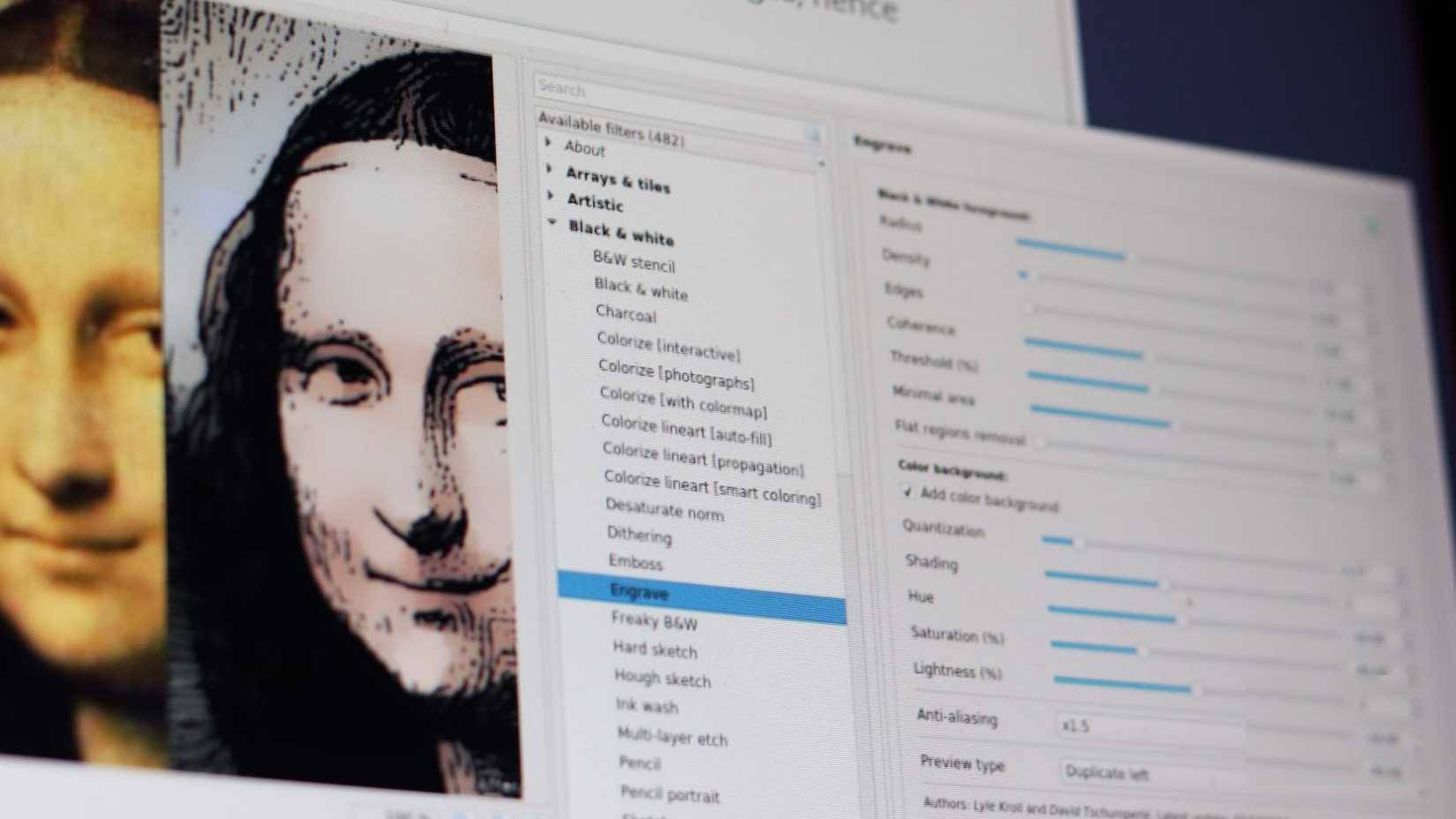
G’MIC-Qt provides a large collection of image-processing filters, including artistic effects, denoising, color adjustments and texture generation. The official download page separates builds by host version and platform, including GIMP 3 packages.
Start with one image and preview the filter before applying it. Work on a duplicate layer or saved copy so you can compare the result at full size. Strong denoising can soften detail, and an effect that looks good in a small preview may show artifacts after export.
2. Resynthesizer for filling selected areas
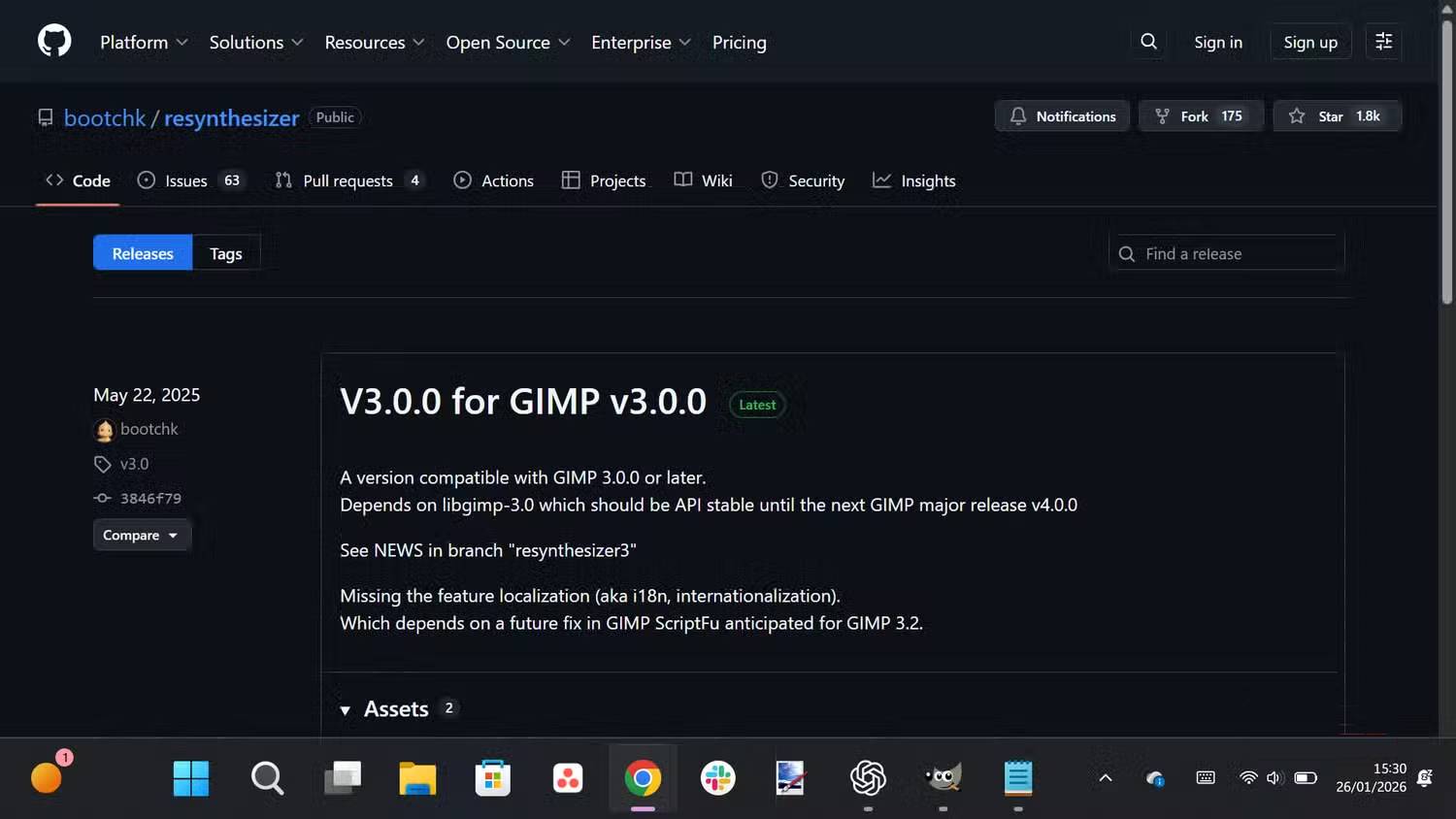
Resynthesizer synthesizes texture from surrounding or selected image material. Its Heal Selection workflow can help remove a small unwanted object against a repeating or irregular background. It does not understand a scene in the same way a person does, and it may produce obvious repetitions or distorted edges.
Make a selection around the object, run the available healing command and inspect the edges. Follow with the Clone or Heal tool where needed. The maintainer’s repository documents a GIMP 3 branch and release; installation and available binaries vary by platform.
3. BIMP for repeated operations
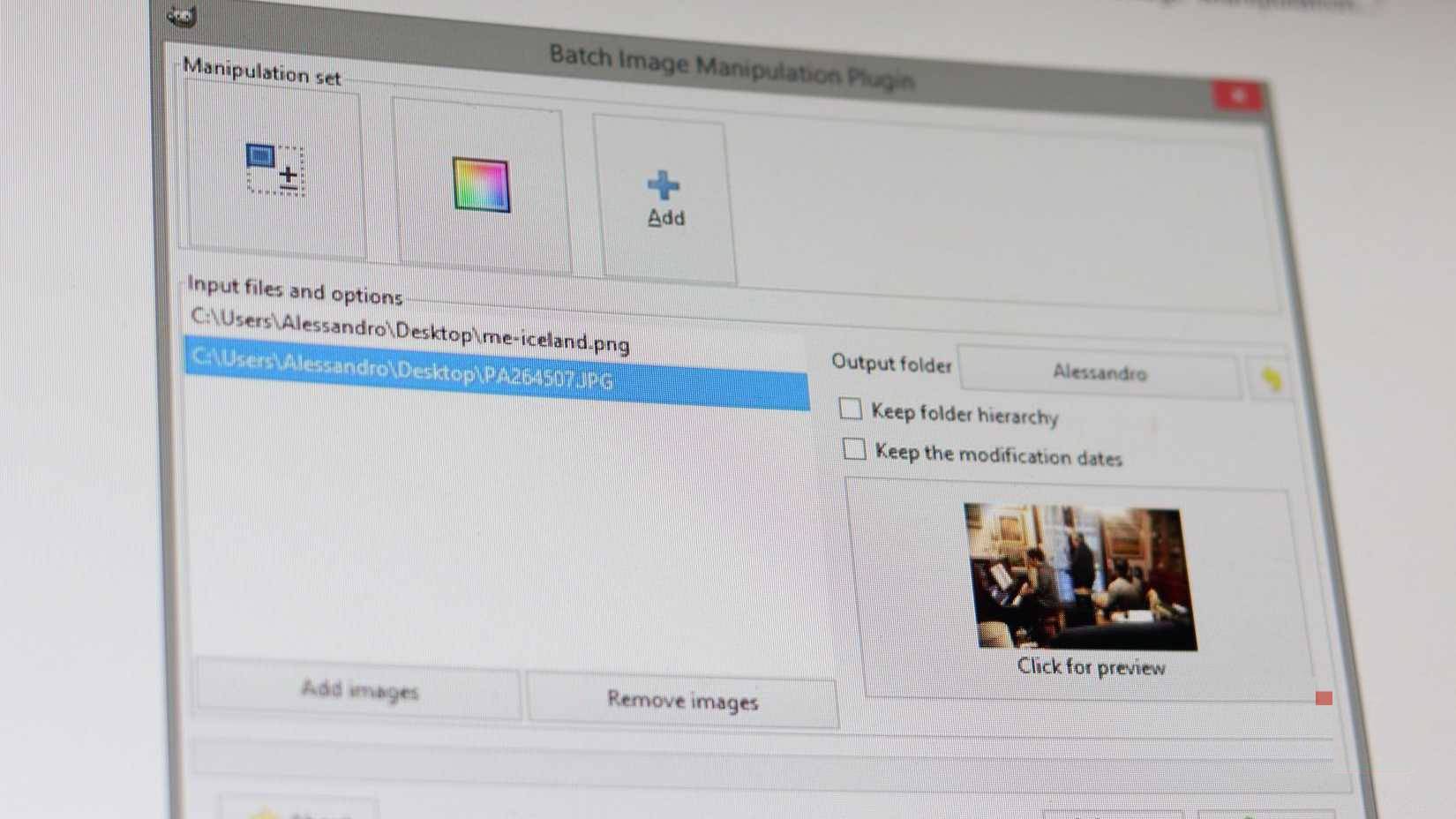
BIMP—the Batch Image Manipulation Plugin—can apply a sequence such as resizing, cropping, watermarking or format conversion to many files. It is useful when the same settings genuinely suit the whole set.
Check the project’s compatibility and release information before installing. Its established packages target GIMP 2.10; do not assume they support GIMP 3. If no compatible build is available, use another maintained batch tool rather than forcing an old plug-in into a newer installation.
Test a few varied images first, including portrait and landscape files. Write output to a separate folder, then inspect dimensions, crops, transparency and compression before processing the full batch.
4. darktable for camera RAW files
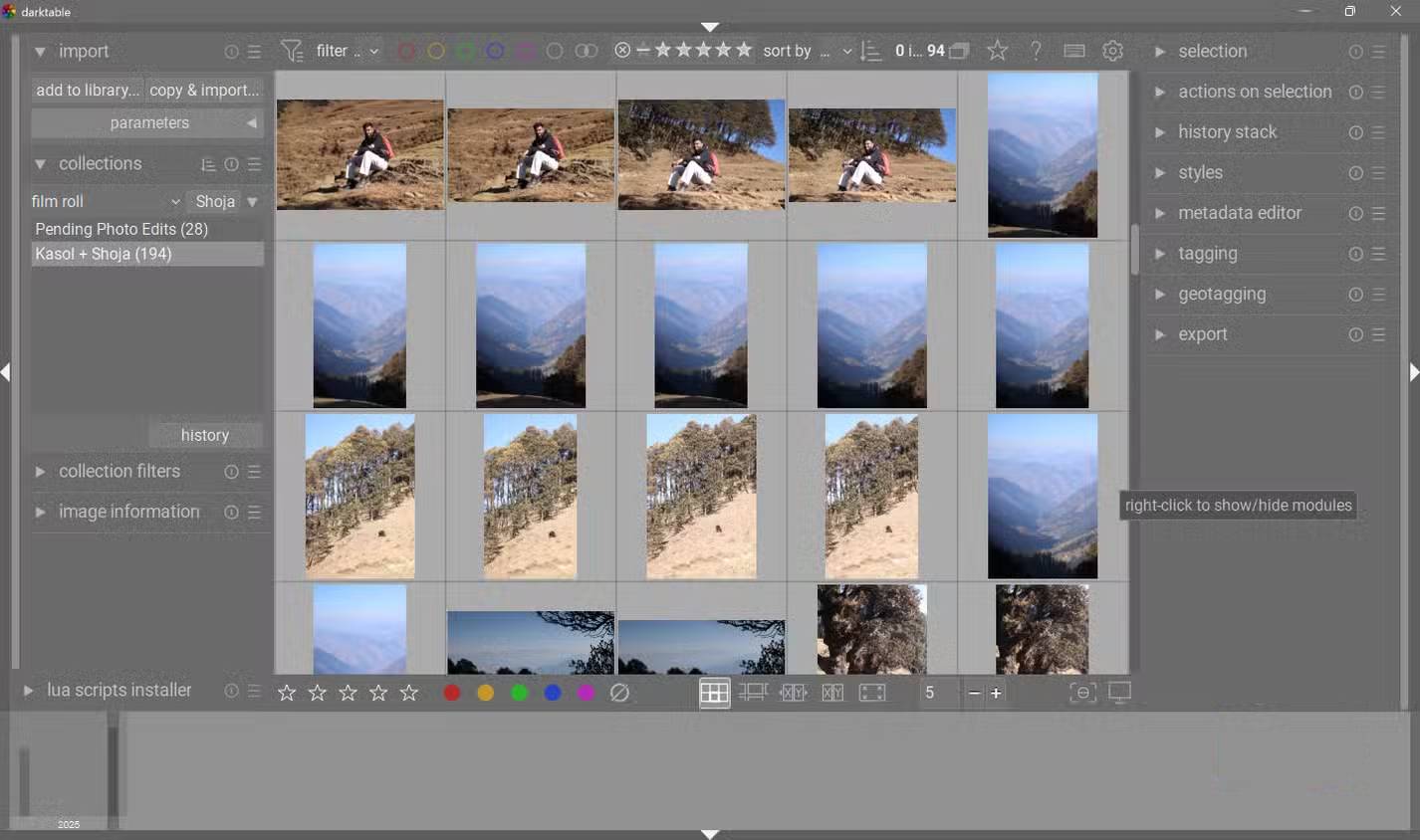
darktable is a separate RAW developer, rather than simply another GIMP filter. With a working importer integration, it can develop a camera RAW file before sending a rendered image into GIMP for layer-based editing.
Set exposure, white balance and lens corrections in the RAW developer, then check the resulting image and color profile in GIMP. Adjustments cannot recover detail that the camera never recorded. If the integration is unavailable, export a suitable high-quality file from darktable and open it in GIMP manually.
Install only what your workflow needs
Use the maintainer’s installation instructions and restart GIMP if required. Confirm that the command appears and works on a disposable copy before relying on it for client work. Keep the editable project and original photos alongside any exported files.
For broader context, compare Photoshop alternatives and read the GIMP plug-in overview, checking each older recommendation against its current project documentation.
Related Articles
 8 Best GIMP Plugins and How to Install Them11 minutes read
 How to Arrange Brushes in GIMP with Tags6 minutes read
 How to Design Professional Leaflets with GIMP23 minutes read
 New Features of GIMP Version 2.10: GIMP 2.1010 minutes read
 How to Use the Clone Tool in GIMP2 minutes read
 Fix Tool Options Error That Doesn't Work or Disappears in Gimp7 minutes read
Reader Comments 0
Sign in with email or Google to join the discussion.