Table of Contents
SEQUENCE, LET, and LAMBDA are not commonly used, but they solve specific problems that would otherwise require complex workarounds or lengthy formulas that are difficult to consider.
Microsoft Excel has thousands of functions, but most people focus on the basics, such as SUM and AVERAGE. While these functions work well for simple tasks, there are three functions that handle complex situations with less effort. SEQUENCE, LET, and LAMBDA aren't as commonly used, but they solve specific problems that would otherwise require complex workarounds or lengthy formulas that are difficult to review.
4. The SEQUENCE function automatically generates data
Generate dynamic number and date series
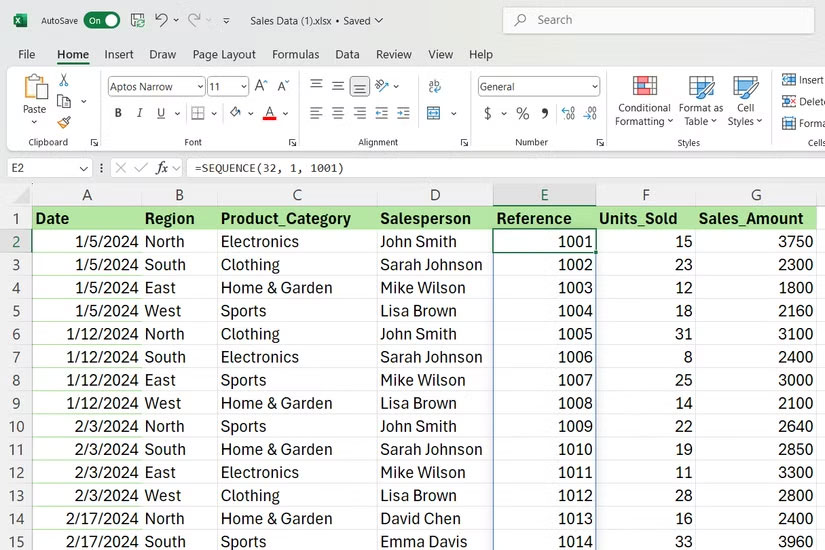
SEQUENCE creates sequential arrays of numbers without having to manually enter each value. If you need a list of employee IDs, invoice numbers, or date ranges, this function makes it easy.
The syntax is straightforward:
=SEQUENCE(rows, [columns], [start], [step])Let's analyze the parameters:
- Rows : Specify how many numbers you want vertically.
- Columns : Controls horizontal distribution - leave blank if there is only one column.
- Start : Set the starting number, default is 1.
- Step : Specifies the distance between numbers, also defaults to 1.
For sales data sets, SEQUENCE is useful for generating reference numbers. For example, the following formula generates numbers from 1 to 32.
=SEQUENCE(32)Similarly, if You should start from 1001, you can use:
=SEQUENCE(32, 1, 1001)This formula is useful for date series. The following formula will generate 12 consecutive dates starting from January 1. This is better than manually entering dates for monthly reports or project milestones.
=SEQUENCE(12, 1, DATE(2025, 1, 1), 1)You can also create just workdays by combining SEQUENCE with other DATE functions in Excel, such as WORKDAY, for more complex scheduling situations.
3. The LET function makes complex formulas easier to maintain
Eliminate repetitive calculations and improve readability
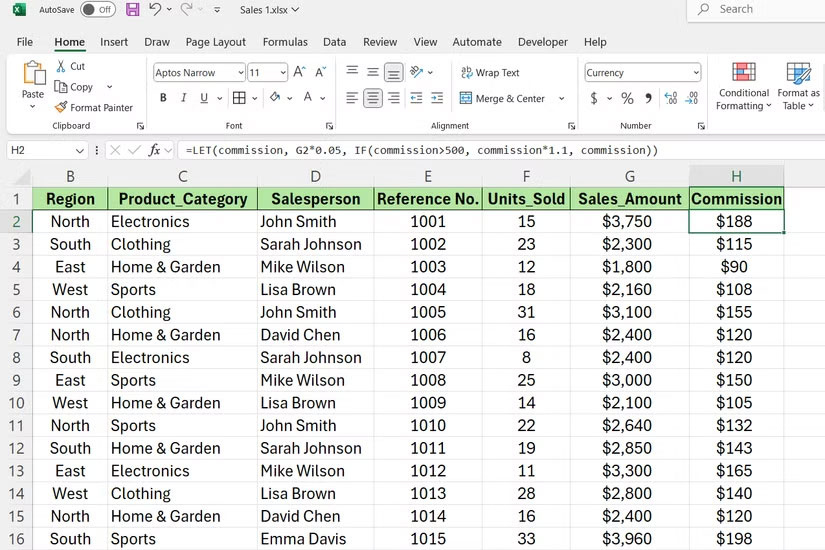
The LET function assigns names to values in a formula. This eliminates repetitive calculations and makes the work easier to read. Instead of writing the same expression over and over again, you define it once and reference it by name.
The syntax follows this pattern:
=LET(name1, value1, [name2, value2, .], calculation)You can define multiple variables by adding name-value pairs. The final calculation will use these named variables to produce the result.
Looking at a sales dataset, suppose you are calculating a salesperson's commission plus bonuses. Without LET, you would write:
=IF(G2*0.05>500, G2*0.05*1.1, G2*0.05)The commission calculation B2*0.05 appears twice. With LET, it becomes clearer:
=LET(commission, G2*0.05, IF(commission>500, commission*1.1, commission))It does the same calculation but defines the "commission" once at the beginning. You only need to change the commission rate in one place.
For complex profit margin analyses, LET is even more useful. The following example clearly defines each component.
=LET(revenue, G2, costs, L2, margin, (revenue-costs)/revenue, IF(margin>0.3, "High", IF(margin>0.15, "Medium", "Low")))2. LAMBDA functions create reusable custom functions
Build custom functions for repetitive business logic

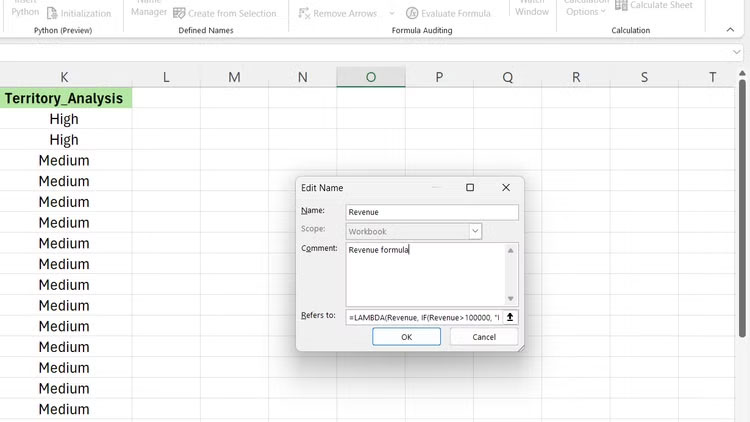
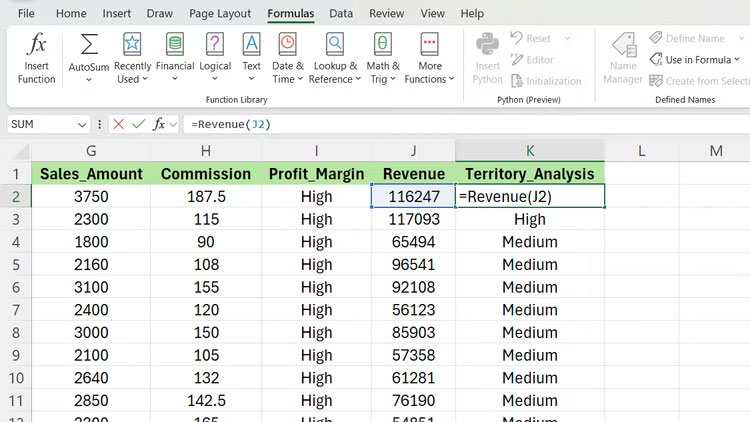
LAMBDA creates custom functions that you can use multiple times in your workbook. Instead of copying formulas all over the place, you create a single function that accepts input and returns a calculated result.
The syntax is:
=LAMBDA(parameter1, [parameter2, .], calculation)Parameters act as placeholders - when you call the function, you pass actual values in place of these placeholders. The calculation uses these parameters to produce output.
Suppose you regularly calculate weighted performance scores. You can create a LAMBDA function like this:
=LAMBDA(sales, quota, weight, (sales/quota)*weight)It creates a reusable function that takes 3 inputs: Actual sales, sales quota, and a weighting factor. The function returns a weighted performance score by dividing sales by quota and multiplying by the weighting factor. Name this function "PerformanceScore" using Excel's Name Manager.
Tip: To name your LAMBDA function, go to Formulas > Name Manager > New .
You can now call this function anywhere in the workbook.
=PerformanceScore(B2, C2, 0.7)This function calculates the performance score using the provided sales, quota, and weighting factor.
To analyze regions, you can build a function that classifies regions based on revenue:
=LAMBDA(revenue, IF(revenue>100000, "High", IF(revenue>50000, "Medium", "Low")))This function classifies revenue into three levels: High For revenue above $100,000, Medium for revenue between $50,000 and $100,000, and Low for revenue below $50,000.
1. Combine these functions to create powerful solutions
Build comprehensive business analytics tools
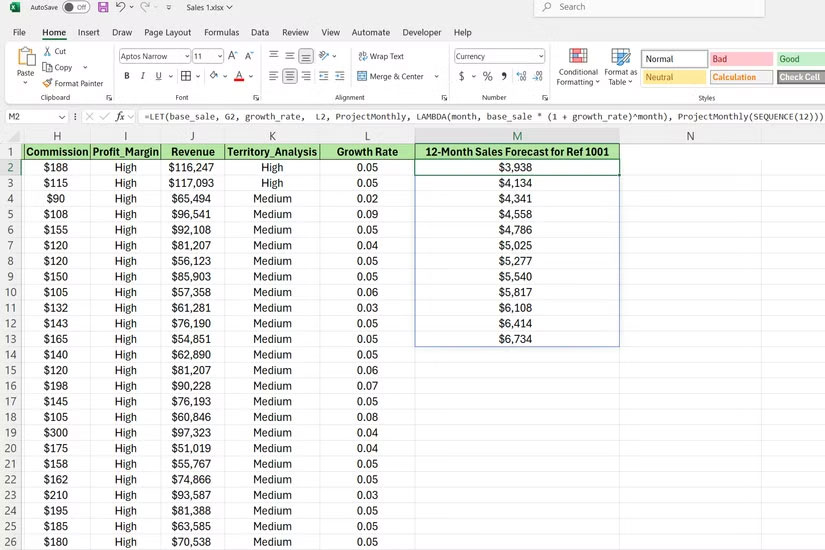
When you use SEQUENCE, LET, and LAMBDA together, they solve problems that would otherwise require multiple backing columns or array formulas. This combination creates flexible, maintainable solutions.
Let's look at building a sales forecasting tool using sales data. The following formula calculates a 12-month sales forecast for a single starting sales amount. The formula starts by defining two key variables with LET. The formula takes the value from cell G2 as the initial base sales amount.
=LET(base_sale, G2, growth_rate, L2, ProjectMonthly, LAMBDA(month, base_sale * (1 + growth_rate)^month), ProjectMonthly(SEQUENCE(12)))The formula then takes the monthly growth rate from L2, which is 0.04 (4%). You can change this value to model different scenarios. The formula then defines a small, reusable function called ProjectMonthly. This function calculates the projected sales for a given month based on the base sales and the growth rate.
Furthermore, this formula calls the ProjectMonthly function and passes SEQUENCE(12) into the function. This creates an array of numbers from 1 to 12, and LAMBDA will automatically apply its calculation to each number in that sequence.
This is a real bonus calculator that calculates bonuses based on goal achievement.
=LAMBDA(sales, target, LET(ratio, sales/target, IF(ratio>=1.2, sales*0.08, IF(ratio>=1, sales*0.05, 0))))FAQ
What should you know about the options in this guide?
In practical terms, sEQUENCE, LET, and LAMBDA are not commonly used, but they solve specific problems that would otherwise require complex workarounds or lengthy formulas that are difficult to consider.
Which option is the best choice?
The best choice depends on your priorities, compatibility, budget, and the specific features discussed in the comparison.
What should you compare before deciding?
Compare core features, limitations, ease of use, compatibility, and long-term value before making a decision.
Related Articles
 5 Functions to Instantly Clean up Messy Excel Spreadsheets6 minutes read
 6 Conditional Functions That Make Excel Spreadsheets Smarter10 minutes read
 Instructions on How to Insert the Current Date in Excel5 minutes read
 Instructions on How to Translate Languages on Excel Spreadsheets3 minutes read
 How to Display 0 in Front of a Number in Excel: Excel Number Display4 minutes read
 Summary of Information Functions in Excel4 minutes read
Reader Comments 0
Sign in with email or Google to join the discussion.