Table of Contents
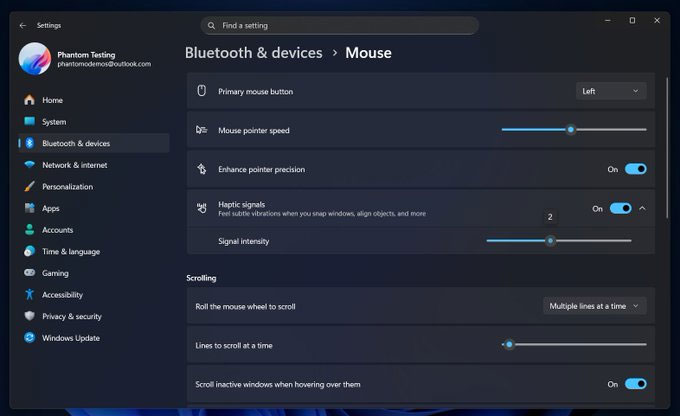
Windows 11 supports haptic signals for selected actions on compatible input devices. Examples include snapping or resizing a window and aligning objects in PowerPoint. The feedback is a small physical sensation from the device, rather than an on-screen animation or notification sound.
The feature was initially discussed in connection with preview builds, including build 26220.7070. It should no longer be described simply as an upcoming experiment: Microsoft subsequently documented haptic signals in its Windows update notes. Availability still depends on the Windows update, device, driver or firmware, and application.
What hardware do you need?
A normal mouse or touchpad cannot gain vibration hardware from a software update. A device must include suitable haptic components and support Windows’ integration. Having a haptic click on a touchpad also does not, by itself, prove support for every system action.
Microsoft’s April 2026 update notes identified Surface Slim Pen 2, ASUS Pen 3.0, and MSI Pen 2 with haptic feedback, and noted that additional device support could arrive through hardware-partner updates.
Logitech now documents native Windows haptic support for the MX Master 4. Its haptics guidance calls for a compatible, updated Windows 11 installation and a mouse firmware update through Options+. The older claim that Options+ is the only way to control all MX Master 4 haptics is therefore too broad.
Where to find the controls
Open Settings > Bluetooth & devices, then the relevant Mouse, Touchpad, or Pen page. Look for Haptic signals to enable or disable supported effects. Intensity controls depend on the device and its implementation.
If the setting is absent, check the exact hardware model and the manufacturer’s update instructions. Do not assume that every Surface laptop, pen, or mouse supports the same experience.
How this differs from ordinary input settings
Haptic signals add tactile feedback; they do not replace the action itself. You can still use Snap and split-screen layouts without haptic hardware. Likewise, touchpad gestures remain separate controls for navigation.
Check both Windows settings and the manufacturer’s software when troubleshooting. Native Windows effects and application-specific effects may have separate switches.
Related Articles
 Successfully developed electronic skin better than real human skin
 What is feedback?
 How to turn off the vibration effect when pressing keys on Android
 How to turn off feedback inquiry on Windows 10
 Compare 3D Touch and Haptic Touch technology on iPhone
 The 10 most requested changes by the Windows 11 user community
Reader Comments 0
Sign in with email or Google to join the discussion.