Table of Contents
Virtual hard drives are typically associated with virtual machines and used to store the guest operating system and all of its data.
While browsing the r/Windows10 subreddit, someone asked if virtual hard drives (VHDs) provide free, additional storage. This is a ridiculous question (if only it worked that way!), but honestly, many people don't know about this feature. People either don't know that VHDs exist or think that they just naturally provide additional storage.
Virtual hard drives are often associated with virtual machines and used to store the guest operating system and all of its data. But VHDs also work great outside of virtual machines. They're ideal for creating dedicated space for projects, safely testing operating systems, and adding partitions without fear of resizing existing partitions.
Creating VHD is super easy
Create VHD from Settings app
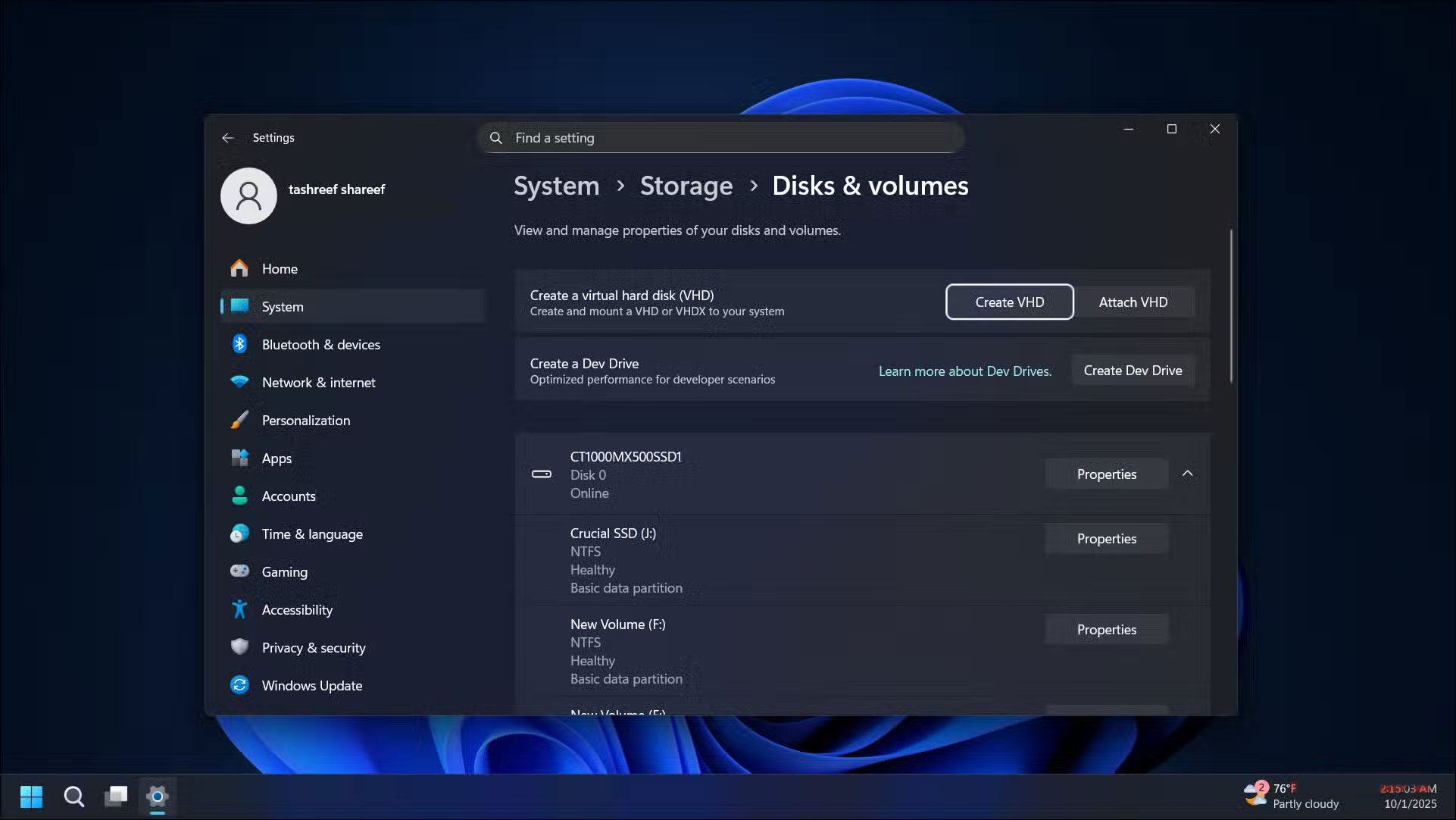
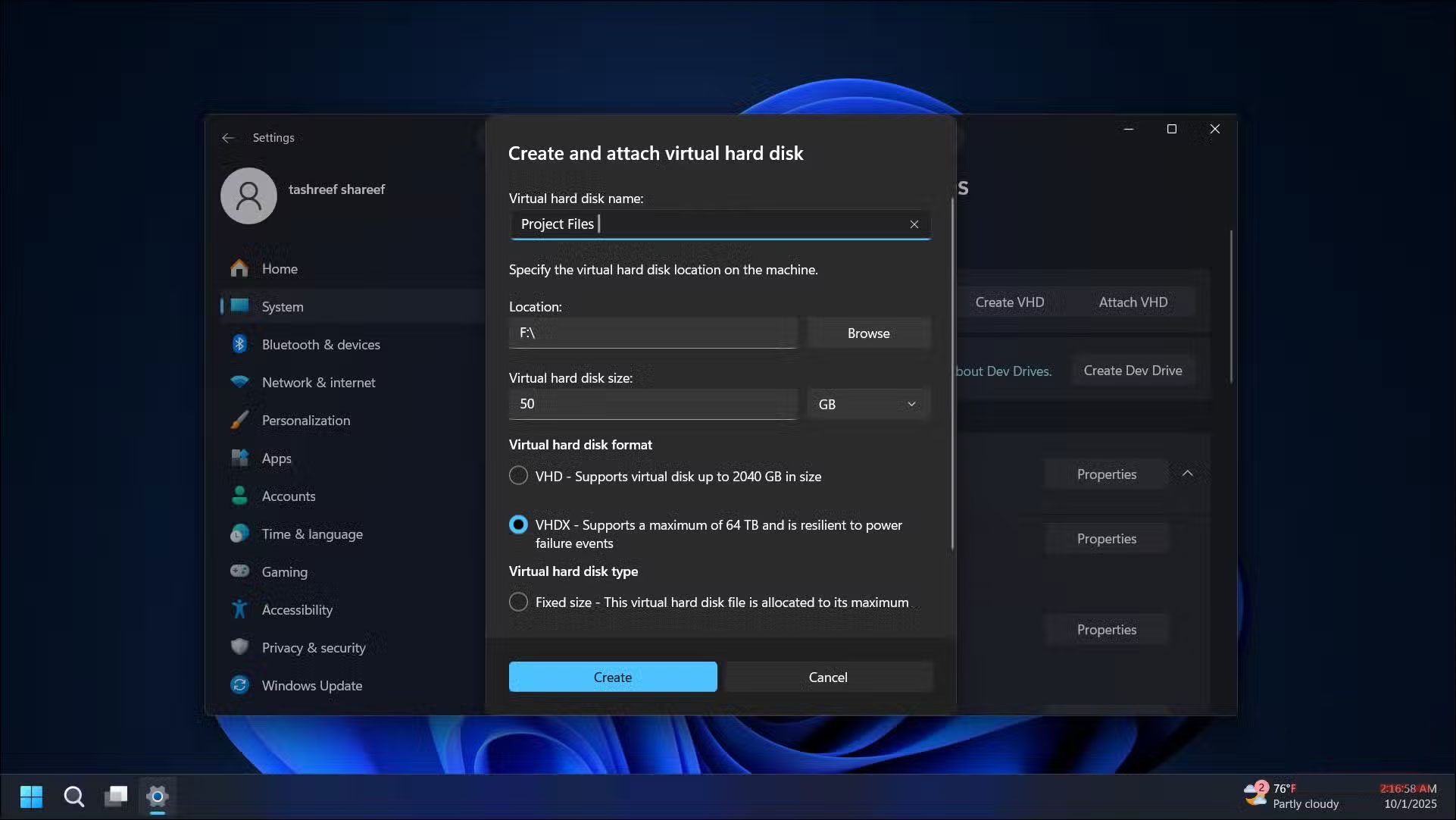
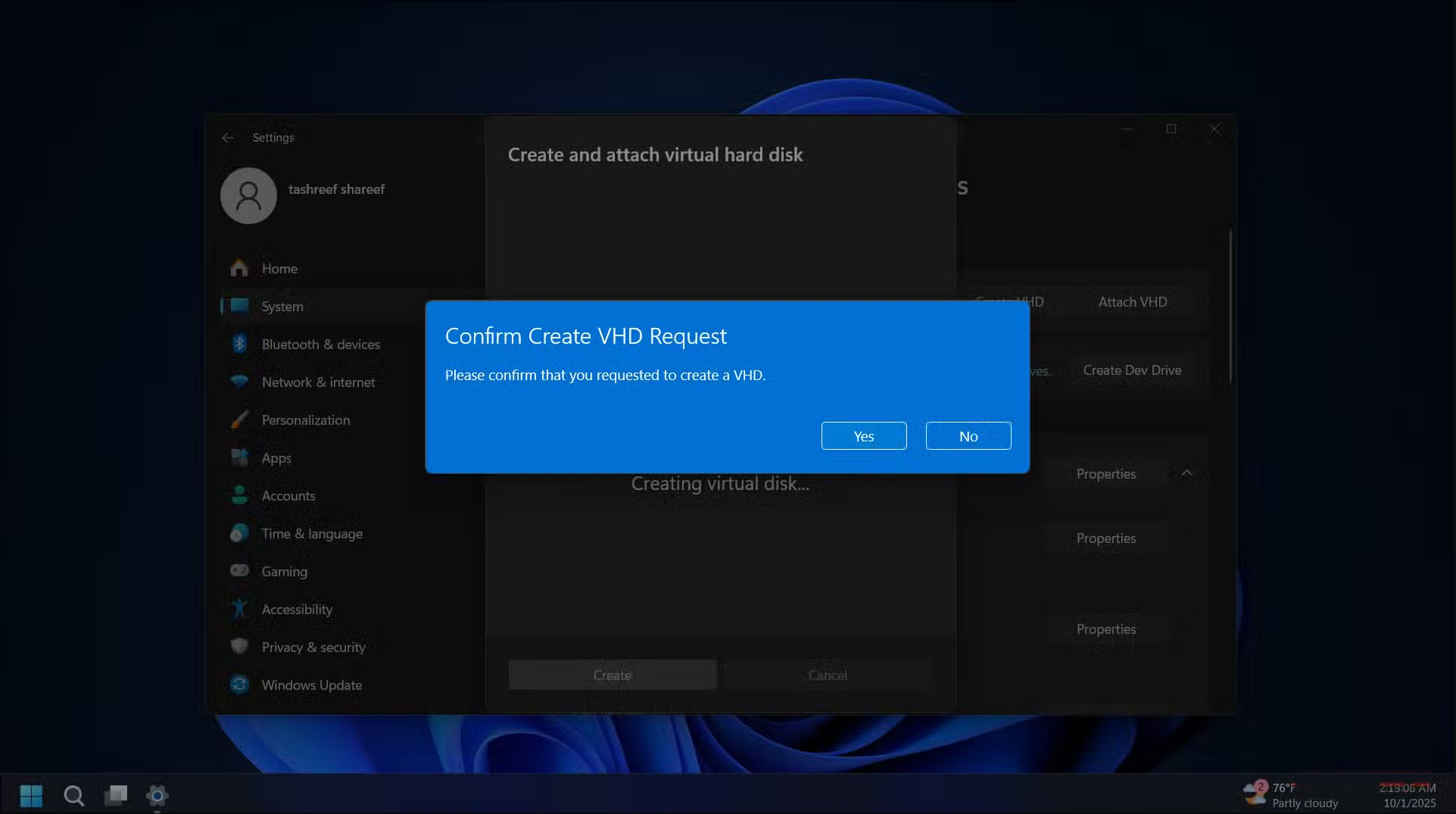
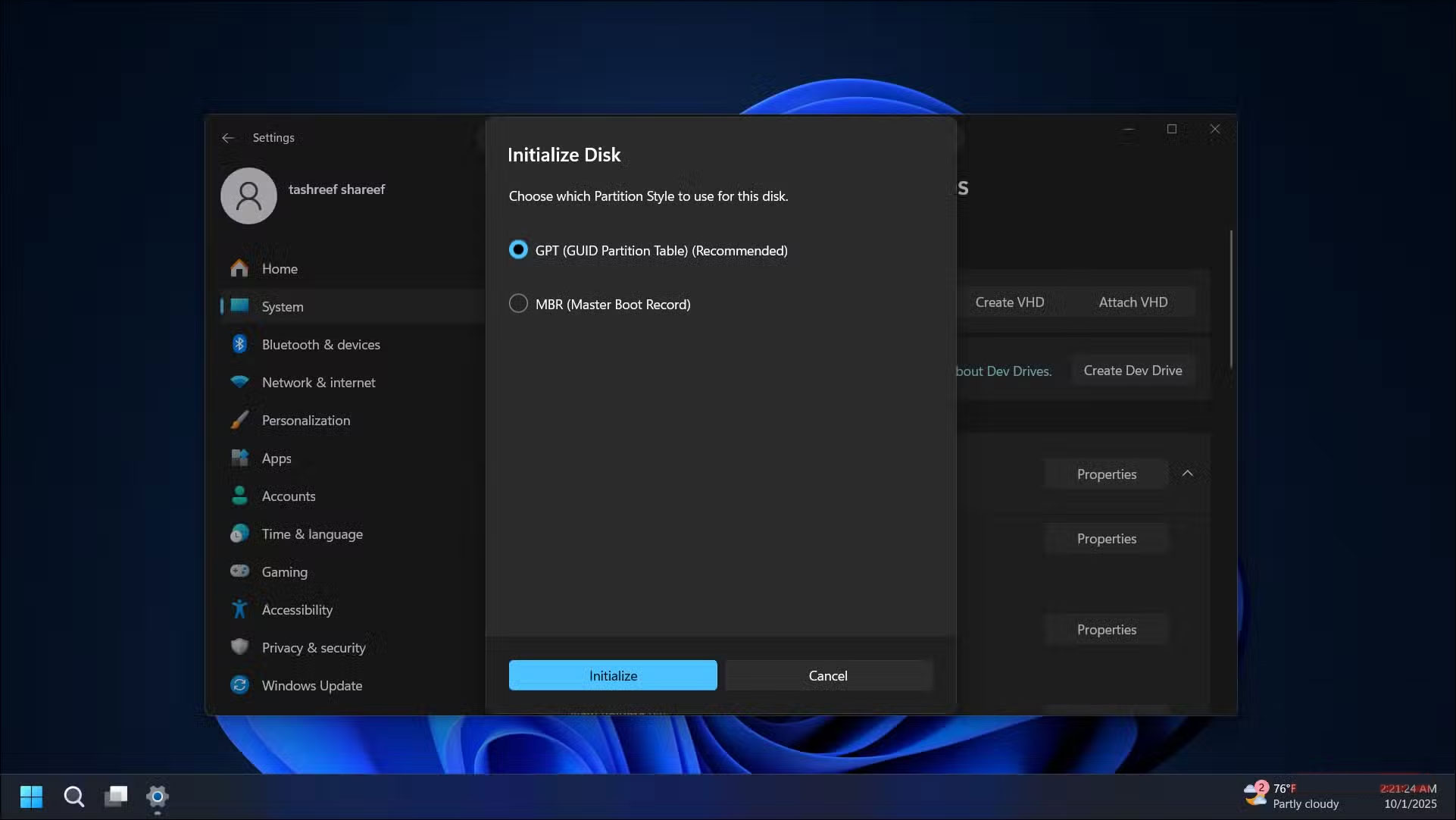
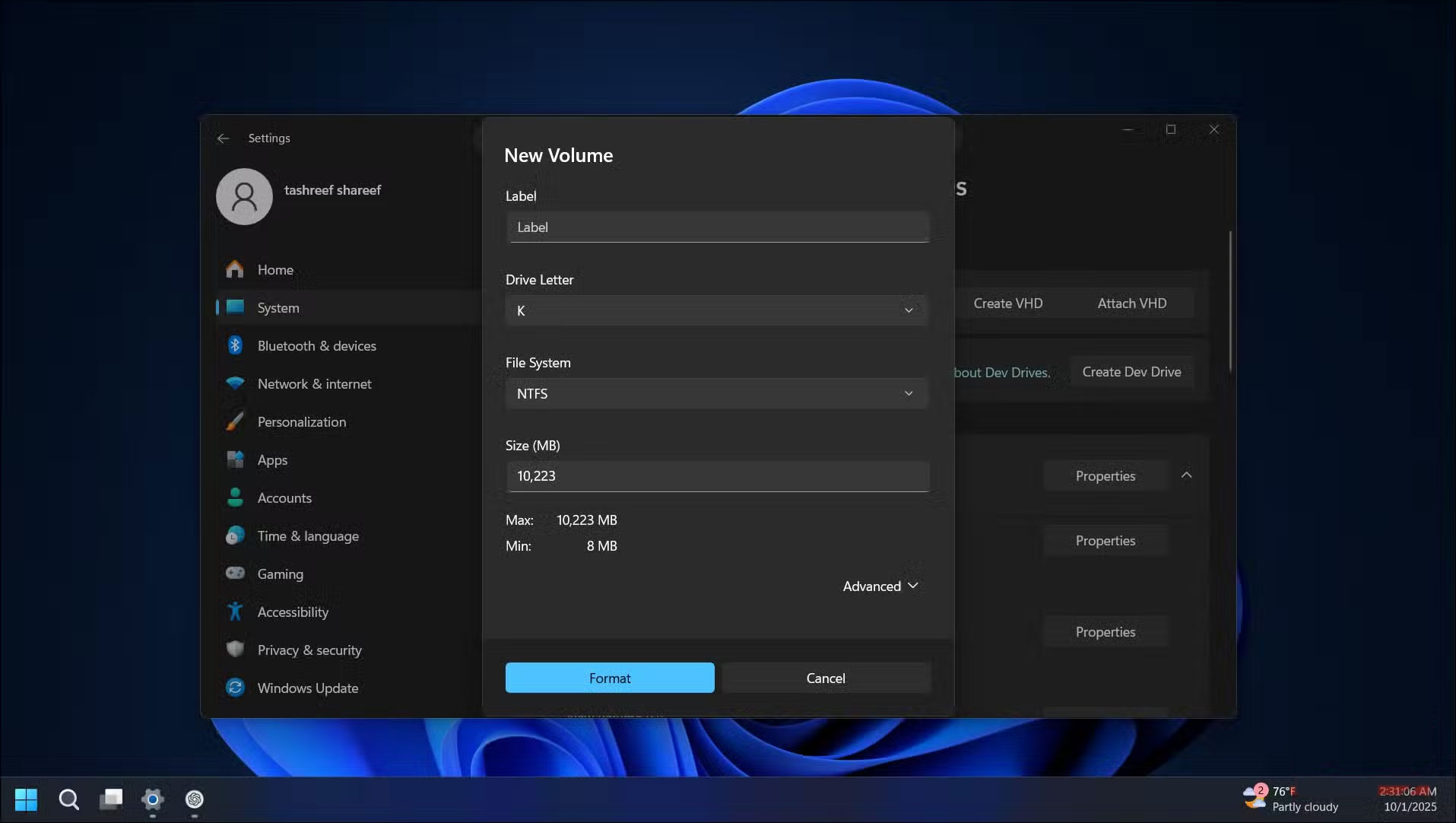
Microsoft has made creating a virtual hard drive easy with Windows 11 23H2. Windows 11 now integrates VHD creation into the Settings app, making it as simple as creating a new folder.
To create a virtual hard drive, go to Settings -> System -> Storage -> Advanced storage settings -> Disks & volumes , then click Create VHD .
In the setup wizard, enter basic information, such as where to save the VHD file, its size, and whether you want it to be fixed or dynamic. Dynamic VHDs start small and grow as you add data, while fixed VHDs immediately retain all the space you allocate. Click Create , then click Yes To confirm.
Before you can use your new VHD, You should choose a partition style (MBR or GPT) and initialize it. Once you do, Windows will treat the new VHD like any other drive. It will show up with its own drive letter in File Explorer, ready for you to format and use.
Install or test the operating system without interfering with the main Windows setup
Native boot allows you to run Windows from VHD
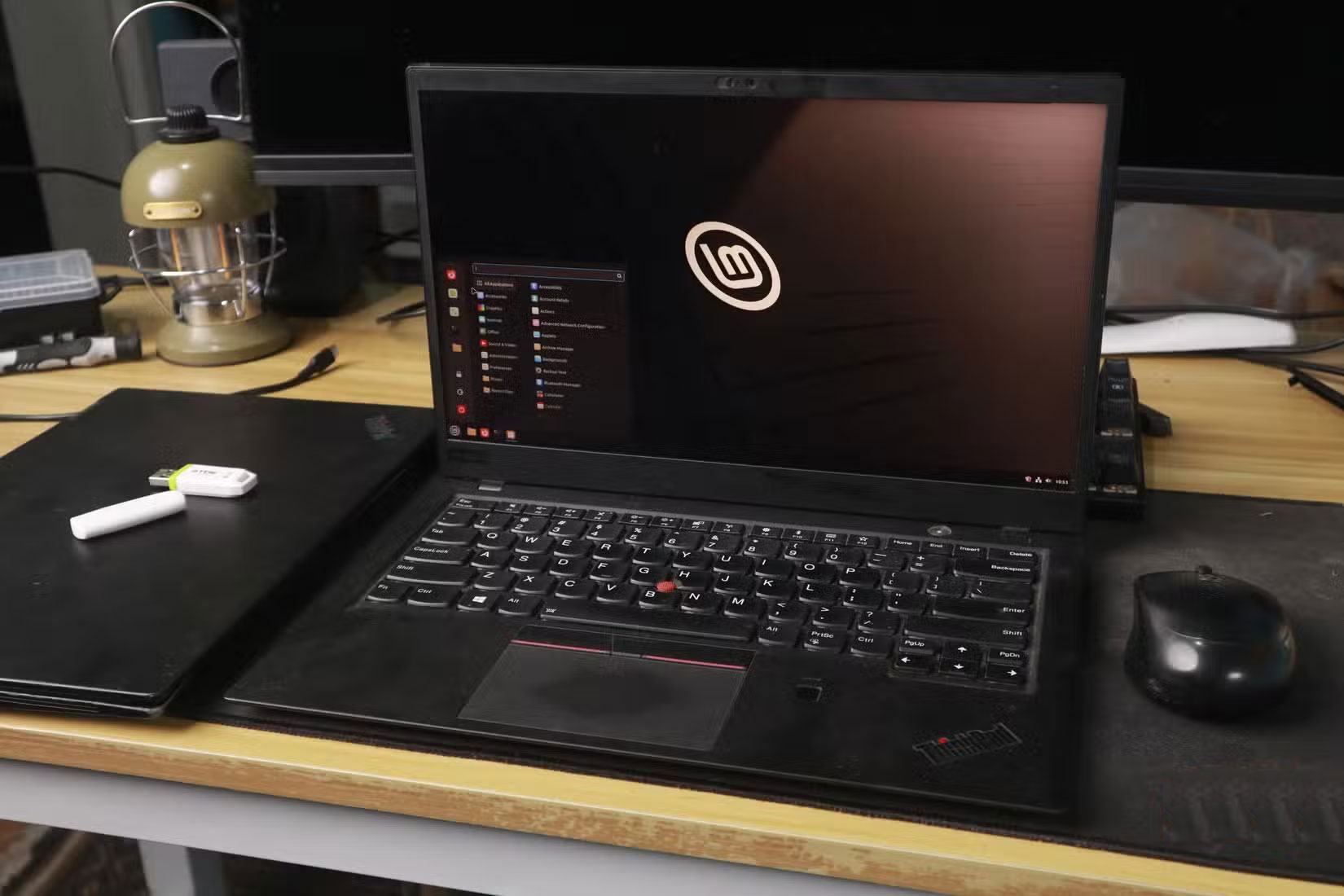
VHDX supports native booting, which means you can dual-boot Windows 11 with another version of Windows without partitioning your drive or using a virtual machine. This setup is ideal for testing Windows 11 Insider builds or experimenting with different configurations without affecting your stable installation.
All You should do is create a large enough VHDX file (about 60GB), mount it, point Windows Setup to that virtual drive, and add a boot entry. After installation, Windows will add that file to your boot menu. Now, when you boot, you can choose between regular Windows and the VHD test system.
Since everything runs inside the VHD, your main Windows installation is completely separate. If something goes wrong, you can delete the VHD file and the boot folder and your computer will be back to normal.
VHD files can be copied to another computer or drive.
Portable environment always with you
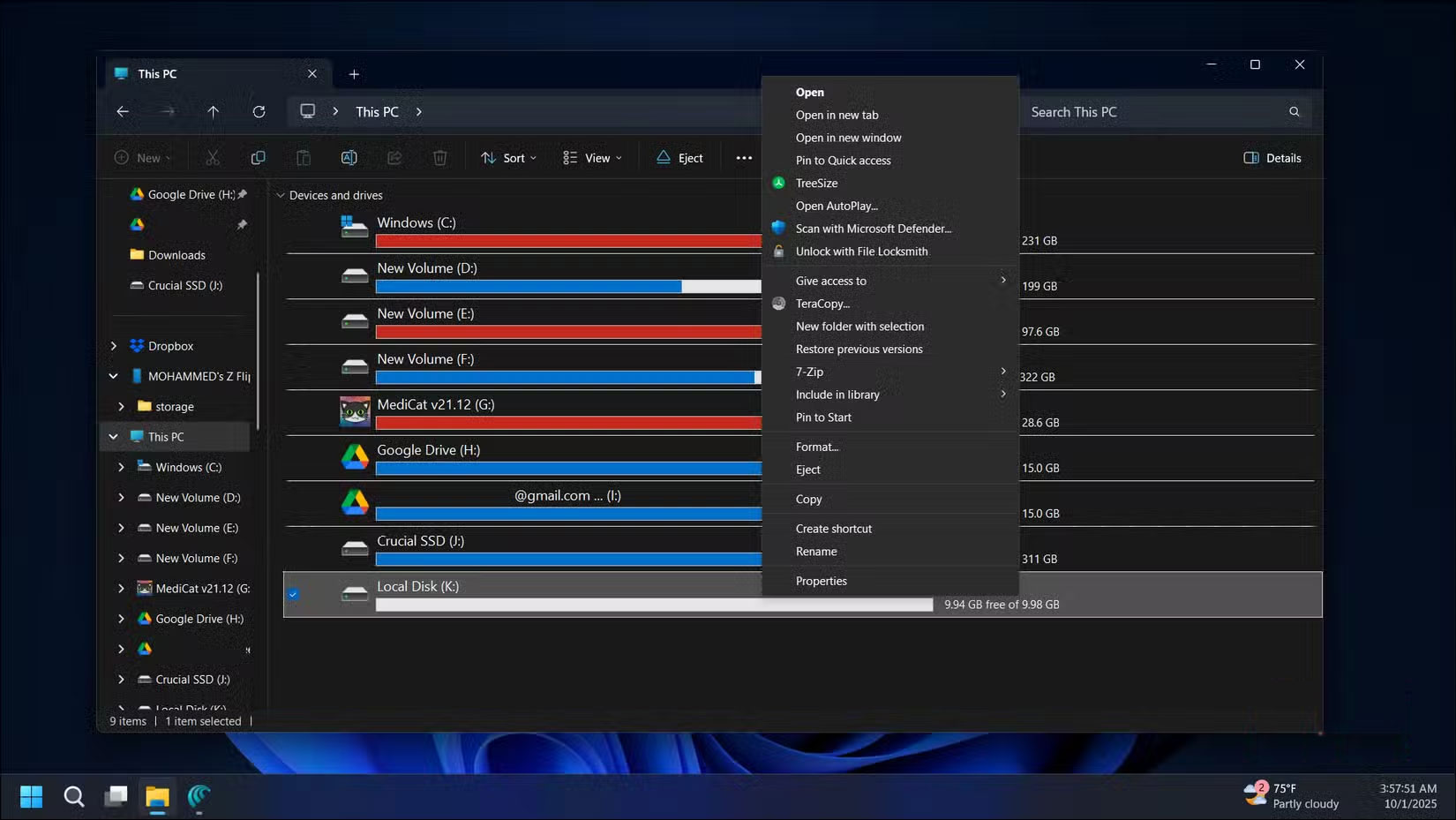
Unlike physical partitions that are stuck on a drive, VHD files are just regular files, so you can copy them anywhere.
For example, if you set up a development VHD with all your tools and configurations and need that exact environment on another computer, you can copy the VHD file over. Then, mount that file on any Windows computer and everything, including your tools, settings, and project files, will be restored.
This portability is also useful for backups. Instead of creating an image of the entire drive, you can copy the VHD file, copy it back, and mount it when You should restore the backup.
Better file organization for different projects without partitioning your drive
Keep projects separated and organized

The traditional folder organization works fine, but VHDs offer something better. Each VHD becomes its own standalone environment, completely isolated from everything else.
For example, maintain separate VHDs for different types of projects: One web development VHD for all your coding tools and project files, and a separate video editing VHD. This separation is useful to avoid cross-project interference. You can also apply different security or encryption settings to each VHD to protect important or sensitive information.
FAQ
Why Is Virtual Hard Drive a Favorite Hidden Feature on Windows 11: Explained?
In practical terms, virtual hard drives are typically associated with virtual machines and used to store the guest operating system and all of its data.
What factors are most important?
The article highlights that to create a virtual hard drive, go to Settings -> System -> Storage -> Advanced storage settings -> Disks & volumes , then click Create VHD .
What is the main takeaway?
The main takeaway is that all you need to do is create a large enough VHDX file (about 60GB), mount it, point Windows Setup to that virtual drive, and add a boot entry.
Related Articles
 Delete the Virtual Drive in Windows 73 minutes read
 Here's How to Create a Virtual Hard Disk on Windows 102 minutes read
 How to Create a Virtual Drive on Windows with Simple VHD Manager3 minutes read
 How to Create a Virtual Drive (Virtual Hard Disk) on Windows 10 Without4 minutes read
 How to Identify Hard Drive Failure, Hard Drive Failure, Bad Hard Drive7 minutes read
 Create Dualboot System with Windows 7 and 8 Using VHD5 minutes read
Reader Comments 0
Sign in with email or Google to join the discussion.