Table of Contents
Windows Security includes tools for protecting folders, checking suspicious downloads, and scanning for malware outside your normal Windows session. Start with the tool that fits the problem. On a work or school PC, some settings are managed by your organization.
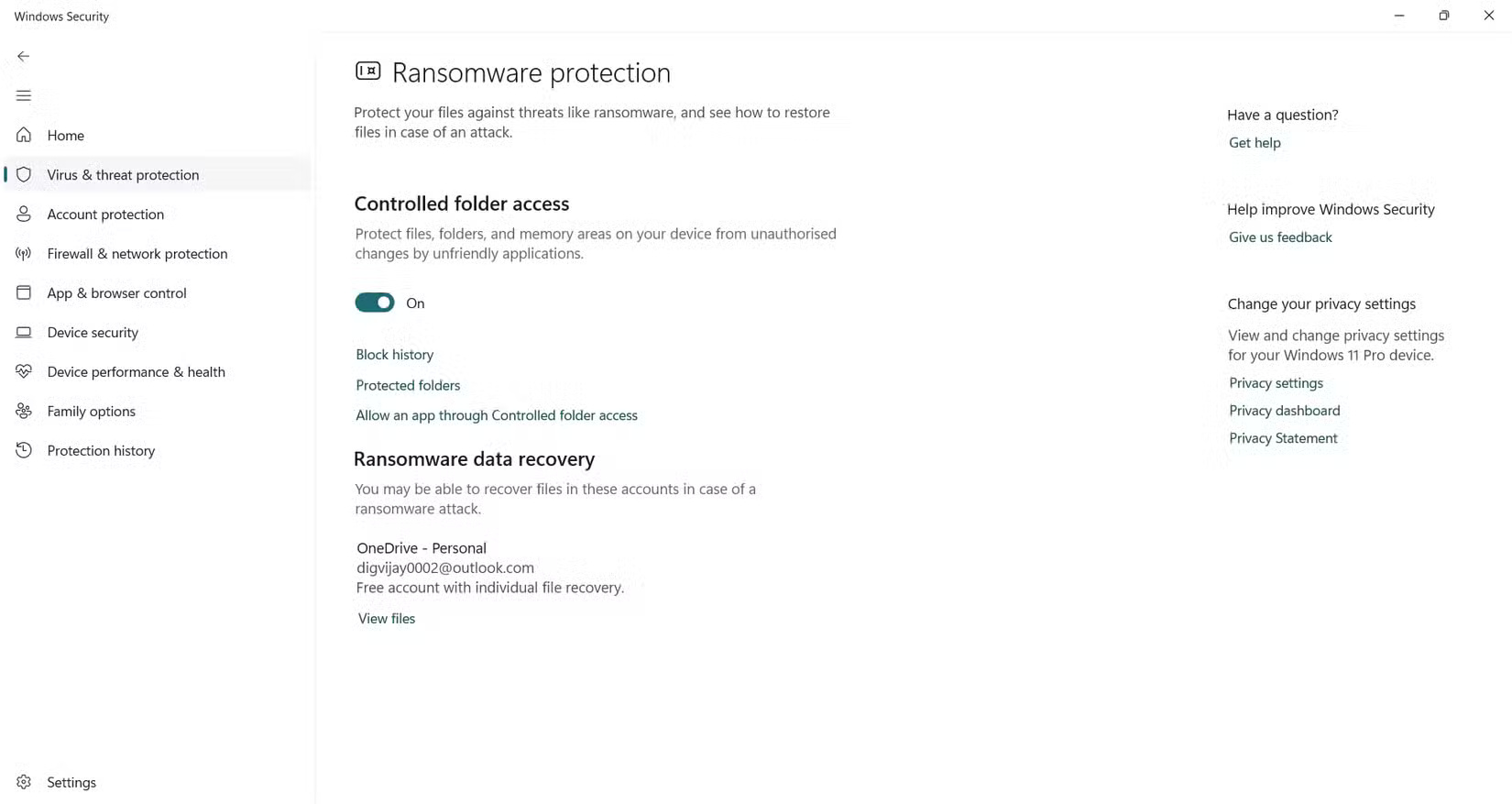
1. Protect important folders from unauthorized changes
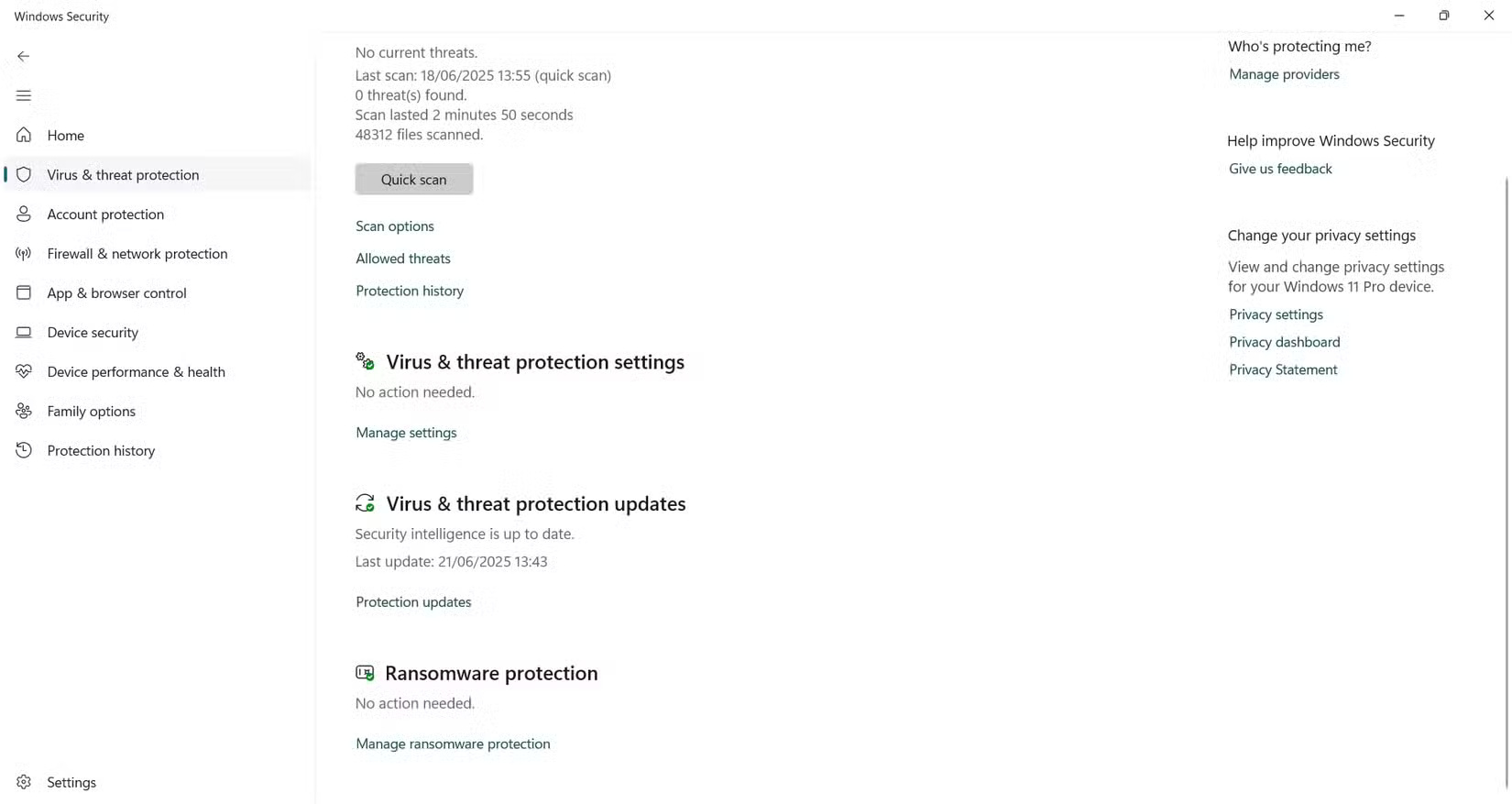
Go to Virus & threat protection > Manage ransomware protection and look for Controlled folder access. It limits which apps can change files in protected folders. Review the folder list and test ordinary saves after enabling it. If a trusted app stops saving, check Protection history and verify the program and its source before allowing it. Keep a separate, tested backup of important files.
2. Check SmartScreen and app reputation settings
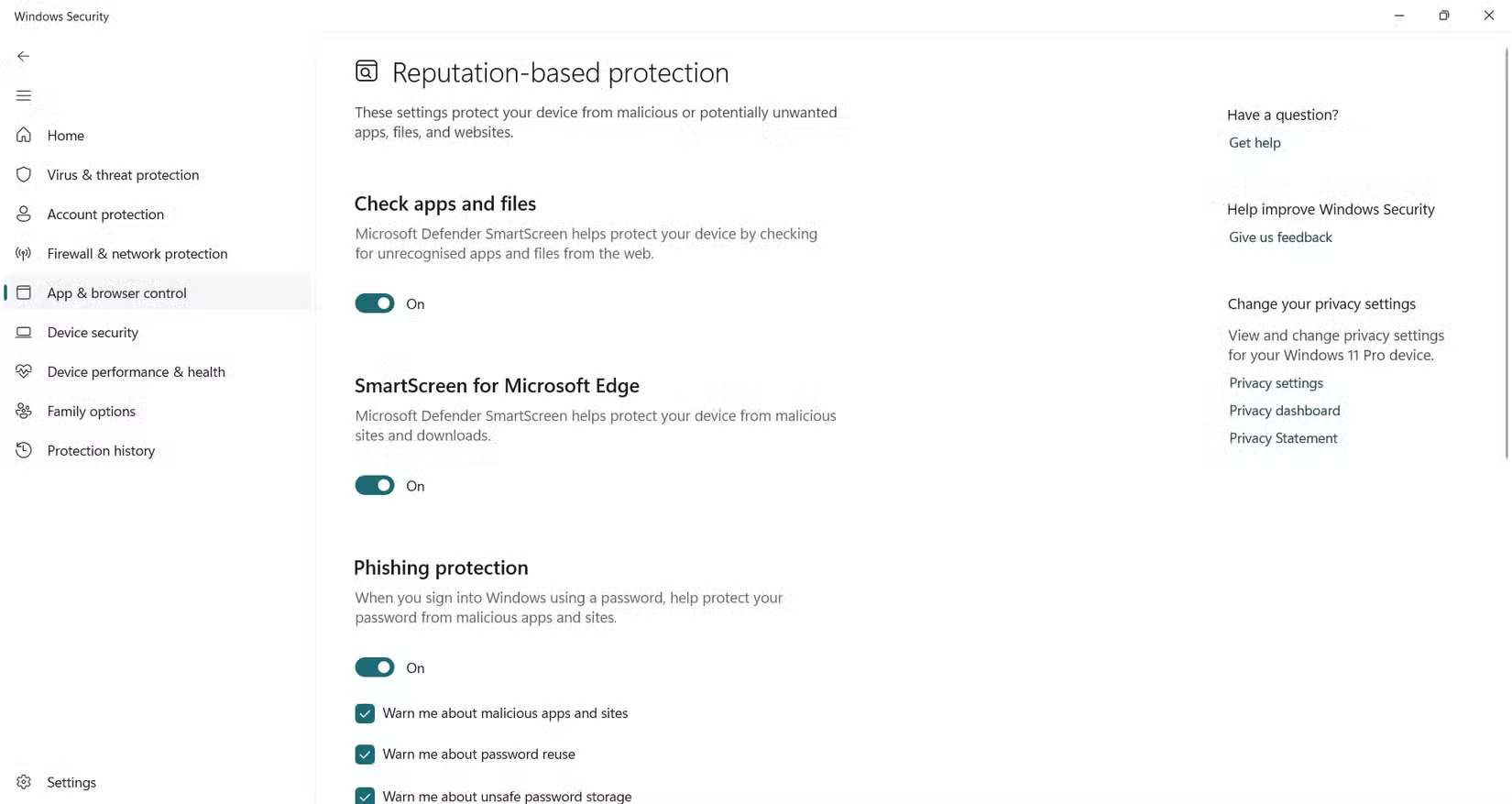
Open App & browser control > Reputation-based protection settings. Depending on your version, you may see checks for downloaded apps and files, SmartScreen for Edge, phishing protection, and potentially unwanted app blocking. A warning can indicate a malicious or unrecognized file. Verify the source before proceeding.
3. Run a Microsoft Defender Offline scan
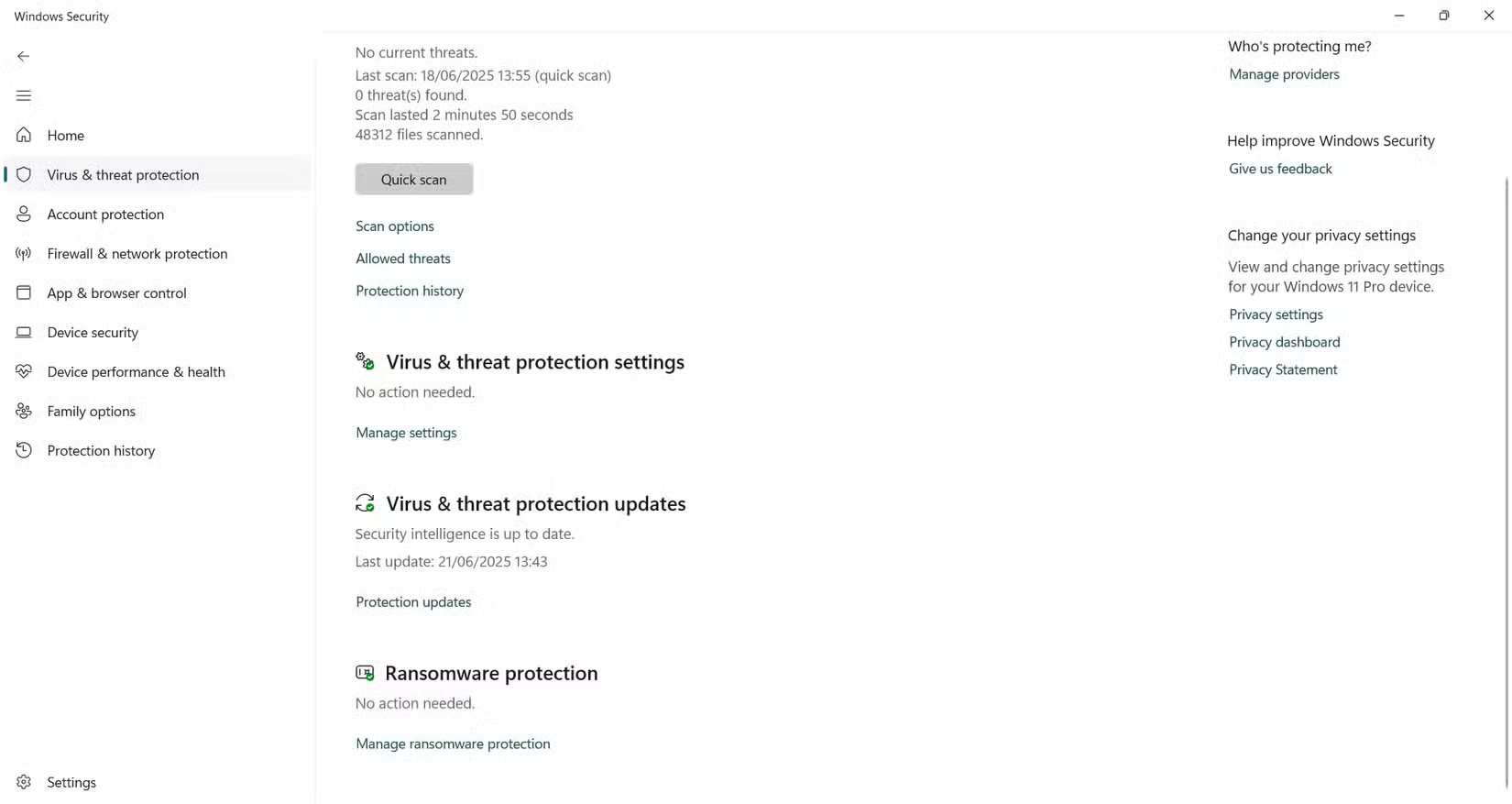
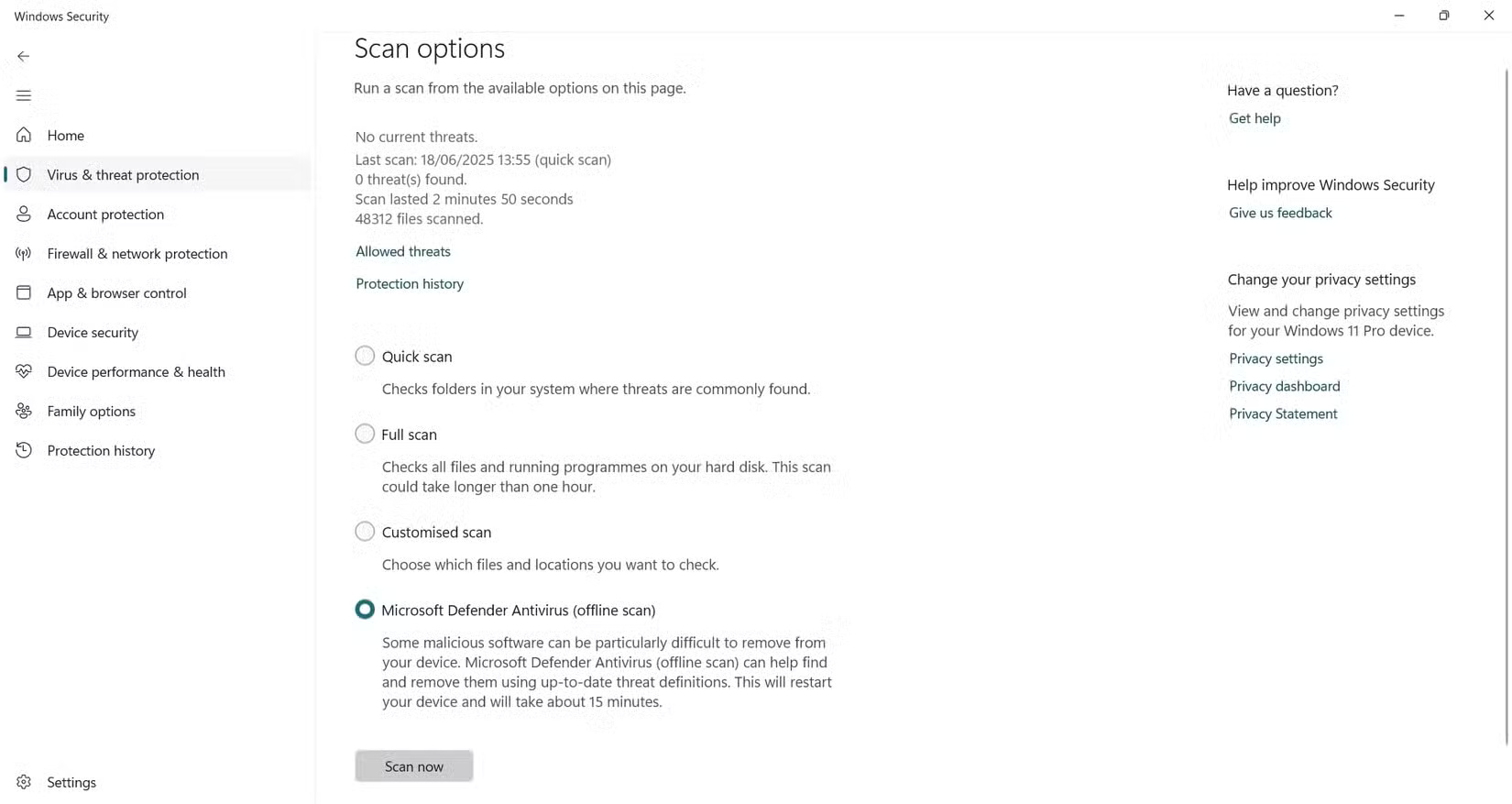
Save open work and open Virus & threat protection > Scan options. If available, select Microsoft Defender Antivirus (offline scan). The machine restarts and runs the scan outside the normal Windows session. Check Protection history afterward. For help deciding whether to run a quick, full, or offline scan, see the Windows malware protection guide.
4. Review Memory Integrity
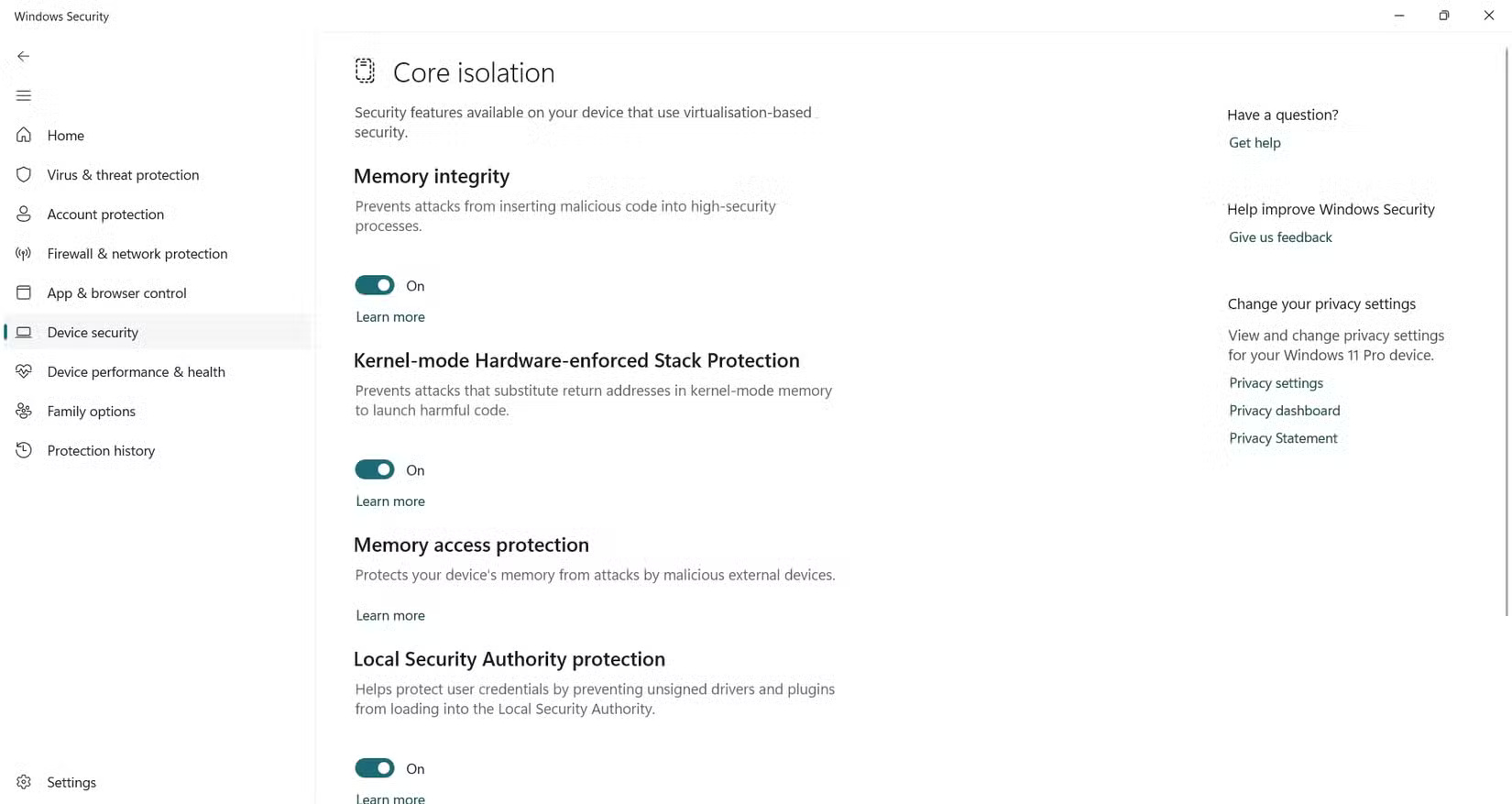
Open Device security > Core isolation details. Memory Integrity uses virtualization-based security to help protect the Windows kernel from untrusted code. If an incompatible driver is listed, look for an updated driver from Windows Update or the device manufacturer before changing the setting. See Microsoft’s driver compatibility guidance.
5. Review Exploit Protection
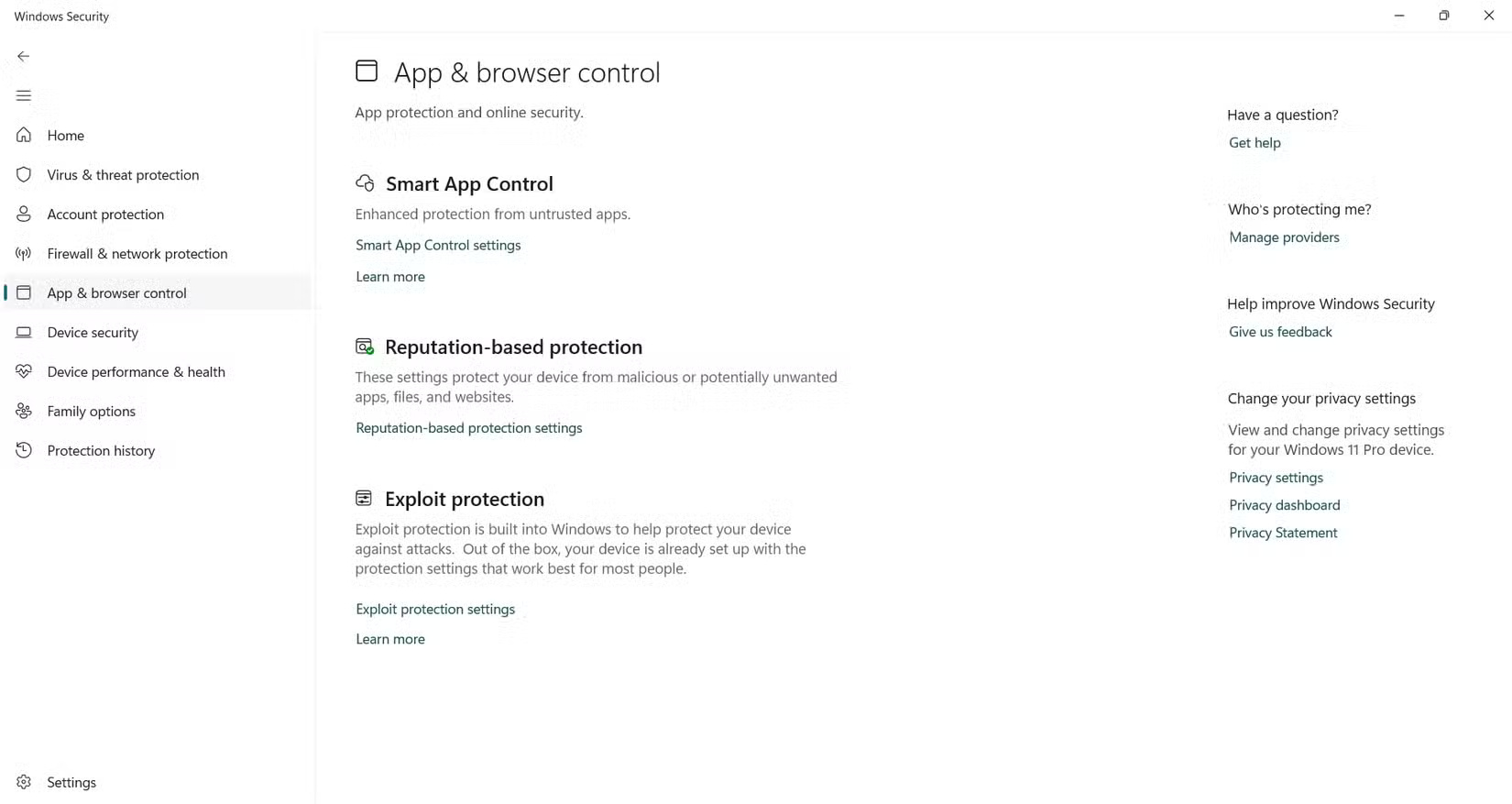
Under App & browser control > Exploit protection settings, you can see system-wide mitigations and per-program overrides. Keep the defaults unless you have a documented reason to change them and can test the affected app. Mitigations help limit certain attacks. Updates are still needed to fix vulnerabilities.
6. Check TPM status before troubleshooting
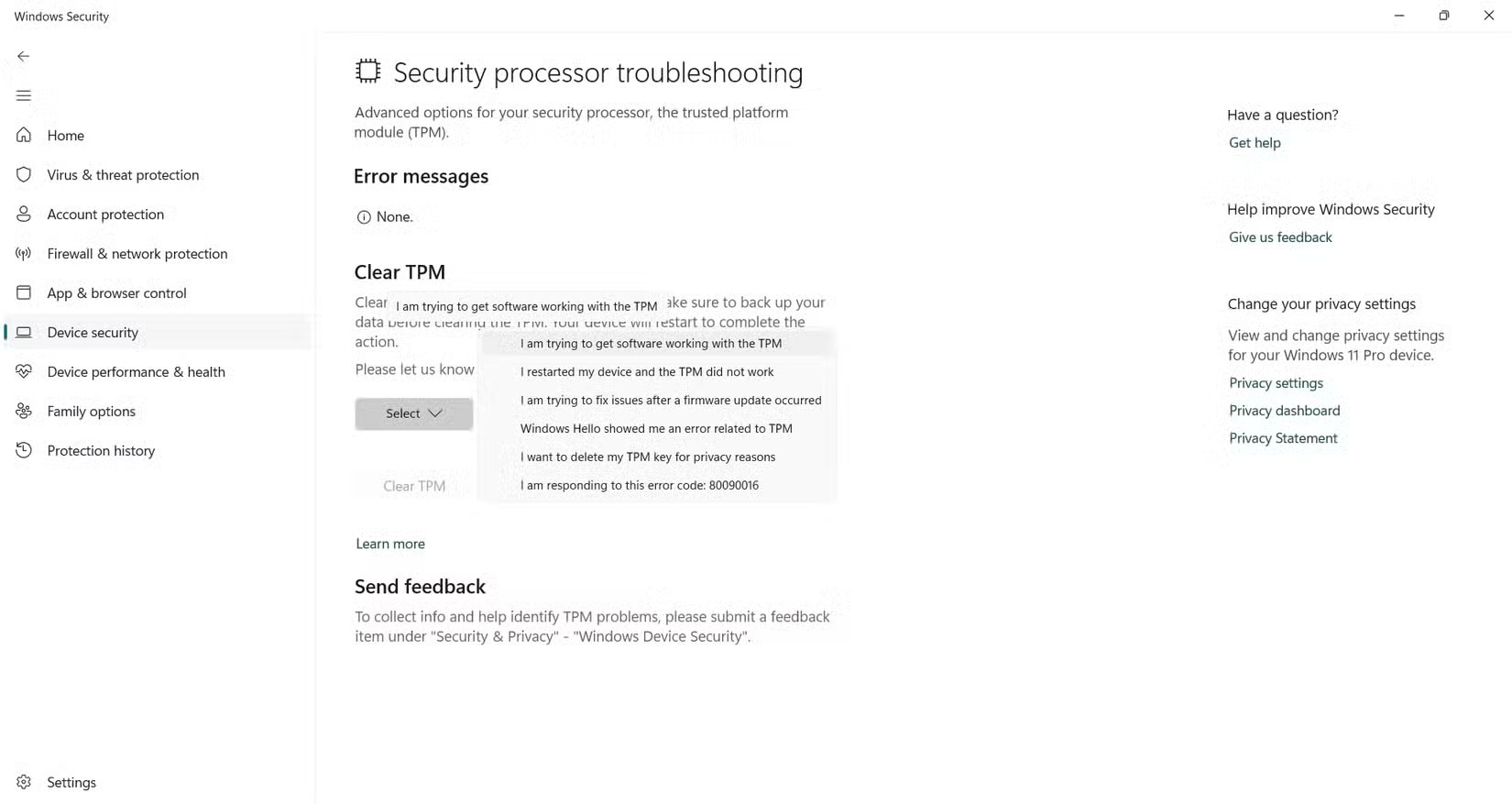
Find TPM details under Device security > Security processor details. If Windows reports an error, record the exact message and use Microsoft’s TPM troubleshooting instructions. Clearing the TPM can remove keys used by BitLocker and Windows Hello. Back up your files and verify recovery-key access before considering a reset. Ask IT to handle managed devices.
7. Find Microsoft Family Safety
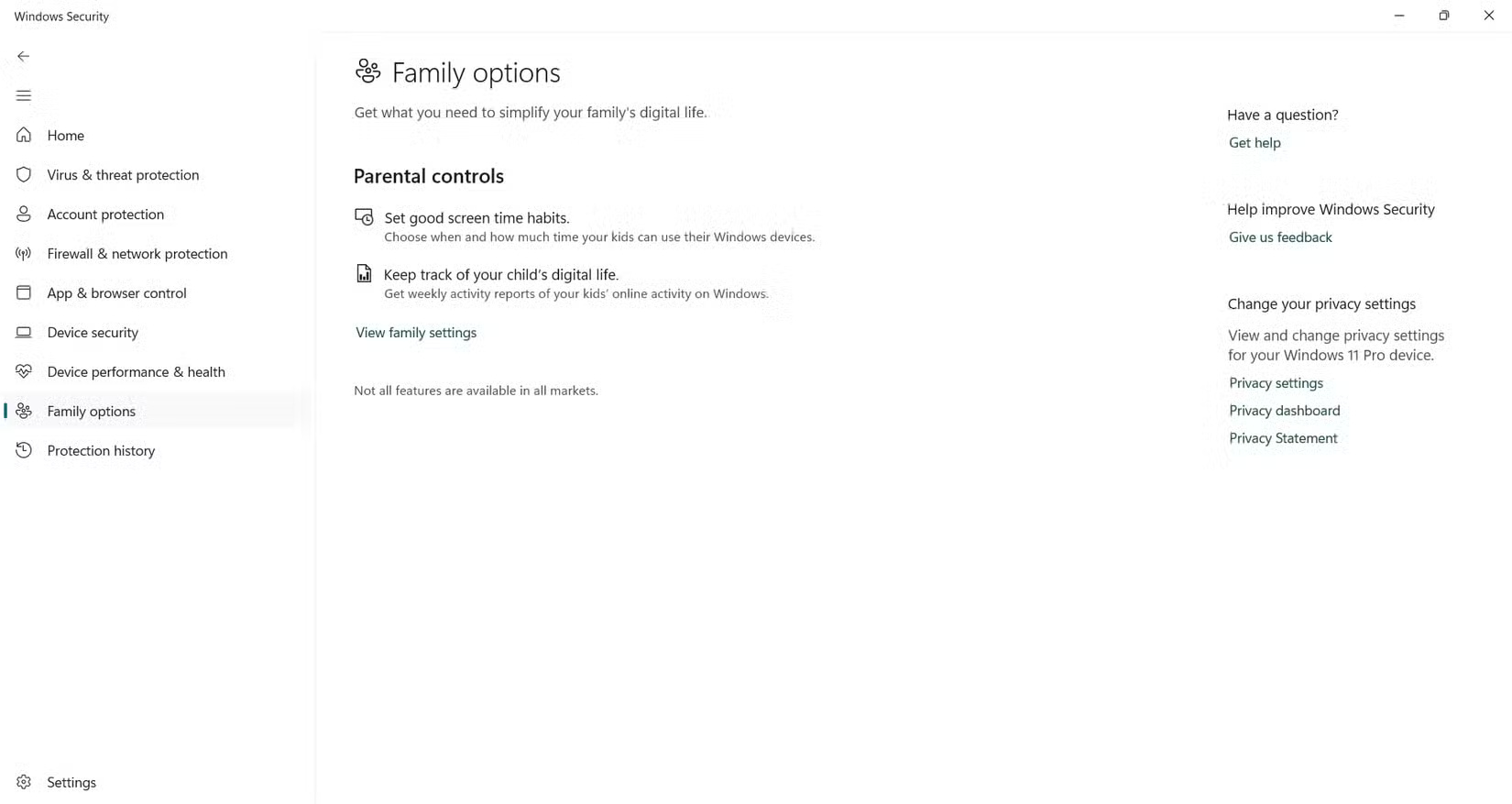
Family options can open the Family Safety settings for your Microsoft family group. Availability and behavior depend on account and device setup. Microsoft’s web filtering guide explains the browser and sign-in requirements.
Related Articles
 Search and activate hidden features in Windows 10 with Mach2 tool
 Unlock hidden features on Windows 10 with some Registry tricks
 10 interesting hidden features of Windows 11
 Top 5 hidden features available on Windows 10 that you do not know
 Windows 10 features help increase computer security
 Explore hidden features on the obscure iPhone
Reader Comments 0
Sign in with email or Google to join the discussion.