Table of Contents
Keep has always been a simple app, almost too simple at times. But when you combine it with Gemini, the app suddenly becomes powerful at handling planning, summarizing, and organizing without losing the typical Post-It-like ease of use.
Using Gemini with a note-taking app just feels right. That's why many people have tried using Google Keep with Gemini and seeing where the experimentation leads them. Keep has always been a simple app, almost too simple at times. But when you combine it with Gemini, the app suddenly becomes powerful at handling planning, summarizing, and organizing without losing the typical Post-It-like ease of use.
This combination isn't perfect yet. The upside is that you won't need a Google One Premium subscription for these workflows. So these tips are a good start to getting started with Google Keep and Gemini.
7. Create notes and lists on command
Turn quick thoughts into structured notes instantly
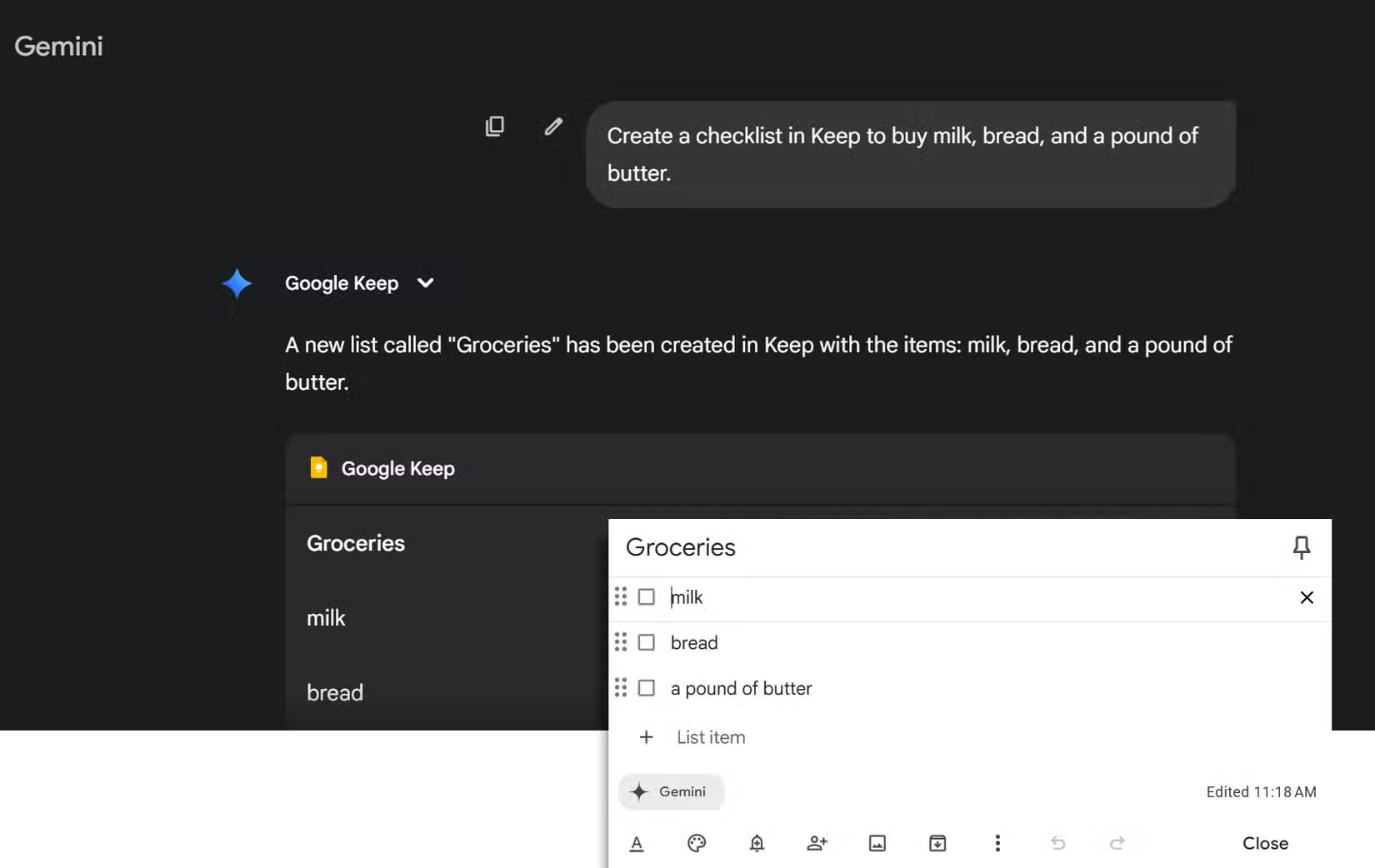
The Google Keep integration test starts with creating a quick note from Gemini. Instead of opening a new Keep note, you just ask Gemini a question like 'Create a note in Google Keep' or 'Create a list in Keep called Weekend Prep.' A favorite way to start a note is with a checklist. Just ask Gemini (either typing or using Live Voice) to create a checklist and then provide the items you want to include. Be sure to explicitly mention Keep.
The backend takes over and the note is automatically created in Google Keep (labeled Gemini). This is very basic, of course. But this frictionless handshake is a useful hidden Keep feature that you can use regularly to take advantage of the usefulness of checklists.
6. Automatically generate content and outlines
Let Gemini think through the details, then send it to Keep
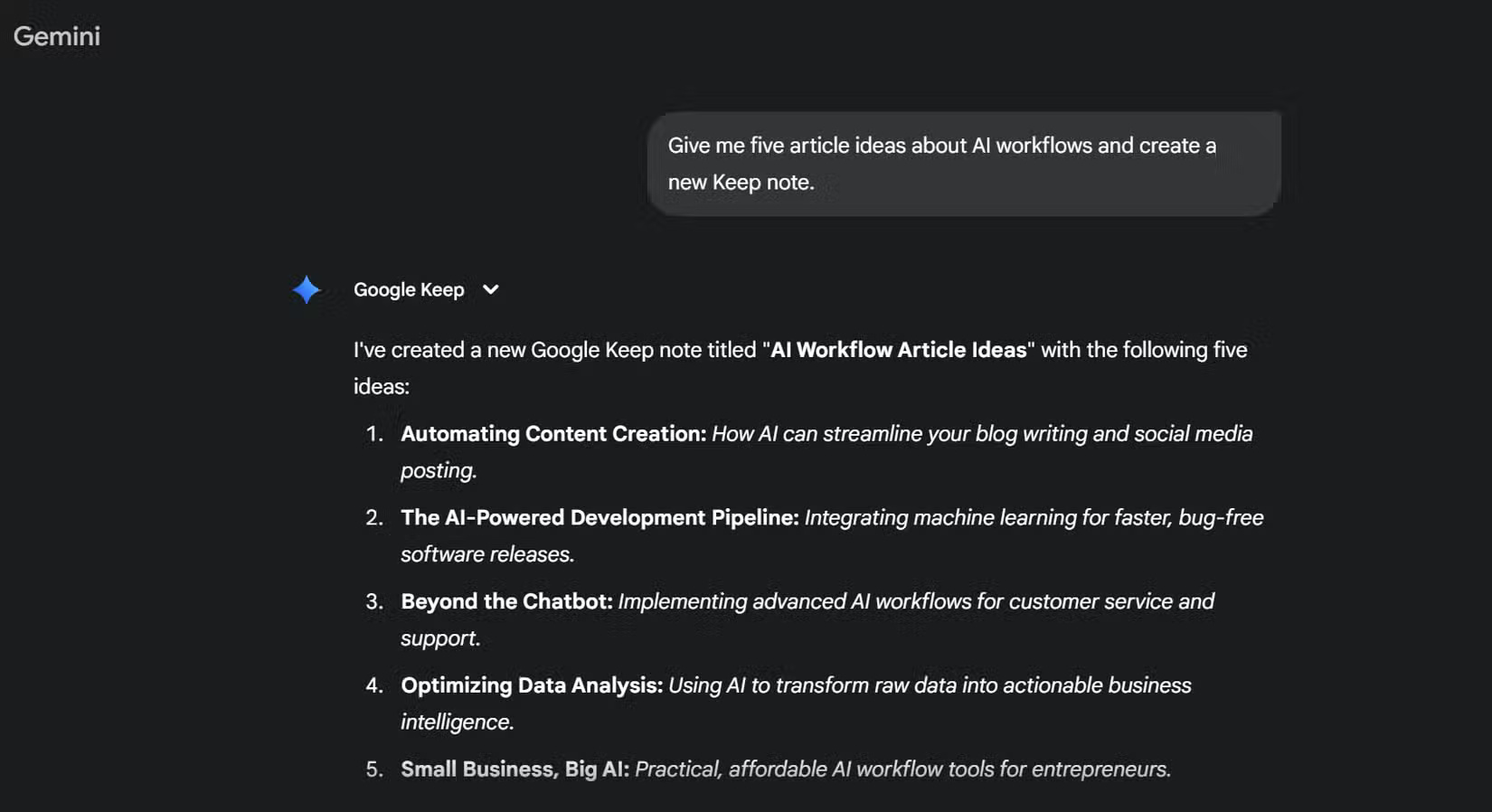
Many people are experimenting with Gemini as a tool for generating spontaneous ideas and Keep for storing them. After a brainstorm, prompt yourself with things like:
Sketch out a 4-week study plan for Procreate and save it to Keep.
Or
Give me five article ideas about AI workflows and create a new Keep note.
This can be a great way to turn scattered thoughts into reusable notes. Note-taking can be a multi-step exercise, as you can use the same note to save thoughts for later.
5. Update existing notes and lists
Add new items to a note without opening Keep
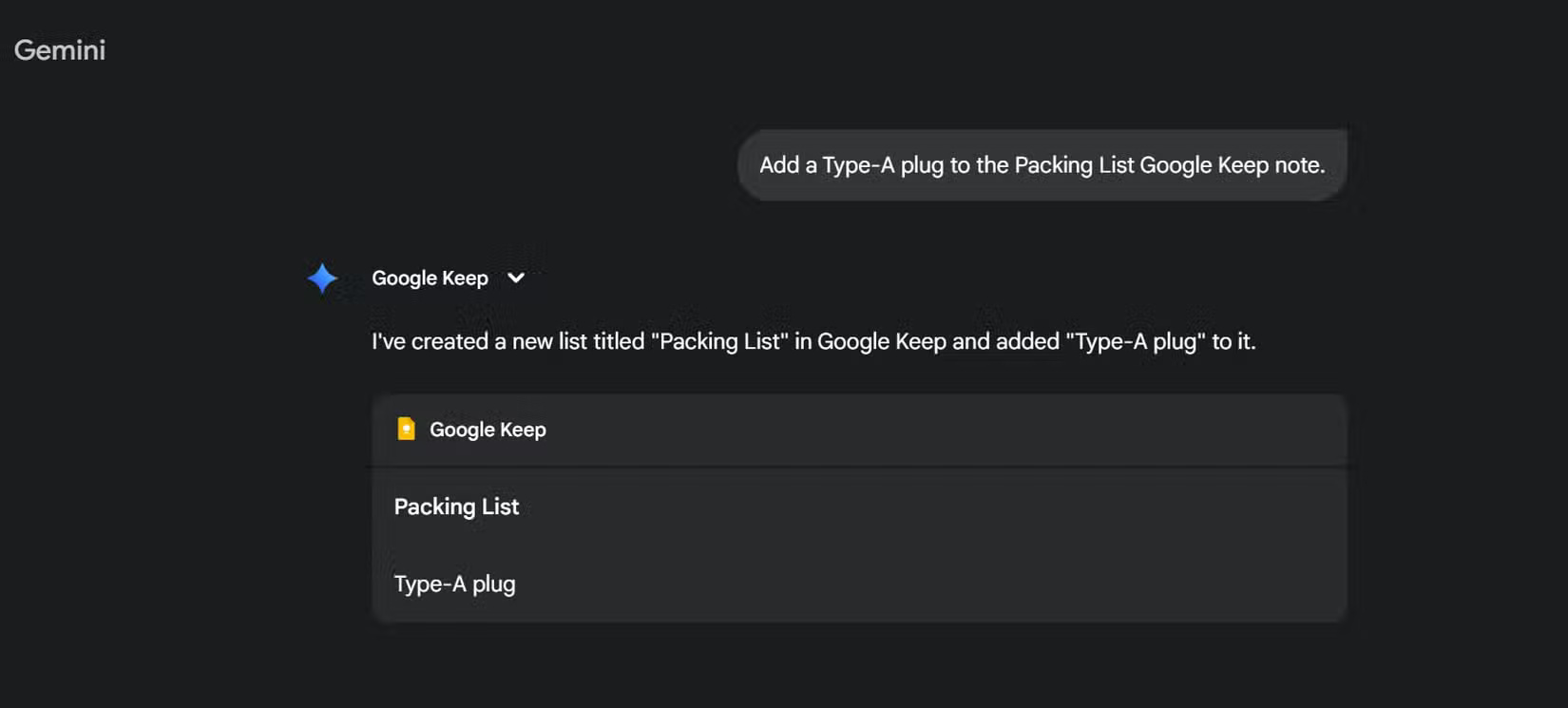
One of my favorite time-savers (especially when traveling) is updating existing Keep notes through Gemini. So if you remember to add something to your travel packing list, just find what you need in Gemini and then remind yourself with 'Add Type A plug to Google Keep note in Packing List' Or 'Create ingredient checklist in Keep . '
Additionally, because Gemini can speak and recognize natural language, you don't have to spell the note name exactly. Even if you write the prompt in lowercase or capitalize the sentence, the note will still be updated. If the note doesn't exist, Gemini will create it for you. These small updates help keep your ideas in Keep without losing them forever.
4. Extract content and summarize notes
Review notes without digging through Google Keep
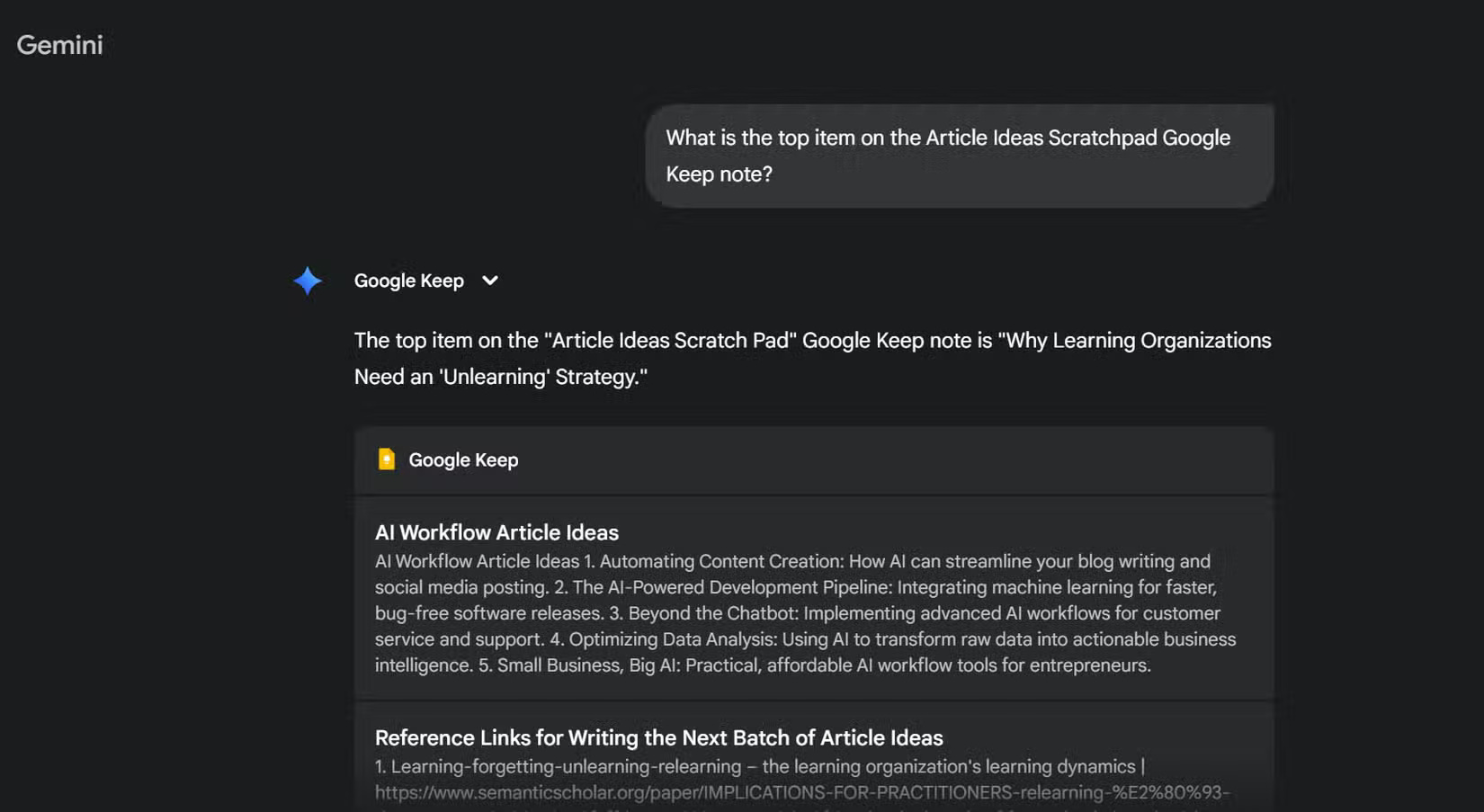
Gemini helps you find old and forgotten notes, acting as a searchable knowledge base. Of course, you can search directly in Keep and use various filters. However, the Gemini integration is especially useful for digital hoarders. You can ask Gemini to directly pull up a specific note, then process that note in Gemini with relevant suggestions.
3. Innovative use cases around everyday tasks
Turn ideas into structured notes you can use immediately
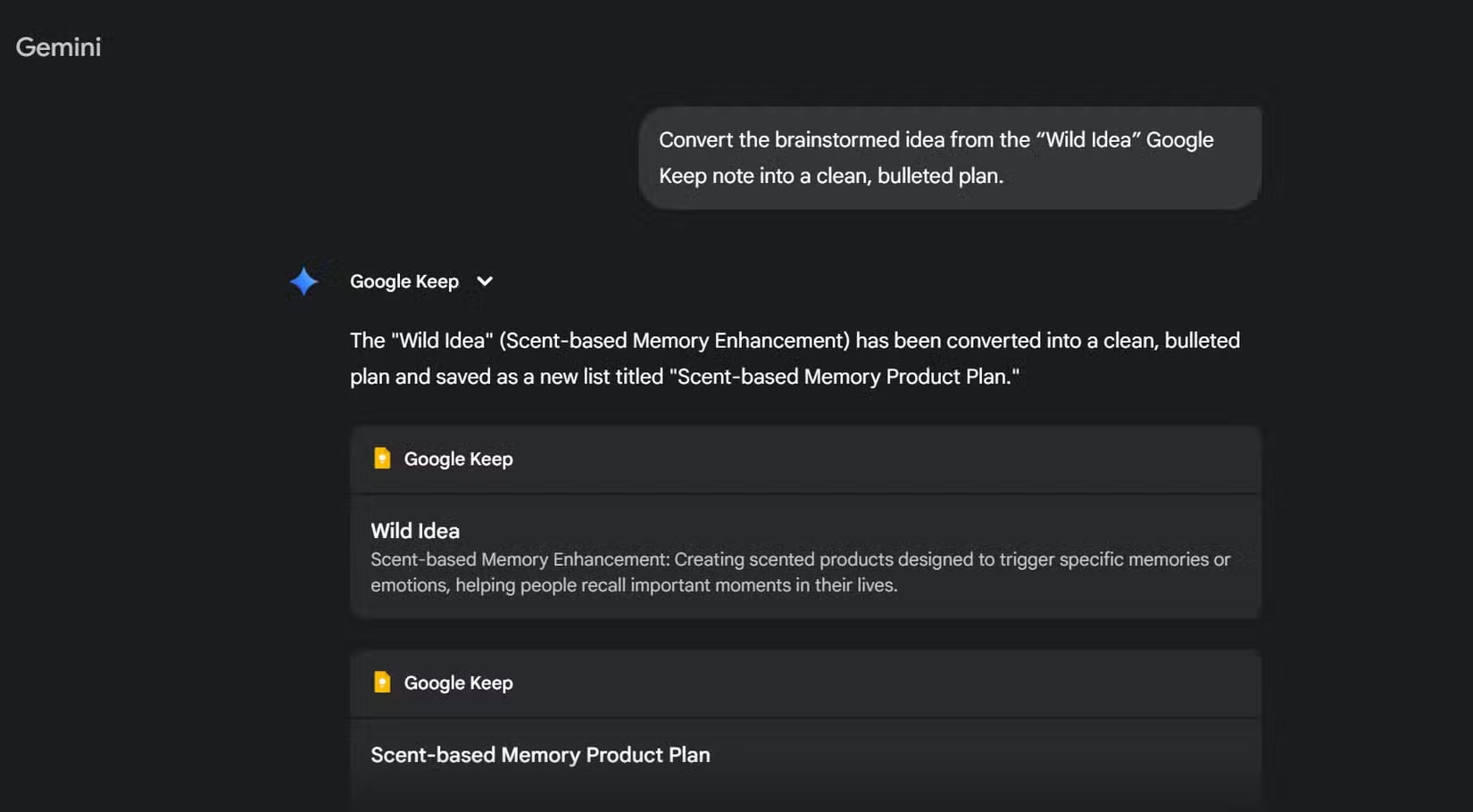
This integration also works well when you run notes in Gemini. For example, any recipe idea saved in a Keep note or a rough plan can be referenced in Gemini. You can then continue to refine it. Gemini will save the result back to Keep. Here's an example:
Convert brainstormed ideas from your "Wild Ideas" note on Google Keep into a clear, bulleted plan.
When you're busy, you can use Gemini Live voice mode to create and save notes hands-free, so both tools allow you to put your thoughts into words without interrupting your creative flow.
2. Integrate Calendar and Tasks for work and home
Turn Gemini-generated lists into actionable tasks
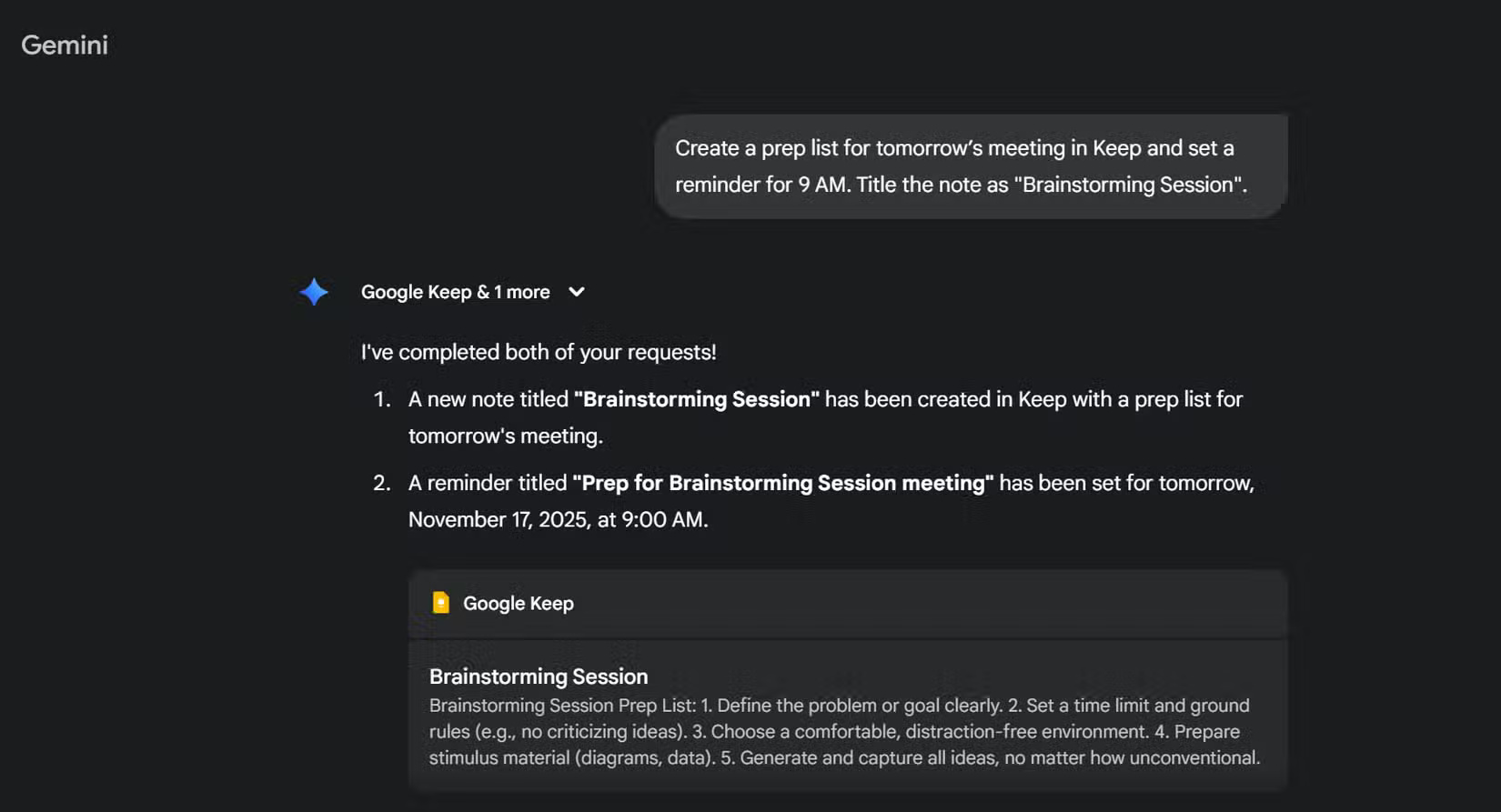
Because Keep syncs directly with Google Calendar, any list in Keep can be turned into a potential task list. You can say:
Create a prep list for tomorrow's meeting in Keep and set a reminder for 9 AM.
Keep takes care of the rest. As Gemini will tell you, tasks are saved in the Google Tasks app. To get task reminders, You should open the app or set it to enable notifications from the settings page. This is a great way to turn notes into reliable reminders without having to open another app.
1. Build multi-part notes from a single prompt
Create connected notes for any process
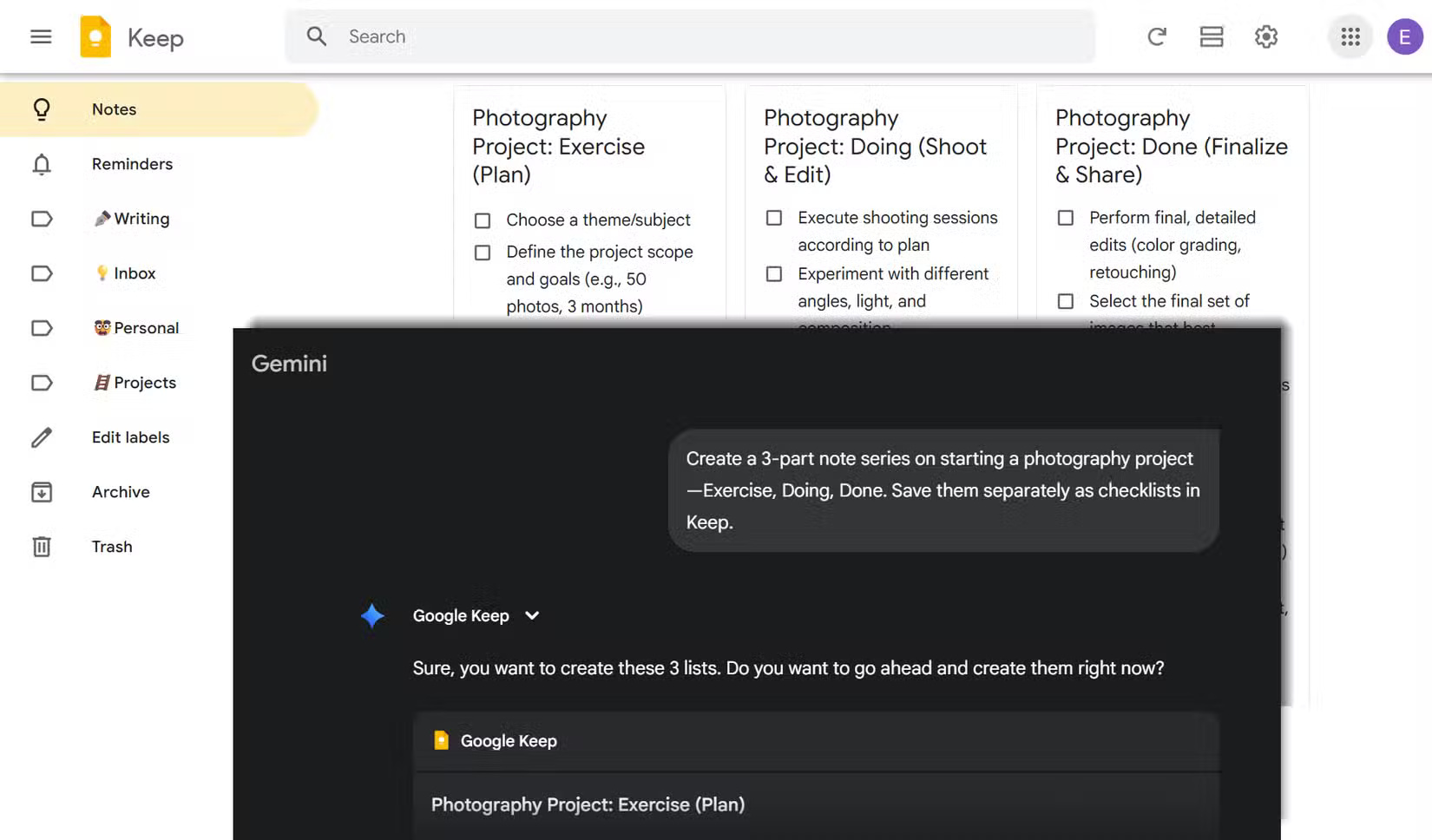
Here's a neat trick between Gemini and Google Keep, where a single prompt helps set up two or more notes at once. For example:
Create a 3-part series of notes about starting a photography project - Task, In Progress, Done. Save them separately as checklists in Keep.
This is useful for systems thinking or quick Kanban boards. Use this when planning content or learning step by step!
FAQ
Why Using Google Keep with Gemini Really Makes a Difference: Explained?
In practical terms, keep has always been a simple app, almost too simple at times. But when you combine it with Gemini, the app suddenly becomes powerful at handling planning, summarizing, and organizing without losing the typical Post-It-like ease.
What factors are most important?
The article highlights that instead of opening a new Keep note, you just ask Gemini a question like 'Create a note in Google Keep' or 'Create a list in Keep called Weekend Prep.' A favorite way to start a note is with a checklist.
What is the main takeaway?
The main takeaway is that the backend takes over and the note is automatically created in Google Keep (labeled Gemini).
Related Articles
 Gemini 3.1 Pro or Gemini 3 Pro: Better?8 minutes read
 The Difference Between Gemini and ChatGPT13 minutes read
 4 Google Apps That Work Better with Gemini: Explained5 minutes read
 How to Turn Off Gemini in Google Docs10 minutes read
 How to use Gemini API14 minutes read
 What Is Google Gemini? How Does Gemini Work?6 minutes read
Reader Comments 0
Sign in with email or Google to join the discussion.