Table of Contents
Explore wayback machine: a chrome extension that helps you get rid of the 'page not.
Wayback Machine lets you look back in time to see older, archived versions of websites, which is very useful for finding old links, downloaded files, and much more.
But many people don't know that Wayback Machine has a Chrome extension designed to make searching for old data easier, and once installed, it ensures you'll never see a blank webpage again.
You will never see a website timeout error again
The Wayback Machine extension can search deep into the past
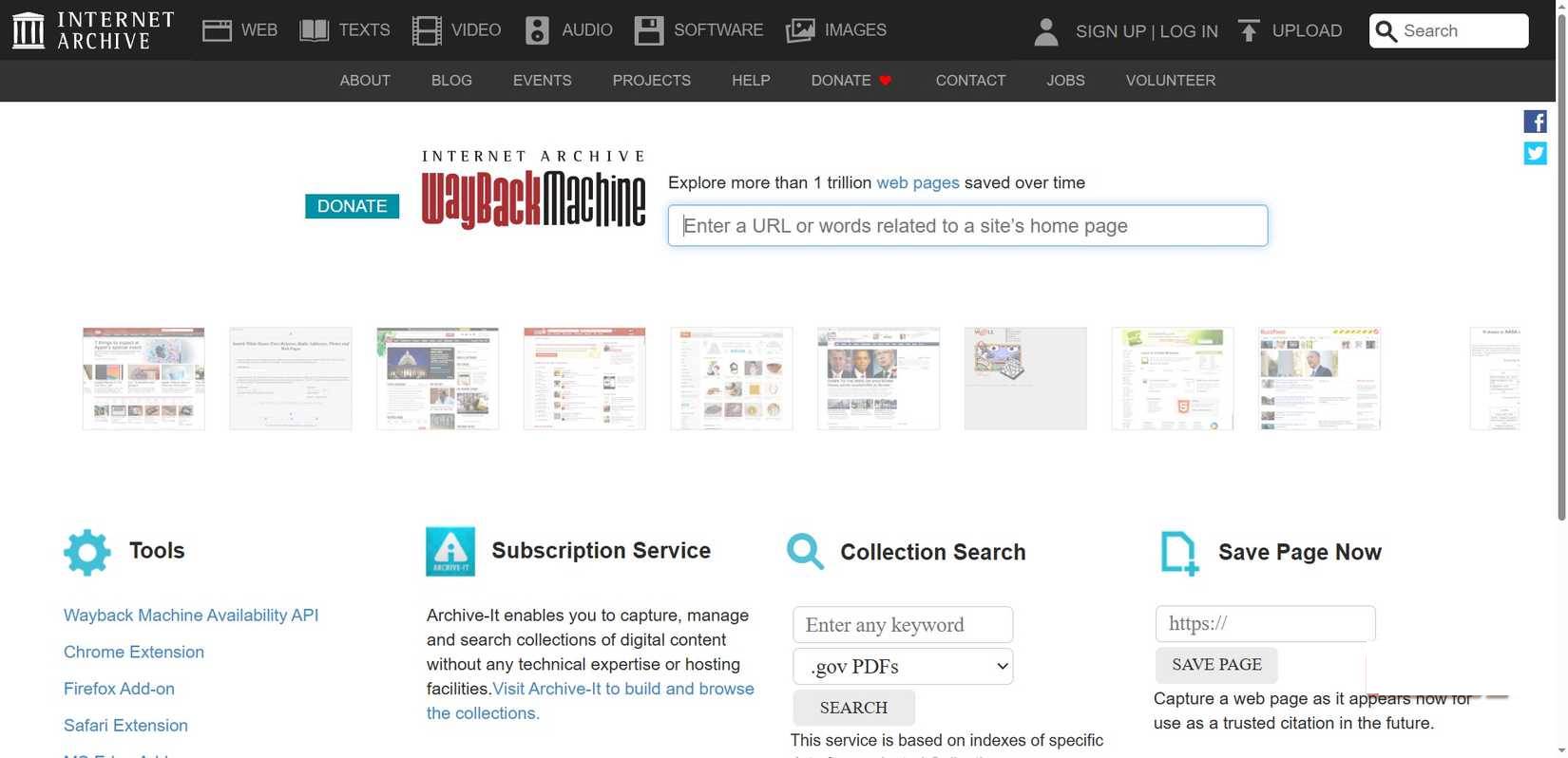
As mentioned, the Wayback Machine is a massive internet archive with countless cached pages containing older versions of websites. Not every website appears in the archive, but the Wayback Machine has an incredibly wide scope and is one of the best websites for exploring the "secrets" of the internet.
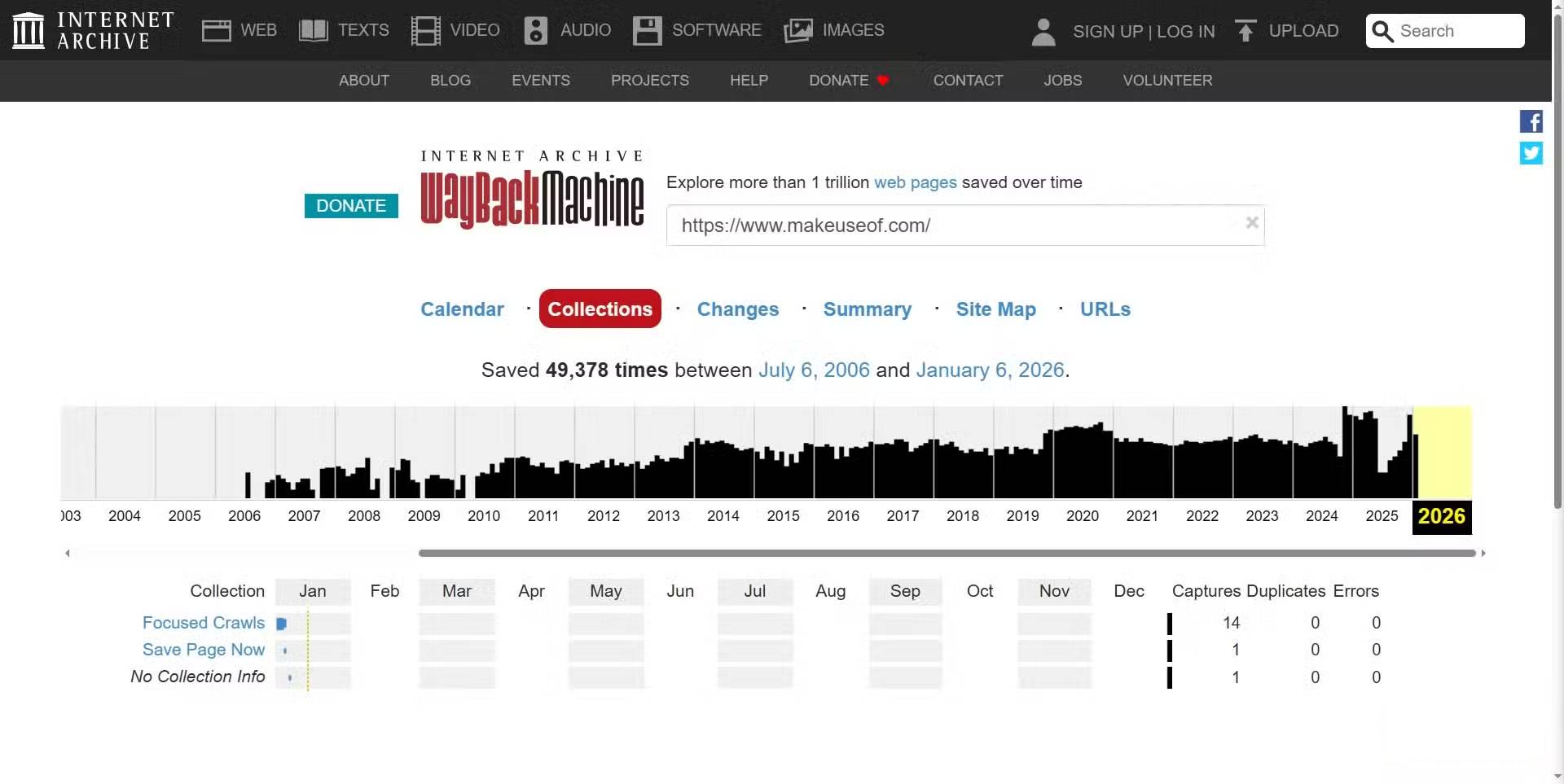
For example, if you search for MakeUseOf, you can see that Wayback Machine has hosted this website 49,378 times (as of the time of writing), spanning from 2006 to 2026. You can go back in time to the early days of MUO and see the original "Hello World" post on WordPress from years ago, all from the Wayback Machine site.
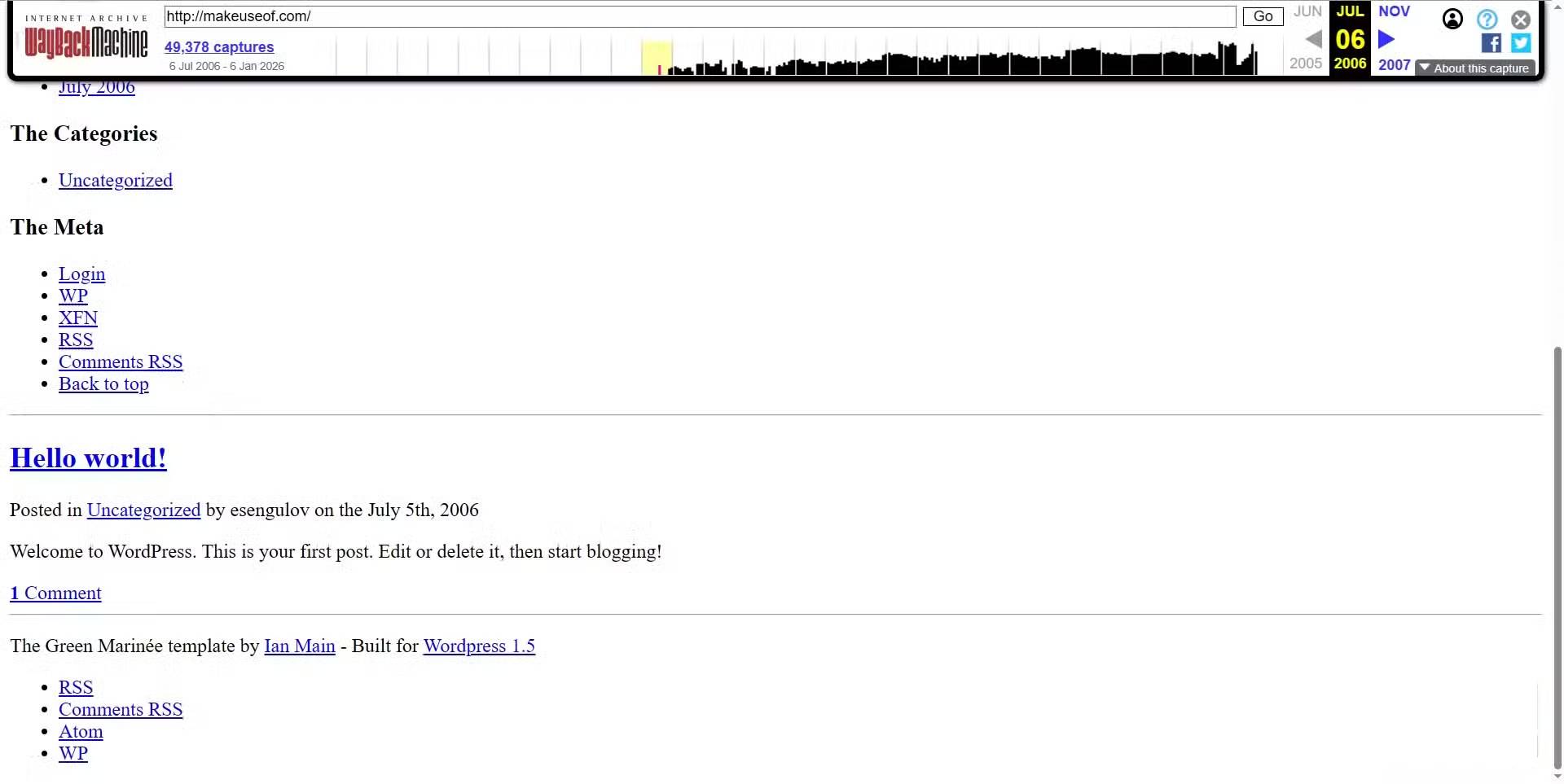
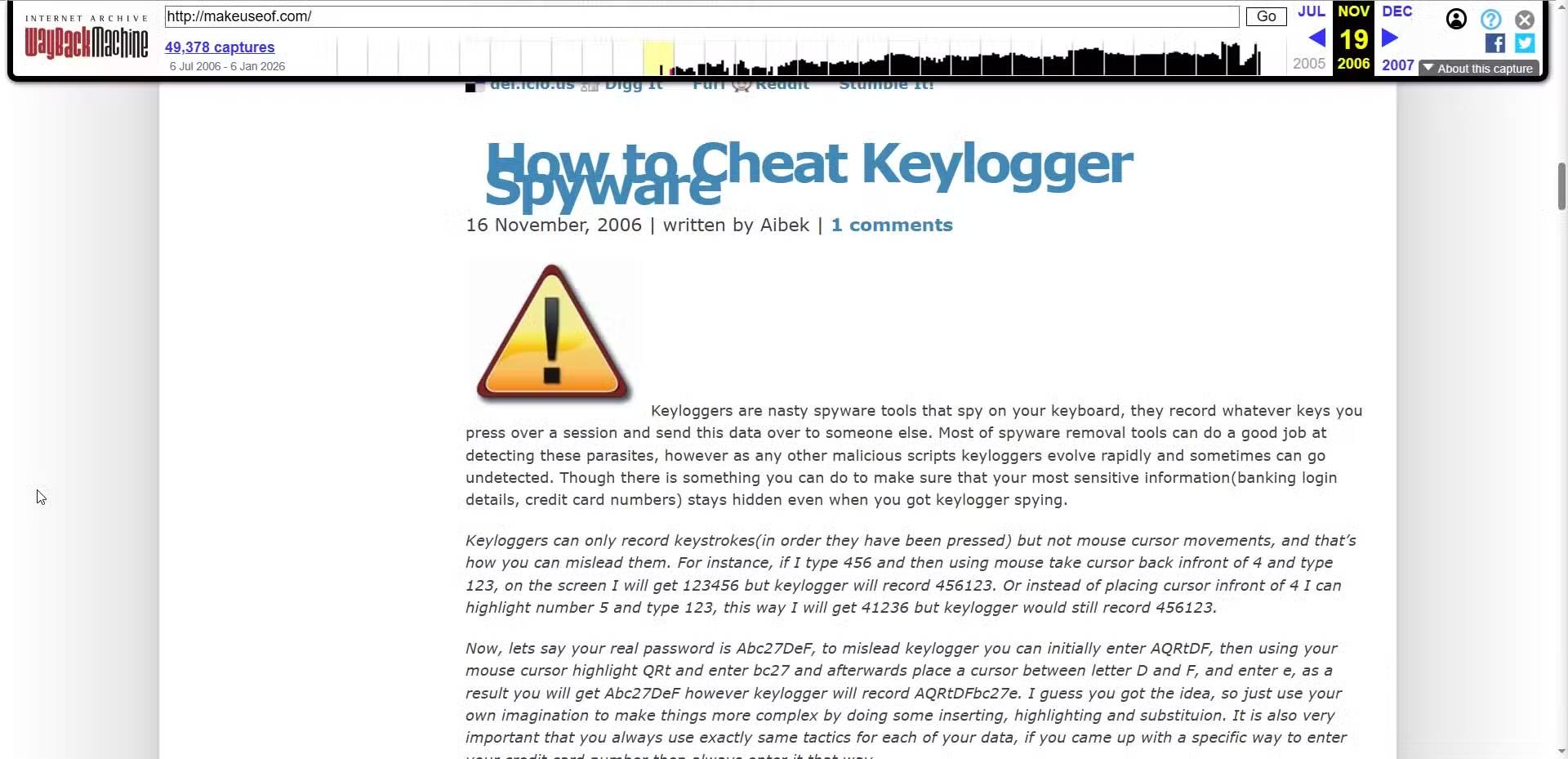
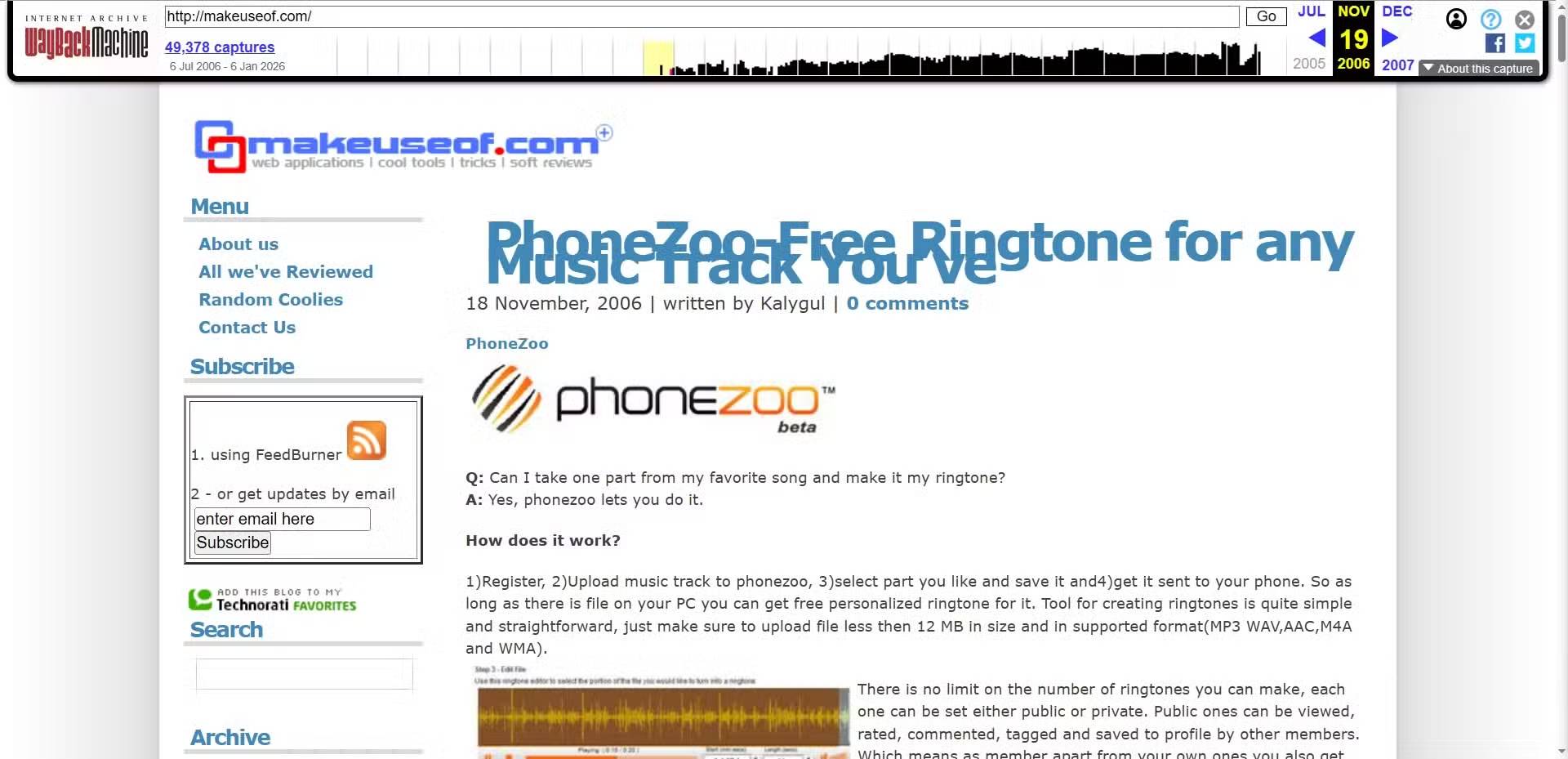
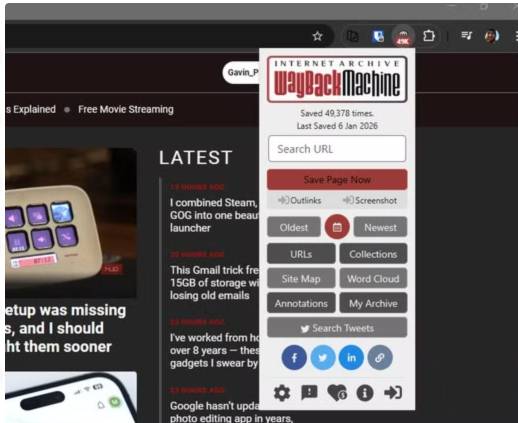
Now, the Wayback Machine extension lets you start learning about a website's history without leaving your current site. It shows you the last time a page was hosted, and also allows you to instantly see the oldest or newest hosted page.
This feature ensures you never encounter the "Page not found" error again. Whenever you do, open the Wayback Machine extension and select "Newest," which will take you to one of the most recently archived pages. While there's an "Oldest" option, for best results, you should choose the newest page unless you need to search for specific information on an older archived page.
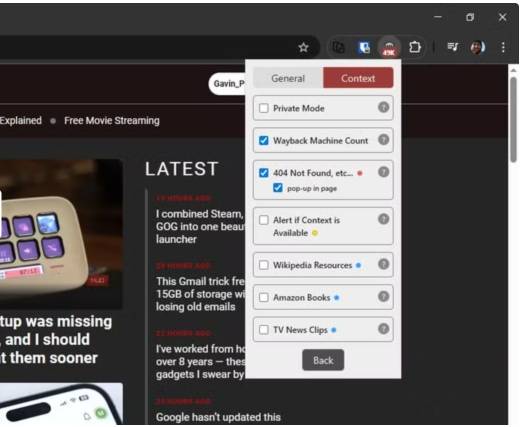
Even better, you can actually enable the Wayback Machine extension to automatically provide a cached page when encountering 4xx or 5xx errors while browsing. This setting is enabled by default, but can be adjusted in the extension settings.
- Select the Wayback Machine icon in your browser's extension tray.
- Select the gear icon to open Settings .
- Open the Context tab, then check if the 404 Not Found, etc. option is selected.
You can also select the red calendar icon to go to Wayback Machine's calendar view, which shows all saved pages, or save a specific page using the Save Page Now option.
You can check social media, keyword clouds, etc
This is an all-in-one package!
The Wayback Machine extension also has a few other tricks.
The extension's Search Tweets button lets you see if a specific URL has been mentioned on X, allowing you to track other interactions with the page and see what others are saying. Similarly, if you want to post about a page hosted through the extension, there are social media integrations for X, Facebook, and LinkedIn.
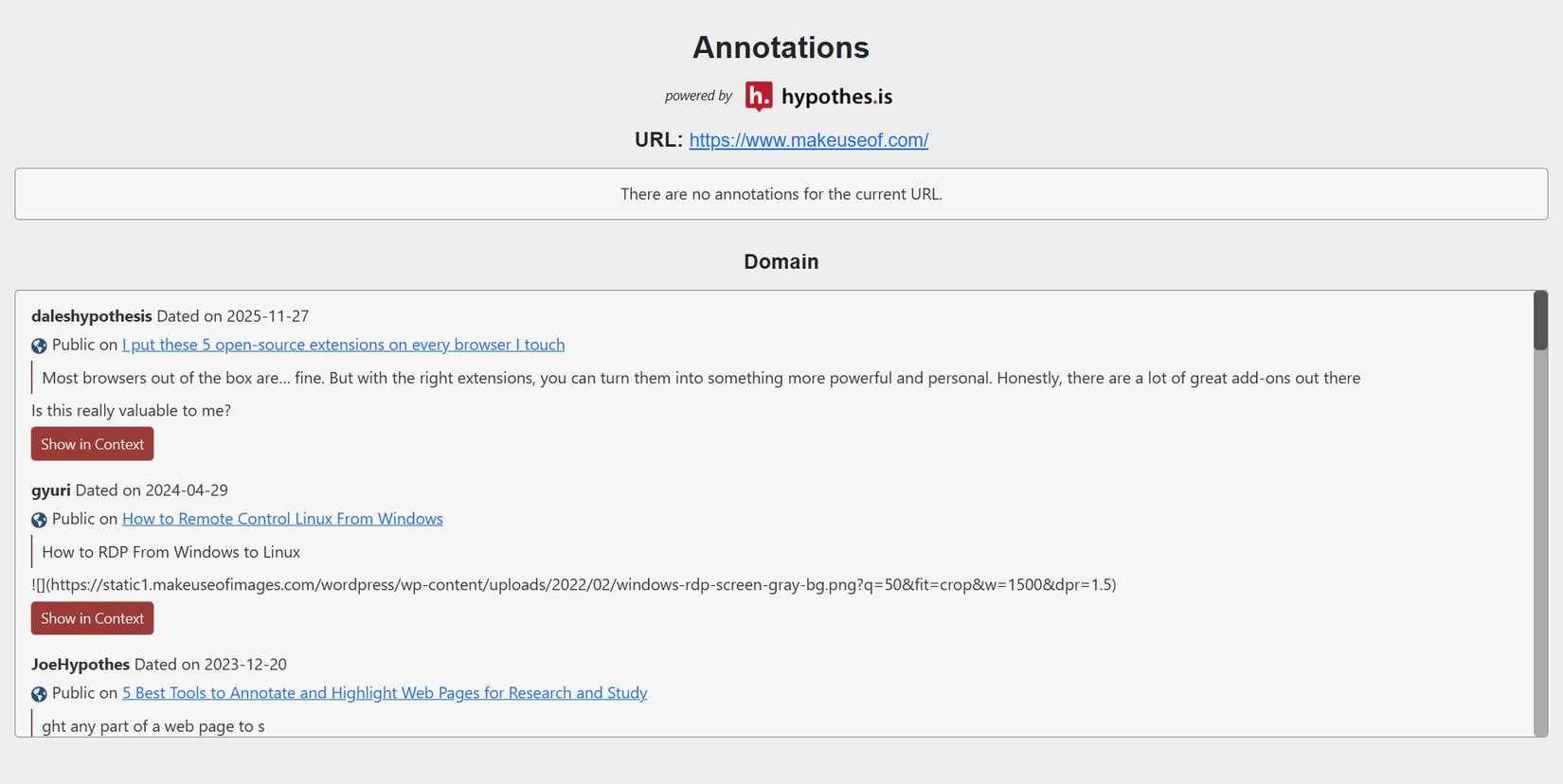
One thing many people don't realize is there's a specific link to the Hypothesis app, which allows you to add public annotations to websites for others to see and comment on. It's interesting to see what others have written about the websites you frequently visit.
One noteworthy feature is Auto Save Page , which, as the name suggests, automatically uploads unsaved pages to the Wayback Machine. Depending on your browsing habits, you might save versions of web pages that wouldn't normally be uploaded to the Wayback Machine; essentially, you become a web archivist without any effort.
Final Thoughts
Understanding wayback machine makes it easier to evaluate the information and apply the most relevant recommendations. Focus on the key points above and verify details that may change over time.
FAQ
What is wayback machine?
Explore wayback machine: a chrome extension that helps you get rid of the 'page not.
What key points does this article cover?
The article focuses on You will never see a website timeout error again, The Wayback Machine extension can search deep into the past, You can check social media, keyword clouds, etc, with practical explanations and examples.
How can you use this information in practice?
Use the explanations to compare options, verify important details, and make a more informed decision. Apply the recommendations that best match your goals and situation.
Related Articles
 How to Use the Internet Archive's Wayback Machine7 minutes read
 How to Review Old Data on a Web Site Using Archive.org3 minutes read
 How to Use Web Highlights to Take Notes Right on the Web Page4 minutes read
 Chrome Adds a Warning When an Extension Takes over the Internet Connection4 minutes read
 Flickr, Extension Helps You Get a Beautiful and Unique Picture Every2 minutes read
 Learn About Chrome: //// Chrome Page6 minutes read
Reader Comments 0
Sign in with email or Google to join the discussion.