Table of Contents
Explore the device is not showing up in microsoft account manager.
Verify that you are logged in to your Microsoft account
Your device might not show up if you're using a local account to sign in to Windows.
In the Windows Settings interface , click on the "Your Info" option to check.
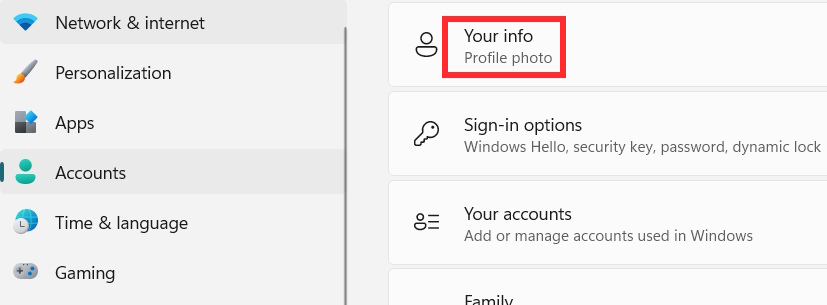
If the Local account is displayed, you need to click the button to link and log in. Then you will see a list of devices in the Microsoft login management interface.
Confirm that Windows is activated
If you recently installed or reinstalled Windows on that device, you'll need to reactivate it to sync with your Microsoft account.
Enable device synchronization and privacy settings
Open your computer's settings and then click on Privacy & security . Next, go to Find my Device on the adjacent screen. Then, you need to activate the Find my Device feature on your computer.
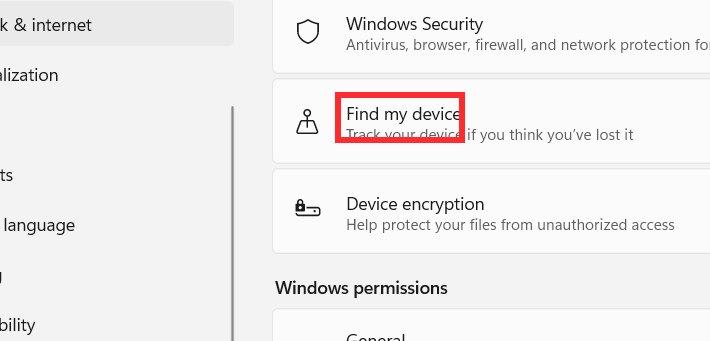
Go back to the Privacy interface and click on Account info .
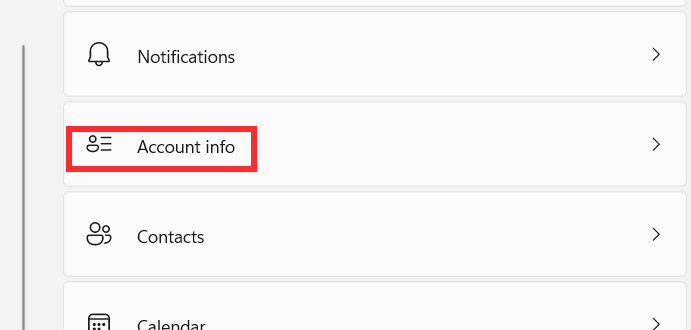
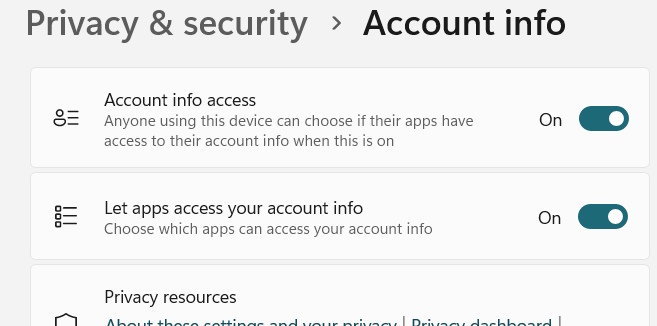
Here you need to activate the settings as shown in the image.
Add devices to the manual management interface
Click the link below to access your Microsoft account management page. Then, select "Devices" and choose "Register device" to manually add a device to log in to your account.
- Microsoft Account Management
Final Thoughts
Understanding the device is not showing up in microsoft account manager makes it easier to evaluate the information and apply the most relevant recommendations. Focus on the key points above and verify details that may change over time.
FAQ
What is the device is not showing up in microsoft account manager?
Explore the device is not showing up in microsoft account manager.
What key points does this article cover?
The article focuses on Verify that you are logged in to your Microsoft account, Confirm that Windows is activated, Enable device synchronization and privacy settings, with practical explanations and examples.
How can you use this information in practice?
Use the explanations to compare options, verify important details, and make a more informed decision. Apply the recommendations that best match your goals and situation.
Related Articles
 8 Ways to Fix Windows Device Manager Not Responding Error8 minutes read
 How to Create a Minecraft Account: Clear Instructions8 minutes read
 How to Set Up an Inactive Google Account Manager7 minutes read
 How to Find Lost Android Devices Using Android Device Manager9 minutes read
 Instructions for Creating the Fastest Microsoft Account3 minutes read
 How to Use Toolbox in Microsoft PC Manager on Windows 11: Step-by-Step Guide7 minutes read
Reader Comments 0
Sign in with email or Google to join the discussion.