Table of Contents
Turning on Google Chrome sync only applies if you're using a personal computer. What if you share a computer and want to control what data your Chrome syncs?
If you sign in to Chrome with your Google account, we have the option to sync your passwords and browsing history across devices. However, enabling sync on Google Chrome only applies when you use a personal computer. But what if you share a computer and want more control over shared data? Here are instructions for managing sync on Chrome.
How to manage sync on Google Chrome web
Step 1:
You access Google Chrome then click on the 3 dots icon, select Settings in the list. Next in the new interface, the user Clicks on Sync Google services .
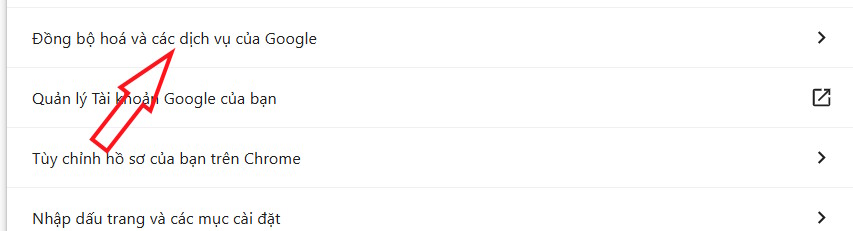
Step 2:
Now this guide will click Turn off sync if we do not want to sync Google data on devices logged in with the same account. In case you do not want to turn off sync, click Sync Google services To expand the settings.
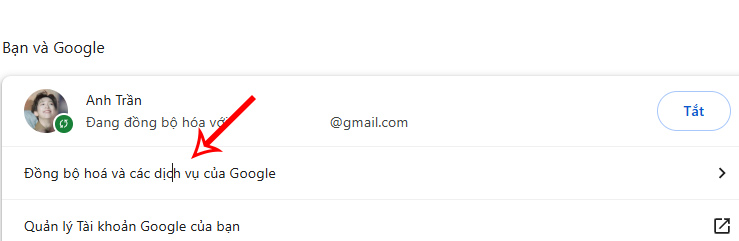
Here, users click on The Manage synchronized data item .
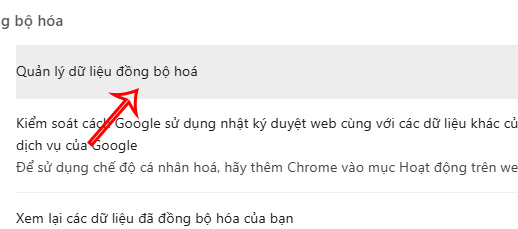
Step 3:
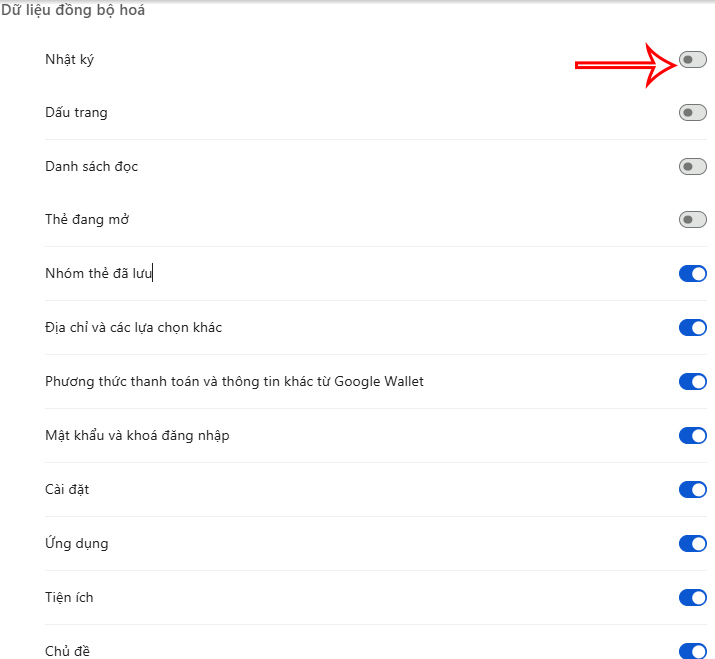
Switch to the new interface, Click Customize sync To adjust as you like.
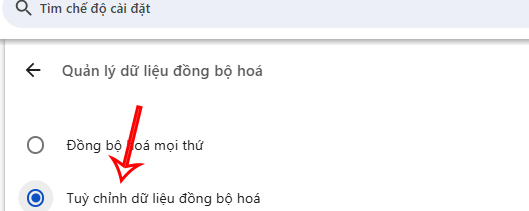
Here is the list of synced data, if you don't want to sync any content, just turn it off.
How to manage Chrome sync on mobile
Step 1:
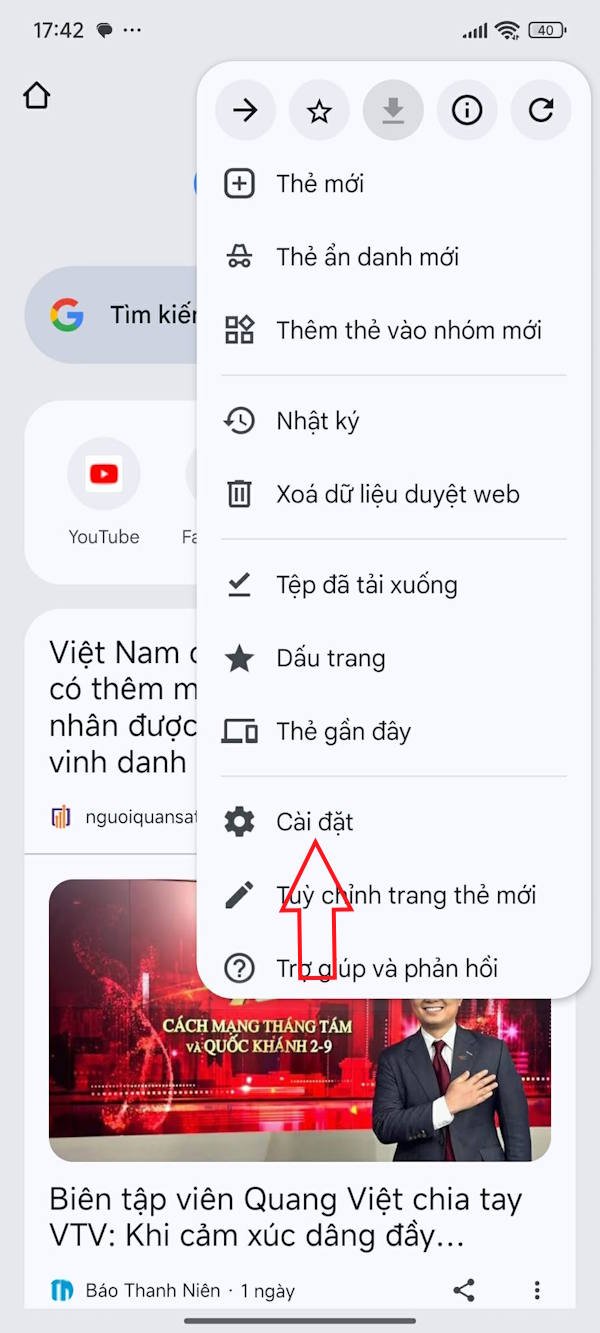
On the Chrome browser interface, click on The 3-dot icon And Select Settings In the displayed list.
Step 2:
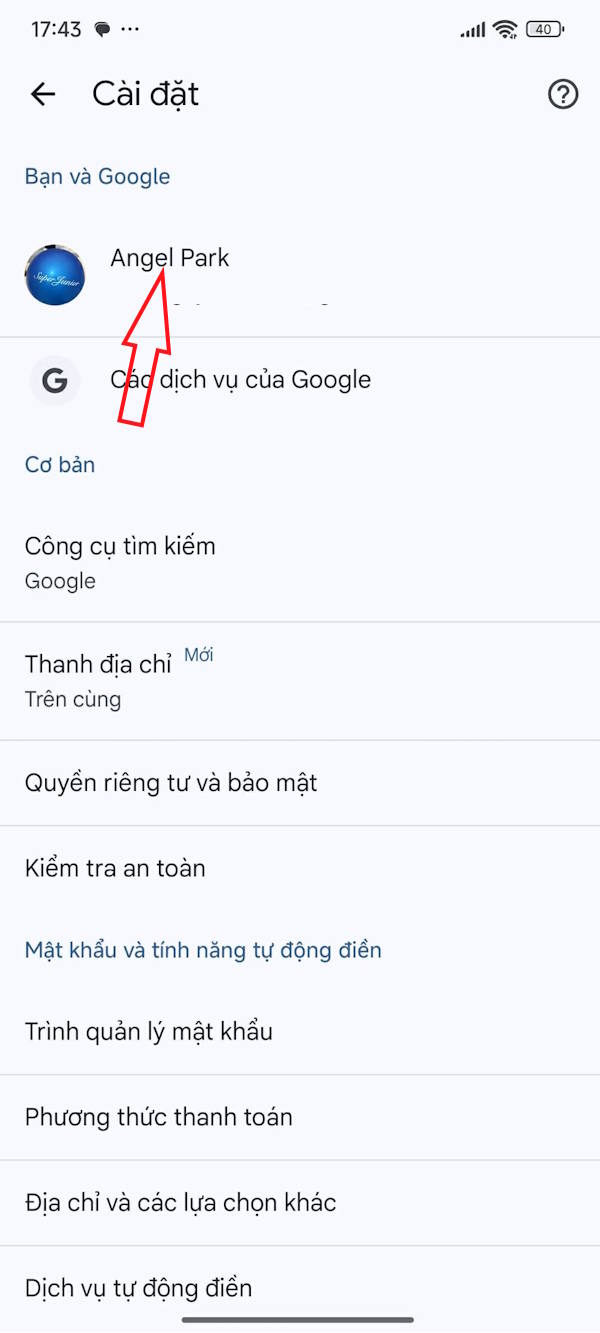
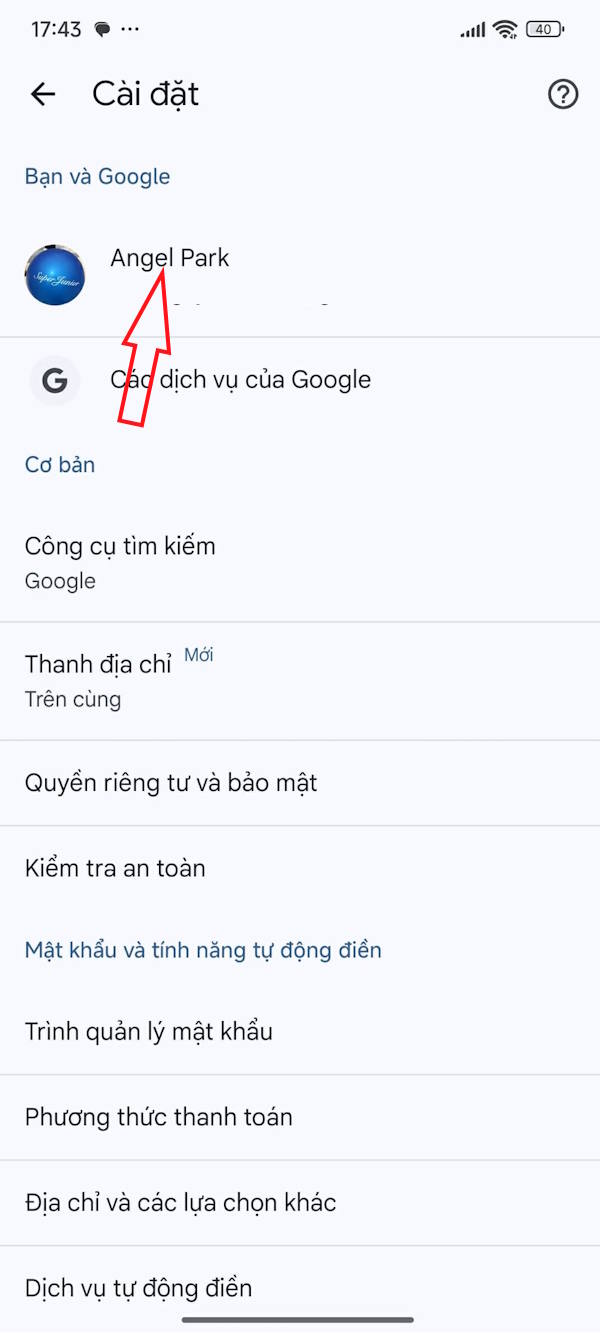
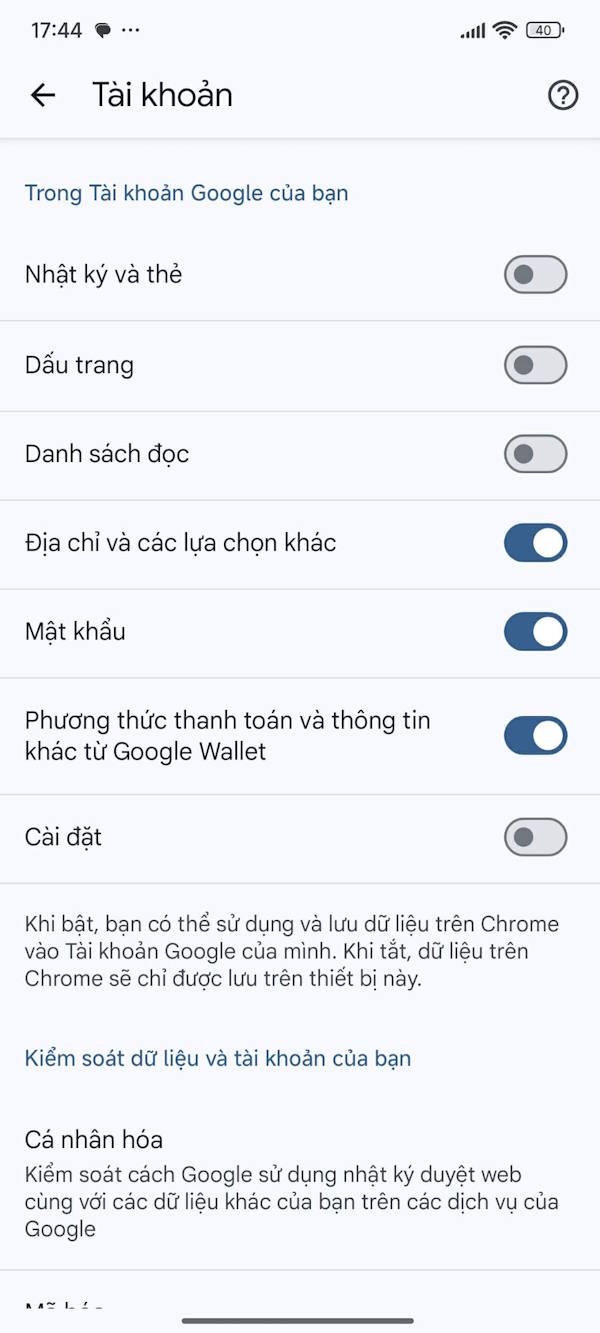
Switch to the new interface, Click on your Google account name At the top to adjust.
Step 3:
At this time, you also check all the synchronized content on Google and Turn off any content you do not want to synchronize data .
FAQ
How do you manage synchronization on Google Chrome?
In practical terms, turning on Google Chrome sync only applies if you're using a personal computer. What if you share a computer and want to control what data your Chrome syncs.
What should you check before getting started?
Review the requirements, compatible device or software version, and any warnings described in the guide before making changes.
What should you do if the steps do not work?
Repeat the steps in order, confirm that your app or system is up to date, and review the troubleshooting details provided above.
Related Articles
 Managing Open Tabs on Chrome Will Be a Lot Easier and More Intuitive in the4 minutes read
 Google Chrome 10: Breakthrough6 minutes read
 3 Extensions That Support Managing Browsing History in Chrome7 minutes read
 Chrome 19 Syncs Tabs on All Devices4 minutes read
 Instructions for Syncing Chrome Data on Multiple Devices4 minutes read
 Google Added Offline Sync to Google Drive in Chrome5 minutes read
Reader Comments 0
Sign in with email or Google to join the discussion.