Table of Contents
SyncThing lets you build your own sync system. It creates a direct connection between devices over your local network, transferring data peer-to-peer instead of routing it through a third-party server.
Some people have always synced their Obsidian notes with AutoSync and Google Drive. However, it is not ideal for sharing large files due to Google 's limited storage and slow sync speeds. Since local file syncing is required, many people have decided to try P2P sync with SyncThing.
Setting Up SyncThing
Download the appropriate app and connect your device

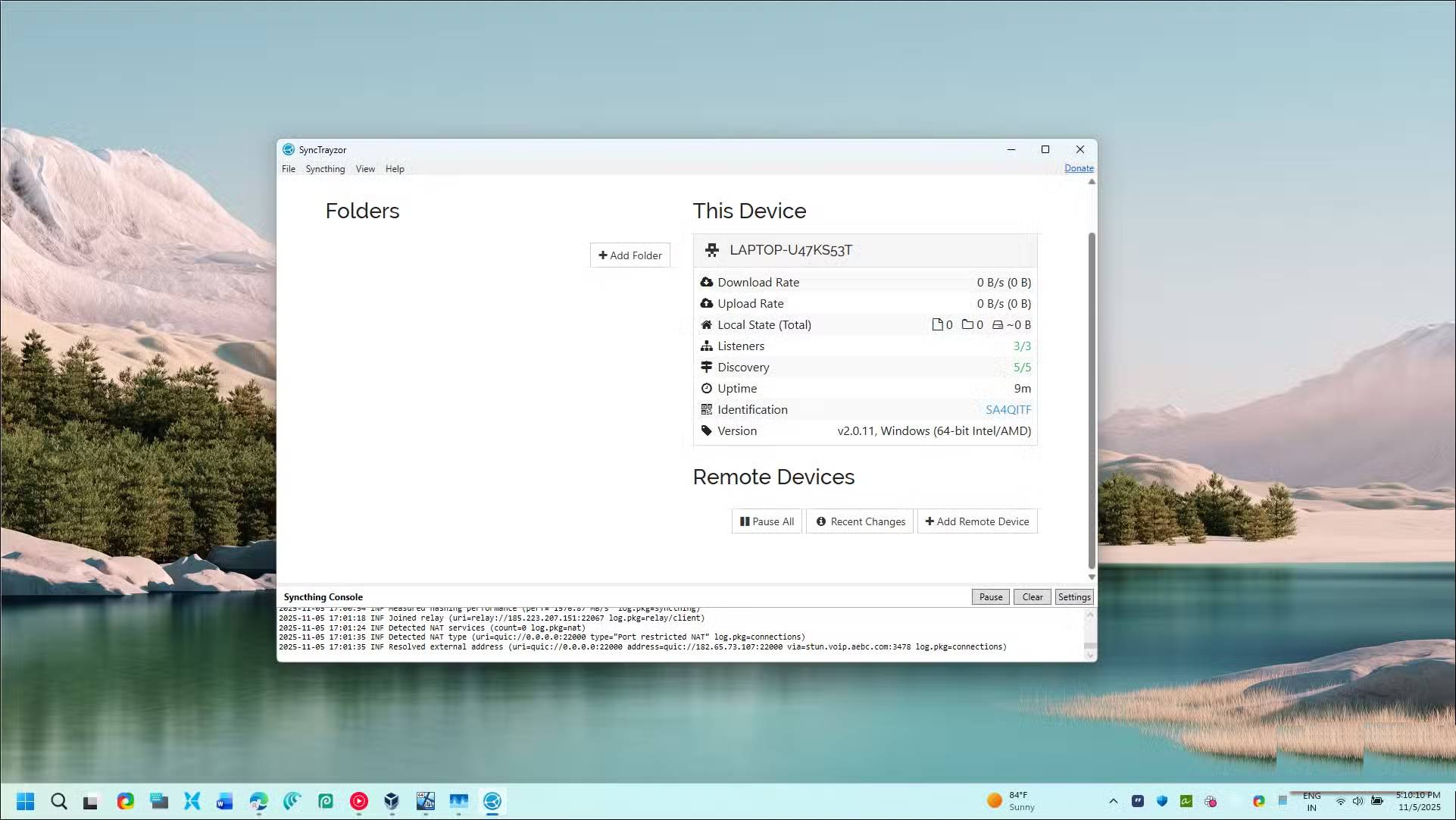

SyncThing lets you build your own sync system. It creates a direct connection between devices over your local network, transferring data peer-to-peer instead of routing it through a third-party server. This approach has two benefits: faster transfer speeds because your files are moved directly between devices, and improved privacy because your data is always under your control.
The bigger problem with SyncThing, however, is the setup. The developer has stopped releasing an official Android app, and the Windows app is barely functional. When you install the Windows app, it adds two shortcuts to start and stop the service. Every time you try to launch it, it gives you an error, and the configuration page that's supposed to open the web interface returns blank pages.
After some research, there are a couple of maintained forks of SyncThing that work. For Windows, you can use SyncTrayzor v2. Although Edge flags it as an "infrequently downloaded app," running it through VirusTotal is fine. For Android, you can install SyncThing Fork. For Mac, you can try SyncThing-macOS and Mobius Sync for iOS (which is a paid app).
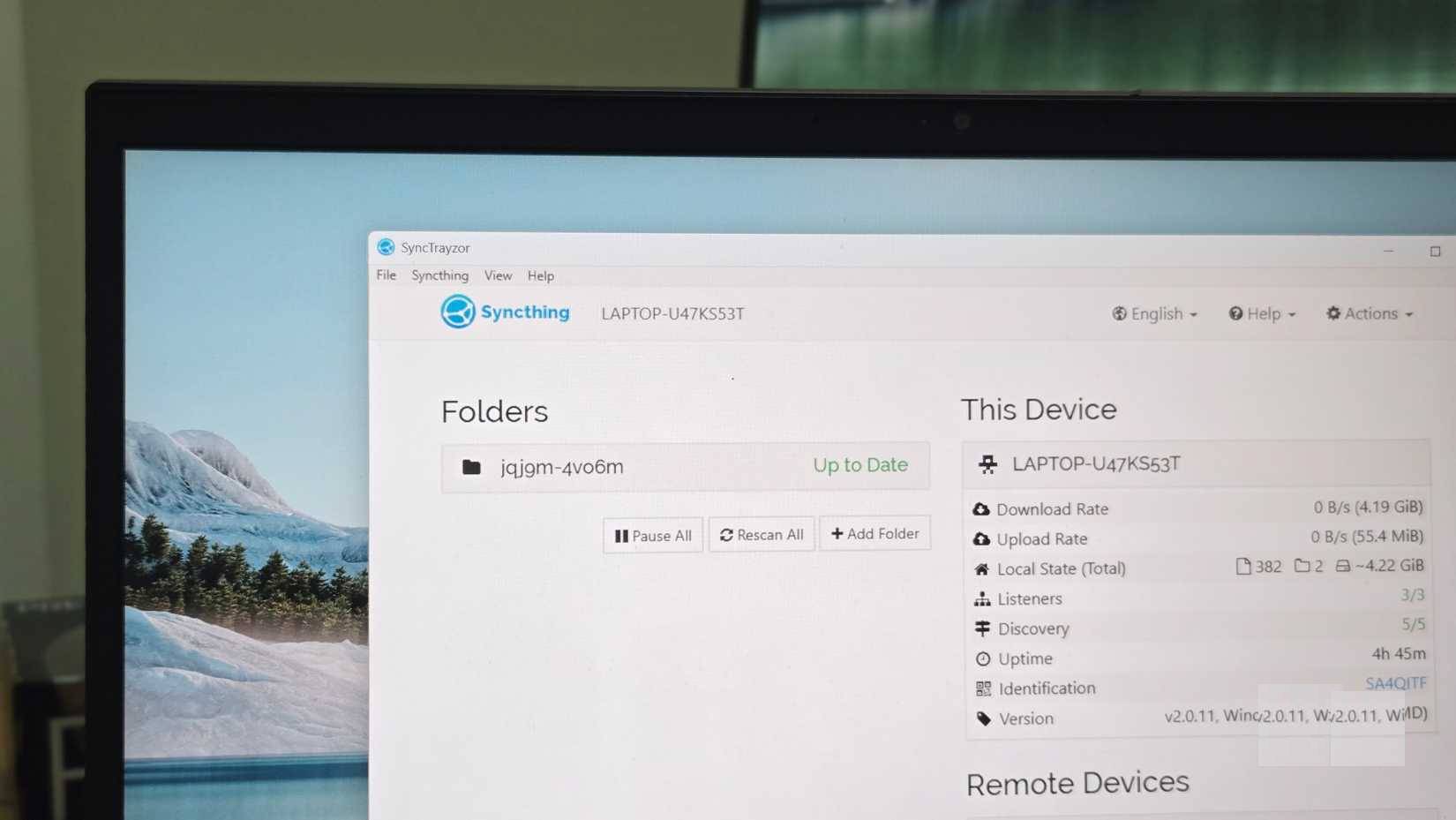
Once you have the app installed on both devices, you will need to connect them. The GUI authentication prompt asking you for a username and password is only necessary if you share a computer and are worried about someone accessing your files without your permission. Otherwise, you can leave it as default.
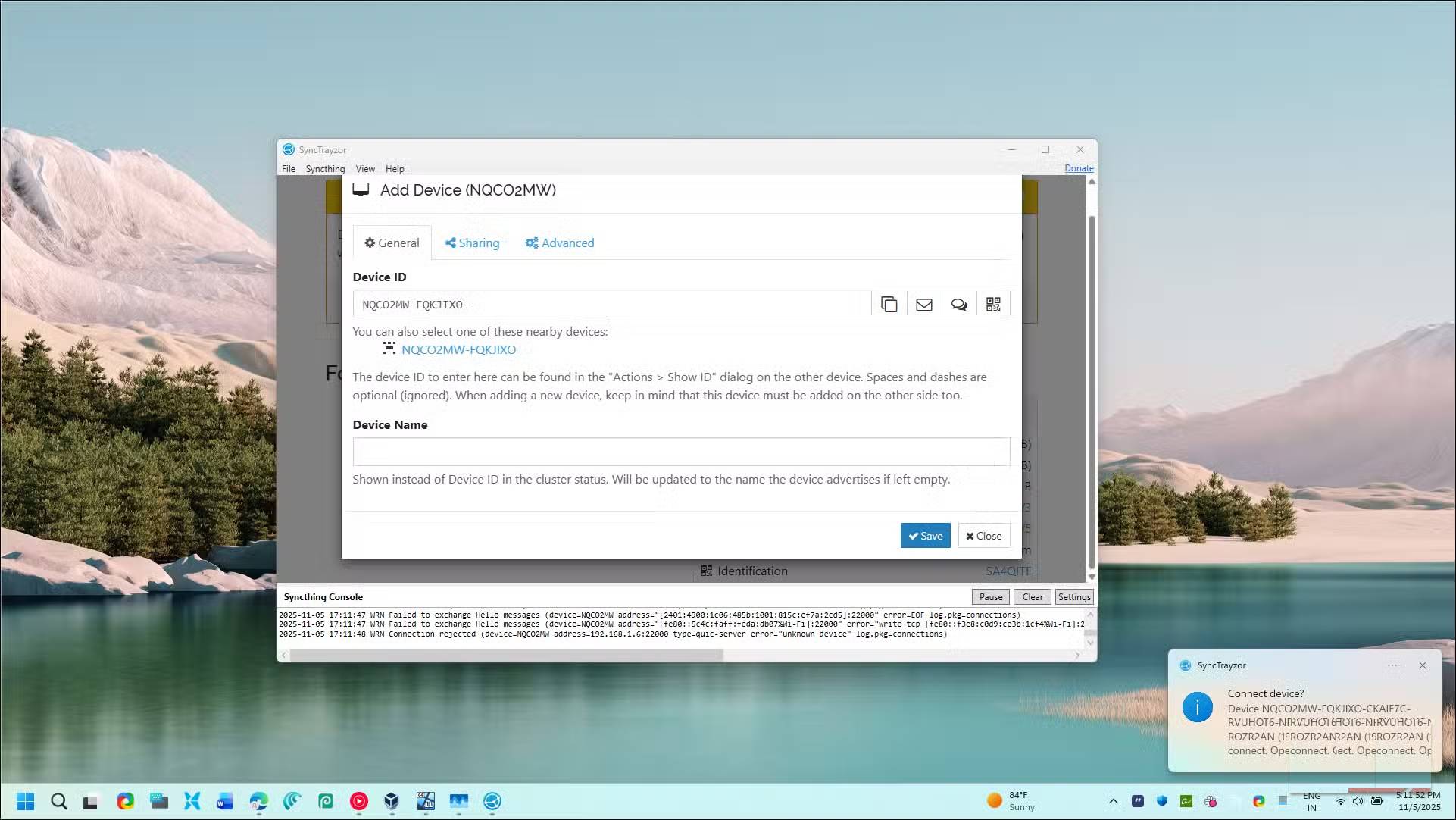
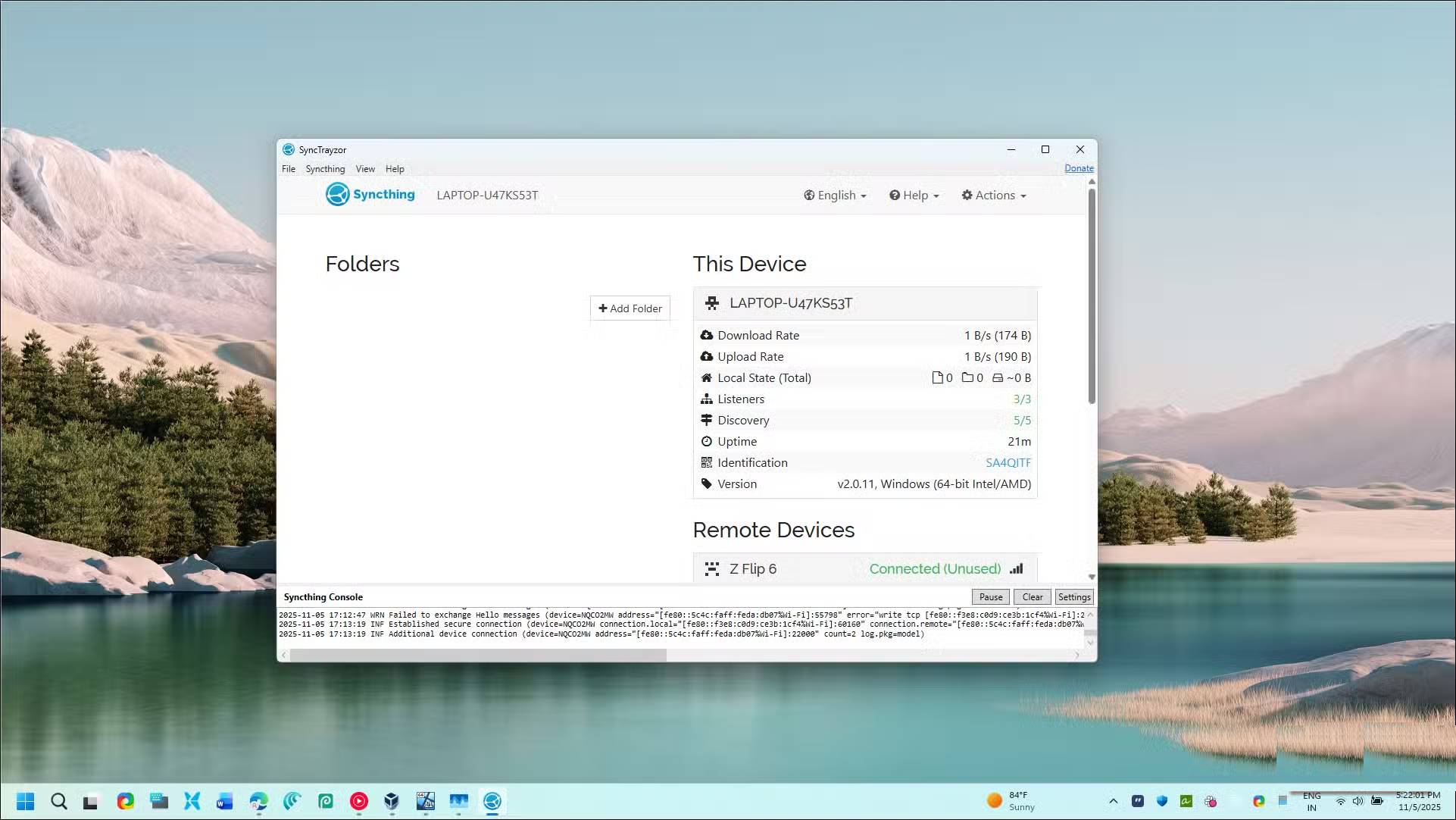
Open SyncThing on both devices, then click Add Remote Device . Click the Device ID Drop-down menu and select another device from the list. You'll only see the other device's ID, not its name. Enter a name for the device and click Save To accept the connection request that pops up on the other device, and the devices will be paired.
Note : If you are pairing over the Internet, you will need to manually add the device ID from your phone to your computer or vice versa, then accept the connection.
Create a SyncThing folder pair (select the data to sync)
Select and configure which folders to sync
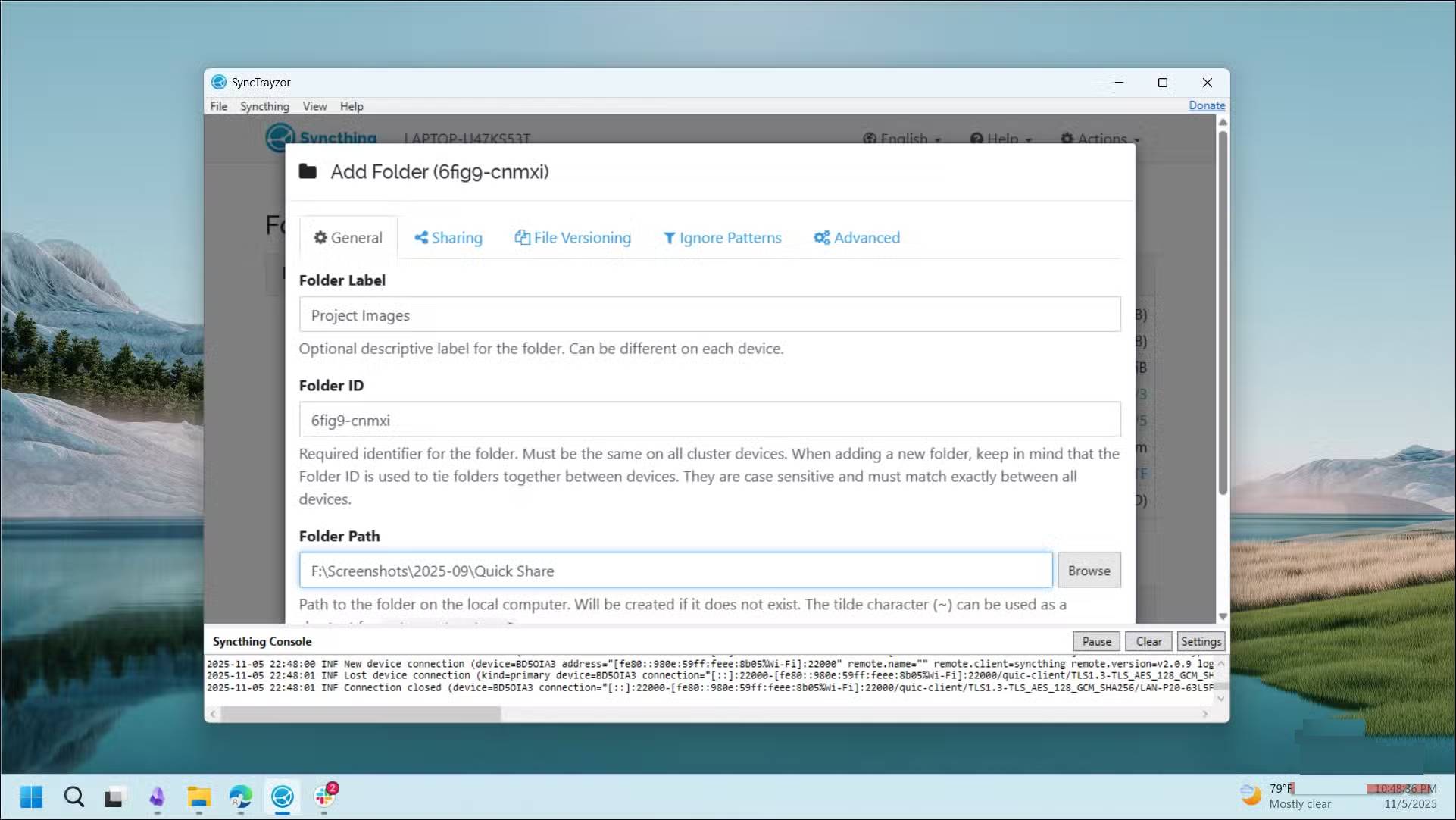
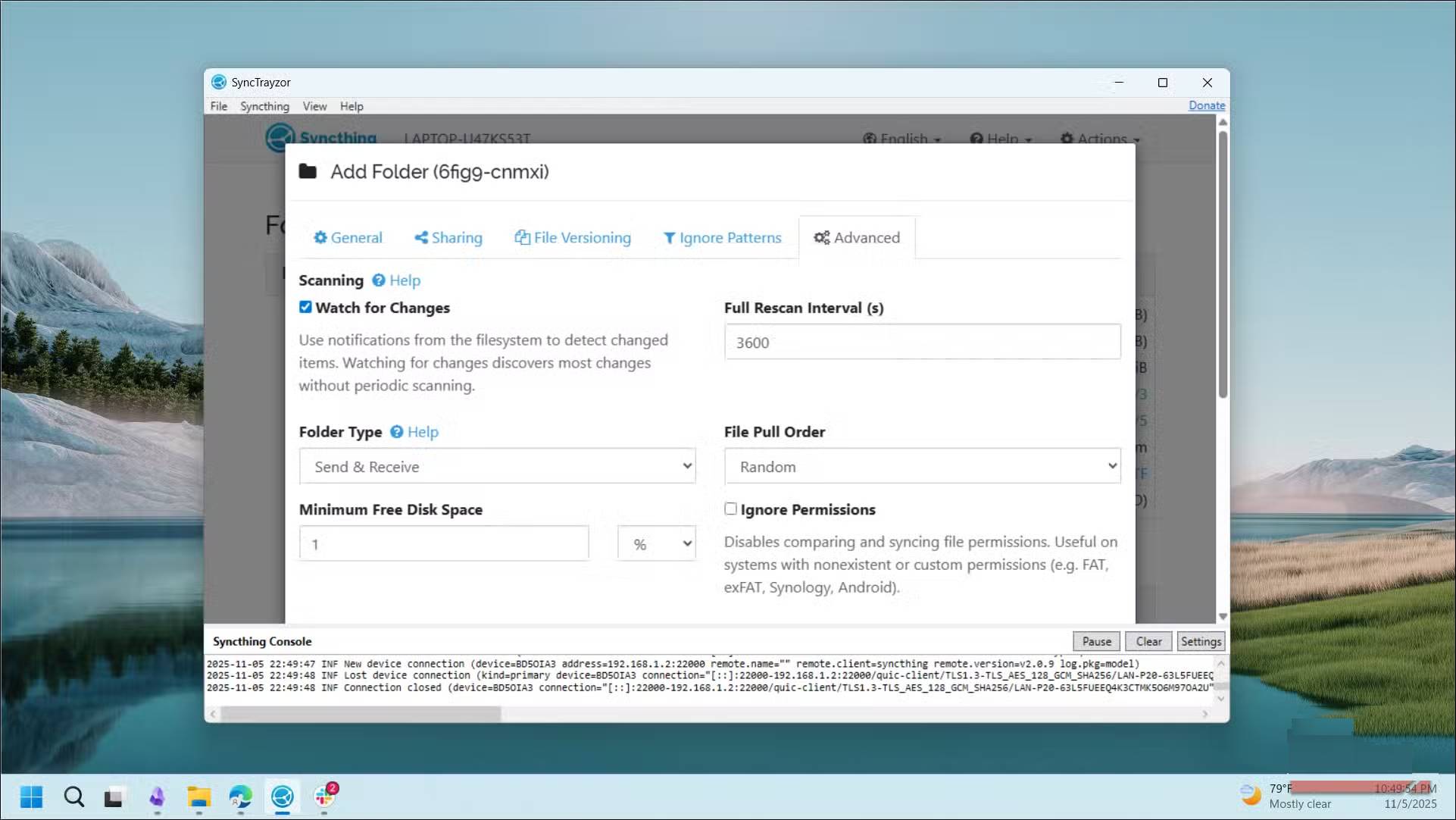
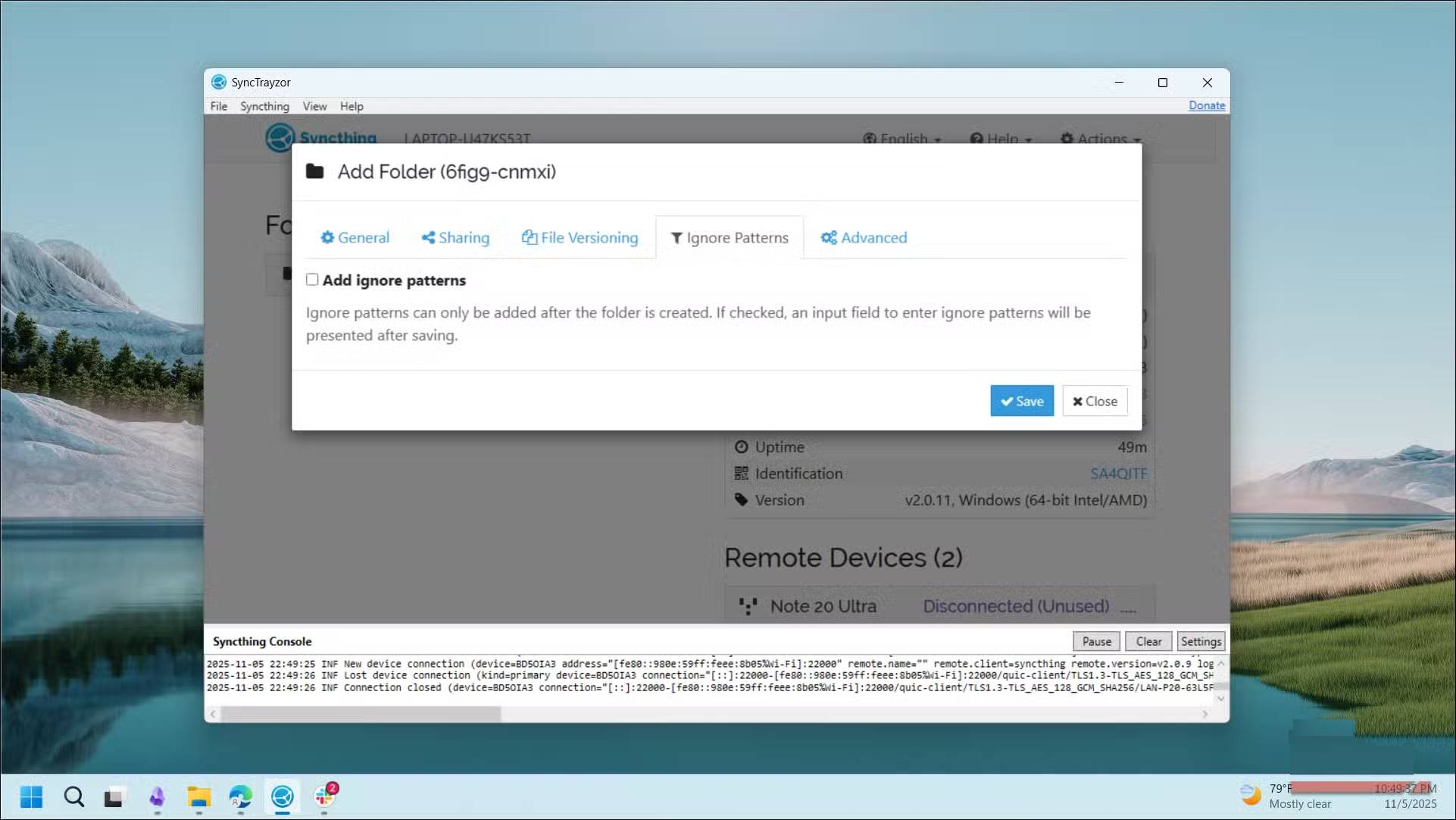
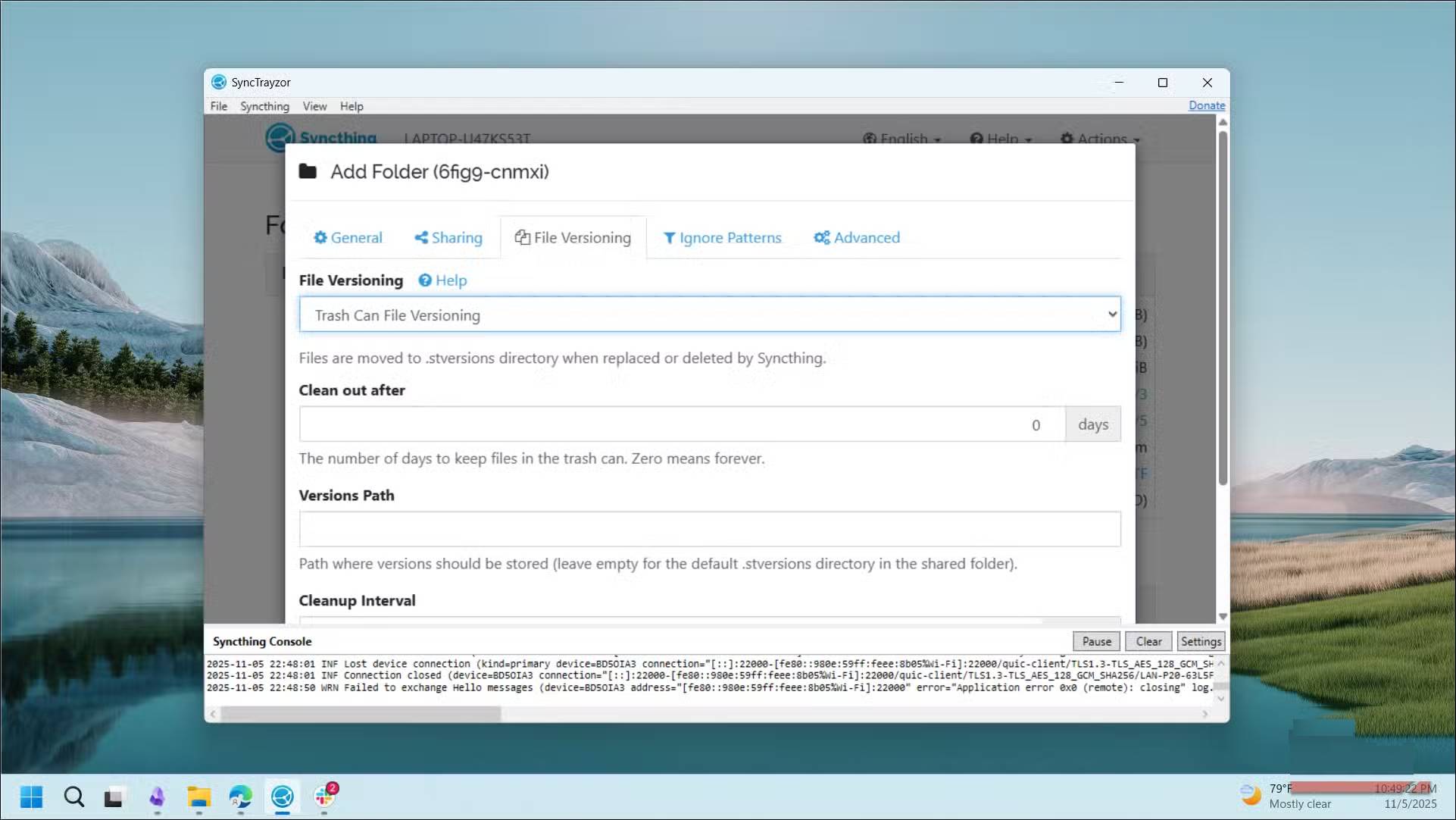
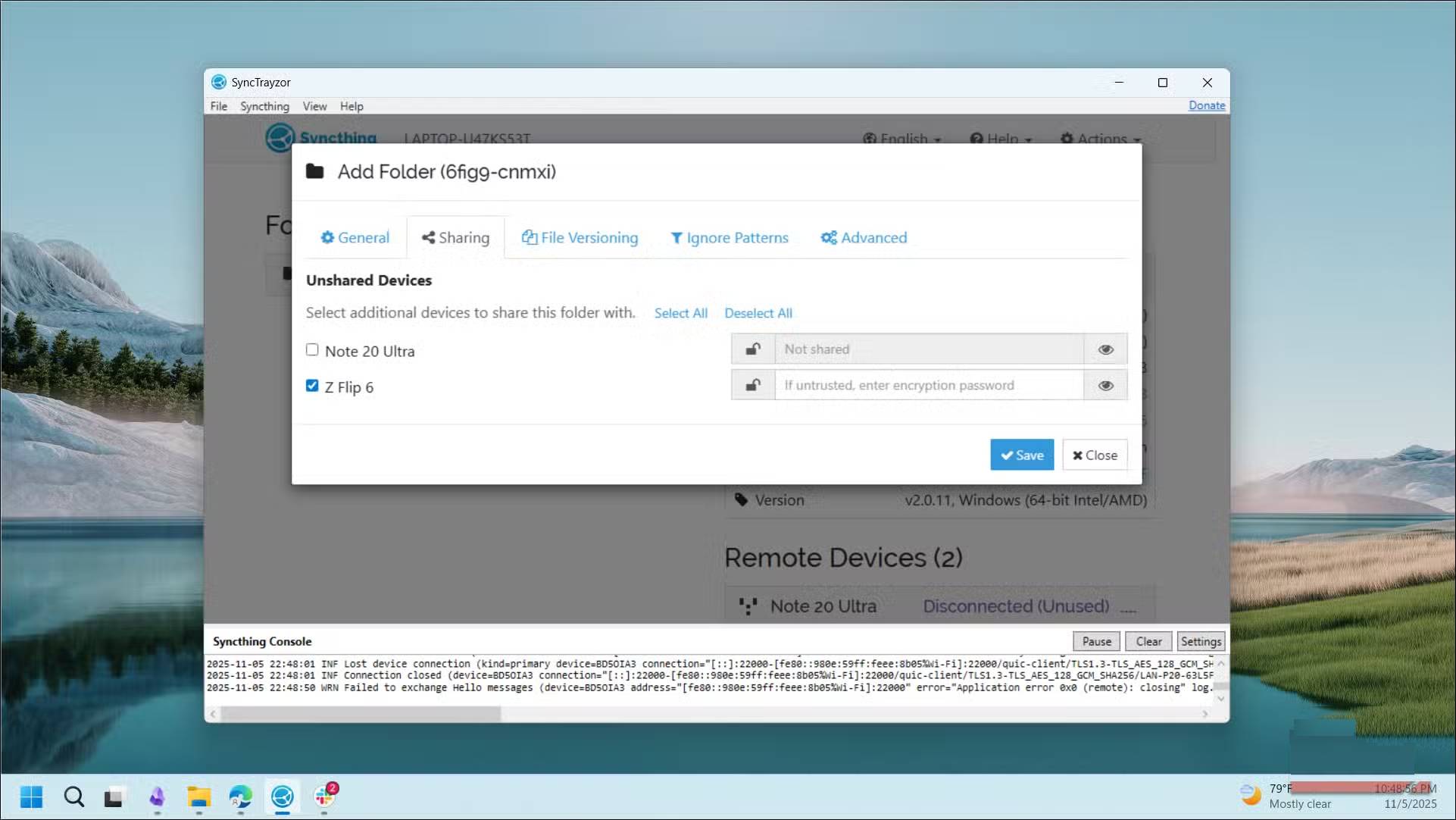
Once the devices are connected, the next step is to choose what to sync. SyncThing lets you sync any folder on your device, configure versioning and monitoring settings.
On your computer, click Add Folder In SyncThing. Give it a recognizable label (like Project Images) or leave it blank. Leave the default ID, then select the folder path on your computer that you want to sync.
In the Sharing Tab, choose which devices will receive this folder. You can even set different sync types—maybe you want your phone to only receive files and not send back changes. Perfect for reference documents you don't want to accidentally edit on your mobile device.

On the other device, accept the invitation to access the folder that appears in the device's notification panel. Then, enter a name for the folder label and choose where to store the files. Finally, let SyncThing perform the initial sync. This may take a few minutes, depending on the size of the folder.
You can create multiple folder pairs with different rules or edit existing ones to reconfigure them. Existing project folders can be synced in both directions between devices, but archive folders are only sent from the PC to free up phone memory while still ensuring file access.
SyncThing is fast, secure, and offers complete control
Technical advantages that make P2P synchronization superior
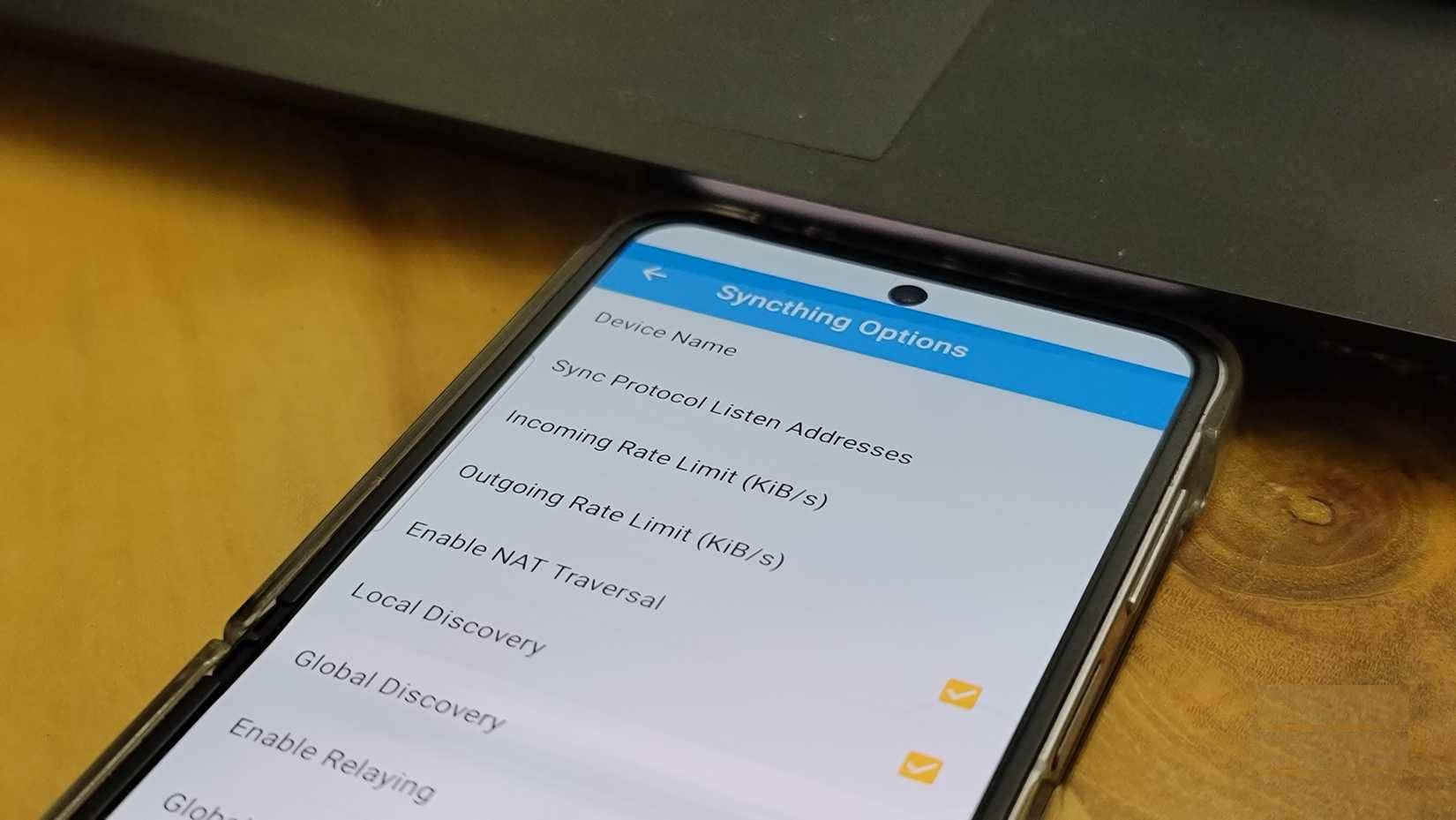
When both devices are connected to your home Wi-Fi, files sync at a reasonable speed. Syncing can be a little slower if you're working with many individual files like images, documents, and screenshots, but after the initial sync, things are a breeze. Many people use it primarily to sync project photos and videos, keeping their phone's photo library tidy.
Another often overlooked feature of SyncThing is its secure file transfer capabilities. All connections use TLS encryption, and devices authenticate each other with unique IDs, so unauthorized devices can't connect even if they're on your network. You can even add passwords to individual folders for added protection. Plus, since there's no central server, there's nothing to hack into and expose your data.
SyncThing also offers granular control over which files are synced. You can exclude certain file types, set bandwidth limits, and configure versioning to retain older copies of files that have changed. SyncThing even intelligently handles conflicts. For example, if you edit the same file on two devices, it will keep both versions intact and let you sort them instead of randomly selecting one.
FAQ
What should you know about sync files for free across all devices with syncthing?
In practical terms, syncThing lets you build your own sync system. It creates a direct connection between devices over your local network, transferring data peer-to-peer instead of routing it through a third-party server.
Why does sync files for free across all devices with syncthing matter?
The article highlights that create a SyncThing folder pair (select the data to sync) Select and configure which folders to sync Once the devices are connected, the next step is to choose what to sync.
What is the main takeaway?
The main takeaway is that syncThing is fast, secure, and offers complete control Technical advantages that make P2P synchronization superior When both devices are connected to your home Wi-Fi, files sync at a reasonable speed.
Related Articles
 Syncthing: Complete Guide8 minutes read
 Build Your Own Sync System Without Google Drive or OneDrive: How-To Guide7 minutes read
 How to Sync Files Over a P2P Network with Resilio Sync5 minutes read
 How to Keep Your Notes in Perfect Sync Everywhere Without Spending8 minutes read
 How to Sync Files in Microsoft Teams with a Computer6 minutes read
 Backup: Sync Files with Spideroak6 minutes read
Reader Comments 0
Sign in with email or Google to join the discussion.