Table of Contents
Browser password managers aren't designed for serious security. Once you understand how they really work, you'll see why it's time to stop trusting browser password managers.
For a long time, people have been used to saving all their passwords in their browsers. It's easy: Just log in once, click Save , and the browser takes care of the rest. It syncs across devices, remembers every login, and makes logins virtually invisible.
But that convenience comes with a problem. Browser password managers aren't designed for serious security. Once you understand how they actually work, you'll see why it's time to stop trusting your browser password manager.
It's really easy to save passwords on your browser!
But convenience doesn't increase security
There's a reason most people do this: It's too easy.
Every major browser displays a password-saving prompt almost every time you log in to a website. You can turn it off (or replace it with a decent password manager ), but it seems like a safe option because it's built into your internet portal. The "Save password" prompt appears so naturally that most of us don't even have to think twice about it.
It's also completely free, works instantly, and syncs across your phone, laptop, and tablet. For example, if you sign in to Chrome with your Google account, your passwords will automatically appear everywhere you sign in. In terms of convenience, it's perfect.
Storing passwords in your browser poses real risks.
This is definitely not a real password repository.
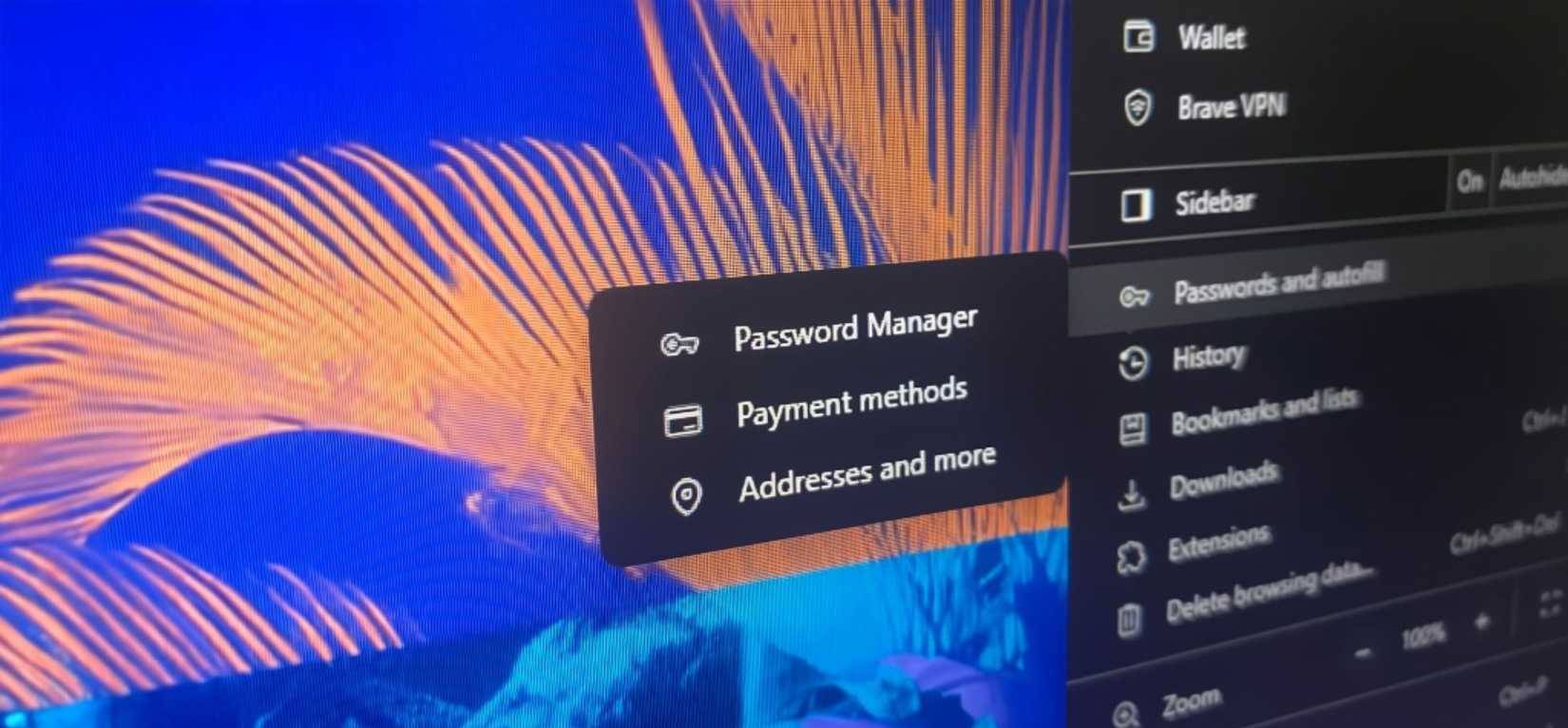
Browser password storage is different from dedicated password managers. In short, browser password managers typically store your passwords in the browser profile folder, while dedicated password managers use an encrypted local vault that the provider cannot access or read.
|
Features |
Browser password managers (e.g., Chrome, Edge) |
Dedicated password manager (e.g. Bitwarden, 1Password, KeePassXC) |
|---|---|---|
|
Password storage |
Store locally in browser profile folder and optionally sync via Google/Microsoft/Apple servers |
Encrypted archives are stored locally, in the cloud of your choice, or on the service's encrypted servers. |
|
Encryption method |
OS-level encryption (DPAPI on Windows, Keychain on macOS) — automatically unlocks when you log in to your operating system |
End-to-end encryption with a master password or key created and controlled by you |
|
Who can decode |
The browser uses your operating system credentials to decrypt — anyone logged into your account or with access to malware could |
Only you can decrypt it; even the provider ( Bitwarden, 1Password, etc.) can't read your vault. |
|
Single point of failure |
Compromising your operating system or Google/Microsoft account could mean access to all your passwords |
The breach requires both your master password and your vault file; services with zero-knowledge encryption |
|
Security Testing Tools |
Limited or basic (e.g., Chrome's weak password warning) |
Advanced auditing, breach alerts, password reuse detection |
|
Backup and restore |
Relies on browser sync; minimal recovery tool |
Dedicated recovery options, emergency access, export/import tools |
When you really consider the core differences between a browser and a dedicated password manager, it becomes clear which option offers better security.
If you still want to use a password manager on your browser, here's how!
Small steps make a big difference in security
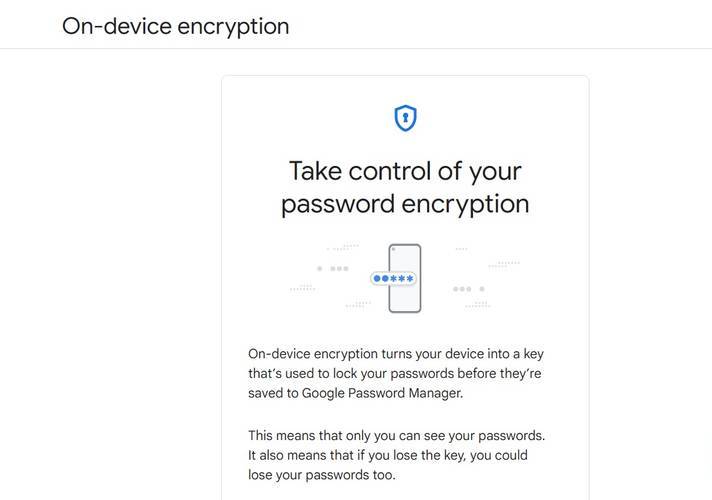
Some people prefer to just use a browser-based password manager. While a dedicated, standalone password manager is more secure, there are a few ways to make using a browser-based password manager more secure.
- Enable two-factor authentication (2FA)
- Enable encryption on the device
- Secure your device
- Consider what you save!
- Review list of saved passwords
These steps won't guarantee your browser's memory is completely safe, but they will limit potential damage if something goes wrong.
Ditch the browser password manager for a much more secure system!
Actually, the conversion is not difficult.
Fortunately, switching from browser passwords to a dedicated password manager is relatively simple and generally follows the same steps for every browser. For example, exporting your Chrome passwords takes just a few steps:

- Open Chrome and click your profile icon in the upper right corner.
- Select Passwords and autofill (key icon) or type Chrome://password-manager Into the address bar.
- Go to Settings And select Download file In the Export Passwords Section.
- Verify your identity using your computer login information.
- Select a location to save the CSV file and click Save To complete the export.
Once you have your exported file, you can import it into your new dedicated password manager. We recommend Bitwarden, which is highly rated and one of the best password manager alternatives for any browser.
So stop storing your passwords in your browser. Your future self (and your online accounts) will thank you.
FAQ
What should you know about stop saving passwords in your browser!?
In practical terms, browser password managers aren't designed for serious security. Once you understand how they really work, you'll see why it's time to stop trusting browser password managers.
Why does stop saving passwords in your browser! matter?
The article highlights that once you understand how they actually work, you'll see why it's time to stop trusting your browser password manager.
What is the main takeaway?
The main takeaway is that it's really easy to save passwords on your browser.
Related Articles
 Instructions to Turn Off the Proposal to Save Passwords on the Web7 minutes read
 How to View Saved Passwords on Chrome Browser?: Google Chrome10 minutes read
 Microsoft Authenticator No Longer Saves Your Passwords: Export Them Now!5 minutes read
 Internet Explorer 10 Is the Most Battery-saving Browser4 minutes read
 Display Saved Passwords on Web Browsers5 minutes read
 3 Ways to Display Passwords *** on the Browser Is Extremely Simple3 minutes read
Reader Comments 0
Sign in with email or Google to join the discussion.