Table of Contents
ScreenZen serves as a digital wellness app that gives you more control over the built-in tools on your phone.
ScreenZen is a free app that cleverly blocks access to YouTube, Instagram, and Twitter, and it has helped many people finally regain control. In three weeks, one person reduced their Instagram usage from 17 hours to 3 hours and 30 minutes. They didn't even realize how much time Instagram was taking up until ScreenZen came along.
What is ScreenZen?
A cautious approach to kicking the phone habit
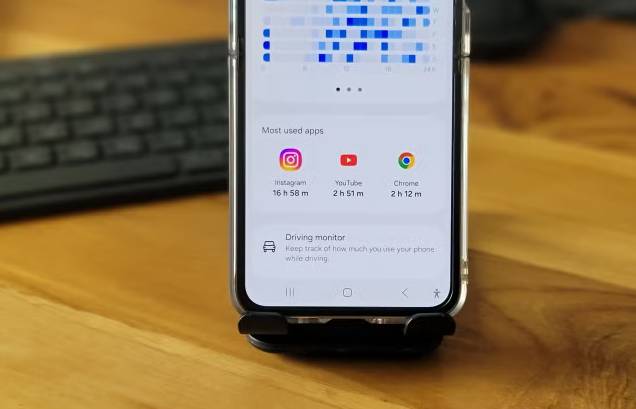
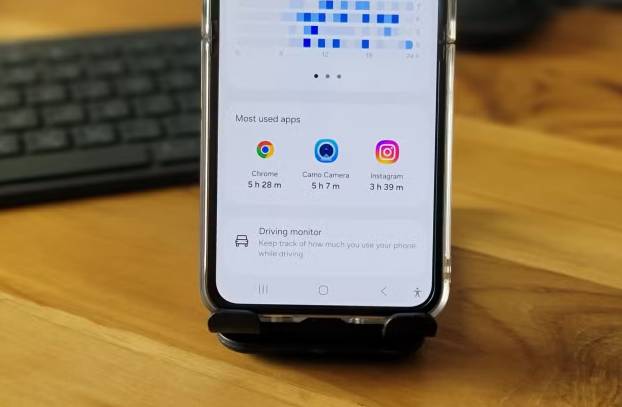
ScreenZen is a digital wellness app that gives you more control over the built-in tools on your phone. Unlike Samsung's Digital Wellbeing or Android's app timer, which completely locks you out after reaching your time limit, ScreenZen takes a different approach. It doesn't block access entirely, but rather makes you stop and think.
The app works on both Android and iOS and is completely free. What sets ScreenZen apart from other anti-cheat app blockers is its flexibility. Instead of rigid time limits, you get customizable reminders, timeouts, and usage goals that fit your habits.
The Progress Tab tracks your screen usage patterns and displays streaks as you meet the limit, giving you visual feedback on your improvement without making you feel overwhelmed.
How to use ScreenZen
Set up your first app limit
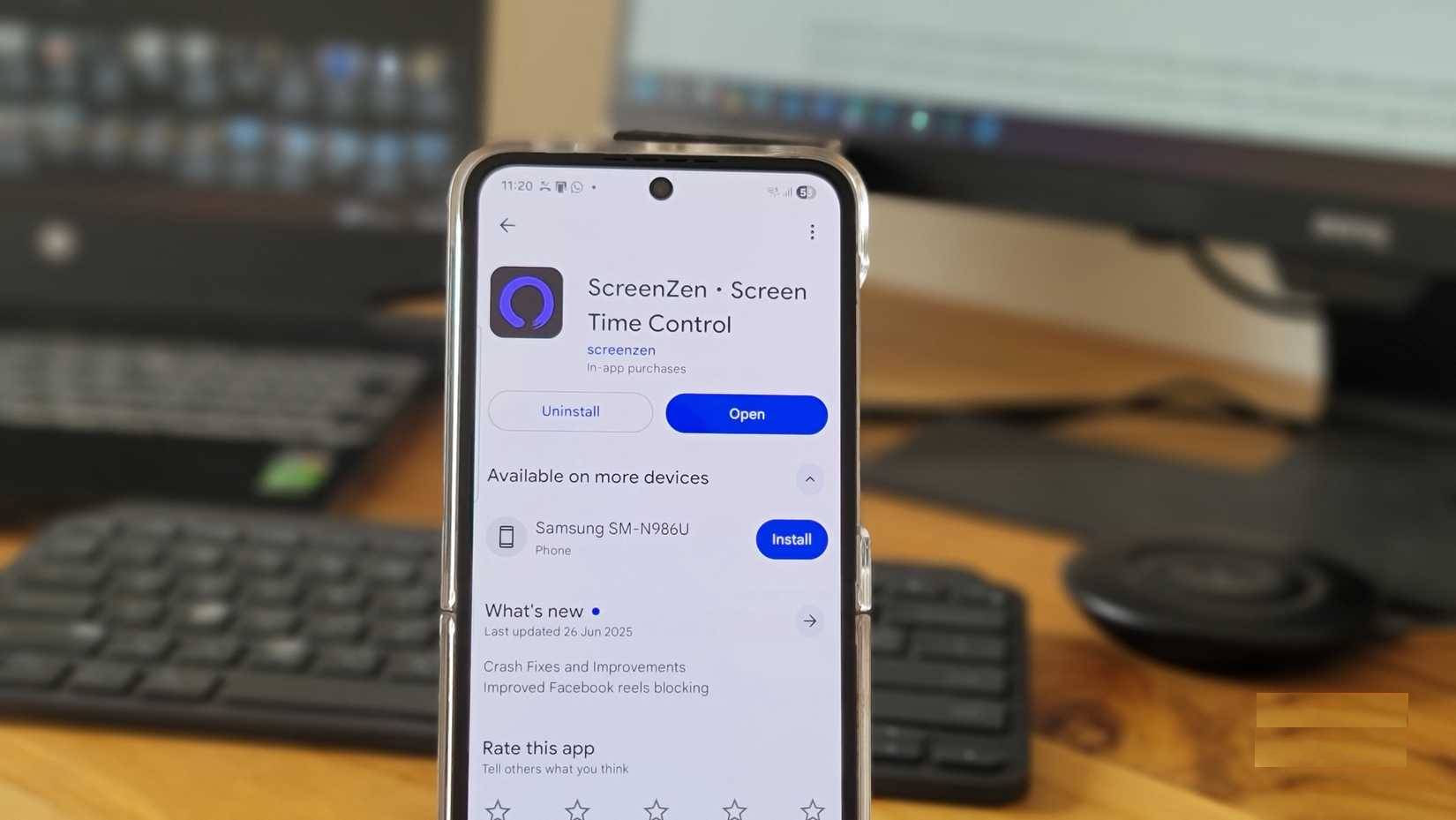
To get started with ScreenZen, download and install the app on your Android or iOS device. Once downloaded, you'll need to grant the app screen time and notification permissions. These permissions allow the app to monitor your usage and interrupt you before you open distracting apps.
During setup, ScreenZen will ask you which apps or categories of apps you want to restrict. You can choose broad categories like Social, Games, or Entertainment, or choose specific apps that are taking up many your time. You can choose to target YouTube Shorts, Instagram, and Twitter, as those tend to be the biggest time-wasters.
The default settings are pretty light. ScreenZen displays a notification asking 'Is this important?' and asks you to wait 5 seconds before opening the app. You can choose from different notifications or add a custom one.
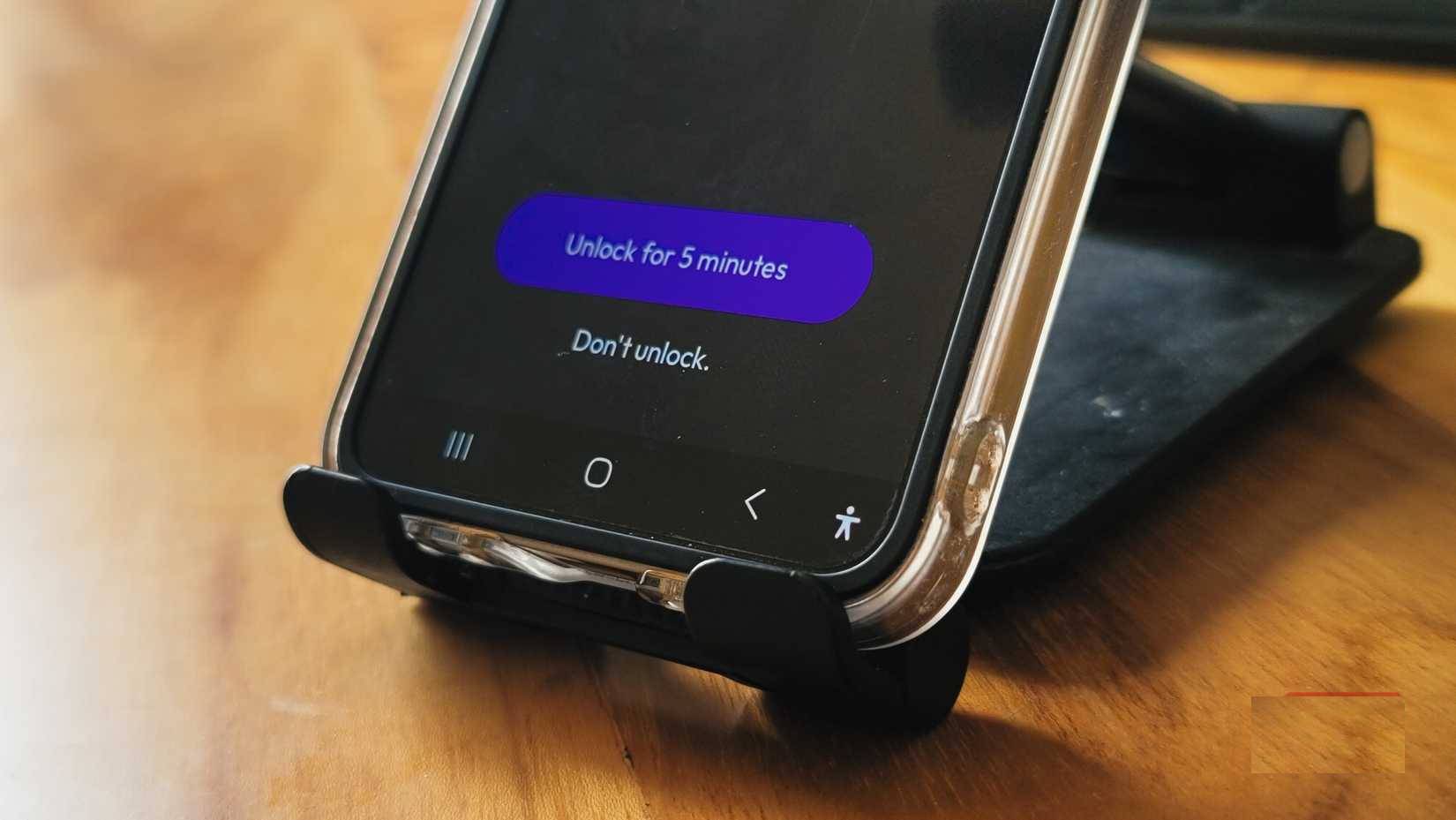
This brief pause interrupts the automatic muscle memory of tapping an app icon. This five-second pause gives your brain enough time to consider whether you really need to scroll through social media right now.
You can set a daily usage limit, an app open limit, or a combination of both. For example, you can allow yourself to open Instagram 7 times a day for a total of 30 minutes. Once you reach either limit, the app will be blocked until the next day. This prevents both continuous browsing sessions and compulsive app checking throughout the day.
Even with all your care, there are times when you just can't seem to stop checking those apps. Your dopamine-hungry brain will simply wait for that brief pause and unlock the app. If you've ever experienced that, ScreenZen has a smarter solution: Turn on the ' Just block the app' Option to completely block your selected apps during work hours.
Get the most out of ScreenZen
Advanced options give you precise control
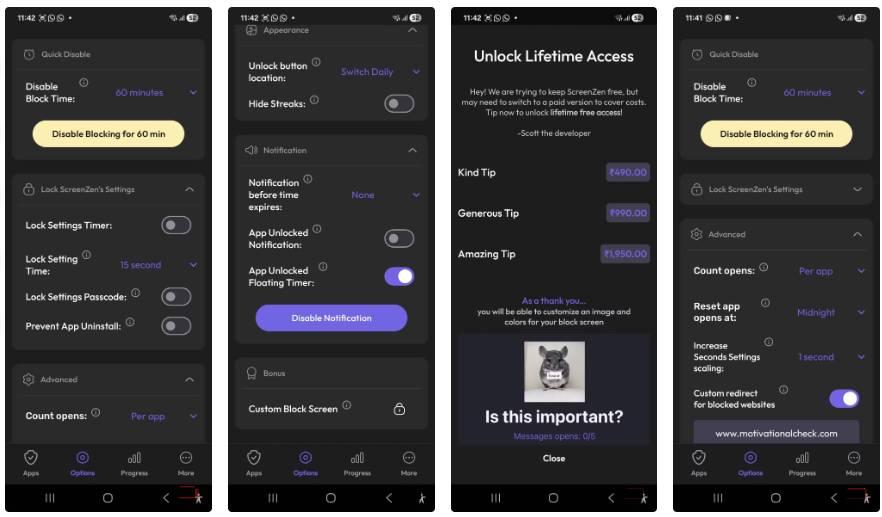
Once you've mastered the basics, ScreenZen's advanced features let you fine-tune your restrictions. Strict blocking options prevent access to specific apps during certain hours. For example, you can block all social media apps during work hours or before bed.
You can also set pause options. Before granting access to a blocked app, ScreenZen may ask you to complete a task. You might need to solve a simple math problem, check off a to-do list, or write down why you want to open the app. These interruptions create a nagging feeling that makes mindless scrolling feel overwhelming.
Next up is the timeout. Once you close a restricted app, ScreenZen will prevent you from reopening it for a set amount of time—say, 10 or 15 minutes. Start with the default timeout and increase it as your habits improve. Now, if you close Instagram after a quick check, you'll have to wait 10 minutes before you can reopen it. It's a simple but effective way to break the familiar cycle of closing the app, forgetting why, and reopening it just a few seconds later.
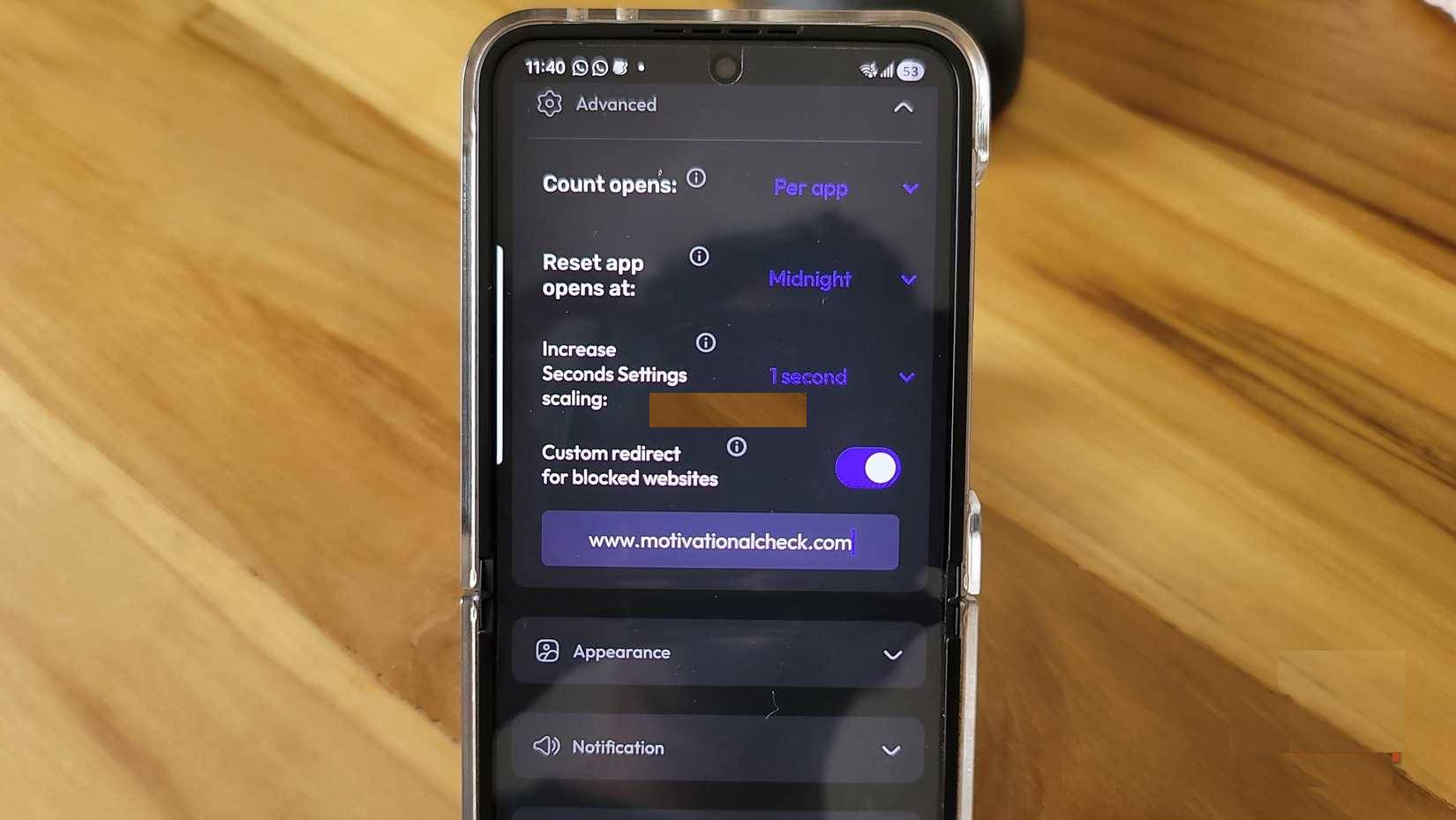
The app also lets you customize what happens when you hit your limit. You can choose to get a gentle reminder, see a motivational message, or be completely blocked. Website blocking works in a similar way – add URLs you want to avoid and ScreenZen will interrupt your browser when you try to access them. For example, if you add a custom redirect to Twitter (X), you'll be redirected to a daily motivational site.
ScreenZen lets you create groups to manage multiple apps at once, like one group for social media that includes Instagram, Twitter, and TikTok, all with the same restrictions and limits. Another group includes streaming apps like YouTube and Netflix, with different rules for weekdays versus weekends.
FAQ
What should you know about ScreenZen?
In practical terms, ScreenZen is a digital wellness app that gives you more control over the built-in tools on your phone.
Why does ScreenZen matter?
The article highlights that they didn't even realize how much time Instagram was taking up until ScreenZen came along.
What is the main takeaway?
The main takeaway is that before granting access to a blocked app, ScreenZen may ask you to complete a task.
Related Articles
 7 Free Android Apps That Make Life Easier8 minutes read
 How to Play Pokémon GO on a Computer6 minutes read
 How to Play Pokémon GO on a Smartphone6 minutes read
 26 Types of Poké Balls Explained: Part 25 minutes read
 How to Earn and Use Stardust in Pokémon GO5 minutes read
 Pokémon GO Eggs: Incubation and Hatching Guide4 minutes read
Reader Comments 0
Sign in with email or Google to join the discussion.