How to Check Your PC Specifications with CPU-Z
Use CPU-Z to identify your processor, motherboard, RAM type and timings, memory modules, and basic graphics details without misreading clock speeds.
Fix Windows problems, troubleshoot devices, understand AI, secure your accounts and get more from your technology with tested step-by-step guides.

Use CPU-Z to identify your processor, motherboard, RAM type and timings, memory modules, and basic graphics details without misreading clock speeds.
Use CPU-Z's four documented function-key shortcuts to save a BMP screenshot, copy the current tab, create a validation file, or change clock calculation.
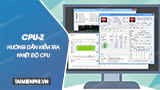
CPU-Z for Windows reports hardware specifications and clock speeds, but not CPU temperature. Use HWMonitor to read Package and Core sensors.

Use HWMonitor to find CPU Package, GPU, storage, and memory sensors, understand Min/Max readings, and compare each value with the hardware maker's limit.

Run a quick idle-and-load temperature check with HWMonitor, read the Max column, and compare each sensor with the exact component's specification.

Install the official CPU-Z app from Google Play, review SoC, device, system, battery, and sensor data, and avoid unsafe third-party APK downloads.

Use SpeedFan in read-only mode first, verify every sensor and fan channel, and change PWM controls only when the motherboard is supported and settings are documented.
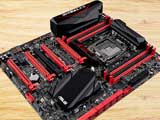
Match the motherboard to the CPU, case, memory, storage, expansion cards, ports, and BIOS support before comparing cosmetic features or price.
Check whether memory is upgradeable, match the DDR generation, form factor, capacity, and speed, then install and test the modules safely.

Choose RAM from your real workload: 8GB for limited light use, 16GB for general multitasking, 32GB for heavier work, and more for measured specialist needs.
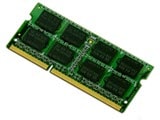
Read active DDR speed from CPU-Z's Memory tab, distinguish SPD profiles from current settings, and avoid treating a modern motherboard as one bus.

Back up the disk, identify whether it is a data or system disk, convert it with AOMEI Partition Assistant, and complete the checks needed for a bootable UEFI system.

Fix the EFI/MBR installation error by choosing the correct boot mode or converting the target disk to GPT, with clear warnings before the destructive DiskPart method.

Combine two adjacent NTFS partitions with MiniTool Partition Wizard while keeping the second partition's files in a named folder on the destination volume.

Understand what MHDD's surface scan can reveal, why bad sectors cannot be physically repaired, and what to do before testing a drive that may be failing.
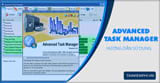
See what the legacy Advanced Task Manager utility displays, how to interpret its tabs, and when to use Windows Task Manager or Microsoft Process Explorer instead.
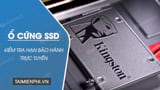
Find the SSD model, serial number, proof of purchase, and remaining endurance, then use the manufacturer's official warranty or support page to verify coverage.
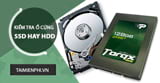
Check each physical drive's media type with Task Manager, PowerShell, Optimize Drives, or its model number—without opening the computer.
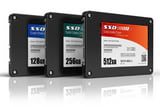
Separate firmware delay from Windows startup, disable high-impact startup apps, check SSD health and free space, and isolate services without unsafe registry tweaks.

Shrink an existing NTFS volume and turn the unallocated space into a new partition with Windows Disk Management, with backup and recovery-partition precautions.