Table of Contents
You can check a laptop's total, used, and available storage with tools already included in Windows or macOS. On Windows, open This PC for a quick view or Settings > System > Storage for a usage breakdown. On a Mac, open System Settings > General > Storage. Disk Management and Disk Utility are more useful when you need partition or drive details.
Storage is the long-term space used by Windows or macOS, applications, documents, photos, and other files. It is different from RAM, which temporarily holds data while applications are running.
What the storage numbers mean
- Capacity: the usable size of the selected drive or volume.
- Used space: space occupied by the operating system, apps, user files, caches, and other data.
- Free or available space: room that can still be used. macOS may also show purgeable space that the system can reclaim when needed.
Check these figures before installing a large application or game, downloading a video library, upgrading the operating system, or copying a large project. The installer may require more temporary space than its final installed size.
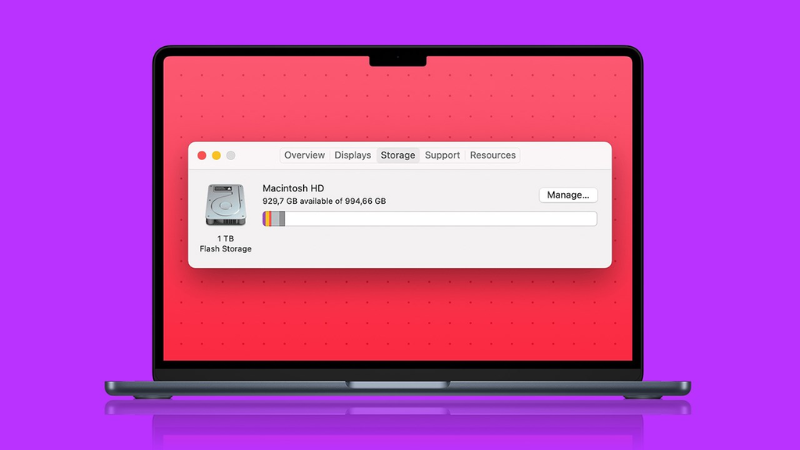
Total capacity, used space, and free space answer different storage questions.
Check storage on Windows
Quick check in This PC
- Press Windows + E to open File Explorer.
- Select This PC in the navigation pane.
- Under Devices and drives, read the free-space figure below each drive.

Open This PC from File Explorer.
The bar represents how full the volume is. Windows commonly changes the bar to red when free space is low; do not rely on a specific normal color to judge drive health. A C: and D: volume may be two partitions on one physical disk, so their displayed capacities should not automatically be added when planning a hardware upgrade.
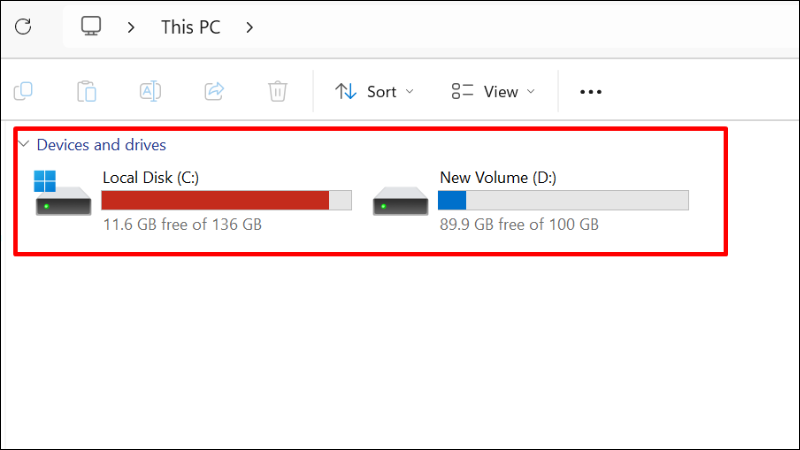
Each listed volume shows its free space and usable capacity.
See used and free space in drive Properties
- In This PC, right-click the drive you want to inspect.
- Select Properties.
- On the General tab, compare Used space, Free space, and Capacity.
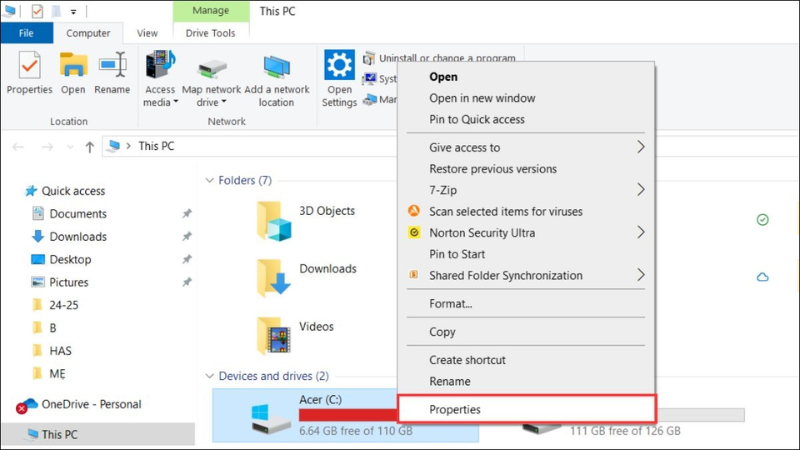
Open a drive's Properties window for its storage totals.
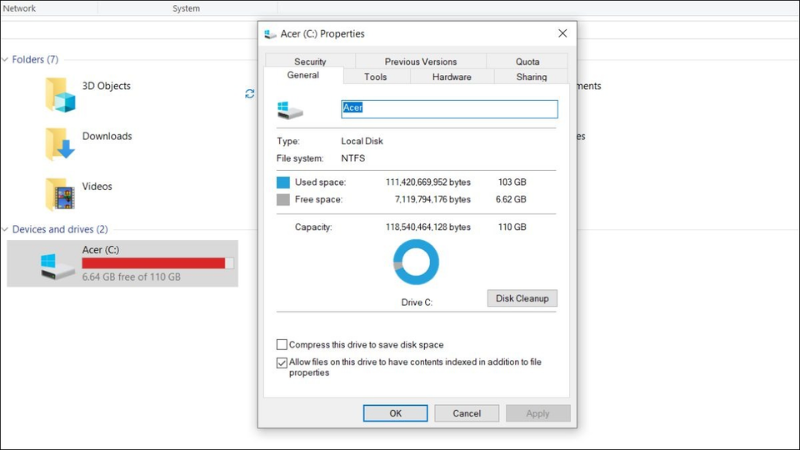
The General tab separates used, free, and total capacity.
Find what is using space in Windows Settings
Open Settings > System > Storage. Windows groups usage into categories such as installed apps, temporary files, documents, and other data. This view is better than This PC when the goal is cleanup rather than a quick capacity check. Review a category before deleting anything, and avoid manually removing unknown files from Windows or Program Files folders.
Inspect disks and partitions with Disk Management
- Press Windows + R, type
diskmgmt.msc, and press Enter. - Use the upper list to compare volume capacity and free space. Use the lower diagram to see which partitions belong to each physical disk.
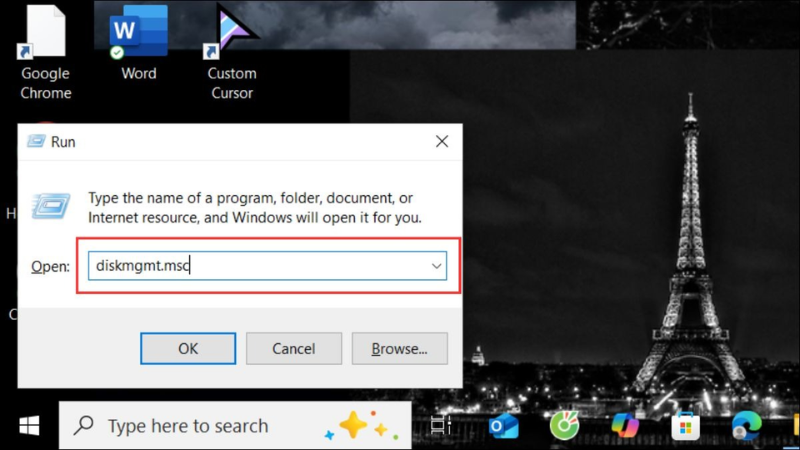
Run diskmgmt.msc to open Disk Management.
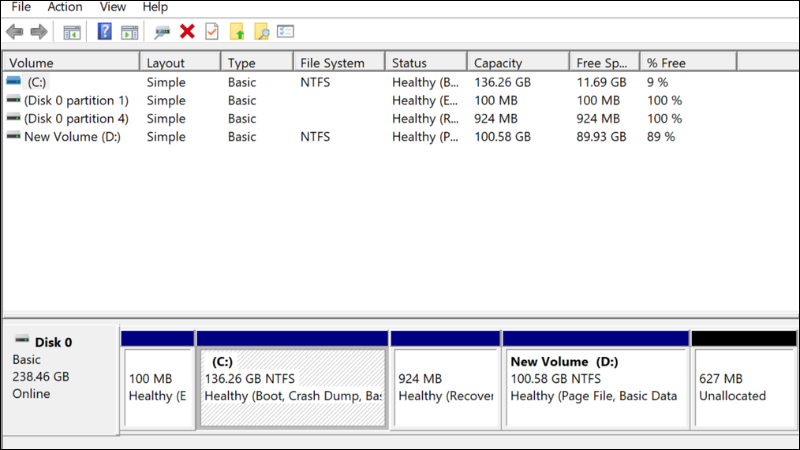
Disk Management shows physical disks, volumes, partitions, and unallocated space.
Disk Management can change partitions, so use it only for inspection unless you understand the consequences. Formatting or deleting a volume erases access to its data.
Check storage on a MacBook
Use System Settings
On current macOS versions, choose Apple menu > System Settings > General > Storage. Wait while macOS calculates the categories. The result shows available storage and estimates for applications, documents, photos, macOS, and system data.
On older macOS versions, choose Apple menu > About This Mac > Storage. The wording and location vary by macOS release, so use the Settings search box for “Storage” if the path differs.
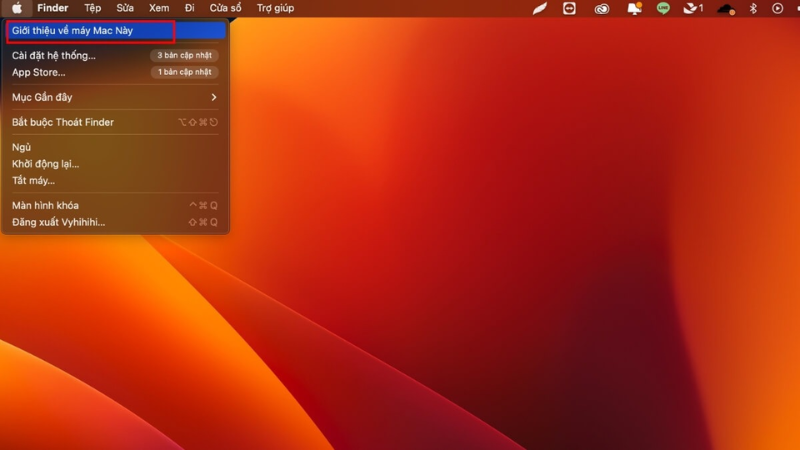
About This Mac is the starting point on older macOS versions.
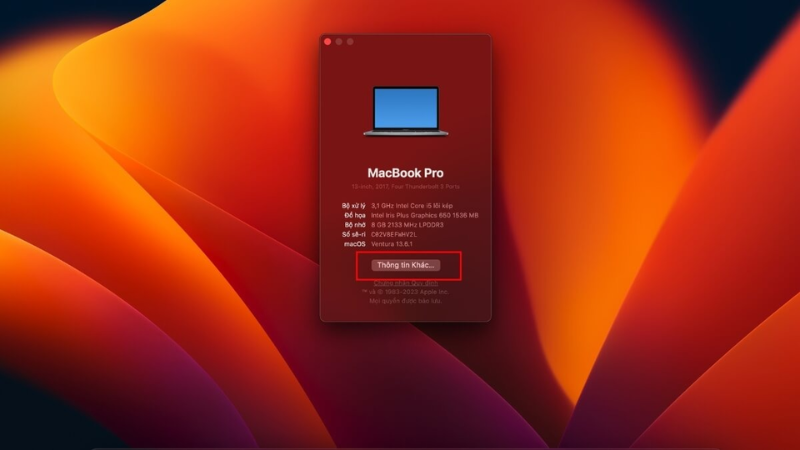
Open the storage details to see available space and category estimates.
Category totals can take time to finish calculating and may change as macOS classifies caches and purgeable data. For a deeper visual analysis, see these Mac disk-space analysis options, but start with Apple's built-in view.
Inspect a drive with Disk Utility
- Press Command + Space, search for Disk Utility, and open it.
- Choose View > Show All Devices if you need to distinguish the physical storage device, container, and volumes.
- Select an item in the sidebar to see its capacity, used space, and available space.
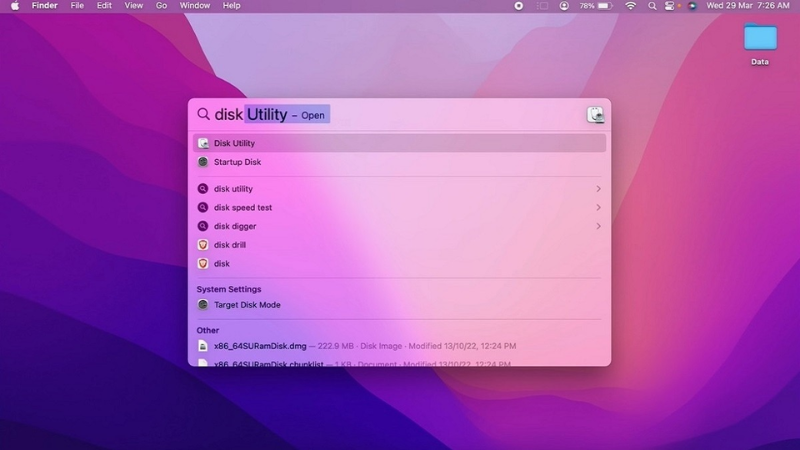
Open Disk Utility from Spotlight.
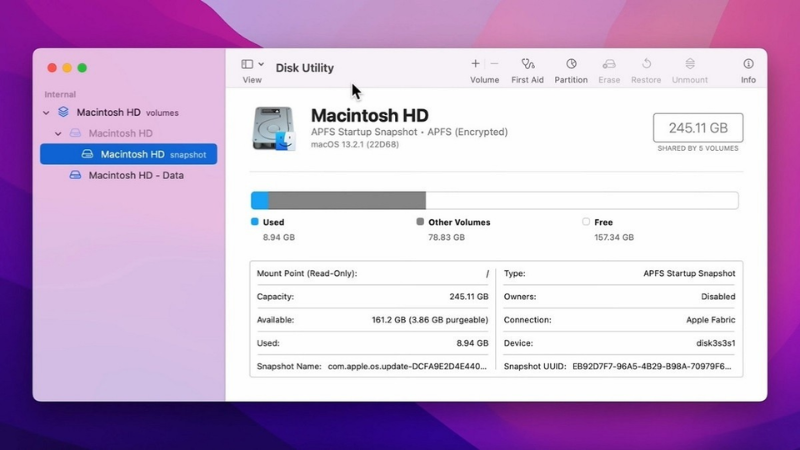
Select the correct device or volume before reading its details.
Disk Utility also contains erase and partition controls. Do not use them merely to check capacity.
How much free space should you keep?
There is no universal percentage that fits every laptop. Operating-system updates, swap files, creative applications, games, and virtual machines can each require substantial working space. Treat a low-storage warning as the actionable signal, and keep additional room for the largest update or workload you expect to run. If an installer lists a requirement, allow extra space beyond that figure for downloads, temporary files, and future updates.
What to do when storage is nearly full
- Back up important files first.
- Sort the Downloads, Videos, and other personal folders by size and remove only files you recognize.
- Empty the Recycle Bin or Trash after confirming it contains nothing needed.
- Uninstall applications and games you no longer use.
- Use Windows Storage settings or macOS Storage recommendations to review temporary and category-based data.
- Move archives, raw video, and old projects to a backed-up external drive or trusted cloud storage.
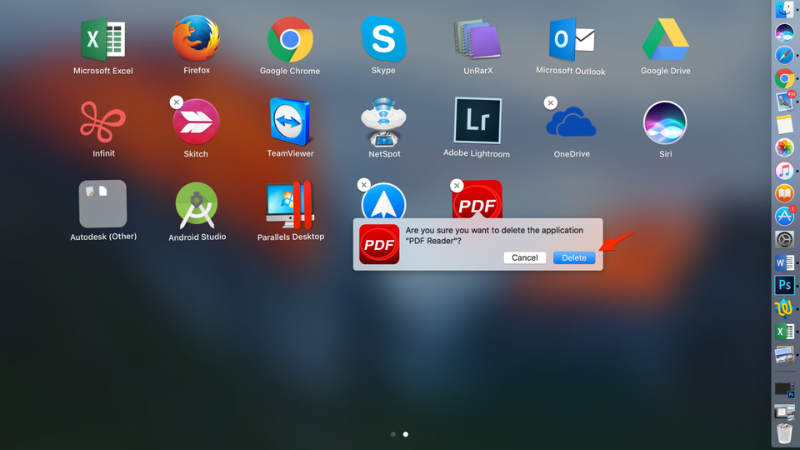
Uninstalling unused applications can recover space without touching system files.
Windows users can also review this guide to clearing temporary files safely. If routine cleanup is not enough, check whether the laptop supports a larger or additional drive. Compare common laptop SSD types before buying hardware, because physical size and interface compatibility matter as much as capacity.
Quick decision guide
- Need one number quickly? Use This PC on Windows or General > Storage on macOS.
- Need to find large categories? Use the operating system's Storage settings.
- Need to understand partitions or physical disks? Use Disk Management or Disk Utility in read-only fashion.
- Need more space? Back up, remove known files and unused apps, then consider external storage or a compatible SSD upgrade.
Related Articles
 How to Check the Reserved Storage Capacity in Windows 103 minutes read
 How to View Windows 11 Laptop Capacity5 minutes read
 Why Not Buy a 256GB Macbook?10 minutes read
 Expand Mac Capacity: How to Increase Macbook Memory Capacity13 minutes read
 How to Check MacBook Battery Status: Clear Instructions5 minutes read
 Thanks to This Simple, Inexpensive Accessory, You'll Never Have to Worry About Running Out of Storage Space on Your Laptop Again8 minutes read
Reader Comments 0
Sign in with email or Google to join the discussion.