Table of Contents
To check a Windows computer for overheating, open a hardware monitor, record temperatures at idle, run the workload that causes the problem, and review the highest readings. HWMonitor is one option that can show CPU, GPU, drive, motherboard, and supported memory sensors in one window.
Run a quick temperature check
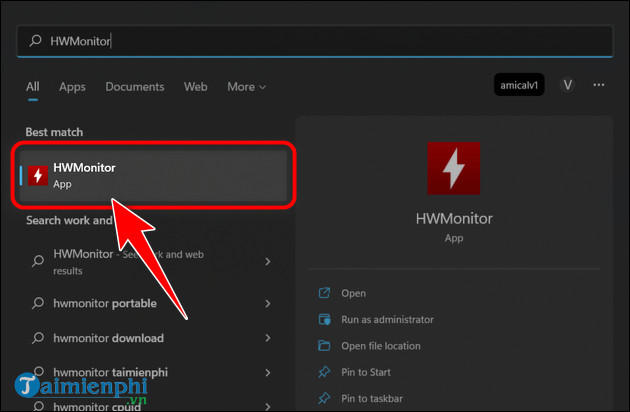
- Download HWMonitor from CPUID's official page and install it or extract the portable ZIP.
- Open the program and leave the computer idle for several minutes.
- Note the CPU Package, GPU, and storage temperatures that are available.
- Run the game, application, or other workload that causes heat or slowdowns.
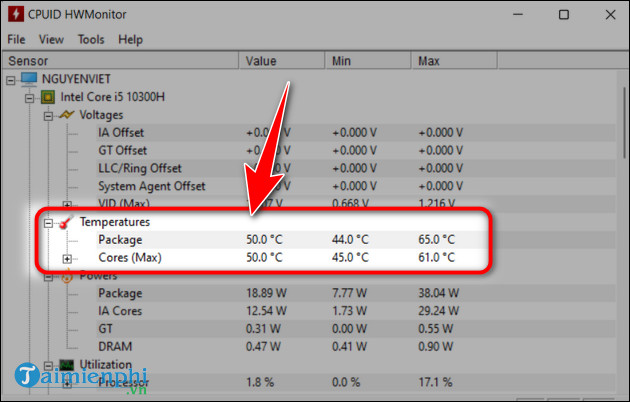
- Return to HWMonitor and check the Max column.

HWMonitor's Value column is the current reading, Min is the lowest value since the program opened, and Max is the highest. Max is often the most useful value when a problem appears only under load.
How to decide whether a reading is too high
There is no single safe temperature for every CPU, GPU, SSD, or hard drive. Limits vary by component model, sensor type, desktop or laptop design, and workload. Find the exact hardware model and compare the correct sensor with the manufacturer's documented operating or junction limit.
Watch for a pattern rather than one number:
- temperature keeps rising instead of leveling off;
- clock speed drops sharply under sustained load;
- fans run at maximum speed but cooling does not improve;
- the display shows artifacts or the graphics driver resets;
- the computer freezes, restarts, or shuts down during ordinary work.
A blank or impossible value may be an unsupported sensor. Confirm it with the computer manufacturer's utility or another reputable monitor before dismantling hardware.
What to do if the computer is overheating
- Stop the demanding task and allow the computer to cool.
- Check Task Manager for an application that is keeping CPU or GPU use high.
- Move a laptop to a hard, flat surface and unblock every vent.
- Power the computer off before cleaning exterior vents or checking fan cables.
- Return recent overclocks, voltage changes, and custom fan profiles to a known-good setting.
- Install stable firmware and drivers only when the hardware manufacturer documents a relevant fix.
Do not apply thermal paste on a schedule or open a laptop solely because one reading seems high. Removing a cooler can damage components and may affect warranty coverage. If a fan has stopped, the case is bulging, or the machine repeatedly shuts down, switch it off and arrange qualified service.
Choose the right level of detail
For sensor-by-sensor instructions covering CPU, GPU, storage, and memory, use the detailed guide to monitoring PC component temperatures. If heat accompanies sustained processor load, check the process first with TipsMake's 100% CPU usage troubleshooting guide.
A useful temperature report includes the exact component model, sensor name, idle value, maximum value, workload, clock behavior, fan speed, and room conditions. That information is more actionable than a generic “under 70°C” rule.
Related Articles
 How to Check Computer CPU Temperature with Software on Windows 109 minutes read
 How to Use Remote System Monitor on Android to See Windows5 minutes read
 How to Check the Computer's CPU Temperature?3 minutes read
 How to Check CPU Temperature Using Hwmonitor6 minutes read
 The Ideal GPU Temperature Explained8 minutes read
 How to Check CPU Temperature Using CPU-Z3 minutes read
Reader Comments 0
Sign in with email or Google to join the discussion.