Table of Contents
CPU-Z has four documented function-key shortcuts. With the CPU-Z window active, press F5 to save BMP screenshots, F6 to copy the current tab to the clipboard, F7 to create a validation file, or F9 to switch the CPU clock calculation method.
CPU-Z shortcut reference
| Key | Action | When it is useful |
|---|---|---|
| F5 | Saves CPU-Z page screenshots as BMP files in the application directory. | Keeping an image record of detected hardware. |
| F6 | Copies the current CPU-Z page to the Windows clipboard. | Pasting the current tab into an image editor or support message. |
| F7 | Saves a CPU-Z validation file in the current directory. | Creating a CVF file for CPU-Z's validation workflow. |
| F9 | Switches between CPU clock-computation methods. | Comparing alternate frequency calculations when a clock reading appears unusual. |
These shortcuts are listed in CPUID's official CPU-Z documentation. Laptop keyboards may require Fn + F5, Fn + F6, and so on if the top-row keys normally control brightness, sound, or other hardware functions.

How to use F5 to save screenshots
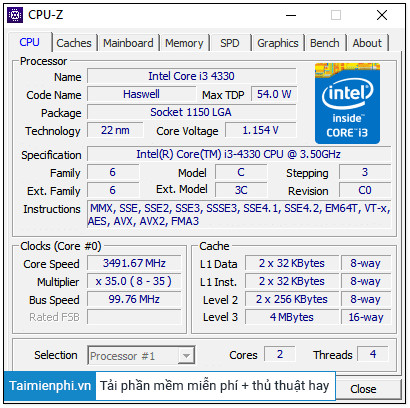
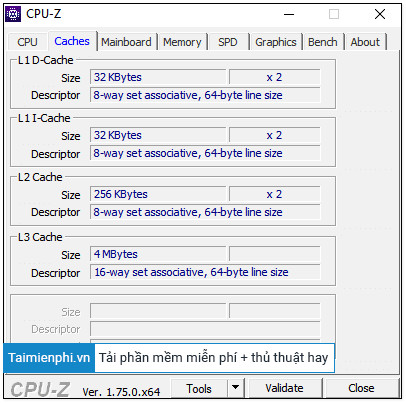
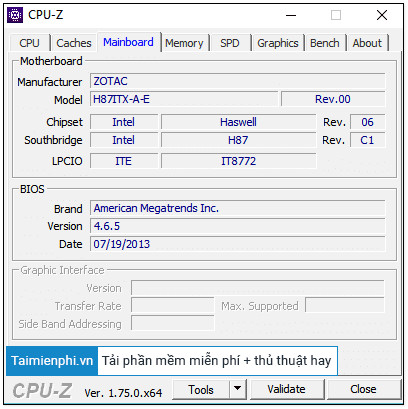
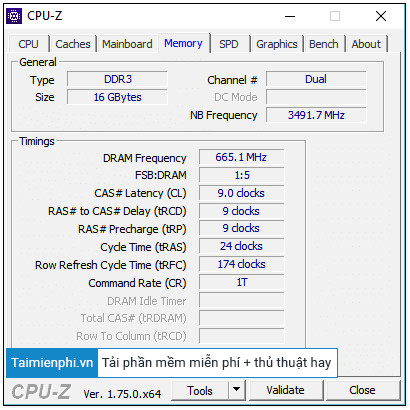
Press F5 while CPU-Z is focused. The program saves BMP files with names such as cpu.bmp, cache.bmp, mainboard.bmp, and memory.bmp in its application directory.
If CPU-Z is installed in a protected folder, Windows may prevent a standard user account from writing files there. Do not run software as administrator merely to create a screenshot. Use F6 and paste the page into an image editor, use Windows' screenshot controls, or run the portable CPU-Z build from a folder your account can write to.
How to use F6 to copy the current page
Select the tab you need, press F6, then paste into an application that accepts an image or clipboard content. This is convenient when sharing one page without saving several BMP files.
The shortcut copies the current page, so select the correct tab first:
- CPU for processor name, live frequency, cores, and threads.
- Caches for detected cache levels.
- Mainboard for motherboard, chipset, and BIOS details.
- Memory for the active RAM type, size, frequency, and timings.
- SPD for information stored on a selected memory module.
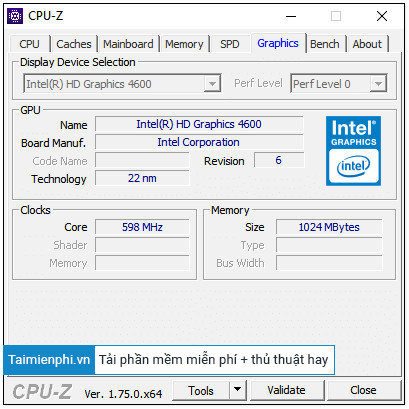
- Graphics for basic display-adapter information.
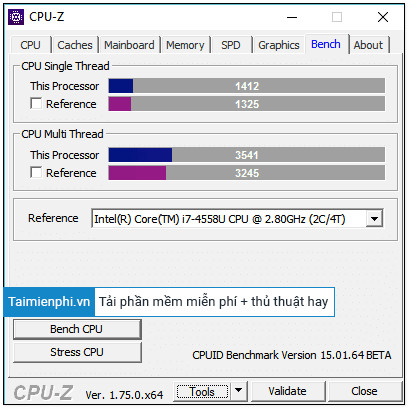
- Bench for CPU-Z's quick benchmark controls and result.

What F7 and F9 do
F7 creates a CVF validation file. It is intended for CPU-Z's validation process and is not the best format for a readable hardware report. If you need a report for troubleshooting, use CPU-Z's report controls and review the file for serial numbers or other identifiers before posting it publicly.
F9 changes how CPU-Z computes the displayed clock. Modern processors vary their frequency with load and power state, so a changing value is normally expected. Switching methods can help investigate an odd reading, but it does not change the processor's actual speed or overclock the computer.
For an explanation of every tab and field, see how to read CPU-Z parameters. If you only need a general PC summary, compare ways to check computer hardware information before installing another utility.
Related Articles
 Click: How to Set a Keyboard Shortcut to Open Spotlight2 minutes read
 Click: How to Set a Keyboard Shortcut to Open Mac Apps4 minutes read
 Rename Keyboard Shortcut (Rename) in Windows3 minutes read
 Disable Keyboard with Keyboard Shortcut in Windows4 minutes read
 Learn About the Keyboard Shortcut Ctrl ++ Alt ++ Delete, the3 minutes read
 How to Open Virtual Keyboard with Shortcut Key, Open On-Screen Keyboard Quickly3 minutes read
Reader Comments 0
Sign in with email or Google to join the discussion.