Table of Contents
CPU-Z is a free Windows system-information tool that identifies a computer's processor, motherboard, memory, and basic graphics hardware. It is especially useful when a model sticker or Windows Settings does not show the exact CPU, motherboard revision, RAM timings, or module information.
Download CPU-Z from the developer
Use the official CPU-Z download page and choose either the installer or ZIP version. Avoid third-party download buttons that may bundle unrelated software. After installation—or after extracting the portable ZIP—open CPU-Z and give it a few seconds to detect the system.
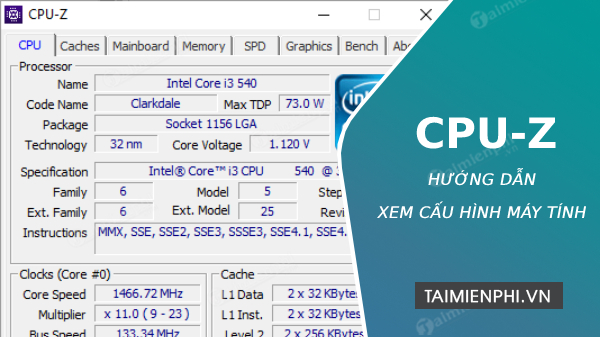
CPU tab: identify the processor
- Name and Specification: the processor's product family and reported model.
- Code Name: the architecture or platform code name used by the manufacturer.
- Package: the CPU package or socket information reported by the system.
- Technology: the nominal manufacturing process associated with the CPU.
- Core Voltage: a live voltage reading that can change with load and power state.
- Cores and Threads: the detected physical cores and logical processing threads.
Max TDP, when shown, is a design or platform power specification; it is not a live measurement of the processor's maximum electricity use. Exact definitions vary by CPU vendor and generation.
Clocks: understand the live frequency
The Core Speed field shows a current operating frequency, not a fixed specification. Modern CPUs lower and raise frequency continuously in response to load, power limits, and temperature. CPU-Z generally derives it from the bus speed and multiplier.
A clock of 3.2 GHz does not mean the processor performs 3.2 billion complete calculations per second. Different processors perform different amounts of work per clock, and software performance also depends on cores, memory, cache, instructions, and workload.
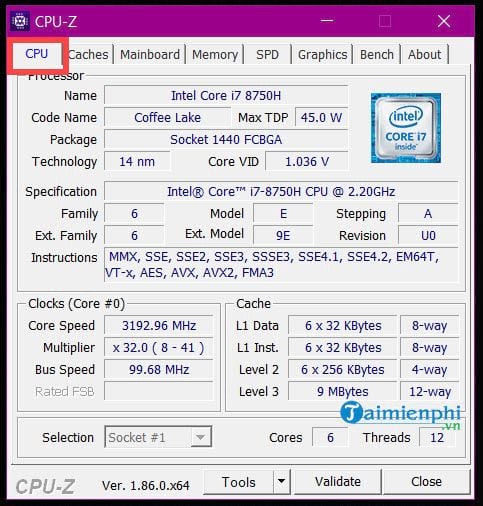
Caches tab: view cache layout
The Caches tab lists detected L1, L2, and L3 cache sizes and organization. Cache is fast on-chip storage that reduces how often the processor must wait for main memory. More cache can help some workloads, but cache size alone does not determine which CPU is faster; architecture and application behavior matter.
Mainboard tab: motherboard and firmware details
The Mainboard tab can show the board manufacturer, model, chipset, and BIOS or UEFI vendor, version, and date. This is useful when looking for a firmware update, motherboard manual, or compatible replacement part.
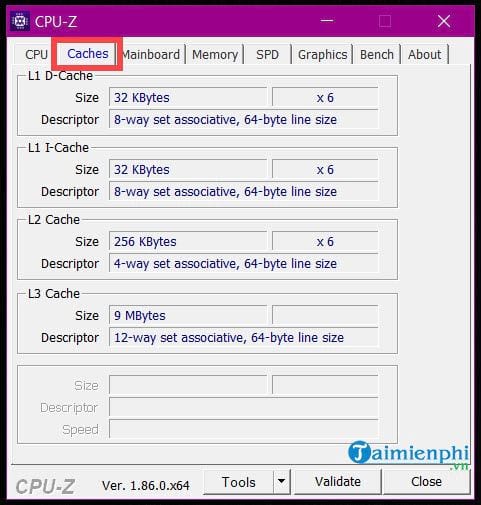
On a laptop or branded desktop, the reported board name may be an internal code rather than the retail computer model. Confirm firmware downloads on the computer manufacturer's support page; never flash a BIOS based only on a similar-looking CPU-Z result.
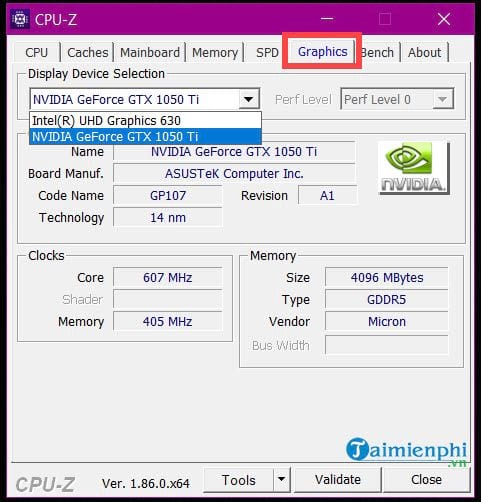
Memory tab: current RAM configuration
- Type: the memory generation, such as DDR4 or DDR5.
- Size: the total memory detected.
- Channel: the active memory-channel configuration reported by the platform.
- DRAM Frequency: the actual memory clock at that moment.
- Timings: current latency values such as CAS latency and related delays.
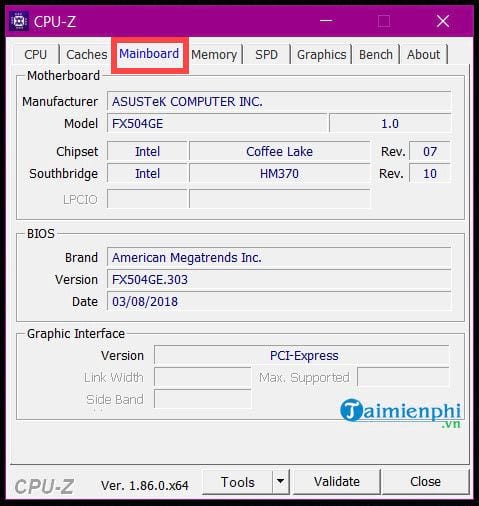
DDR transfers data twice per clock, so the effective data rate is approximately twice the DRAM Frequency shown. For example, a reading near 1600 MHz corresponds to roughly DDR4-3200 operation. Small variations are normal because the base clock may not be exactly 100 MHz.
SPD tab: inspect each memory module
Select a slot from the SPD tab to view information stored on that module, including capacity, manufacturer or part number when available, and JEDEC or XMP profile tables. An empty slot selection normally shows no module data.
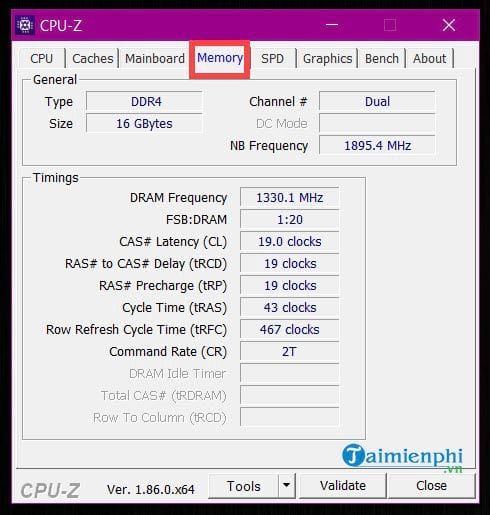
The SPD table describes profiles stored on the module; it does not prove which profile is currently active. Compare it with the Memory tab. If you are troubleshooting or upgrading RAM, see how to test computer memory for errors.
Graphics tab: basic GPU details
The Graphics tab identifies detected display adapters and may show GPU name, board vendor, clock, and video-memory information. On a laptop with integrated and discrete graphics, use the device selector to inspect each adapter.
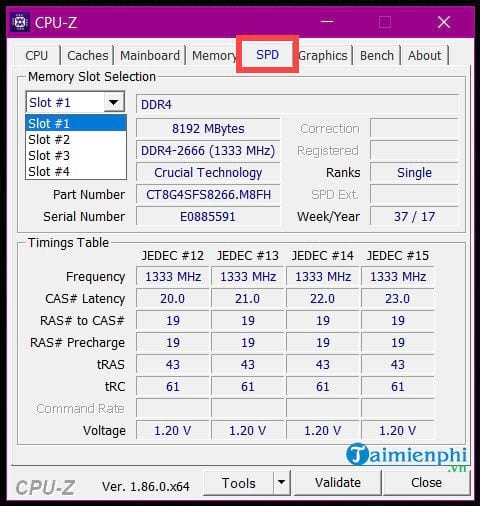
CPU-Z's graphics information is intentionally basic. For driver version, sensors, memory bus, and other GPU-specific data, use a dedicated graphics tool and verify the exact adapter selected.
Bench and About tabs
The Bench tab runs a quick CPU benchmark and can compare its result with reference processors. Keep the same CPU-Z version, power mode, cooling conditions, and background workload when comparing runs. A result from a different version or configuration may not be directly comparable.
The About tab lists the CPU-Z version and can save a report. A report is useful when asking for support, but review it before posting publicly because system reports can include serial numbers or other device identifiers.
When CPU-Z is not necessary
For a quick overview, Windows Settings, System Information, Task Manager, and DirectX Diagnostic Tool may already show the CPU, installed RAM, operating system, storage, and display adapter. TipsMake explains several ways to check a computer's configuration.
Use CPU-Z when you need exact component identifiers, live frequencies, RAM timings, or per-module SPD data. Treat each field as one piece of evidence and confirm upgrade or firmware decisions against the hardware manufacturer's specifications.
Related Articles
 Check Android Phone Configuration6 minutes read
 How to View Computer Configuration6 minutes read
 View iPhone Configuration, Check iPhone Hardware Information5 minutes read
 How to View Computer Configuration Information3 minutes read
 The Quickest and Simplest Way to Take a Screenshot on a Computer or Laptop18 minutes read
 Frame View in SQL8 minutes read
Reader Comments 0
Sign in with email or Google to join the discussion.