Table of Contents
A Blue Screen of Death (BSOD), also called a stop-code or bug-check error, appears when Windows detects a condition serious enough that continuing could corrupt data or leave the system unstable. Windows stops, records diagnostic information when possible, and restarts.
Quick answer
A BSOD appears when Windows detects a critical condition it cannot safely recover from. The STOP code identifies the type of failure, but it does not always identify the exact faulty component. Before changing drivers, BIOS settings, or hardware, write down the full STOP code and note what happened immediately before the crash.
Already have the code? Try the TipsMake BSOD Code Lookup or the broader Windows Error Code Lookup to research it quickly.
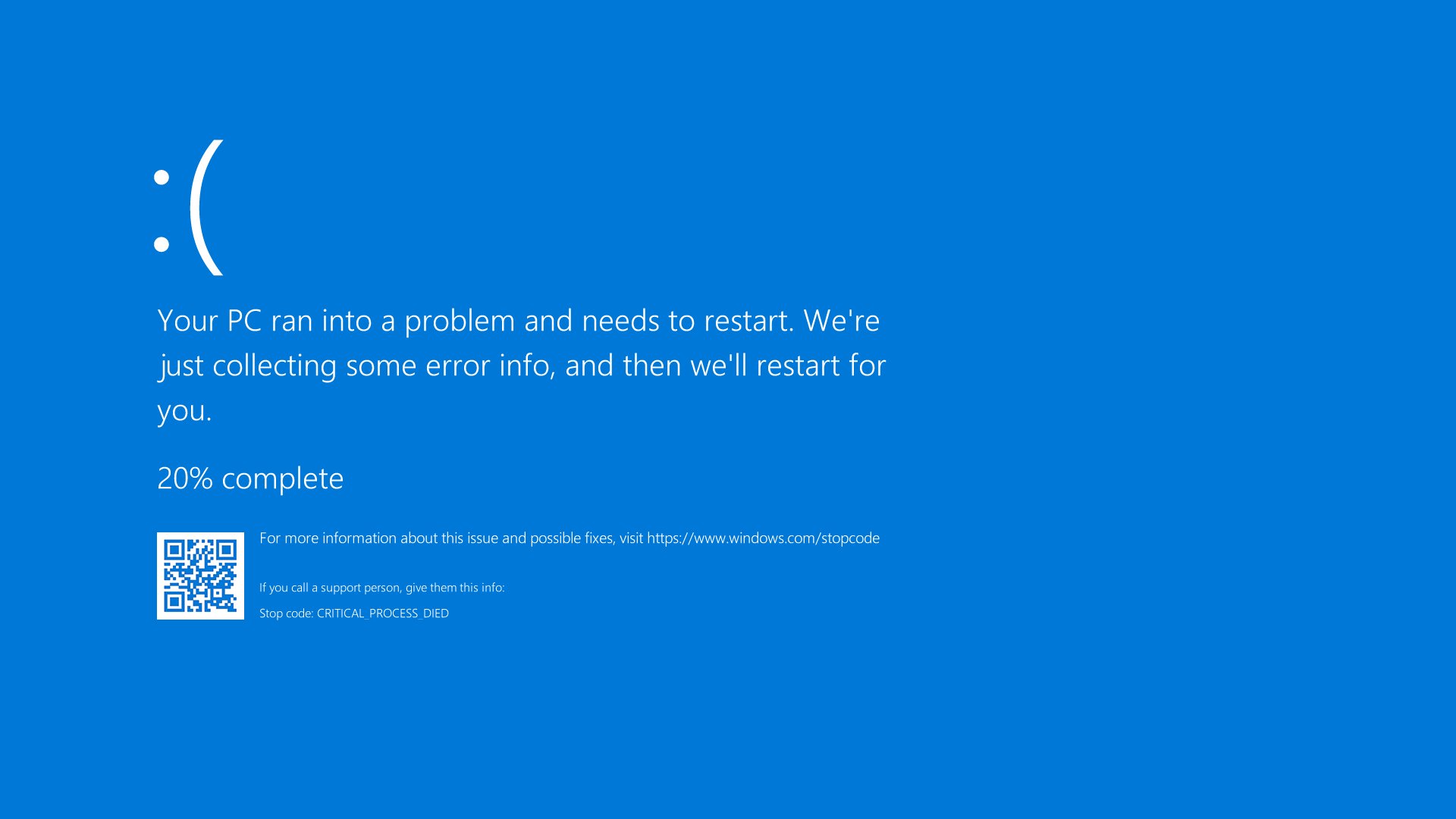
The stop name and hexadecimal bug-check value identify the type of failure, not necessarily the exact component that caused it. The same code can be triggered by a driver, faulty hardware, firmware, damaged system files, or a chain of earlier errors. Record the complete code and analyze the surrounding evidence before replacing parts.
The guidance applies to Windows 11 and many Windows 10 systems. Standard Windows 10 support ended on October 14, 2025, so recurring crashes on Windows 10 should also prompt a plan to move to a supported platform.
Common Windows stop codes
| Stop name | Bug check | What it indicates | Useful first checks |
|---|---|---|---|
| PAGE_FAULT_IN_NONPAGED_AREA | 0x00000050 | Windows referenced invalid system memory. | Recent drivers, RAM diagnostics, storage and file-system health. |
| IRQL_NOT_LESS_OR_EQUAL | 0x0000000A | Kernel code accessed invalid or pageable memory at an interrupt level where it was not allowed. | Roll back a recent driver; test memory; remove overclocking. |
| SYSTEM_SERVICE_EXCEPTION | 0x0000003B | An exception occurred while code was transitioning into a privileged system routine. | Driver and Windows updates, recent system software, crash dump. |
| KMODE_EXCEPTION_NOT_HANDLED | 0x0000001E | A kernel-mode program generated an exception that was not handled. | Driver named on the blue screen, firmware, RAM and device changes. |
| CRITICAL_PROCESS_DIED | 0x000000EF | A process required for Windows operation terminated unexpectedly. | Storage health, system-file repair, recent drivers and updates. |
| MEMORY_MANAGEMENT | 0x0000001A | The Windows memory manager detected a severe error. | RAM test, memory settings, drivers and storage corruption. |
| DRIVER_IRQL_NOT_LESS_OR_EQUAL | 0x000000D1 | A driver accessed an invalid or pageable address at an elevated interrupt level. | Identify the third-party driver in the dump; update or roll it back. |
| VIDEO_TDR_FAILURE | 0x00000116 | The display driver or GPU did not recover within the allowed timeout. | Graphics driver, GPU temperature, power, cables and hardware diagnostics. |
| INACCESSIBLE_BOOT_DEVICE | 0x0000007B | Windows lost access to the system partition during startup. | Recent storage-controller or BIOS change, storage driver, disk and boot repair. |
| BAD_POOL_HEADER | 0x00000019 | Windows detected corrupted pool-memory metadata. | Drivers, RAM and software installed shortly before the crash. |
| SYSTEM_THREAD_EXCEPTION_NOT_HANDLED | 0x0000007E | A system thread generated an exception that was not handled. | Driver name or module in the dump, graphics and chipset drivers. |
| BAD_SYSTEM_CONFIG_INFO | 0x00000074 | Windows encountered a serious registry or system-configuration problem. | Startup Repair, System Restore, recent configuration changes. |
| WHEA_UNCORRECTABLE_ERROR | 0x00000124 | Windows Hardware Error Architecture reported an uncorrectable hardware error. | Remove overclocking, check cooling and power, run manufacturer diagnostics. |
| UNMOUNTABLE_BOOT_VOLUME | 0x000000ED | Windows could not mount the volume that contains the operating system. | Drive connection and health, file system, WinRE startup tools. |
| MACHINE_CHECK_EXCEPTION | 0x0000009C | The processor reported a machine-check hardware fault. | Firmware defaults, temperatures, power, CPU/RAM/motherboard diagnostics. |
| DPC_WATCHDOG_VIOLATION | 0x00000133 | A deferred procedure call or interrupt routine exceeded its allowed time. | Storage, chipset and device drivers; firmware; crash dump timing evidence. |
These associations narrow the investigation but do not prove a cause. For example, a memory-related code can result from defective RAM or a driver writing to the wrong address.
1. Record the evidence before changing anything
- Photograph the stop name, hexadecimal value, QR code, and any
.sysfilename. - Note what the PC was doing, which device was connected, and whether an update or driver was just installed.
- Check whether the same code repeats or changes between crashes.
- After Windows starts, look in
C:WindowsMinidumpfor recent.dmpfiles.
A single crash that never repeats may require no action beyond monitoring. Repeated crashes with the same circumstances deserve a structured investigation.
2. Undo the most recent change
Shut down and disconnect newly added nonessential hardware. If Windows starts, reconnect one device at a time. Roll back a driver that was installed immediately before the crashes, or uninstall a recently added low-level utility such as a storage, tuning, virtualization, or security driver.
Do not make several unrelated changes at once. Create a backup or restore point when Windows is stable, then test after each step.
3. Start in Safe Mode if normal startup fails
In the Windows Recovery Environment (WinRE), choose Troubleshoot > Advanced options > Startup Settings > Restart, then select Safe Mode. BitLocker-protected devices may request the recovery key.
If Safe Mode is stable, focus on third-party drivers, services, startup software, or recently installed updates. Safe Mode stability is evidence, not proof that the hardware is healthy.
4. Update Windows, drivers, and firmware carefully
Install current Windows quality updates, then use the PC or component manufacturer's support page for chipset, storage, graphics, network, and BIOS/UEFI updates. Use the exact model or service tag and follow firmware power instructions.
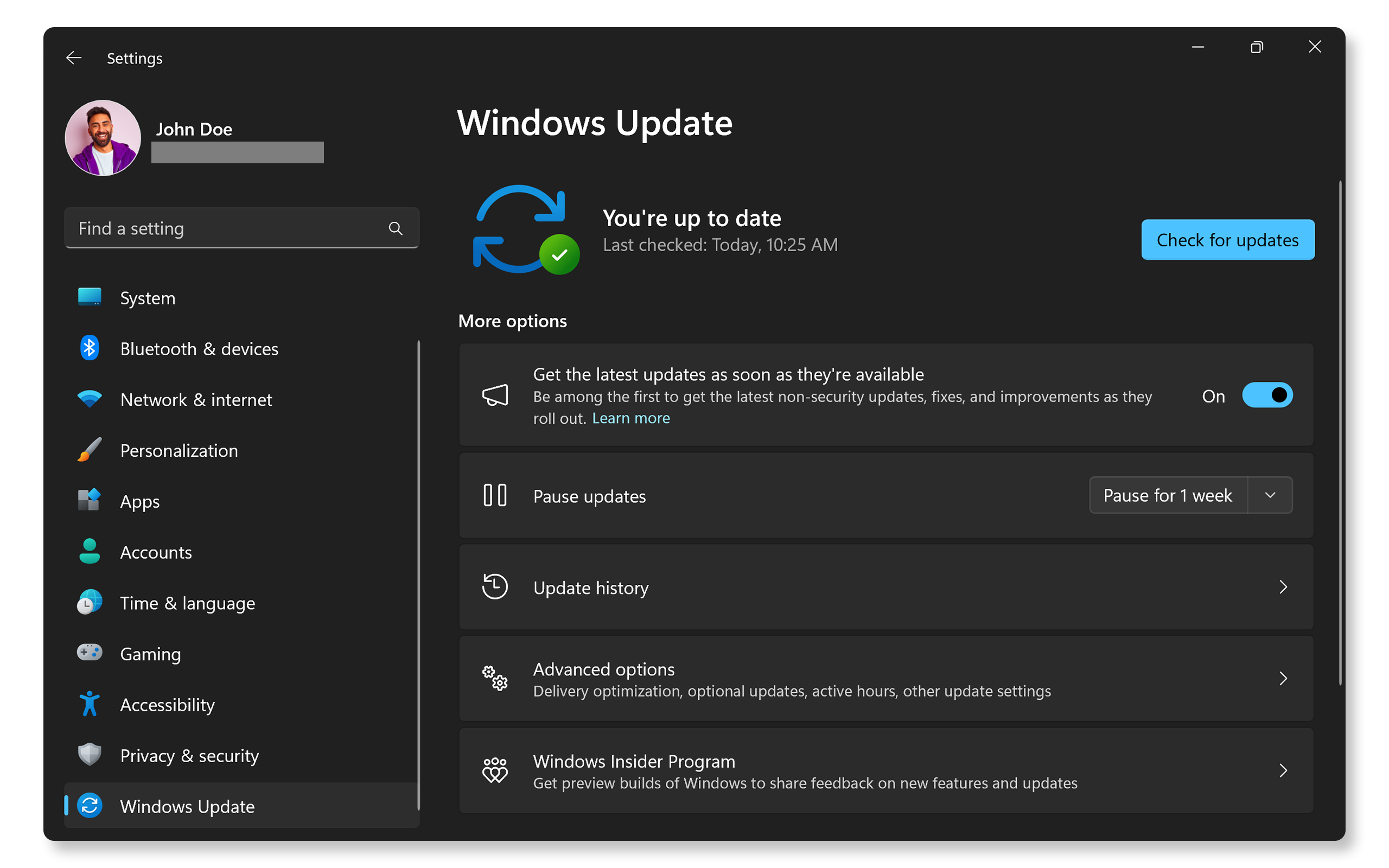
If the crashes started with an update, rolling back the specific driver can be safer than stacking another generic driver on top. Avoid third-party driver-download sites.
5. Run hardware diagnostics
Use the PC maker's pre-boot diagnostics to test memory, storage, processor, cooling fans, and other supported components. Record every error and validation code. A passing quick test does not rule out an intermittent failure; run extended tests when the crashes repeat under load.
Dell PCs, for example, can usually open the one-time boot menu with F12 and select Diagnostics. Other brands use different keys and tools.
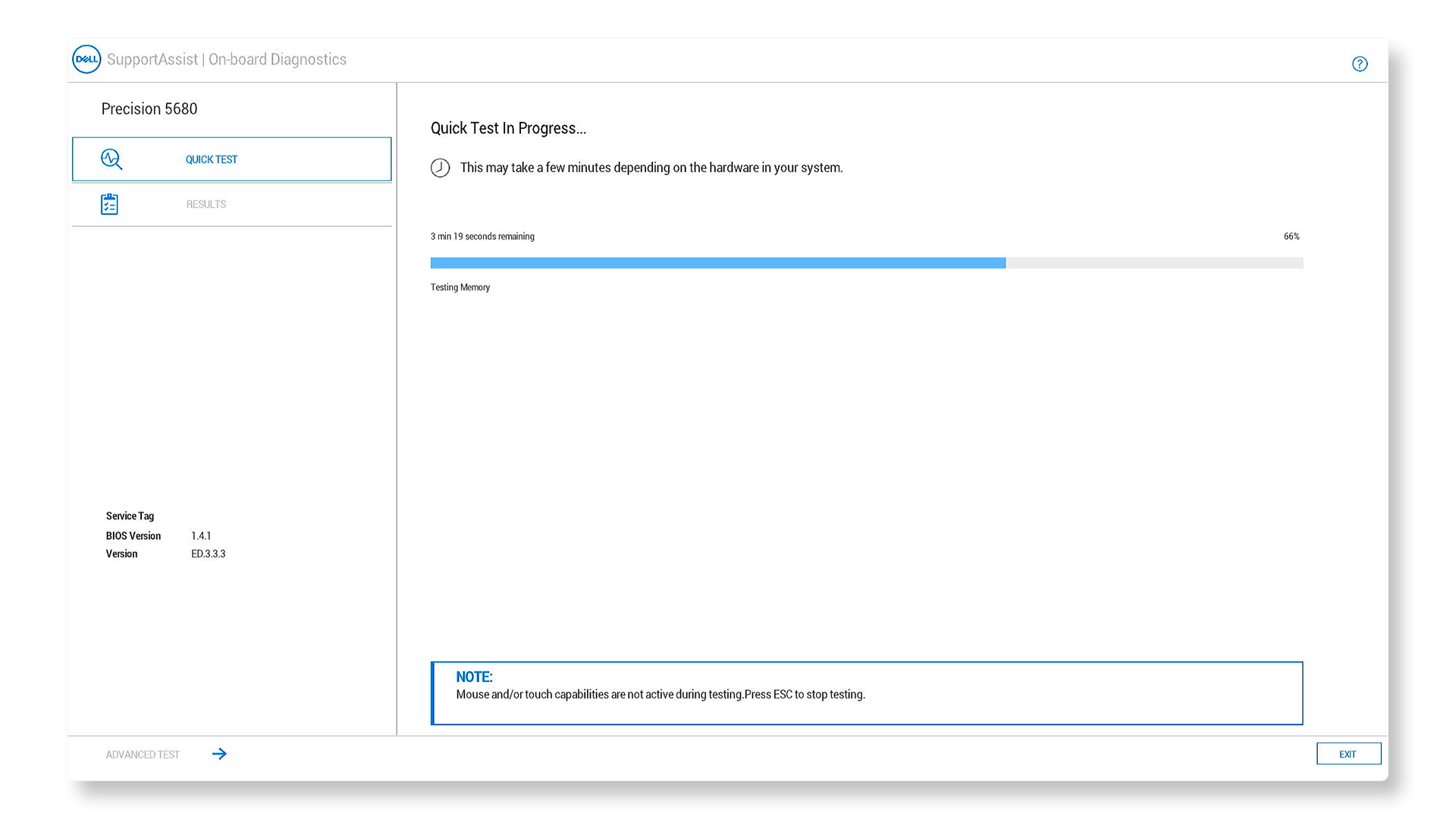
If a memory test reports an error, stop treating the problem as a Windows configuration issue. If storage health or diagnostics indicate failure, back up recoverable data before running repairs that write to the drive.
6. Return unstable firmware settings to known-safe values
Overclocking, undervolting, XMP/EXPO memory profiles, and manual power settings can contribute to WHEA, machine-check, watchdog, and memory errors. If you changed them, return to the manufacturer's default values and test.
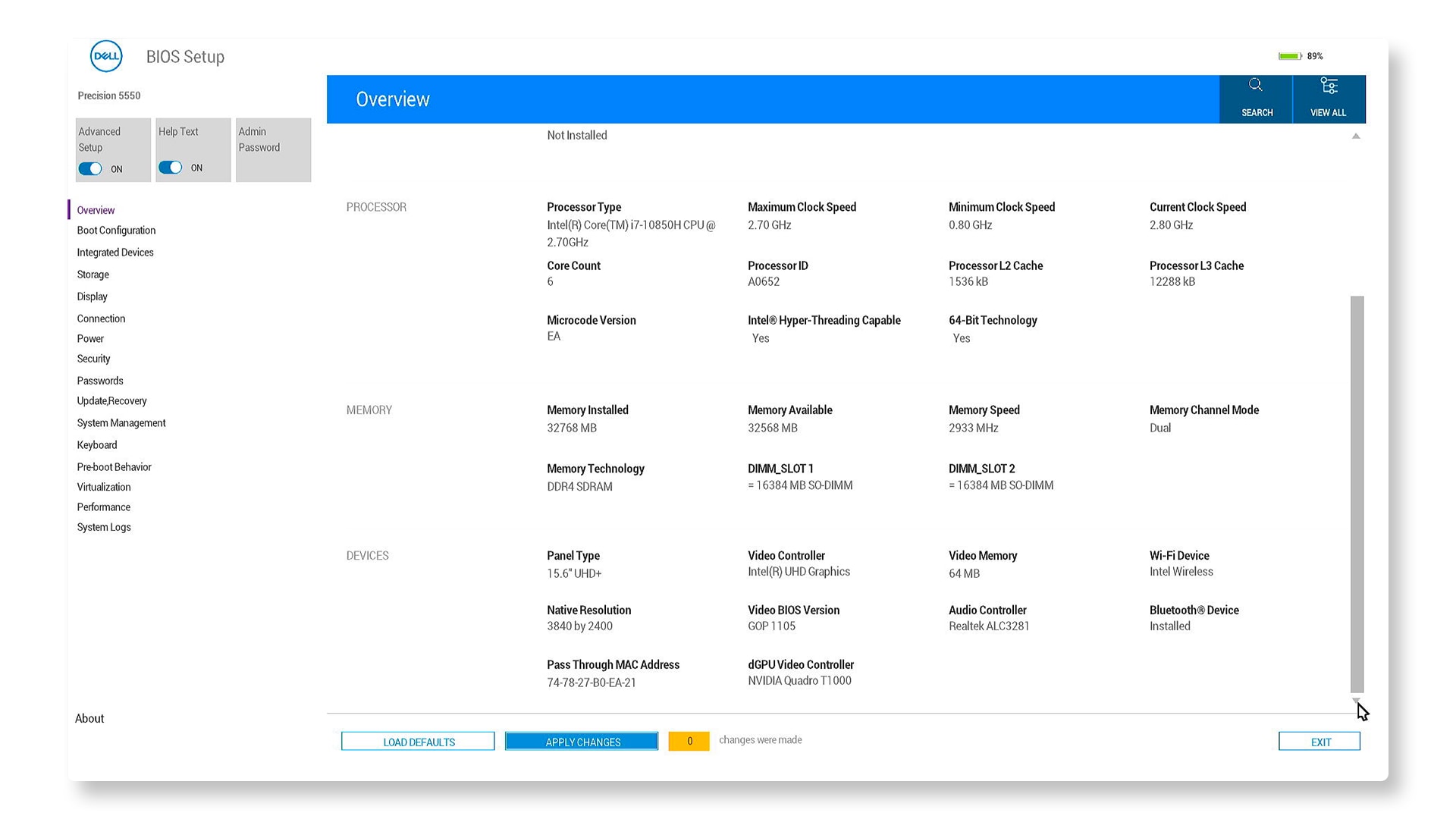
Do not blindly switch SATA or storage-controller mode between RAID and AHCI. Windows may lack the boot driver for the new mode, creating an INACCESSIBLE_BOOT_DEVICE loop. Restore only a setting you know was changed, or follow the PC maker's model-specific recovery procedure.
7. Repair Windows system files
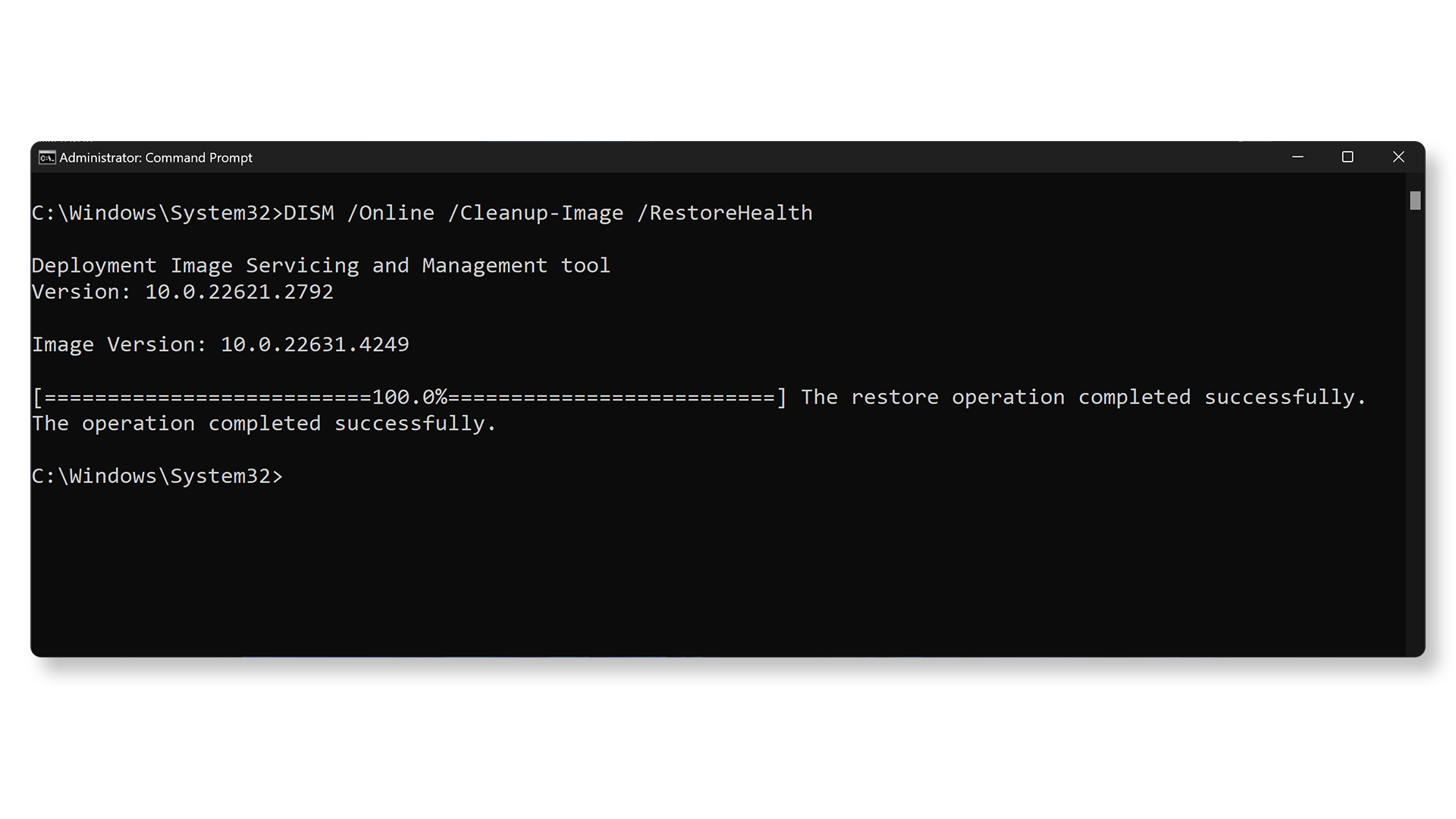
If Windows starts, open Windows Terminal as administrator and run the supported repair sequence:
DISM.exe /Online /Cleanup-Image /RestoreHealth
sfc /scannow
DISM repairs the Windows component store; System File Checker then verifies protected system files against that store. These commands can repair corruption, but they do not fix defective RAM, a failing SSD, or a faulty driver.
8. Use Startup Repair only for startup failures
If the PC cannot boot, access WinRE and choose Troubleshoot > Advanced options > Startup Repair > Restart. Startup Repair targets boot-related problems; it is not a general fix for a PC that already starts and crashes only during a game or other workload.
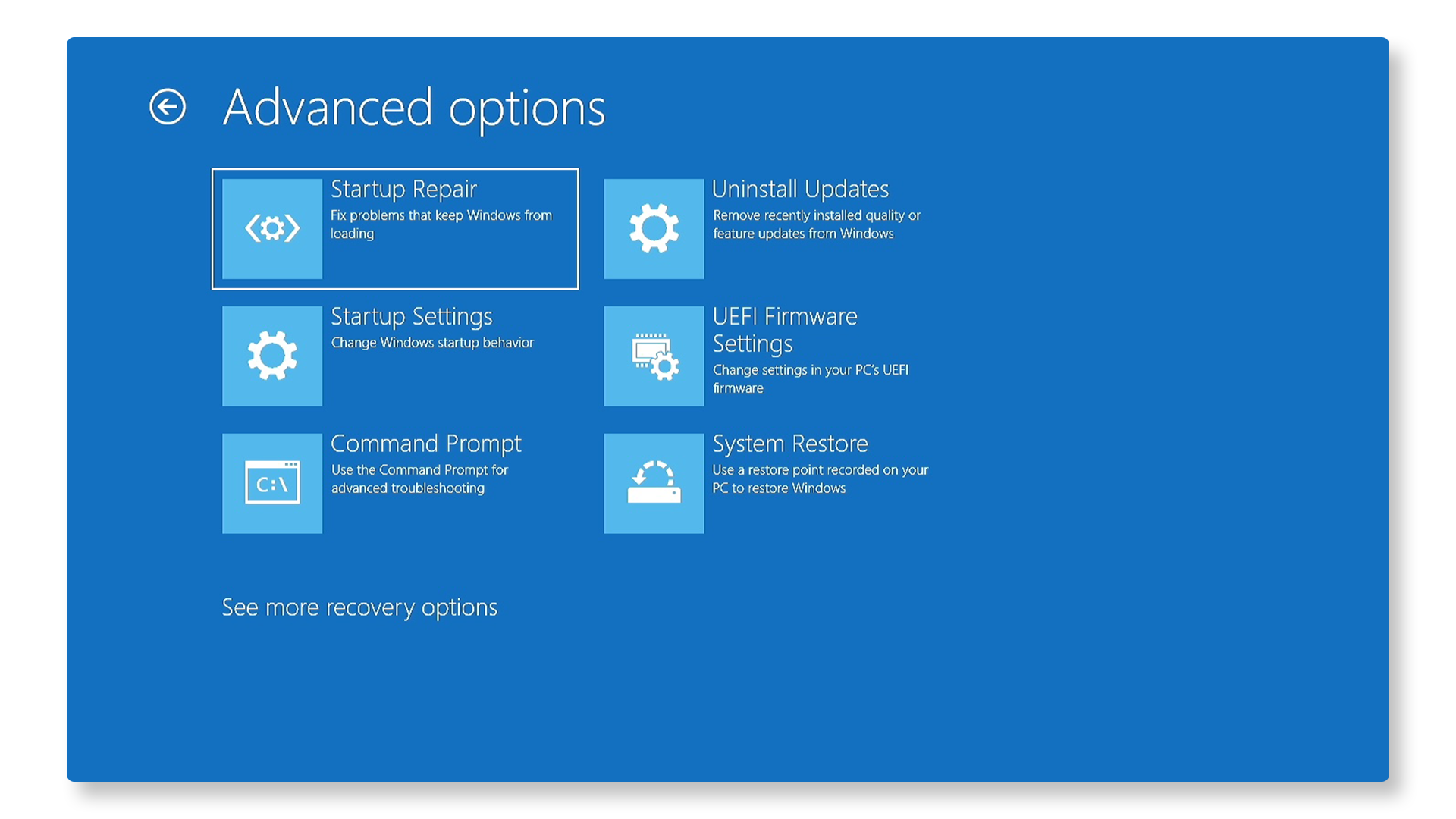
Windows should enter Automatic Repair after repeated failed starts, or you can boot from official Windows installation media and choose Repair your computer. Have the BitLocker recovery key before beginning recovery work.
9. Dell-specific automated tools
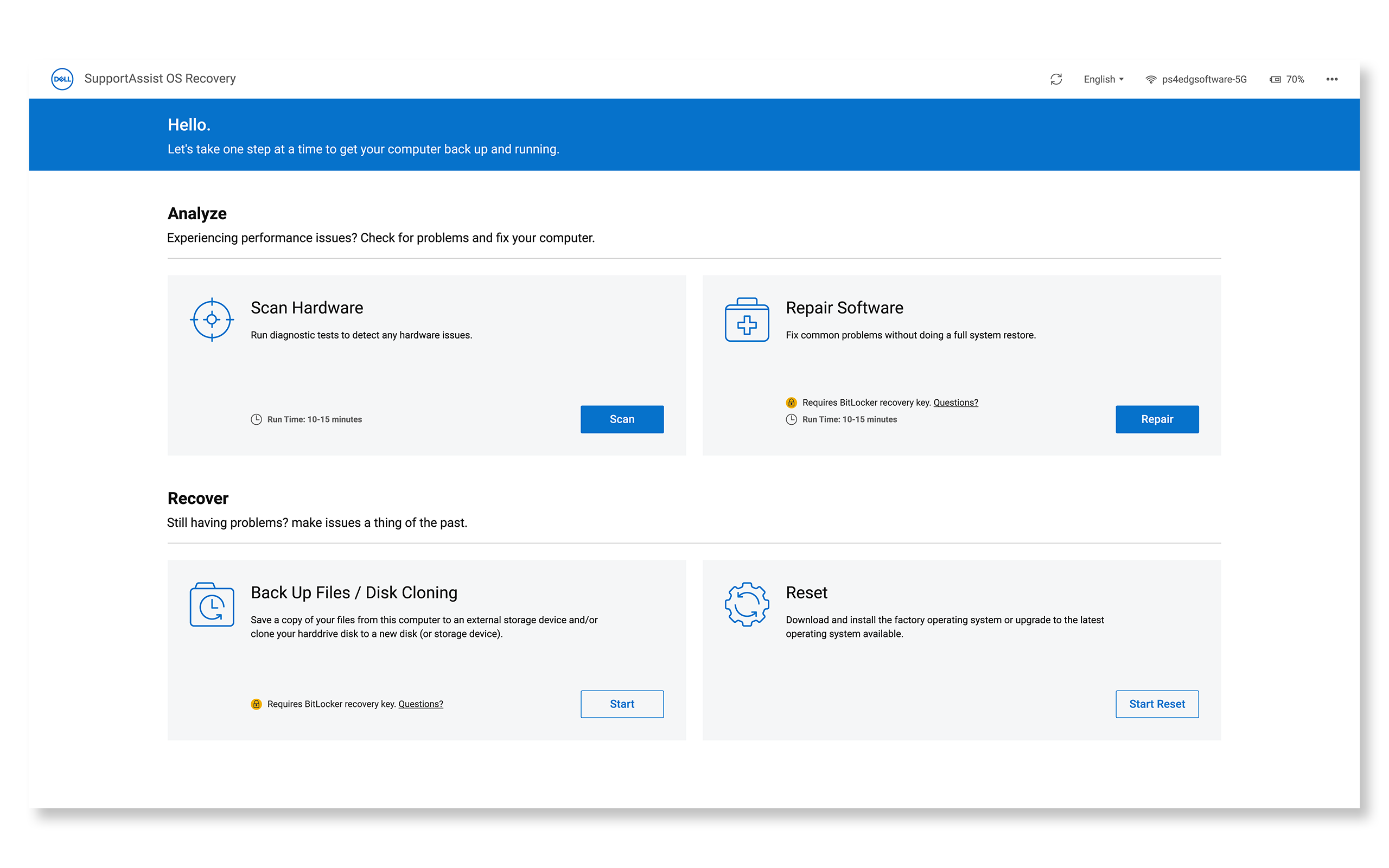
SupportAssist can run guided diagnostics and offer Dell-approved driver or BIOS updates on supported Dell systems. Its menu labels can change, so use the tool only when it recognizes the correct service tag.
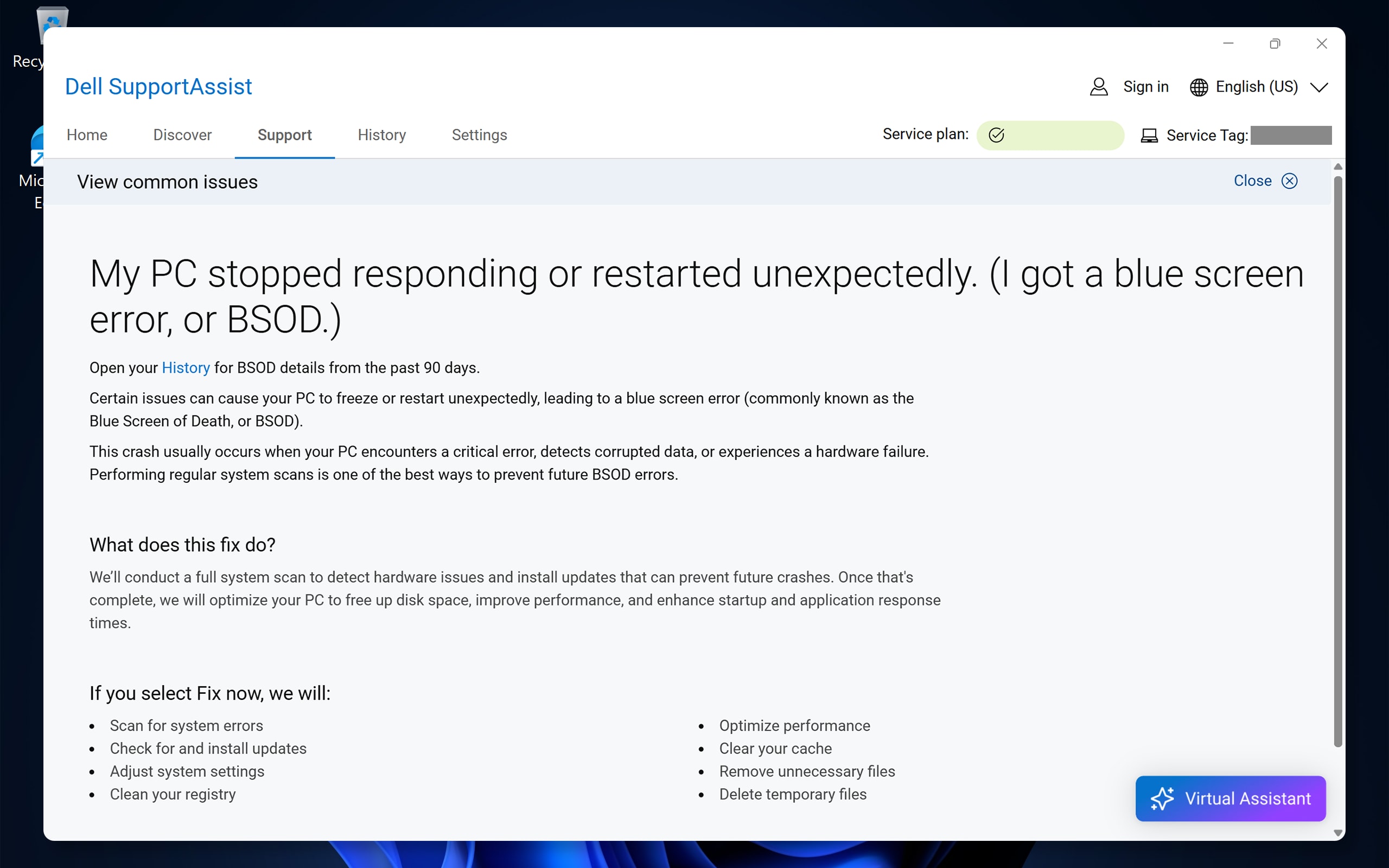
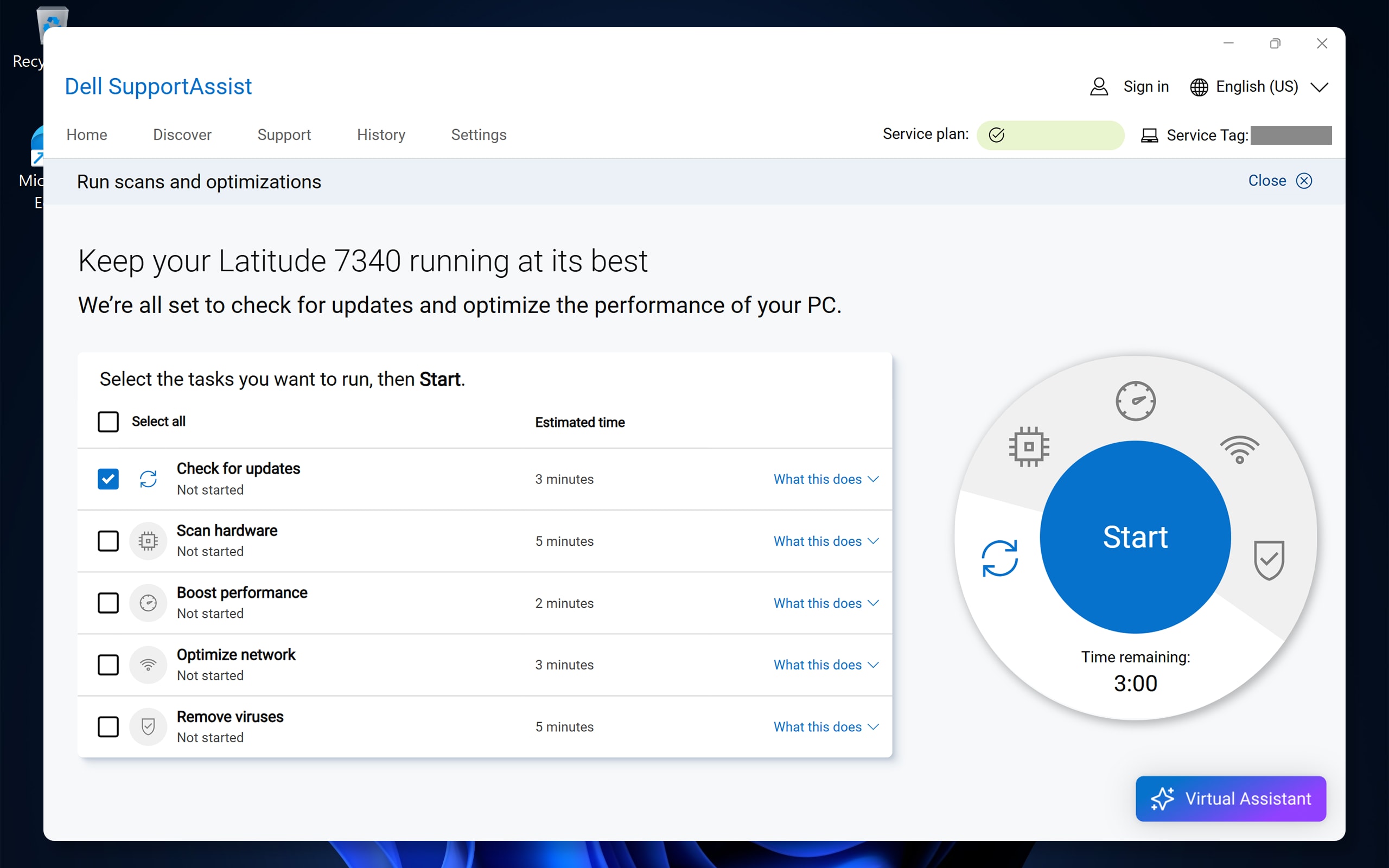
SupportAssist OS Recovery may offer repair or reset options on some Dell PCs. Read the selected option carefully and back up files first; a recovery workflow can become destructive if you choose reset or factory restore.
On HP, Lenovo, ASUS, Acer, Surface, and other computers, use that manufacturer's own diagnostics and recovery documentation instead of installing Dell utilities.
10. Analyze the crash dump when the code is not enough
Event Viewer can confirm an unexpected shutdown and show activity near the crash, but a Kernel-Power event usually records the restart rather than the root cause. A memory dump is more useful.
Microsoft WinDbg can open a dump from C:WindowsMinidump. After symbols load, the command !analyze -v provides a starting analysis. Treat a named module cautiously: the file at the top of a failing stack may be the victim of earlier corruption rather than the original cause.
Do not post a full memory dump publicly. Dumps can contain fragments of data that were in memory. Share them only with a trusted support channel and remove personal identifiers where possible.
When to stop troubleshooting and seek repair
- Pre-boot diagnostics report a hardware error.
- WHEA or machine-check crashes continue at firmware defaults.
- The SSD disappears from firmware or reports serious health errors.
- The PC overheats, shuts down under light load, smells unusual, or has a swollen battery.
- Crashes continue after a clean supported installation with manufacturer drivers.
A BSOD itself is a protective stop; the underlying fault is the concern. Reinstalling Windows should be a last resort after backing up data and checking hardware, because it erases evidence and cannot repair a defective component.
Microsoft maintains current end-user guidance at Troubleshooting Windows stop-code errors and the technical bug-check code reference.
Related Articles
 How to Enable / Disable Automatic Restart When BSOD Error Is3 minutes read
 Windows 11 Error Code Table and Most Common Issues When13 minutes read
 Blue Screen of Death BSOD Error Codes List8 minutes read
 How to Create a Blue Screen of Death (BSOD) to 'Prank' Friends1 minutes read
 Summary of Driver Error Codes on Windows and How to Fix (Last8 minutes read
 How to Fix BSOD Memory Management Error7 minutes read
Reader Comments 0
Sign in with email or Google to join the discussion.