Table of Contents
The Windows version of CPU-Z does not display CPU temperature. CPU-Z reports processor, motherboard, memory, and live clock information. To read temperature sensors, use a monitoring tool such as HWMonitor, which is made by the same developer, CPUID.
Why CPU-Z does not show a temperature field
CPU-Z is system-information software. Its main purpose is to identify hardware and report values such as CPU model, core speed, multiplier, cache, RAM frequency, and motherboard details. CPUID describes HWMonitor as its tool for temperatures, voltages, fan speeds, and other health sensors.
Check CPU temperature with HWMonitor
- Download HWMonitor from CPUID's official website. Choose the correct Windows build and avoid third-party download advertisements.
- Install the program, or extract the portable ZIP to a normal folder.
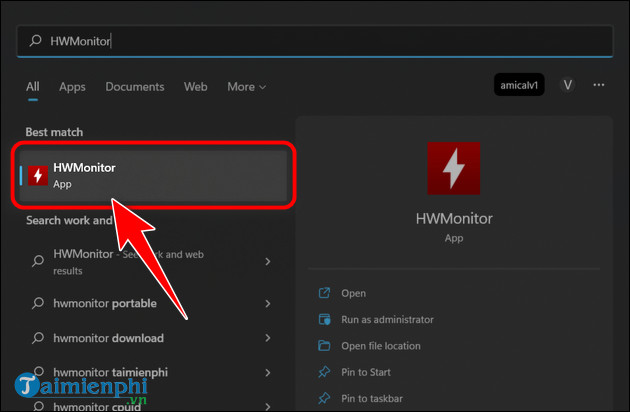
- Open HWMonitor and wait for the sensor list to populate.
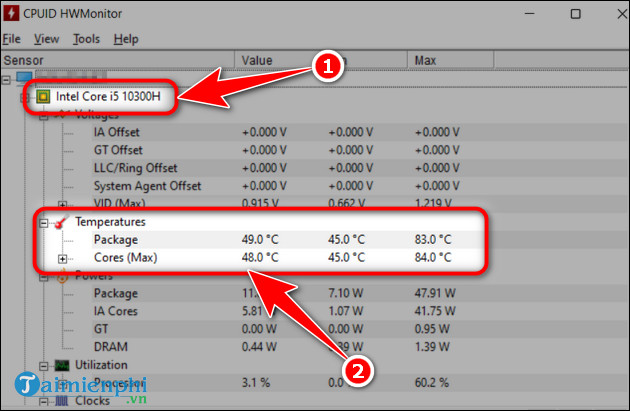
- Expand the entry that matches your processor.
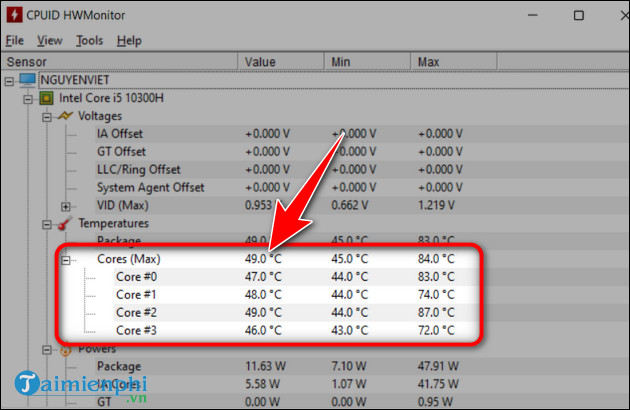
- Expand Temperatures and read Package. Expand the core group if you also want individual Core readings.
How to read the values
- Value is the current temperature.
- Min is the lowest reading observed since HWMonitor opened.
- Max is the highest reading observed during that session.
Leave HWMonitor open while running the game or application that causes concern, then check the Max column. The Package sensor is generally the most useful overall CPU reading, while Core values show more detail where the processor exposes those sensors.
For a complete walkthrough, see how to check CPU temperature with HWMonitor.
Do not rely on one universal temperature limit
Acceptable temperature depends on the exact CPU, laptop or desktop design, workload, cooling system, and sensor. Check the processor manufacturer's specification for its documented operating limit. A short boost under heavy load is different from sustained thermal throttling, repeated shutdowns, or a temperature that keeps rising.
If a value is blank or obviously impossible, the sensor may not be exposed correctly. Compare it with the computer manufacturer's monitoring utility or another reputable tool before assuming the hardware has failed.
What CPU-Z is still useful for
Use CPU-Z alongside HWMonitor when you need the exact processor model, live clock speed, core count, motherboard model, or RAM configuration. Knowing the CPU model helps you find the correct manufacturer temperature specification, and watching clock speed can show whether the processor slows under load.
TipsMake's CPU-Z specification guide explains the CPU, Mainboard, Memory, SPD, Graphics, and Bench tabs without confusing clock speed with temperature.
If the CPU is unusually hot, close the demanding task, check Task Manager for high CPU use, unblock vents, and return any recent overclock or BIOS change to a known-good setting. Shut the computer down and seek qualified service if the fan has failed or the device repeatedly powers off from heat.
Related Articles
 How to Check the Computer's CPU Temperature?3 minutes read
 How to Check CPU Temperature Using Hwmonitor6 minutes read
 The Ideal GPU Temperature Explained8 minutes read
 How to Use Remote System Monitor on Android to See Windows5 minutes read
 How to Check Computer CPU Temperature with Software on Windows 109 minutes read
 The Most Accurate Ways to Check CPU Temperature at Home7 minutes read
Reader Comments 0
Sign in with email or Google to join the discussion.