Table of Contents
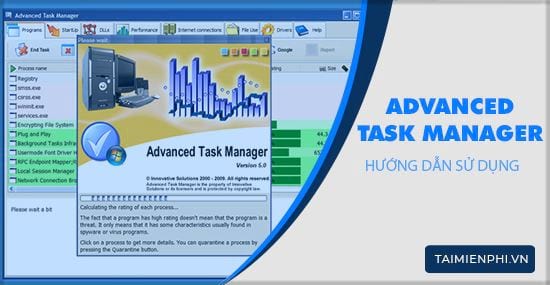
Advanced Task Manager from Innovative Solutions is a legacy Windows utility that displays running programs, startup entries, loaded DLLs, performance graphs, open network connections, files in use, and drivers. The screenshots below show its older interface. On a current Windows PC, built-in Task Manager and Microsoft's Process Explorer provide actively documented alternatives without relying on an old third-party installer.
Download caution: Do not install Advanced Task Manager from an unknown software mirror. Old utilities are often redistributed in modified installers, and compatibility claims on download sites may not come from the original developer. If you already have a trusted copy, scan the installer, verify its digital signature where available, and create a restore point before testing it.
What Advanced Task Manager adds
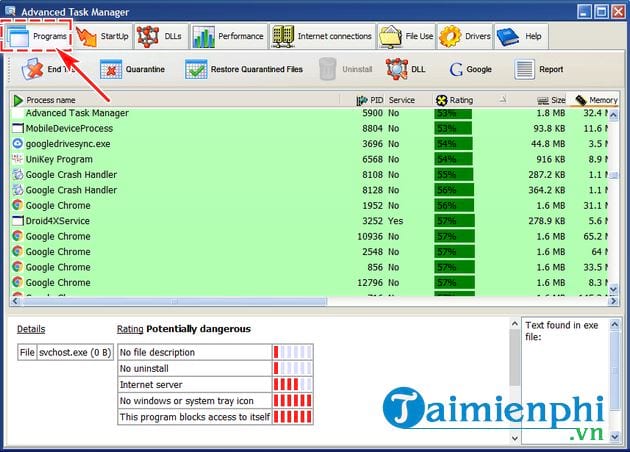
The application uses a tabbed layout similar to Windows Task Manager, but exposes technical details that older Windows versions did not present in one place. Its process “security rating” is only a heuristic; a high or low score does not prove that a file is malicious or safe. Confirm suspicious files with their publisher, signature, path, and a current security scan.
Programs tab: inspect running processes
The Programs tab lists applications, services, and background processes with resource and file information. Select an entry to inspect its executable path, publisher details, process ID, resource use, and any behaviors the tool reports.
Do not end a process solely because its name is unfamiliar or it uses CPU briefly. Windows services, hardware drivers, security software, browsers, and update components commonly run in the background. Before choosing End Task:
- Sort by CPU or memory and observe the process for at least a minute.
- Check whether the file is in a normal Windows or application folder.
- Look for a valid digital signature and a recognizable publisher.
- Save work in the affected application; ending a process can lose unsaved data.
- Use current antivirus software if malware is suspected.
For a frozen application, the built-in method in Windows 11 Task Manager is normally sufficient.
Startup tab: control login programs
The Startup tab shows programs configured to launch with Windows. Disabling a nonessential startup item can shorten sign-in time and reduce background load, but it does not uninstall the application.
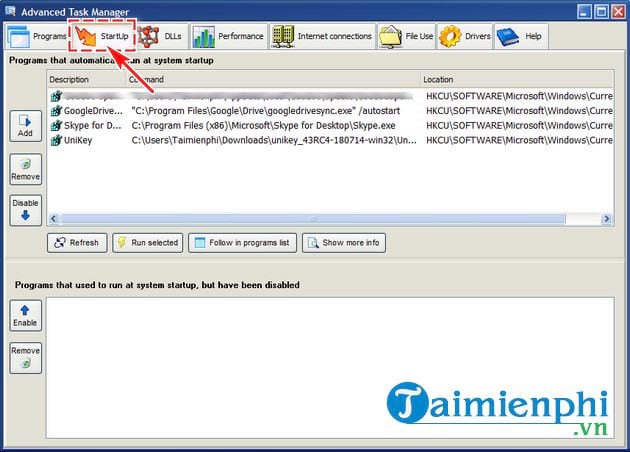
Disable one item at a time and restart to test the result. Leave security software, touchpad or hotkey components, audio utilities needed for device features, backup agents, and accessibility tools enabled unless you understand their role. On current Windows versions, use Task Manager > Startup apps or Settings > Apps > Startup. The broader guide to fixing a slow computer explains when startup cleanup is useful.
DLLs tab: see loaded modules
The DLLs tab lists dynamic-link libraries and the processes that have loaded them. This view helps with troubleshooting version conflicts, unexpected add-ons, or a file that cannot be replaced because it is in use.
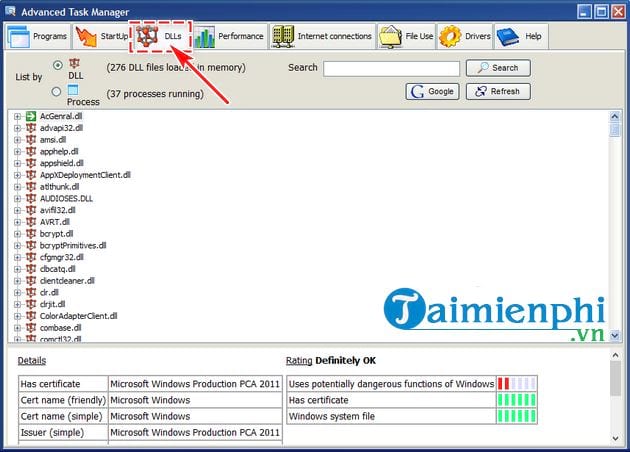
A DLL loaded by several programs is not automatically suspicious. Windows intentionally shares many system libraries. Avoid deleting or unregistering a DLL based only on this list; identify the owning software and verify the file first.
Performance tab: watch resource trends
The Performance view graphs CPU, memory, and other activity. A short spike during an app launch, scan, update, or file copy is normal. Sustained high use matters more than a momentary peak.
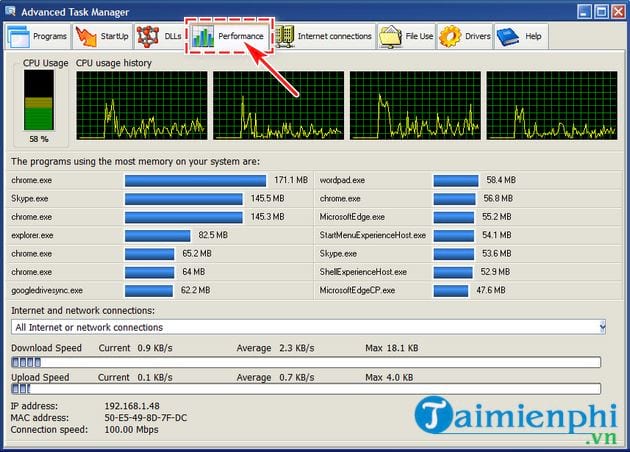
Use the graph to identify when a slowdown begins, then return to the process list and sort by the affected resource. Current Task Manager also separates CPU, memory, disk, network, and GPU activity and provides per-process columns.
Internet Connections tab: inspect active endpoints
The Internet Connections tab associates processes with local and remote addresses and ports. It can help explain which application is transferring data, but an unfamiliar remote IP address is not enough to label a connection malicious. Content-delivery networks, cloud services, advertising, telemetry, and automatic updates use many changing addresses.
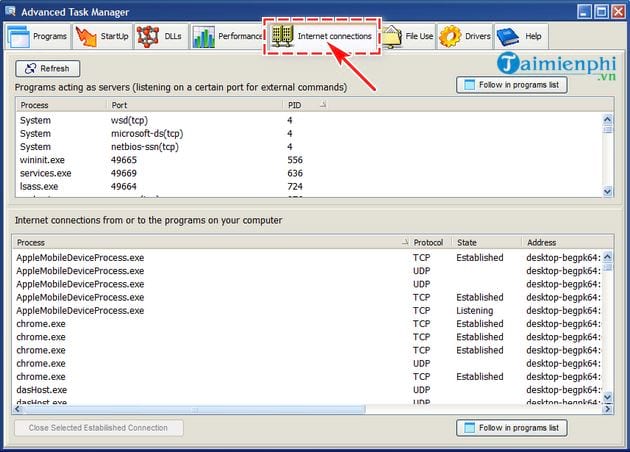
Confirm the executable path and signature, check the program's documented network behavior, and scan the system. Closing a connection does not remove malware; the process can reconnect.
File Use and Drivers tabs
- File Use: shows which process has a file or folder open. This can explain “file in use” errors.
- Drivers: lists loaded kernel drivers. Ending, disabling, or removing a driver can crash Windows or make hardware unavailable, so treat this as an inspection view unless you are following the hardware vendor's instructions.
Use Process Explorer for deeper current diagnostics
Microsoft's free Process Explorer shows process trees, handles, loaded DLLs, signatures, parent-child relationships, and resource activity. It is portable and maintained as part of Sysinternals. TipsMake's Sysinternals process-inspection guide introduces its security-focused views.
For everyday tasks, start with Windows Task Manager. Use Process Explorer when you need details such as command lines, parent processes, loaded modules, or open handles. Reserve the legacy Advanced Task Manager utility for examining an existing, trusted installation on an older system—not as a recommended download for a current PC.
Related Articles
 How to Manage Running Processes with Xfce's Task Manager7 minutes read
 11 Simplest Ways to Open Task Manager on Windows9 minutes read
 Managing Tasks on Android Easily Without Task Killer7 minutes read
 8 Unexpected Uses of Task Manager: A Practical Guide8 minutes read
 All Problems About Using Task Manager6 minutes read
 How to Take Advantage of the Performance Tab in Task Manager7 minutes read
Reader Comments 0
Sign in with email or Google to join the discussion.