Table of Contents
CPU-Z can show the active RAM clock, stored memory profiles, and the CPU's current base clock and multiplier. For DDR memory, double the DRAM Frequency shown on the Memory tab to estimate the effective transfer rate. Do not call every value a “bus speed”: a modern motherboard has several independent links, not one speed for the whole board.
Check the active RAM speed in CPU-Z
- Download CPU-Z from CPUID's official page and open it.
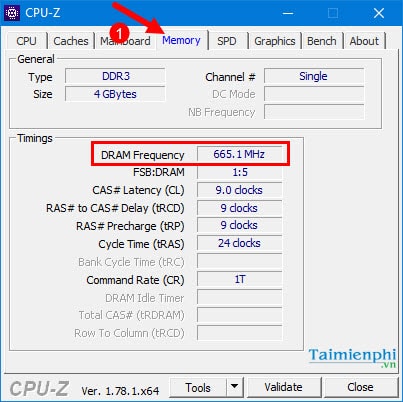
- Select the Memory tab.
- Find DRAM Frequency.
- For DDR memory, multiply that clock by two to estimate the effective data rate.
For example, a DRAM Frequency near 1600 MHz corresponds to roughly DDR4-3200, or 3200 MT/s. A value near 2400 MHz corresponds to roughly DDR5-4800. The correct unit for the doubled figure is megatransfers per second (MT/s), although product listings often label it MHz.
Small variations are normal because the system's base clock may not be exactly its nominal value. Also check the Memory tab's channel and timing fields; frequency alone does not describe total memory performance.
Do not confuse SPD profiles with active speed
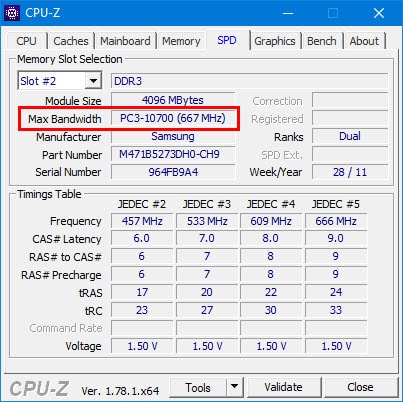
Open the SPD tab and select an installed slot. CPU-Z may show JEDEC, XMP, or other profiles stored on that module, along with part number, capacity, manufacturer, and timing tables.
The SPD table describes settings the module advertises; it does not prove which profile the computer is using. Compare the profile with the active DRAM Frequency and timings on the Memory tab. A module sold as DDR4-3200 can run at a lower default rate if its XMP profile is not enabled or if the CPU and motherboard choose a conservative setting.
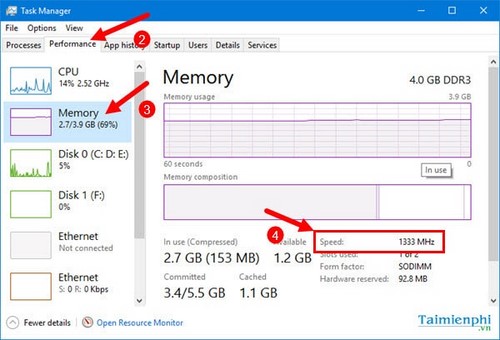
Check reported RAM speed in Task Manager
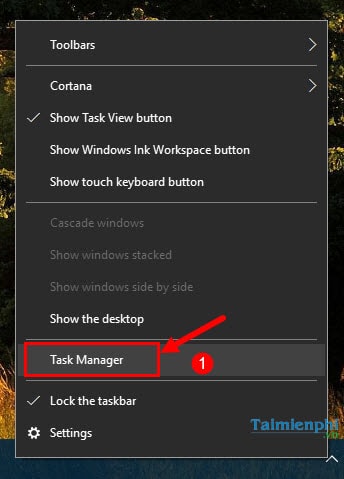
- Press Ctrl + Shift + Esc to open Task Manager.
- Select Performance, then Memory.
- Read the reported Speed value and note the number of slots used.
Task Manager reads firmware-provided information and can occasionally disagree with BIOS or CPU-Z. If an upgrade decision depends on the result, compare all three and use the motherboard's current BIOS information as the configuration reference.
Read CPU core speed and base clock
On the CPU tab, CPU-Z normally reports:
- Core Speed: the live frequency of the selected core.
- Multiplier: the current ratio.
- Bus Speed: the reference or base clock reported for that platform.
Core Speed is approximately the base clock multiplied by the current ratio. Modern CPUs change their ratio constantly with load, power state, temperature, and boost limits, so the number can be much lower at idle and higher during work.
The Bus Speed field is not a measure of how many calculations the CPU performs and is not the bandwidth of every connection on the motherboard.
Why there is no single motherboard bus speed
A current PC uses separate links for memory channels, PCI Express devices, storage, chipset communication, USB, and other controllers. Each has its own width, generation, negotiated rate, and lane allocation. CPU-Z's Mainboard tab identifies the board and chipset, but it does not reduce all of these links to one meaningful “motherboard bus” number.
To check a particular connection:
- use the Memory tab for active DRAM clock and timings;
- use a GPU or PCIe information tool for a graphics card's negotiated PCIe link;
- use the storage utility or device specification for an NVMe or SATA drive;
- use the motherboard manual or block diagram to understand lane sharing and chipset links.
Legacy FSB and QPI fields
Older PCs may expose a front-side bus (FSB), QPI, HyperTransport, or similar platform link in utilities written for that generation. The screenshots below are useful when checking legacy hardware, but the fields should not be applied to a modern CPU that integrates the memory controller and uses different interconnects.
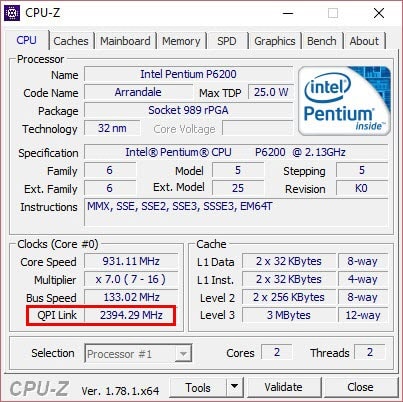
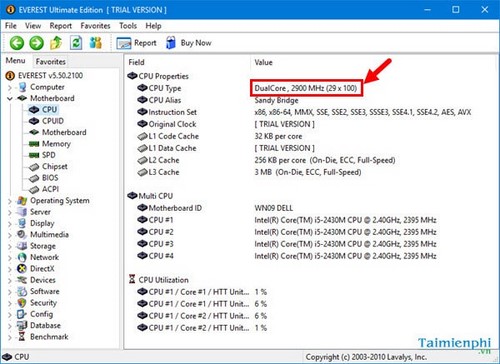
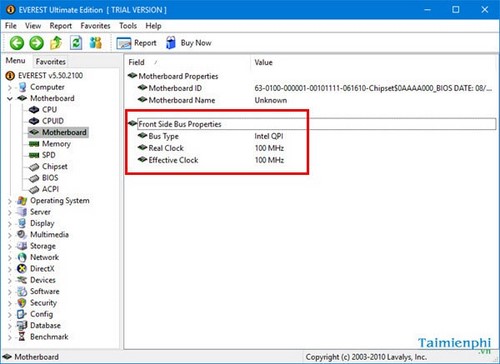
Do not install an abandoned system-information tool merely to find a legacy “bus” label. CPU-Z, BIOS, the motherboard manual, and a device-specific utility provide clearer evidence.
Use the values for an upgrade
For a RAM upgrade, match the DDR generation, form factor, supported capacity, and motherboard or laptop memory specifications; do not buy solely from the doubled CPU-Z number. Follow the compatible RAM upgrade checklist.
For a motherboard or CPU upgrade, verify the exact socket, chipset, BIOS support, and memory generation. The motherboard selection guide covers those checks. For an explanation of the remaining tabs, use TipsMake's CPU-Z specification guide.
Related Articles
 How to Choose a Motherboard for Your Computer or Laptop4 minutes read
 What Is Motherboard? Learn About the Mainboard in the Computer14 minutes read
 The Terms You Need to Know When Buying a Motherboard24 minutes read
 Things to Know When Choosing to Buy Mainboard13 minutes read
 How to Check the Mainboard Model and Motherboard Manufacturer11 minutes read
 The Quickest and Simplest Way to View Your PC's Configuration Using CPU-Z7 minutes read
Reader Comments 0
Sign in with email or Google to join the discussion.