Table of Contents
If Windows Setup says, “The selected disk has an MBR partition table. On EFI systems, Windows can only be installed to GPT disks,” the installer was started in UEFI mode while the target disk uses the older MBR partition style. You can either restart the installer in Legacy/CSM mode when the computer supports it, or convert the target disk to GPT.
Warning: The DiskPart procedure below uses clean. It deletes every partition on the selected disk, including Windows, recovery partitions, applications, and personal files. Use it only for a clean installation after backing up everything you need. If you must keep the existing data, stop and use a non-destructive conversion method before reinstalling Windows.
Why this error appears
Windows uses the disk's partition style together with the firmware boot mode:
- UEFI boot: normally installs Windows to a GPT disk.
- Legacy BIOS or CSM boot: normally installs Windows to an MBR disk.
GPT is the better choice for current UEFI systems and is required to use UEFI features such as Secure Boot. It also supports disks larger than 2 TiB and more primary partitions than MBR. Before changing the disk, confirm that the computer supports UEFI and that the Windows installer itself was booted in UEFI mode.
Before you erase and convert the disk
- Copy all required files from the target disk to another physical drive or a cloud backup.
- Disconnect extra internal and external drives when practical. This reduces the chance of cleaning the wrong disk.
- Check the target drive's model and capacity. Disk numbers and drive letters can differ between normal Windows and Windows Setup.
- Keep the computer connected to reliable power.
- If device encryption or BitLocker was used, make sure the recovery key and any encrypted data you need are safely backed up.
If you still need to create the installer, follow the guide to create a Windows installation USB. On systems where the boot entry is unclear, review how to select a USB device in BIOS or UEFI.
Convert the target disk with DiskPart
Start the Windows installation USB or DVD using the entry labeled UEFI. Continue through language and edition selection until you reach “Where do you want to install Windows?”
1. Open Command Prompt
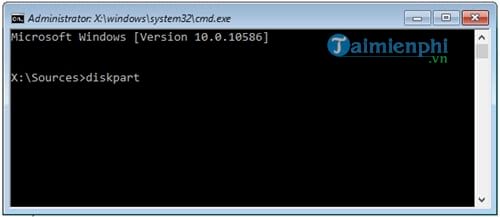
Press Shift + F10. On some laptops you may need Shift + Fn + F10.
2. Start DiskPart and inspect the disks
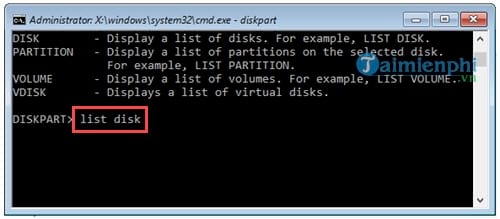
Enter these commands one at a time:
diskpart
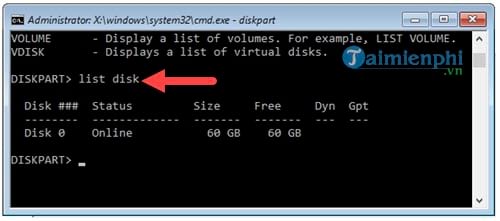
list disk
The command is diskpart, not “diskpatrt.” Compare the Size column with the physical drive you intend to erase. An asterisk in the GPT column means the disk is already GPT.
3. Select and verify the target disk
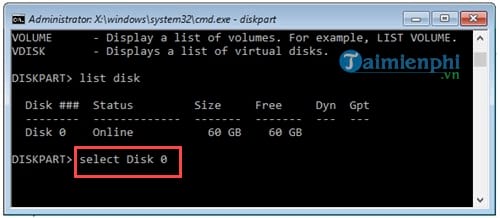
Replace 0 with the correct disk number:
select disk 0
detail disk
select disk requires a disk number, not a drive letter. Read the detail disk output and verify the model, size, and listed volumes. If anything is unexpected, type exit and do not continue.
4. Delete the partitions and convert to GPT
Only after the backup and disk identity are confirmed, run:
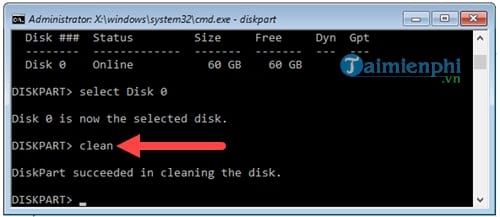
clean
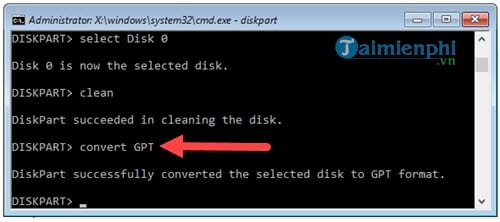
convert gpt
exit
The clean command removes the partition table immediately. convert gpt then creates an empty GPT partition table.
5. Continue Windows Setup
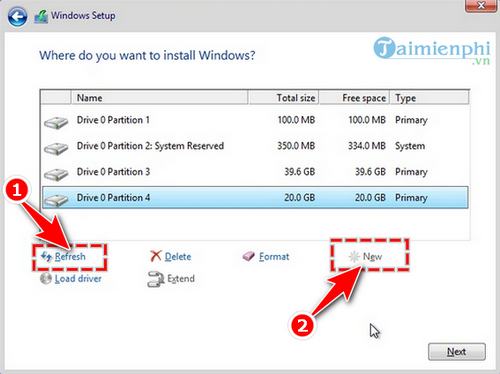
Close Command Prompt and click Refresh in the drive-selection window. The target should appear as unallocated space. Select it and click Next; Windows Setup can create the required EFI, Microsoft Reserved, recovery, and Windows partitions automatically. Create custom partitions only if you have a specific layout requirement.
If you need to keep the existing installation or files
Do not use clean. If the disk contains a supported Windows system installation, Microsoft's MBR2GPT documentation explains how to validate and convert the system disk without deleting its data partitions. A third-party partition manager may also convert a data disk in place; see the precautions in the guide to converting an MBR disk to GPT.
“Without deleting partitions” is not the same as “without risk.” Back up the disk, check its health, save encryption recovery keys, and have bootable recovery media before any in-place conversion.
If Windows still will not install
- Restart and choose the installer entry prefixed with UEFI.
- Confirm that Legacy/CSM mode is disabled when you intend to use GPT and UEFI.
- Re-create the installation media if Setup cannot see the disk or files are corrupt.
- Load the storage-controller driver supplied by the PC or motherboard manufacturer if the drive is missing entirely.
- Check the exact error rather than repeating
clean; cleaning the disk cannot fix faulty media, a failed drive, or an unsupported storage controller.
Related Articles
 6 Ways to Convert Audio to Text without Installing an Application5 minutes read
 How to Convert a GPT Hard Drive Format to an MBR While Installing Win with3 minutes read
 Convert PDF to Word, Convert PDF Files for Free12 minutes read
 How to Convert Image File to PDF on Windows 105 minutes read
 How to Convert PDF to JPG: Practical Guide9 minutes read
 How to Convert WAV Format to MP3 Using LAME with Audacity7 minutes read
Reader Comments 0
Sign in with email or Google to join the discussion.