Table of Contents
The quickest way to tell whether a Windows PC uses an SSD or a mechanical hard disk is to open Task Manager, select Performance, and click each disk. Current Windows versions normally label the device as SSD or HDD. PowerShell and Optimize Drives provide two more built-in checks, while a model-number lookup helps when a controller reports the media type as “Unspecified.”
You do not need to open the computer for these checks. Remember that a PC can contain both types: Windows may be installed on an SSD while files are stored on a separate HDD.
Method 1: Check Task Manager
- Press Ctrl + Shift + Esc.
- If Task Manager opens in a compact view, choose More details.
- Select Performance, then choose Disk 0, Disk 1, and any other listed disks one at a time.
- Read the drive type and model displayed for each physical disk.
This is the best first check on Windows 10 or 11, but a virtual disk, RAID array, USB bridge, or unusual storage driver may hide the underlying media type.
Method 2: Identify the drive model in Computer Management
This method works even when Windows does not explicitly say SSD or HDD.
-
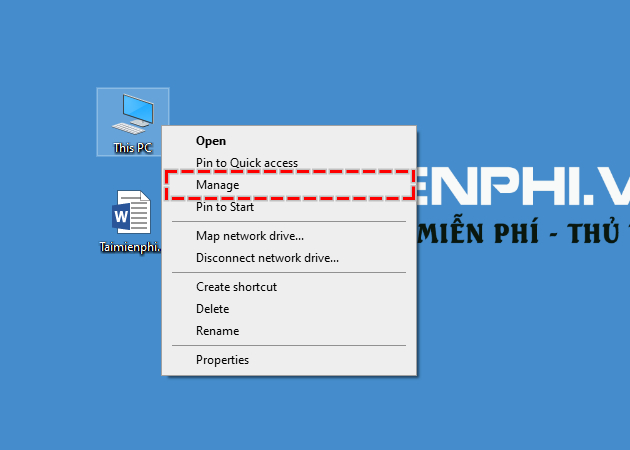
Right-click This PC and choose Manage. You can also right-click Start and open Disk Management.

-
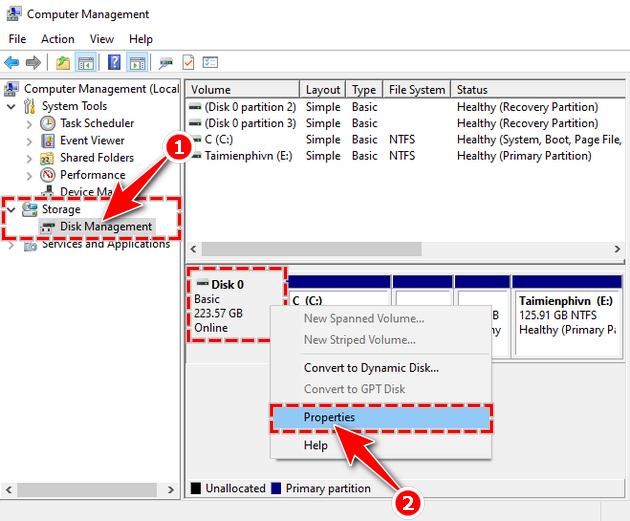
In Computer Management, open Storage > Disk Management. Use the lower pane to distinguish the physical disks from their individual volumes.
-
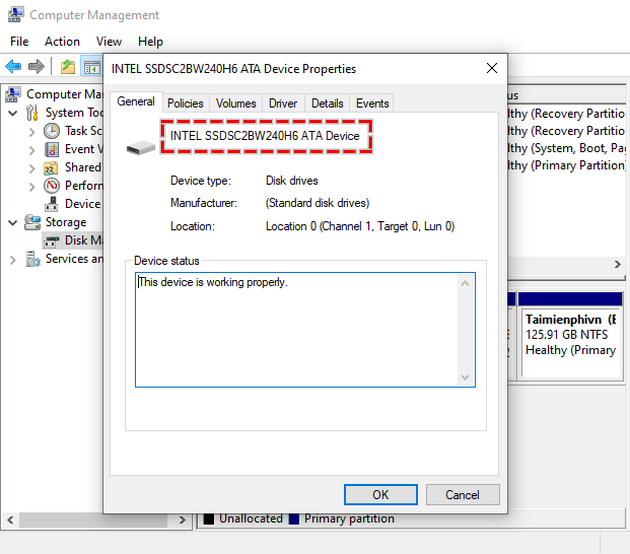
Right-click the disk label at the left—such as Disk 0—and open Properties. Copy the hardware model from the General or Hardware view.
-
Search the complete model number and open the manufacturer's specification page. Look for terms such as solid-state drive, NVMe, or SATA SSD for an SSD; a mechanical drive normally lists a spindle speed such as 5,400 or 7,200 RPM.
A model lookup is more reliable than guessing from capacity, interface, physical size, or brand. Both SSDs and HDDs can use SATA, and both are sold in several capacities.
Method 3: Use PowerShell
-
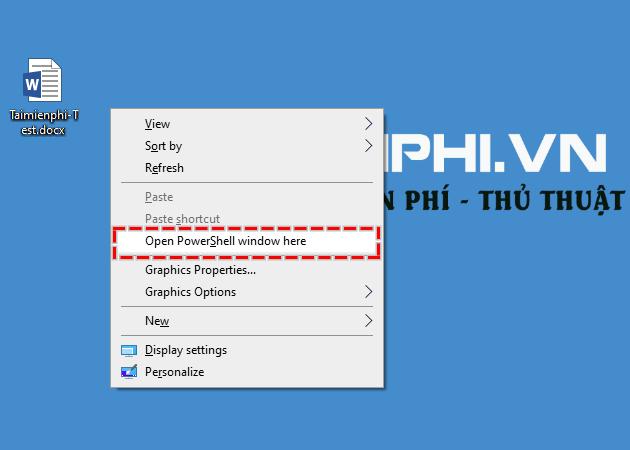
Right-click Start and open Terminal (Admin) or Windows PowerShell (Admin). Administrator rights are not always required for this read-only query, but they can help on managed systems.
-
Run:
Get-PhysicalDisk | Format-Table FriendlyName, MediaType, BusType, Size, HealthStatus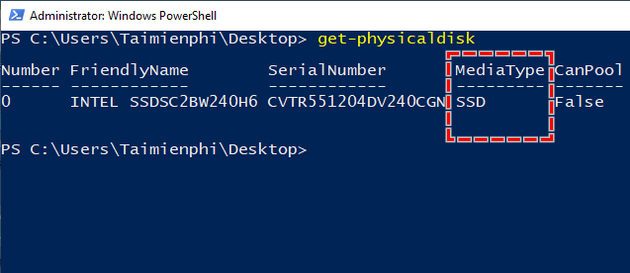
SSD and HDD in the MediaType column are direct answers. Unspecified does not mean the drive is an HDD; it only means Windows did not receive a usable media-type value. Note the FriendlyName and look up that model instead.
If the model is also unclear, run this second read-only query:
Get-CimInstance Win32_DiskDrive |
  Select-Object Model, MediaType, InterfaceType, SerialNumber, Size
Some USB adapters report the enclosure model rather than the drive inside it, so the physical label or enclosure documentation may still be necessary.
Method 4: Use Optimize Drives
-
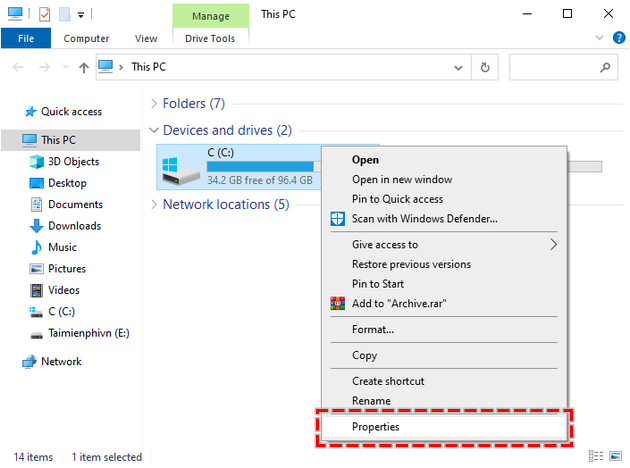
Open File Explorer, right-click a volume such as C:, and choose Properties.
-
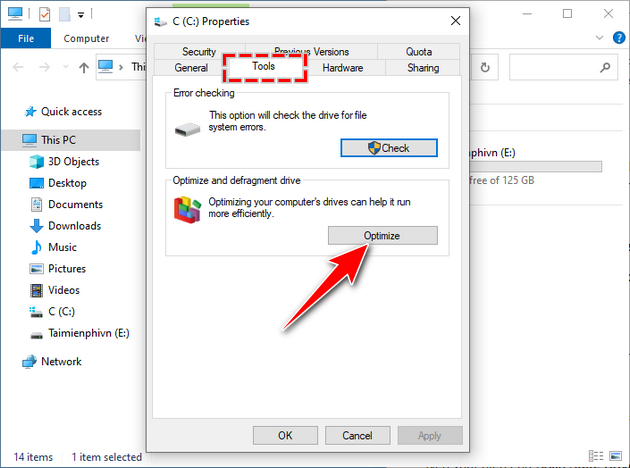
Open the Tools tab and select Optimize.
-
Read the Media type column. Windows normally shows Solid state drive or Hard disk drive.
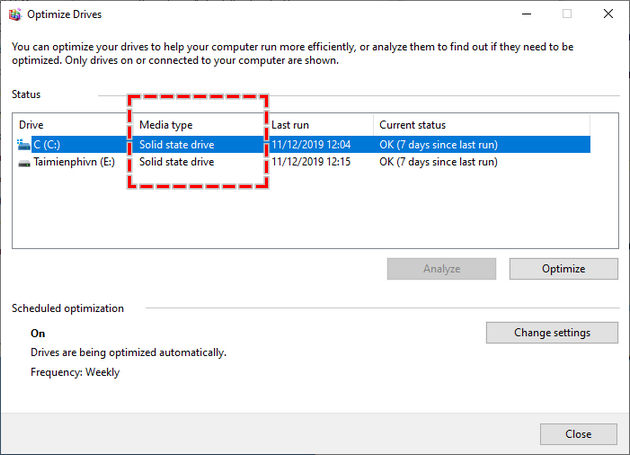
The window lists volumes rather than presenting a complete hardware inventory, so match the drive letter to its physical disk in Disk Management if the computer has several devices.
Optional: check with a hardware-information utility
A trusted hardware-information program such as Speccy can show storage models and interface details in one place.
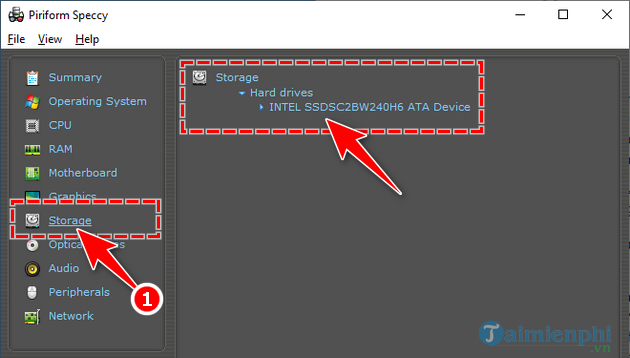
Download utilities only from their developer, decline unrelated bundled offers, and verify the result against the model specification. Installing a third-party program is unnecessary when the built-in methods already identify the drive.
How to interpret the result
- NVMe describes an interface/protocol used by SSDs; an NVMe device is solid-state storage.
- SATA does not identify the media type; both HDDs and SSDs use SATA.
- 2.5-inch can describe either an SSD or a laptop-style HDD.
- Disk 0 is only Windows' disk number. It does not guarantee that the disk contains Windows or that it is the fastest device.
- Unspecified means the controller or driver did not report the type reliably.
Once you have the exact model and serial number, you can check an SSD's warranty or review its condition with CrystalDiskInfo. Media type describes the technology; it does not by itself prove the drive is healthy or performing as expected.
Related Articles
 How to Use KeyboardTest to Check the Computer Keyboard6 minutes read
 How to Check the Name of Computer, Laptop3 minutes read
 How to Check What Type of Chip Your Computer or Laptop Uses?6 minutes read
 How to Check Old Laptop, Test the Machine Before Buying12 minutes read
 4 Simple Ways to Check the Configuration and Hardware Information7 minutes read
 How to Check If the HP Laptop Battery Is Subject to Revocation4 minutes read
Reader Comments 0
Sign in with email or Google to join the discussion.