Table of Contents
MECCHA CHAMELEON supports player-made maps through its Unreal Engine mod kit and Steam Workshop. Playing a map is simple—subscribe, let Steam download it, and select it when creating a server—but building and publishing one requires a content-only plugin, a World Partition level, a two-stage package, and a SteamCMD upload.
Security check before using Workshop maps
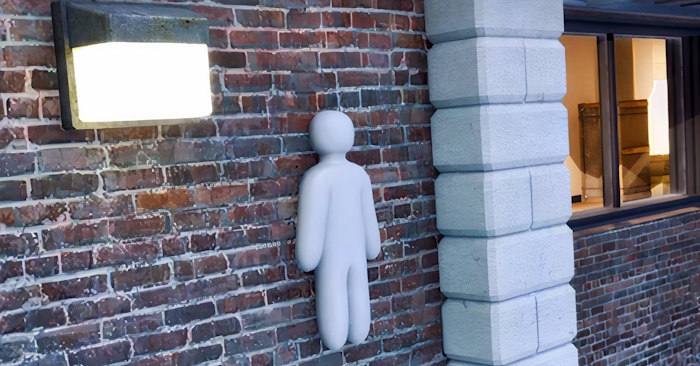
Update MECCHA CHAMELEON to the latest version before loading community maps. In July 2026, malicious Workshop maps exploited the game's mod-loading system; version 3.1.0 introduced a security patch, and the developers said the known route was blocked. Updating prevents the reported route but does not clean a PC on which an affected map already ran.
The known reported map names were Laser Tag Neon and Chroma Grid Arena, both of which were removed. If you launched either map before installing the security update, run a full malware scan. If security software finds a threat or an account shows suspicious activity, change passwords from a known-clean device, review active sessions, and follow the security provider's cleanup guidance.
For ordinary use, subscribe through Steam Workshop, keep the game updated, and avoid third-party Workshop downloaders or files shared through unverified links.
How to play a custom map
- Update Steam and MECCHA CHAMELEON, then restart Steam if an update is pending.
- From the game's main menu, select Maps to open the Steam Workshop.
- Open a map's Workshop page and select Subscribe.
- Wait for Steam's Downloads page to show that the Workshop item has finished downloading.
- Restart the game if it was open during the download.
- Create a server and choose the subscribed map from the map list.
For multiplayer, every player should use the same current game version. The host selects the Workshop map; Steam may need to finish the map download before other players can join successfully.
What you need to create a map
- The official MECCHA CHAMELEON mod kit
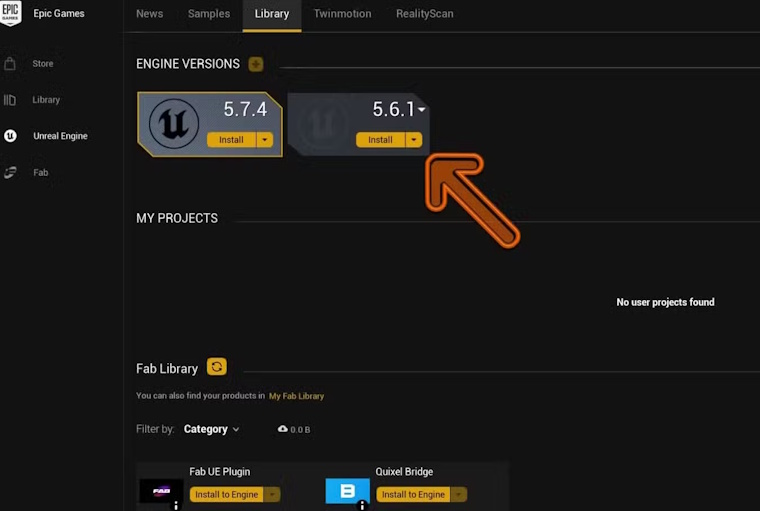
- Unreal Engine 5.6.1, the version for which the current mod kit was built
- A Windows development environment with enough space for cooked and packaged files
- SteamCMD from Valve for Workshop uploads
- A Steam account that owns or can publish content for the game
Use the exact engine version required by the mod kit. Opening and resaving the project in another Unreal Engine version can change assets and cause packaging or loading failures.
Create a content-only plugin
- Open the mod-kit project in Unreal Engine 5.6.1.
- Go to Edit > Plugins.
- Select Add and create a Content Only Plugin.
- Give the plugin a short, unique name without spaces or special characters.
- Store all map-specific content inside this plugin rather than modifying the base project.
The plugin name is used again as the DLC name during packaging. Changing it midway through the process can break asset paths.
Create and configure the level
- Inside the plugin's Content folder, create a folder named Maps.
- Create a new level in that folder. File > New Level > Basic provides a simple starting grid.
- Use World Partition and disable Enable Streaming in World Settings, as required by the mod-kit workflow.
- Build outward from the player spawn area around
X=0, Y=0, Z=100. - Use the
CameraBlockWallcollision profile on walls or solid boundaries that should stop the camera.
Keep imported assets, materials, and textures inside the plugin. Confirm that you have permission to redistribute third-party assets; availability in an asset browser does not automatically grant every form of redistribution.
Test the map before packaging
- Check the spawn point and make sure the player cannot fall through the floor.
- Test hiding surfaces, collision, ladders, doors, and boundaries.
- Use simple collision on decorative meshes when detailed collision is unnecessary.
- Build lighting or verify dynamic lighting according to the project setup.
- Fix missing materials and references shown in the Unreal Output Log.
- Test performance in the densest area, not only at the spawn point.
Create the packaging profiles
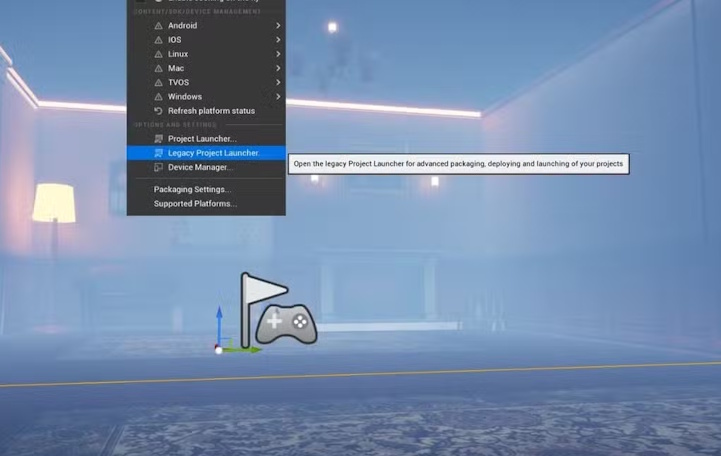
Open Platforms > Legacy Project Launcher and create two profiles: FullGame and MyMod.
FullGame profile
- Cook: By the Book; Windows as the cooked platform.
- Create a release version named
1.0when the official workflow requires it. - Package: Package and store locally.
- Enable the distribution option and Use container files for optimized loading (I/O Store).
- Deploy: Do not deploy.
MyMod profile
Use the same platform, release, packaging, I/O Store, and deployment choices, then set the DLC name to the exact plugin name created earlier.
Run FullGame first and MyMod second. Do not change project settings between those builds. If packaging fails, read the first meaningful error in the Output Log rather than only the final “packaging failed” message.
Prepare the Workshop upload folder
Create a clean folder containing only the files needed for the Workshop item:
- The generated
.pakfile - The generated
.ucasfile - The generated
.utocfile AssetRegistry.binfrom the cooked output- A preview image named
Preview.png
Open the folder and confirm that the paths in the upload configuration point to real files. Do not add source projects, passwords, API keys, personal documents, or unrelated executables.
Upload with SteamCMD
- Download SteamCMD only from Valve's official Steam documentation and extract it to a dedicated folder.
- Run SteamCMD and sign in to the Steam account used for Workshop publishing. Complete Steam Guard when prompted.
- Copy the mod kit's sample VDF file and edit the content-folder path, preview-file path, title, description, and change note.
- Keep the game's app ID exactly as supplied. For a new item, preserve the sample's new-item
publishedfileidvalue; for an update, use the ID assigned to that existing Workshop item. - Run
workshop_build_item "C:path oyourfile.vdf". - Read the SteamCMD output for the published item ID or a specific upload error.
Never put the Steam password or Steam Guard code inside the VDF file. After a successful first upload, save the assigned Workshop ID with the project so future builds update the same item instead of creating duplicates.
Publishing checklist
- Subscribe to the uploaded item yourself and test the downloaded Workshop copy.
- Set the Workshop visibility and content description accurately.
- List required game versions or known limitations.
- Include only assets you are allowed to distribute.
- Update the map after every compatibility-breaking game or mod-kit change.
Troubleshooting
- The map is missing after subscription: confirm the Steam download completed, then restart Steam and the game.
- The map appears but will not load: verify the engine version, World Partition settings, plugin name, and all four packaged data files.
- Packaging cannot find assets: move dependencies into the plugin and fix redirectors or broken references.
- SteamCMD rejects the upload: check the VDF syntax, quoted Windows paths, app ID, login state, and preview image.
- Friends cannot join: confirm everyone has the same game version and allow their Workshop downloads to finish.
Related Articles
 MECCHA CHAMELEON: PC Control and Shortcut Guide6 minutes read
 The Best Hiding Places in Meccha Chameleon4 minutes read
 MECCHA CHAMELEON Beginner's Guide: How to Win14 minutes read
 Meccha Chameleon Seeker Guide: How to Find Hiders8 minutes read
 Meccha Chameleon Hider Guide: Camouflage Tips7 minutes read
 Meccha Chameleon Hide-and-Seek Game Tips for Beginners - Meccha Chameleon Tips7 minutes read
Reader Comments 0
Sign in with email or Google to join the discussion.