Table of Contents
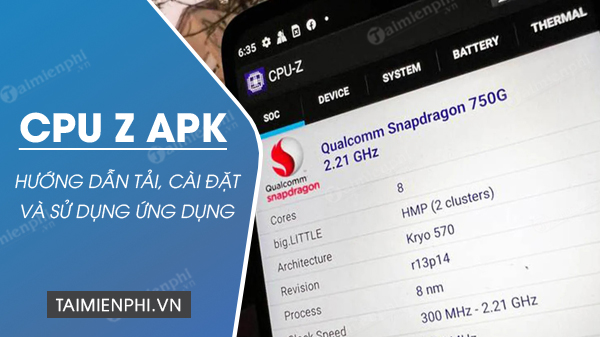
CPU-Z for Android reports the phone's system-on-chip, device model, screen, memory, storage, battery, and available sensors. The safest installation method is the official Google Play listing published under CPUID. Avoid sites that repackage the APK or claim to offer a “newer” build than the developer.
Install the official CPU-Z app
- Open the CPU-Z listing on Google Play.
- Confirm that the package is com.cpuid.cpu_z and the publisher is CPUID.
- Select Install, then open the app after Google Play finishes.
You can also start from CPUID's official CPU-Z for Android page, which links to the current distribution channel and lists version history.
If you must install an APK manually
Manual APK installation is not required when Google Play is available. Use it only when the file comes directly from CPUID and you have verified that it is the intended version. Do not install a CPU-Z APK sent through a message, pop-up, file-sharing site, or modified-app store.
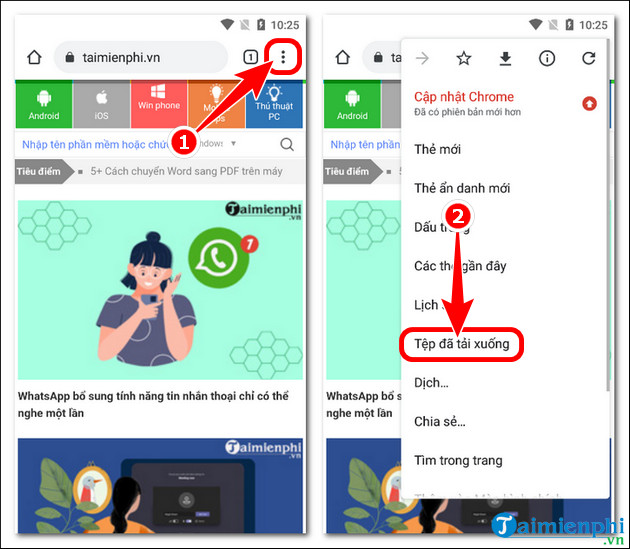
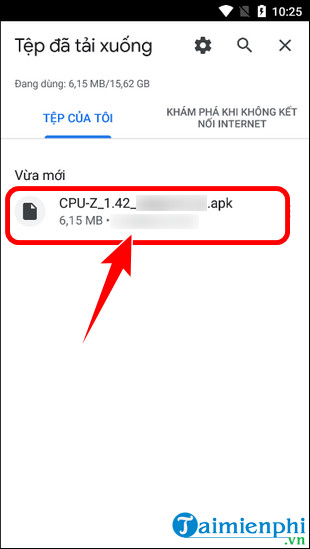
- Download the official APK, then open the browser or file manager's Downloads list.
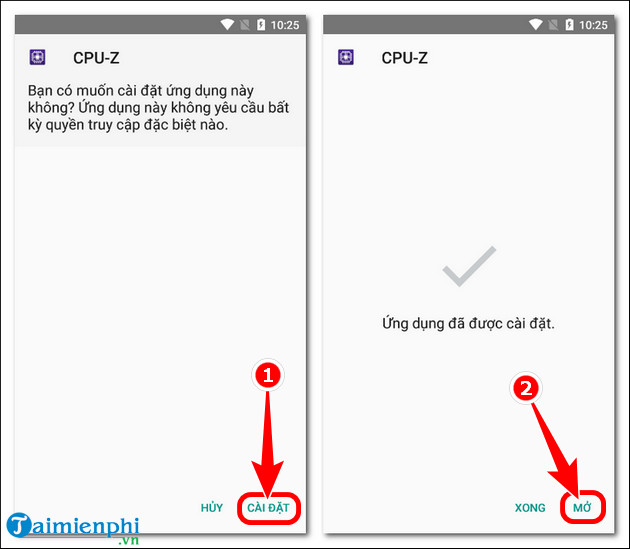
- Select the APK. Android may ask you to allow that specific app to install unknown apps.
- Review the requested source and file, enable the permission only for this installation, and continue.
- After installation, turn Install unknown apps off again for the browser or file manager.
Menu names vary by Android version and manufacturer. Never disable Play Protect or a device security warning to force an installation.
Open CPU-Z and choose a tab
The available tabs can vary with the app version and hardware. CPU-Z reads information reported by Android and device sensors; it does not open the phone or directly verify every component.
SoC tab
The SoC page identifies the reported chip name, CPU architecture, number of cores, and live frequency for each core. Frequencies change with load and power management, so a low idle value is normal. A model name can occasionally be misidentified on a new or unusual device; compare it with the manufacturer's specification.
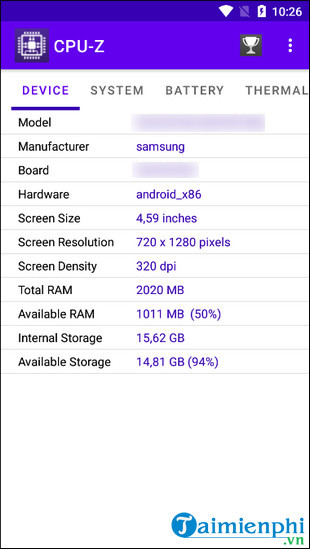
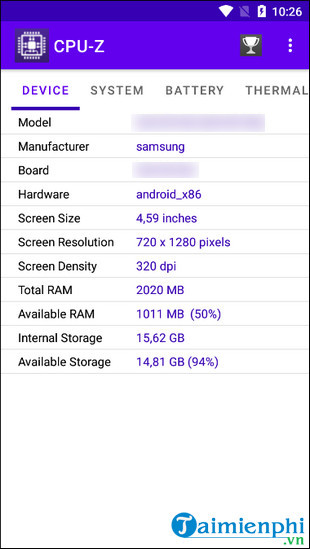
Device tab
The Device page can show brand, model, screen resolution, total RAM, and storage information. Android may reserve some memory and storage, so the displayed available capacity will be lower than the marketing capacity.
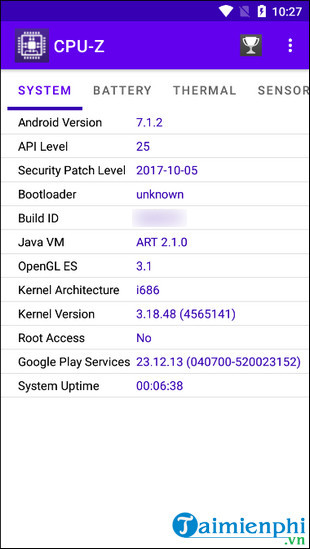
System tab
The System page can report Android version, API level, security patch date, bootloader, root status, and other software details. Treat device identifiers as private when sharing screenshots or validation links.
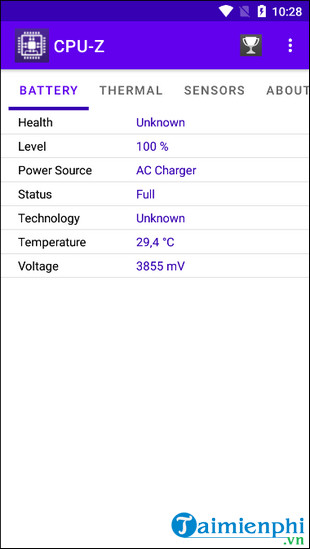
Battery tab
The Battery page may show charge level, status, power source, temperature, and capacity. Some values come from Android's battery reporting and may be estimated or unavailable. CPU-Z does not perform a full battery-health or capacity test.
Thermal and Sensors tabs
These pages list sensors the device exposes, such as accelerometer, gyroscope, light, proximity, or temperature sources. Sensor names and values vary widely. A missing item normally means Android or the vendor does not expose it to the app.
Check basic phone details without an app
For Android version, security update, model name, storage, and some memory information, first open Settings > About phone. The exact path varies by manufacturer. TipsMake's guide to checking Android phone specifications compares the built-in method with hardware-information apps.
Privacy and troubleshooting
- Review app permissions in Android Settings and deny access that is not needed for the information you want.
- Do not publish screenshots containing serial numbers, network addresses, Android IDs, or validation links tied to your device.
- If CPU-Z shows a wrong model or crashes, update it from Google Play and use the developer's documented debug-report process.
- Uninstall the app if you no longer need it; hardware information remains available through Android Settings.
CPU-Z is useful for a detailed snapshot, but it does not improve phone performance, repair a battery, or prove that a device is genuine by itself. Confirm purchase and repair decisions with the device manufacturer's model and support information.
Related Articles
 Android SDK - Download Latest Android SDK4 minutes read
 Frame View in SQL8 minutes read
 How to Download and Install the Latest Android Auto APK4 minutes read
 Find Intel Product Specifications with ARK Intel on Android4 minutes read
 Things to Know About Android Security Patches6 minutes read
 Check Android Phone Configuration6 minutes read
Reader Comments 0
Sign in with email or Google to join the discussion.