Table of Contents
To check an SSD's warranty, first identify whether it is a retail drive or an OEM part supplied inside a computer. Record the exact model and serial number, keep the purchase invoice, and use the support page for the brand and country where the drive was purchased. A serial-number result is useful, but the final coverage decision can also depend on the purchase date, seller, region, product condition, and the SSD's write endurance.
Collect the information before checking
- Brand and exact model: for example, a model family and capacity—not just “NVMe SSD.”
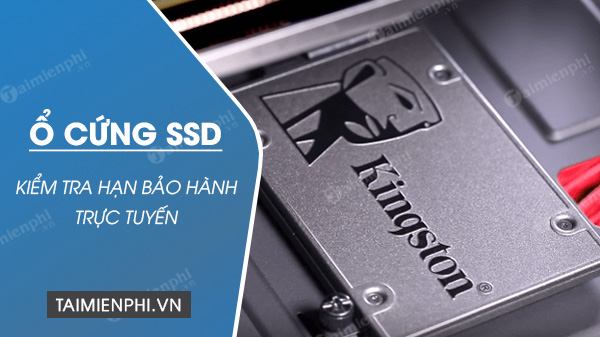
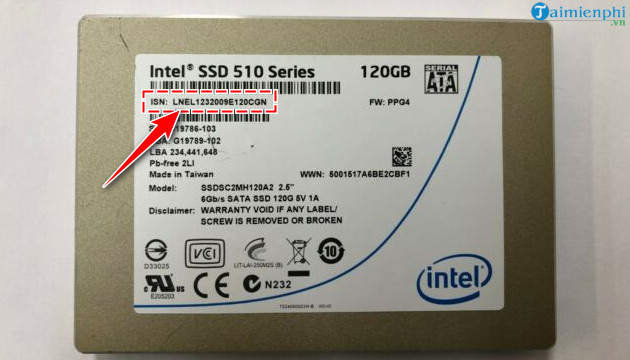
- Serial number (S/N, SN, or ISN): normally printed on the SSD label or external enclosure.
- Proof of purchase: save the retailer invoice, order confirmation, or dated receipt.
- Country or region of purchase: warranty service may be regional rather than worldwide.
- Current health information: save the SMART report and note the total bytes written (TBW) before removing the drive.
If the label is inaccessible but Windows still detects the SSD, PowerShell can often report its identifiers. Open PowerShell and run:
Get-PhysicalDisk | Select-Object FriendlyName, SerialNumber, MediaType, HealthStatusYou can also use:
Get-CimInstance Win32_DiskDrive | Select-Object Model, SerialNumber, SizeCompare the result with the physical label when possible. USB enclosures and some storage controllers may report the enclosure's serial number, a shortened value, or no useful serial at all.
Official SSD warranty pages
Use the manufacturer's own site. Avoid third-party “warranty check” pages that collect serial numbers or offer outdated downloads.
| Brand | Official starting point | What to expect |
|---|---|---|
| ADATA / XPG | ADATA Warranty Check | Enter the product serial number and verification code; select the appropriate regional site if redirected. |
| Apacer | Apacer consumer warranty policy | Coverage varies by model and may end when the stated TBW limit is reached. Proof of purchase and local dealer handling may be required. |
| Samsung | Samsung SSD warranty page | Match the exact retail SSD model and capacity to its time-or-TBW limit, then use the regional service-center route. |
| Western Digital / HGST | Western Digital Warranty Status | Select the country or region and enter the serial number. The page directs flash and some SSD products to SanDisk support. |
| SanDisk | SanDisk Warranty Status | Use the SanDisk-branded product's serial number and regional support account where requested. |
| Transcend | Transcend Warranty Check | Enter the serial number to verify the product and view the reported warranty status. |
| Solidigm and eligible Intel-branded NAND SSDs | Solidigm warranty request guide | Solidigm's process covers its drives and selected former Intel SSDs. It requests the model and serial number before a claim. |
| HP or another PC maker | HP Warranty Check | For an SSD supplied inside a laptop or desktop, check the computer's serial number with the system manufacturer first. |
Support URLs and regional routing can change. If a link opens the wrong country site, switch region using the manufacturer's selector rather than submitting the serial number to an unrelated portal.
How to use a manufacturer's warranty checker
-
Open the official warranty or service page for the brand. Select the country where the SSD was purchased.
-
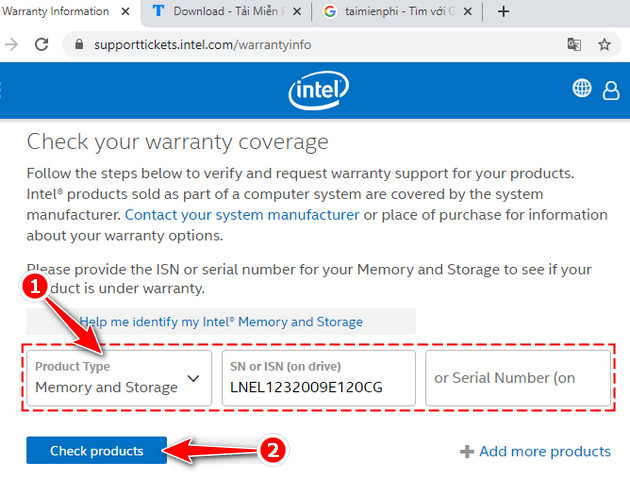
Enter the requested identifiers exactly as printed. Distinguish the serial number from the model, part number, PSID, or firmware revision. Do not post a full serial number publicly.
-
Review the returned model and warranty date. If the model does not match your drive, stop and check the label again. Save a screenshot or case number for your records.
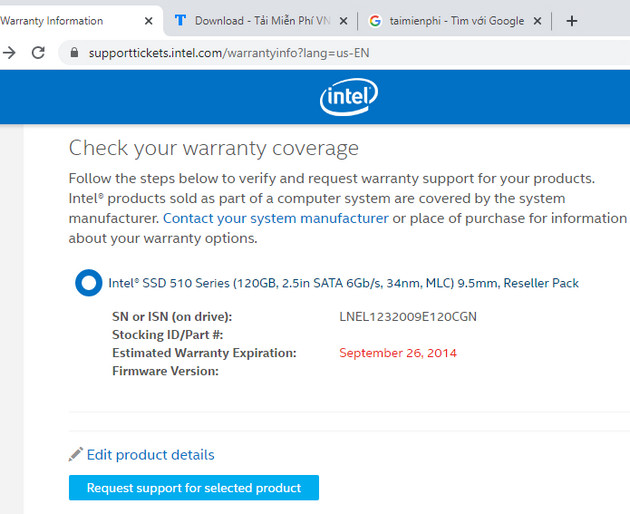
The screenshots show an older Intel lookup process. Intel exited the NAND SSD business, and Solidigm now provides support information for many former Intel-branded NAND SSDs. Use Solidigm's current checker instead of relying on the old page shown in the images.
Why the reported date may be wrong
- No invoice was supplied: the database may estimate coverage from the manufacturing or shipment date. Submit proof of purchase to request a correction.
- The drive is OEM: a component made by Samsung, Kioxia, Micron, SK hynix, or another vendor for a PC manufacturer may be covered only by the computer's warranty.
- It was bought through an unauthorized or overseas seller: regional coverage can be limited.
- The label is damaged or missing: manufacturers commonly require an intact serial-number label.
- The TBW limit has been reached: many SSD warranties end at the earlier of a stated time period or endurance limit.
- The product is counterfeit or the serial is duplicated: contact the brand with photographs of the label and proof of purchase.
Check health before requesting service
Warranty replacement generally does not include data recovery. Back up readable files before running extended diagnostics or shipping the drive. You can use CrystalDiskInfo to review SSD health and SMART data, but also run the manufacturer's current diagnostic or management utility when available.
Record the error message, firmware version, SMART report, system model, storage-controller mode, and troubleshooting already attempted. Do not secure-erase an unstable drive unless support specifically requests it and all needed data is safely backed up.
Before buying a used SSD
A remaining warranty date alone does not prove that a used SSD is new, genuine, healthy, or transferable to a second owner. Ask for the invoice, compare the serial number on the label with the controller-reported value, inspect SMART power-on hours and total writes, and confirm the manufacturer's transfer rules. Also review ways to check a drive's health in Windows before trusting it with important data.
Related Articles
 Instructions for Checking LG TV Warranty Information5 minutes read
 Instructions on 4 Ways to Check Apple Warranty Accurately3 minutes read
 How to Check the Warranty of Apple Devices6 minutes read
 How to Check Samsung TV Warranty Period5 minutes read
 How to Check Samsung Phone Warranty Period6 minutes read
 3 Ways to Check the Warranty Status of Dell Computers3 minutes read
Reader Comments 0
Sign in with email or Google to join the discussion.