Table of Contents
A Windows 10 PC with an SSD should not take minutes to reach a usable desktop. First determine where the delay occurs: before the Windows logo, while Windows loads, or after sign-in. Then check startup apps, drive health, free space, updates, and third-party services in that order. Avoid random registry “optimizations,” which can create new stability problems without addressing the cause.
Windows 10 status: Microsoft ended standard Windows 10 support on October 14, 2025. The system still runs, but most installations no longer receive free security fixes. Review Microsoft's Windows 10 support options, including Windows 11 eligibility and Extended Security Updates, while troubleshooting.
1. Identify which part of startup is slow
Time the process from pressing the power button to the sign-in screen, then from sign-in to a responsive desktop.
- Delay before the Windows logo: check firmware/POST settings, connected USB devices, network boot, memory training, and hardware detection. Windows startup-app changes will not fix this stage.
- Long wait at the Windows logo or spinning dots: investigate drivers, Windows updates, file-system errors, storage health, and boot configuration.
- Desktop appears but remains busy: startup applications and services are the most likely cause. Watch CPU, disk, and memory in Task Manager.
Use Restart for repeatable tests. Shutdown may use Fast Startup and preserve part of the previous kernel session, so it is not equivalent to a full restart.
2. Check free space and SSD health
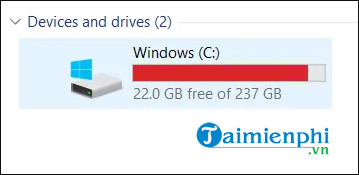
Open This PC and inspect the Windows volume. If it is nearly full, remove temporary files, uninstall unused applications, or move large personal files to another storage device. Windows and the SSD controller both need working space; there is no universal percentage that guarantees a particular speed, so focus on avoiding a critically full system volume.

Back up important data, then review SMART health, temperature, firmware version, and error logs. TipsMake's CrystalDiskInfo guide explains the main health fields. Use the SSD manufacturer's current utility for firmware and diagnostics when one is available.
Confirm that Windows recognizes the device as an SSD in Defragment and Optimize Drives. Select the SSD and choose Optimize to request Windows' appropriate maintenance operation, which normally includes TRIM for supported solid-state storage. Do not schedule traditional third-party defragmentation for an SSD.
3. Disable high-impact startup apps
- Press Ctrl + Shift + Esc to open Task Manager.
- Open Startup or Startup apps.
- Sort by Startup impact.
- Disable nonessential launchers, chat clients, game stores, updaters, and helper utilities one at a time.
- Restart and compare the sign-in-to-desktop time.
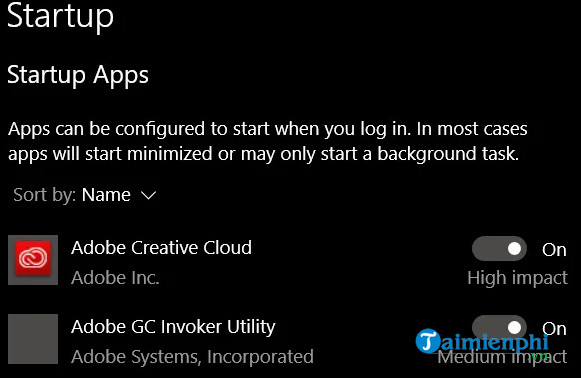
Leave security software, accessibility tools, backup agents, hardware hotkey/touchpad components, and required work-management software enabled unless you understand their role. Disabling a startup entry does not uninstall its application, so you can re-enable it if a feature stops working. For additional cleanup, see the broader guide to fixing a slow Windows computer.
4. Check Windows Update, drivers, and firmware
- Install pending Windows updates and restart until no restart is pending.
- Use the PC or motherboard manufacturer's support page for chipset, storage-controller, and firmware updates.
- Install SSD firmware only with a verified backup and stable power.
- If the problem began immediately after a driver or firmware change, review that vendor's rollback or recovery instructions rather than stacking more updates.
Do not download “driver updater” packages from a third-party catalog. A storage driver that is wrong for the controller mode can prevent Windows from booting.
5. Scan for malware
Open Windows Security, update protection definitions, and run a full scan. Use Microsoft Defender Offline when persistent malware is suspected. High background CPU or disk use can delay startup, but resource use alone does not prove infection—updates, search indexing, synchronization, and backups can produce similar activity.
6. Test with a clean boot
A clean boot temporarily disables non-Microsoft services and third-party startup items, helping isolate software that loads with Windows.
- Press Windows + R, type
msconfig, and press Enter. - On Services, select Hide all Microsoft services before choosing Disable all.
- Open the Startup section and disable startup apps in Task Manager.
- Restart and test. If startup improves, re-enable items in groups until the delay returns.
- Restore normal startup after identifying the problem.
Keep a record of every disabled item. Microsoft's clean-boot procedure explains how to restore the original configuration.
7. Use power settings appropriately
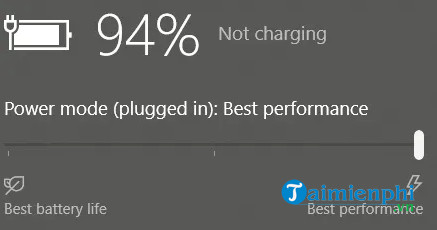
Power mode can affect responsiveness after sign-in, particularly on a laptop, but it rarely explains a long pre-Windows delay. Click the battery icon and choose a balanced or better-performance setting while connected to AC power.
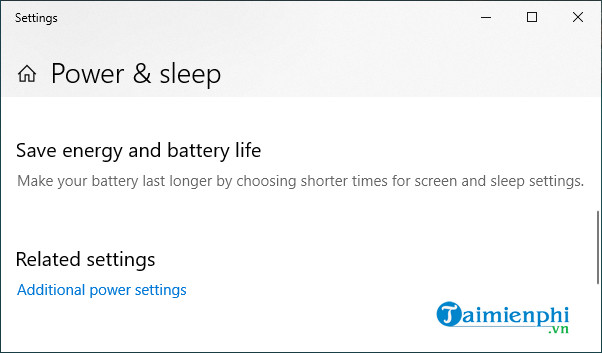
Older Windows 10 builds expose more choices through Settings > System > Power & sleep and Additional power settings.
A custom High Performance plan is available on some systems:
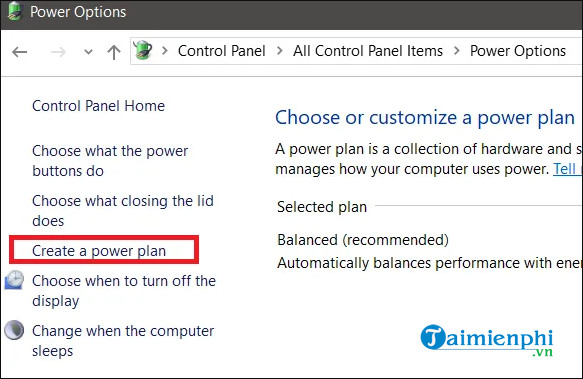
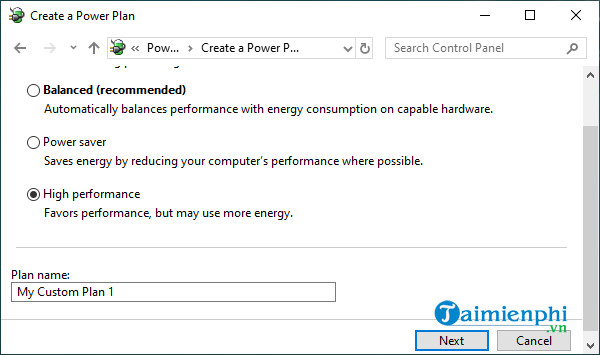
Use it only as a short diagnostic comparison. It increases power consumption, heat, and battery drain, and a healthy SSD does not require High Performance mode to deliver normal boot times.
Do not disable ULPS as a general SSD fix
Some old troubleshooting guides recommend finding EnableULPS in Registry Editor and changing its value for an AMD multi-GPU configuration.
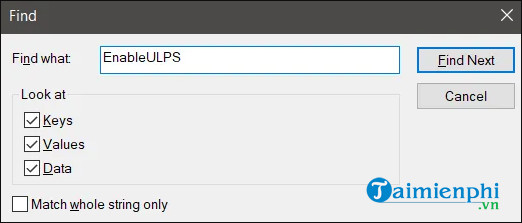
ULPS is a graphics power-management feature, not an SSD setting. Changing every matching registry value is not an appropriate general solution for slow boot and can increase idle power use. Only consider a vendor-documented graphics workaround when the delay has been traced to a specific supported AMD multi-GPU configuration, and create a restore point first.
When the SSD may not be the cause
- A long manufacturer-logo delay points to POST, firmware, or hardware detection.
- A blank screen with a movable pointer can involve the graphics driver or shell startup.
- Repeated “scanning and repairing drive” messages suggest file-system or storage trouble.
- Slow sign-in to a work account may involve group policy, scripts, network shares, or security agents.
- A sudden regression after an update should be correlated with the update history and event logs.
If Windows sometimes fails to start rather than merely starting slowly, use the built-in Startup Repair from Windows Recovery Environment after backing up accessible files. When SMART reports a critical condition or the drive disappears intermittently, prioritize data recovery and SSD replacement over performance tuning.
Related Articles
 How to Fix Slow Boot Windows 104 minutes read
 How to Fix, Fix Slow Boot Computer, Windows 10 Boot Slowly7 minutes read
 Speed Up Windows 10 Startup by Closing Infrequently Used Applications7 minutes read
 Tips to Help Win 10 Boot Faster: How to Speed Up Windows 109 minutes read
 How to Perform Clean Boot on Windows 11: Step-by-Step Guide7 minutes read
 Windows Starts Slowly: Tracing 'Guys' Makes Windows Boot Slowly5 minutes read
Reader Comments 0
Sign in with email or Google to join the discussion.