Table of Contents
MiniTool Partition Wizard can merge two adjacent NTFS partitions into one larger volume. The first partition becomes the destination, while files from the other partition are placed in a folder that you name. Back up both partitions before starting: changing partition boundaries always carries some risk, even when the tool is designed to retain data.
What the Merge Partition feature can and cannot do
- The partitions must be on the same physical disk and directly adjacent in the disk map.
- MiniTool documents the feature for NTFS partitions. Convert or move data from FAT or other file systems before attempting the merge.
- The operation combines capacity; it does not increase the physical disk's total storage.
- Do not merge an EFI System, Microsoft Reserved, OEM recovery, or other hidden system partition into a normal data volume.
- A merge involving the Windows partition may require a restart and may depend on the product edition. Check the current feature list before proceeding.
If your goal is only to give C: more room, merging whole volumes may be unnecessary. The guide to transferring space from D: to C: in Windows 11 explains another layout. You can also compare Windows partition-management tools before choosing a utility.
Prepare the partitions
- Copy irreplaceable files to a different physical disk and confirm that the backup opens correctly.
- Open Disk Management and note the disk number, volume labels, file systems, used space, and left-to-right order.
- Make sure the destination partition has enough free space for the files on the partition being absorbed.
- Close applications that use either volume. Pause encryption only according to the encryption product's documented procedure, and keep the recovery key available.
- Connect a laptop to AC power and resolve any disk-health or file-system errors first.
Merge two partitions in MiniTool Partition Wizard
Install and open MiniTool Partition Wizard. The screenshots may show an older interface, so the location or availability of a command can differ in a current edition. MiniTool's current Merge Partition documentation lists the supported workflow.
1. Select the destination partition
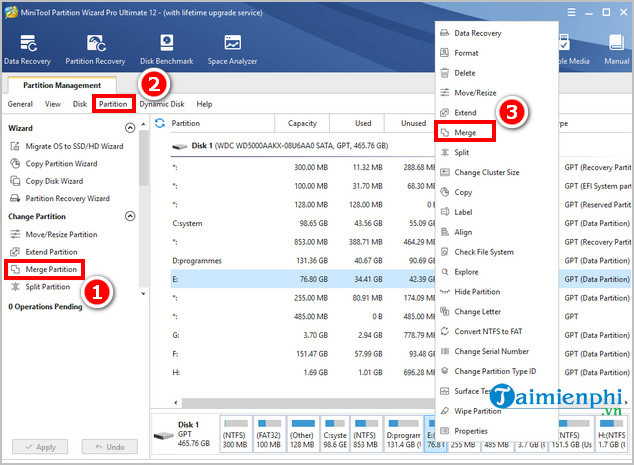
In the disk map, select the partition that should remain after the merge. Start Merge Partition from the left action panel, the Partition menu, or the partition's right-click menu.
2. Confirm which partition will remain
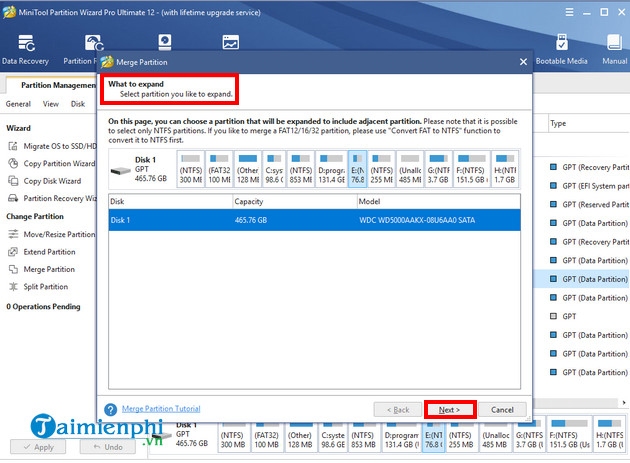
The wizard shows the selected destination—the volume whose drive letter and root directory should remain. Check its label, capacity, and position, then click Next.
3. Choose the adjacent partition
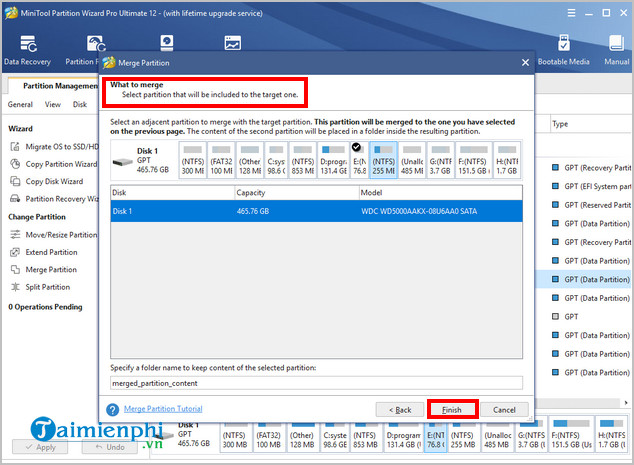
Select the adjacent NTFS partition to be incorporated into the destination. Enter a clear folder name for its existing files. After the merge, those files should appear inside that folder on the remaining volume rather than being mixed into its root directory. Click Finish.
4. Review and apply the pending operation
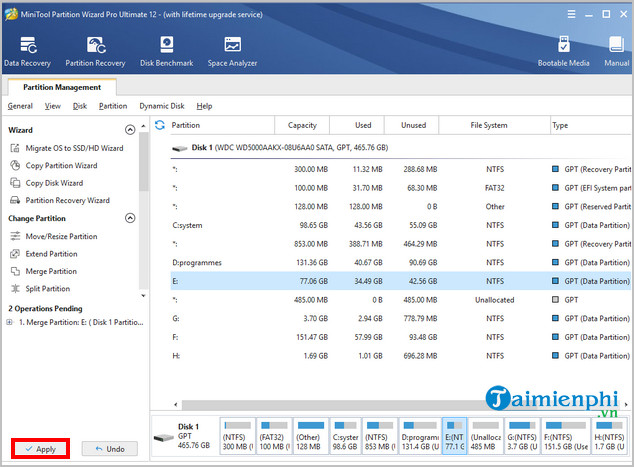
Back in the main window, inspect the preview carefully. Confirm that the correct physical disk is selected, the intended partition remains, and the other partition is the one being removed. If anything is wrong, discard the pending operation instead of applying it.
Click Apply only after the preview is correct. Allow a requested restart, keep the PC powered, and do not force the program to close while it changes the partition map.
Check the result
When the operation finishes, open File Explorer and Disk Management. The remaining volume should have approximately the combined capacity, less normal file-system overhead. Open the folder created during the merge and spot-check files from several subfolders. Restart Windows once and confirm that applications or shortcuts that referred to the removed drive letter still work.
Programs installed on the absorbed partition may not run after its drive letter disappears, even if their files were retained. Reinstall those programs or update their paths rather than moving executable folders manually.
If the partitions cannot be merged
- They are not adjacent: a partition between them must be moved or handled separately. Never delete a recovery or EFI partition simply to make two data volumes adjacent.
- The file system is not NTFS: back up the data and use a supported conversion or migration path first.
- The command is unavailable: verify that the current MiniTool edition supports the operation and that neither partition has an unsupported role or layout.
- The disk reports errors: stop modifying the layout. Copy important data off the disk and diagnose its health before retrying.
Keep the backup until you have verified the new volume, the transferred folder, and a successful restart. A completed progress dialog is not a substitute for checking that the files are readable.
Related Articles
 How to Merge a Hard Drive in Windows 10 Does Not Lose Data5 minutes read
 Minitool Partition Wizard - Redistribute Hard Drive with Minitool Partition8 minutes read
 Review Minitool Partition Wizard Free V11.57 minutes read
 Steps to Divide Hard Drive Using Minitool Partition Wizard6 minutes read
 Fix Errors Can Not Merge Hard Drives, Partitions on Windows4 minutes read
 How to Fix a Broken Laptop Keyboard Key4 minutes read
Reader Comments 0
Sign in with email or Google to join the discussion.