Table of Contents
For a current general-purpose laptop or desktop, 16GB is a practical starting point. Choose 8GB only for light, budget-sensitive use with limited multitasking; choose 32GB for heavier creative work, development, demanding games, or several large applications; and buy 64GB or more only when a measured workload, virtual machines, large media projects, local models, or professional software requires it.
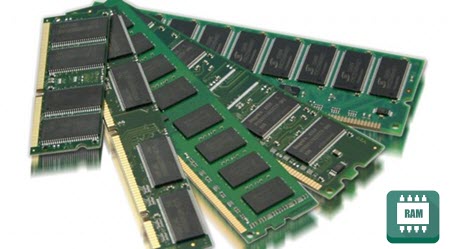
RAM recommendations by workload
| Capacity | Suitable for | Main limitation |
|---|---|---|
| 8GB | Light browsing, email, documents, streaming, and a small number of apps. | Limited headroom for many browser tabs, large files, gaming, or background apps. |
| 16GB | General Windows or macOS use, office multitasking, mainstream gaming, and moderate photo or development work. | Large video projects, several virtual machines, and memory-heavy professional tools can exceed it. |
| 32GB | Heavy multitasking, larger creative projects, software development, demanding games with other apps open, and one or more modest virtual machines. | May provide no speed gain when the workload fits comfortably in 16GB. |
| 64GB or more | Large 4K-or-higher video projects, complex 3D scenes, large datasets, multiple VMs, scientific work, and local AI workloads. | Expensive and unnecessary unless the applications actually use it. |
These are planning ranges, not universal requirements. Check the current system requirements for the exact software, project resolution, dataset, game, plug-ins, and number of simultaneous applications. For example, Microsoft lists 4GB as the minimum for installing Windows 11, but a minimum is not a comfortable target for multitasking. Adobe's current Premiere requirements recommend more memory for higher-resolution media than for HD projects.
What RAM does
RAM holds data and code the operating system and active applications need quickly. More capacity lets the computer keep more active work in memory before it must compress data, close processes, or move less-used pages to storage.
More RAM does not automatically make every task faster. Once the workload fits with room to spare, CPU, GPU, storage, software design, and cooling are more likely limits. Excess capacity does not “overload” the computer; it simply costs money, may consume a little power, and can complicate high-speed tuning when many modules are installed.
Check how much RAM is installed
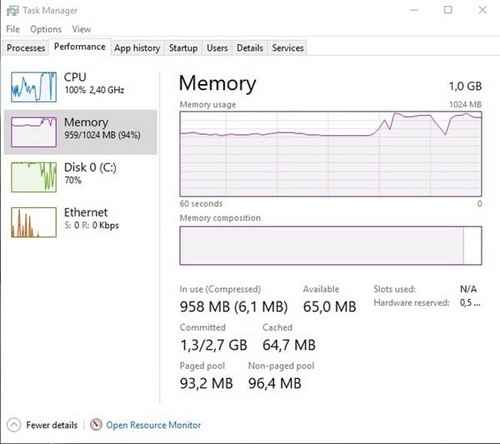
In Windows, open Settings > System > About and look for Installed RAM. You can also open Task Manager, select Performance > Memory, and see total memory, current use, speed, and—on supported systems—slots used.
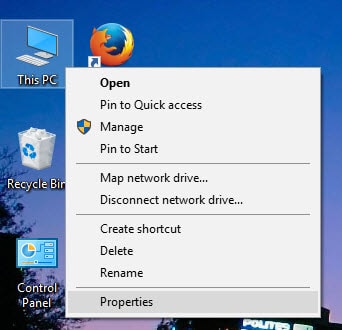
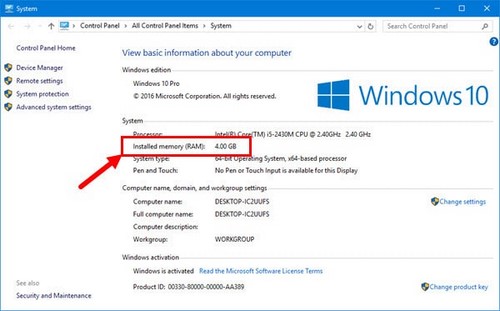
The usable amount may be slightly lower than the installed amount because firmware and integrated graphics can reserve memory. A large discrepancy deserves investigation, especially after a module upgrade.
Measure your real memory pressure
- Restart the computer and open the applications, files, tabs, and background tools you normally use together.
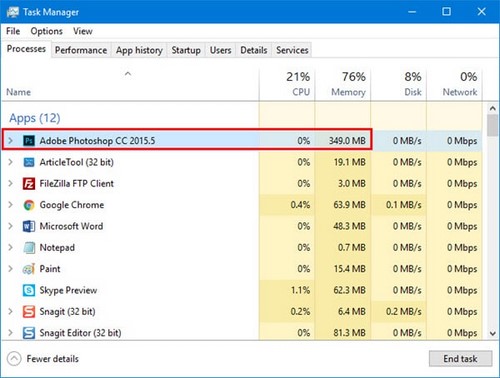
- In Task Manager's Memory page, watch In use, Available, and Committed while performing the slow task.
- Sort the Processes tab by Memory to identify the largest applications.
- Repeat during the heaviest normal project, not only at idle.
High utilization by itself is not always bad; operating systems use otherwise free RAM as a cache and release it when applications need space. More convincing signs of insufficient memory include frequent pauses while storage is active, applications reporting out-of-memory errors, heavy paging, or a workload that consistently approaches the commit limit.
Consider the complete system
Operating system and applications
Add the recommended—not merely minimum—requirements of your main software, then leave headroom for the operating system, browser, communication tools, plug-ins, and future project growth. If one program recommends 32GB for your media type, a 16GB system is not a good target merely because Windows can start with less.
Integrated graphics
Integrated graphics shares system memory. The amount reserved or dynamically used varies by platform and workload, reducing what remains for applications.
Virtual machines, containers, and local models
Each VM needs assigned memory in addition to the host system. Development containers and local AI tools can also use substantial RAM. Estimate the number that will run simultaneously and measure representative projects.
Upgradeability
Soldered memory cannot be expanded later. When choosing a laptop with soldered RAM, allow more headroom for the expected ownership period. With socketed desktop or laptop memory, confirm the supported DDR generation, module form factor, capacity, and slot arrangement.
Why virtual memory is not a RAM replacement
Windows uses a page file on storage as part of its memory system. It should normally remain system-managed. A page file helps applications continue when memory is committed, but storage is much slower than physical RAM and cannot provide the same responsiveness under sustained pressure.
Do not disable the page file to “save SSD writes,” and do not expect an oversized page file to fix a workload that constantly exceeds physical memory. Close unused applications or install compatible RAM when measurement shows real pressure.
Before buying an upgrade
- Confirm that the RAM is not fully soldered.
- Check the computer or motherboard's maximum capacity and supported module type.
- Match DDR generation and desktop DIMM or laptop SO-DIMM form factor.
- Use the manufacturer's recommended slot layout.
- Plan to test the memory after installation.
Follow the compatible RAM upgrade checklist before ordering modules, then use TipsMake's RAM testing guide after installation.
The best capacity is the smallest amount that handles the heaviest normal workload with comfortable headroom. Measure first: an upgrade is valuable when memory pressure is the bottleneck, not simply because a larger number is available.
Related Articles
 Where Is the Laptop Hot?5 minutes read
 Is the Fan Screaming Loudly and Unusually Hot? How to Fix7 minutes read
 Laptop (Laptop)11 minutes read
 Learn to Use Lesson 9 Computer - Set Up a Computer9 minutes read
 Learn to Use Lesson Computer 15 - Keep the Computer Clean11 minutes read
 How to Choose Laptop CPU That Meets the Needs (Part 1)8 minutes read
Reader Comments 0
Sign in with email or Google to join the discussion.