Table of Contents
Setting it up isn't as complicated as you might think. With just a few taps and a few keystrokes, you'll be protecting your account from unexpected attacks.
Many people have always seen two-factor authentication (2FA) as a nuisance: It's a chore they have to do every time they log in. SMS codes and authenticator apps are the go-to options. They feel like they're the best options until they realize 2FA isn't as secure as people think—a sophisticated phishing attack, SIM swap, or man-in-the-middle attack can steal these codes in seconds. This has led many to give hardware-based 2FA a try, and secretly wish they'd made the switch sooner.
Setting it up isn't as complicated as you might think. With just a few taps and a small lock, you'll protect your account from attacks you never thought possible. There's no need to copy flash codes or SMS messages; instead, it's an easy, instant verification process.
What exactly is hardware-based two-factor authentication (2FA)?
Learn how security keys take authentication to the physical level
Many people always feel that hardware security keys are a complicated solution to digital security - something that only system administrators need. But in reality, it is a simple security solution that adds a physical element - a hardware key - to your password before the authentication process is confirmed.
Hardware two-factor authentication generates a unique public/private key pair for each site you enable it on. The hardware key holds and protects the private key, while the public key is sent to the website. Every time you try to log in to this website, it responds with a special request asking your security key to sign with the corresponding private key. The website then uses the public key stored for your account to verify the signature.
This is an extremely secure check because the verification process is linked to the domain, making it impossible for a fake or phishing website to trick your hardware key into signing the request or providing a valid signature.
While SMS codes can be stolen through SIM swapping and app codes can be phished, hardware keys are virtually immune to remote attacks. They are becoming one of the most powerful and widely accepted two-factor authentication options.
How to set up your first security key
The step-by-step process turned out to be simpler than expected
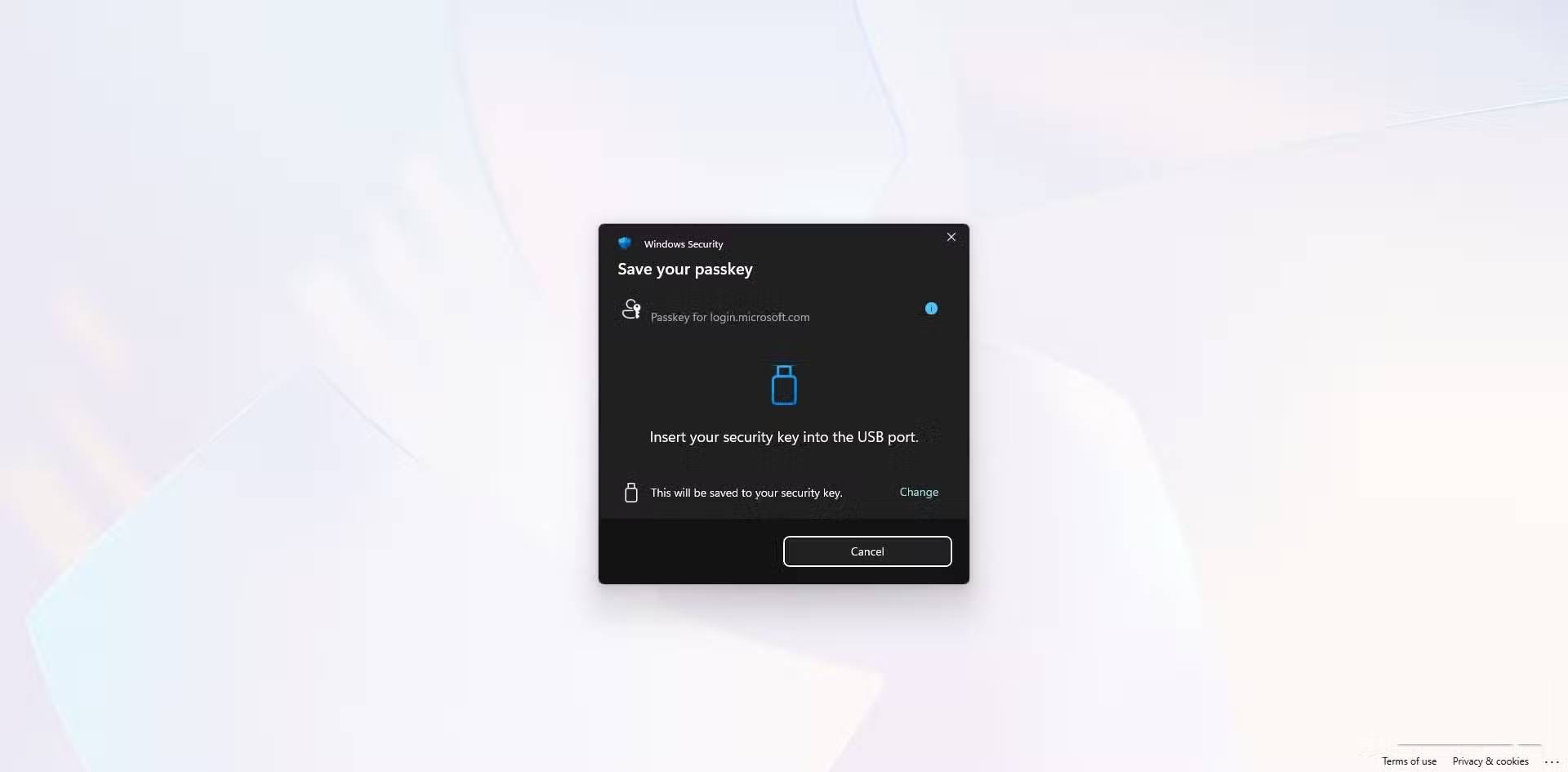
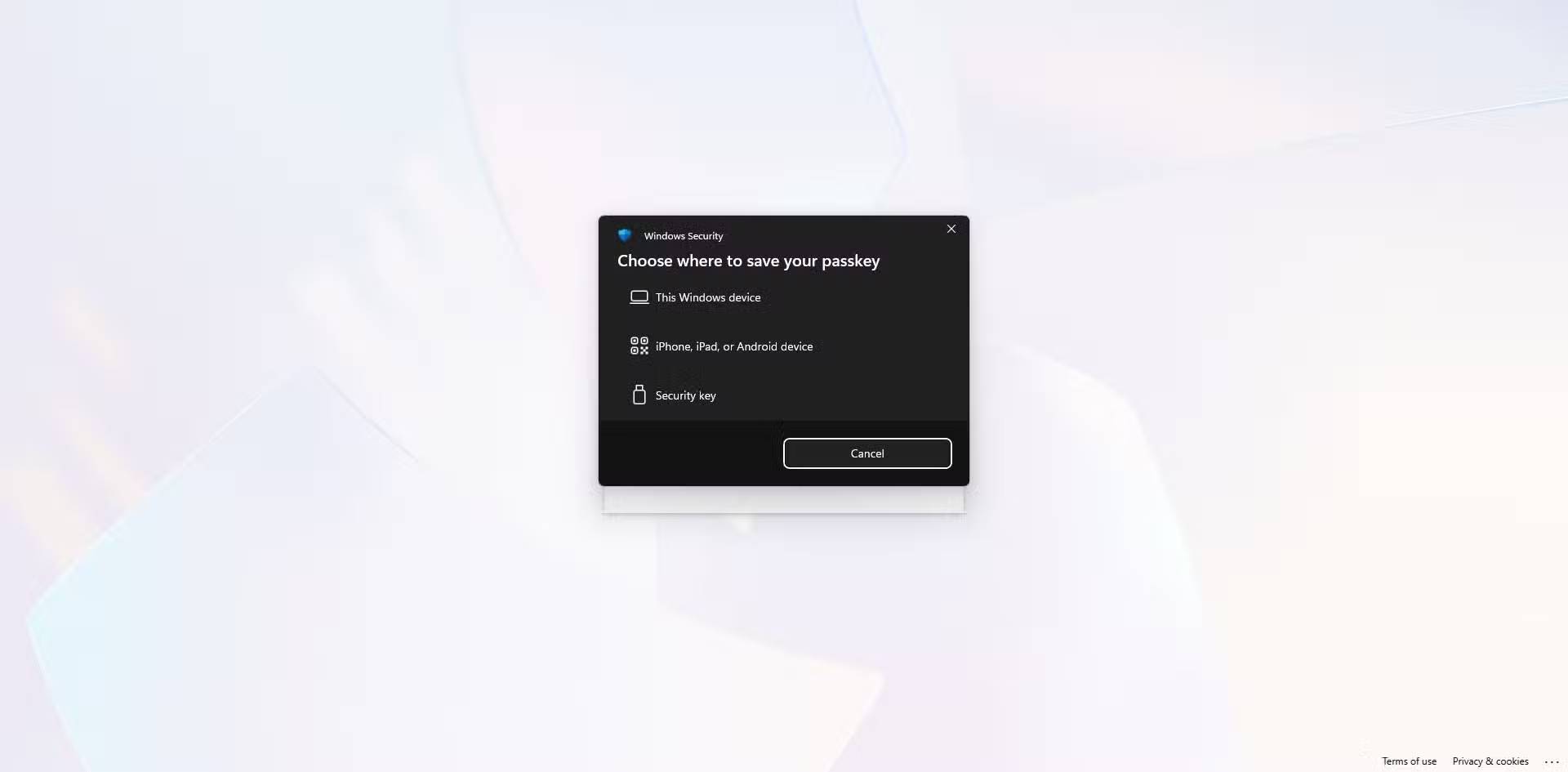
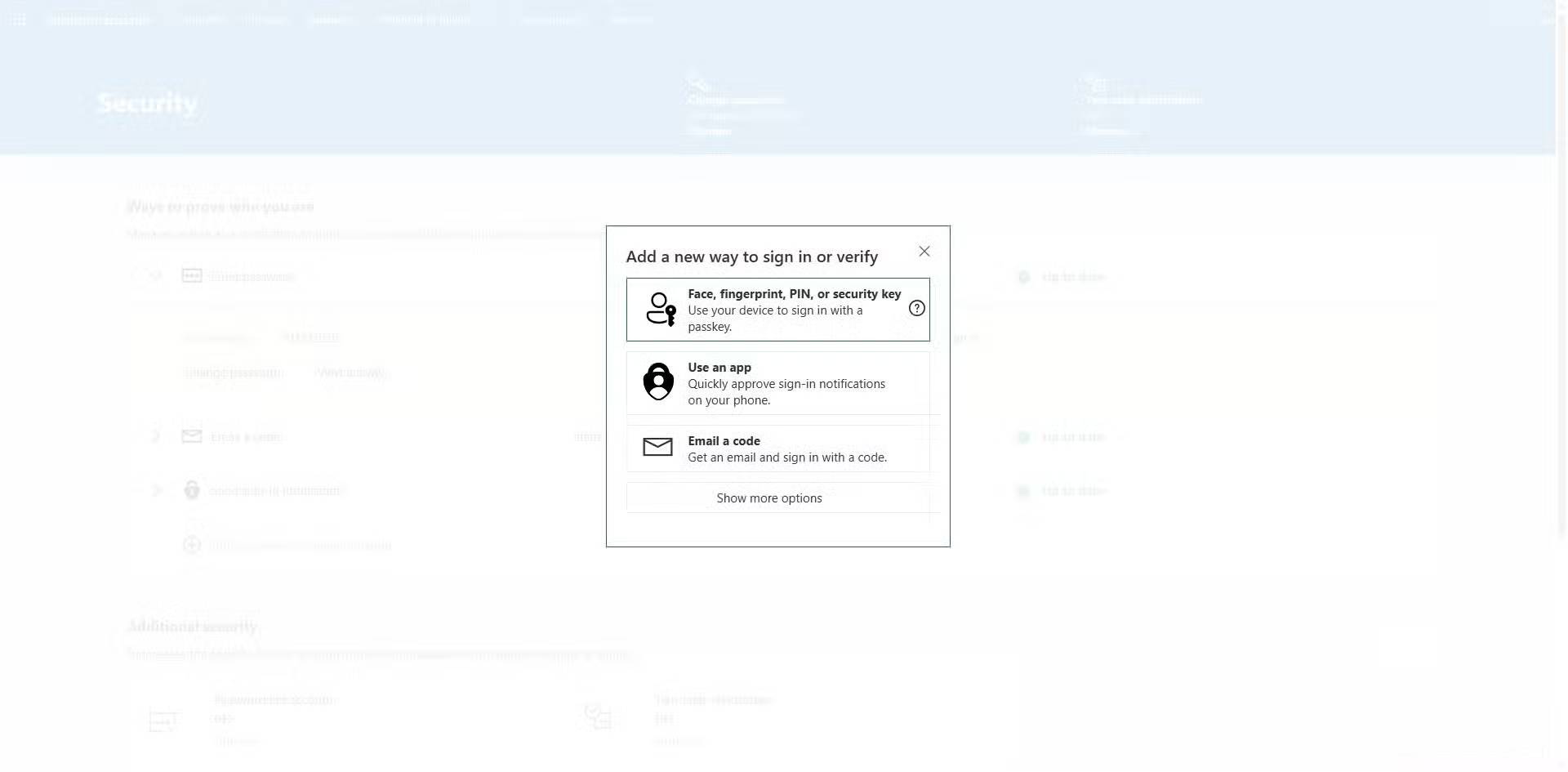
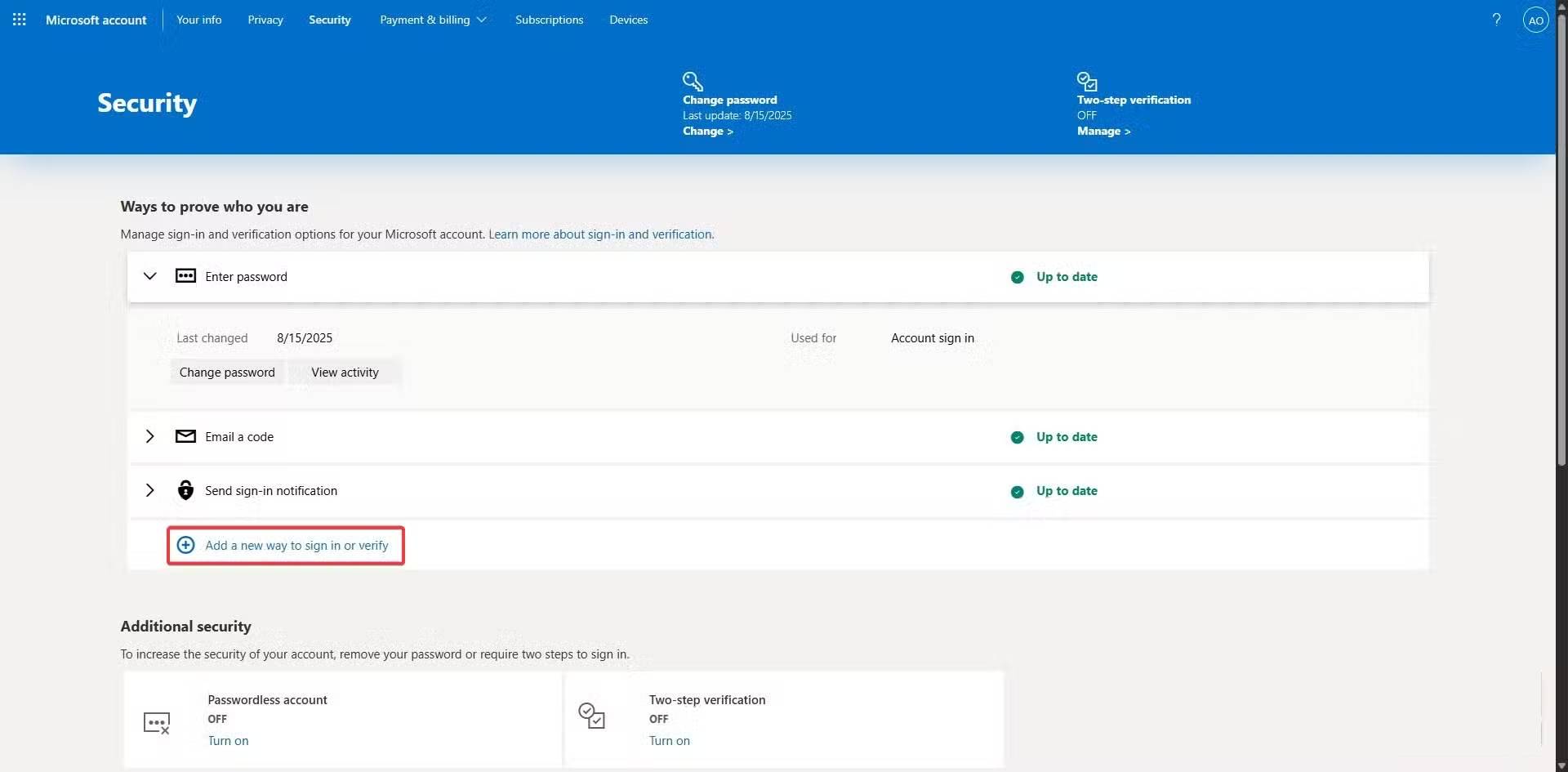
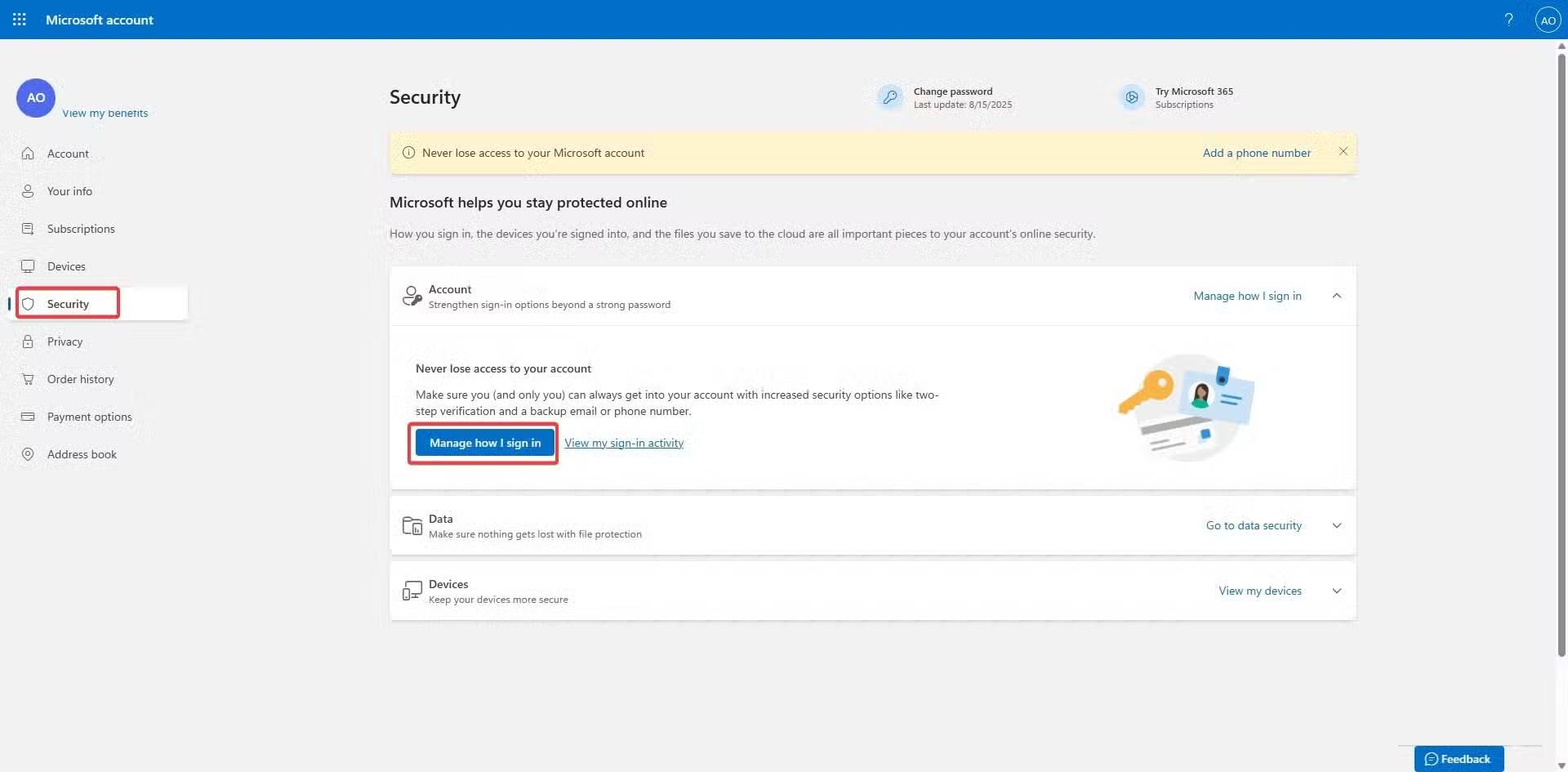
The setup process is easy. First, you set up your security key (USB-C + NFC) on your Microsoft account, but while the exact steps will be a little different on other services, there are some similarities:
- Sign in to your Microsoft account.
- Click the Security Menu, then click the Manage how I sign in Button.
- Select the Add a new way to sign in or verify Option and select any option that has a security key. In Microsoft, this is the Face, fingerprint, PIN, security key Option.
- Enter the key when prompted, then create and confirm a security key PIN.
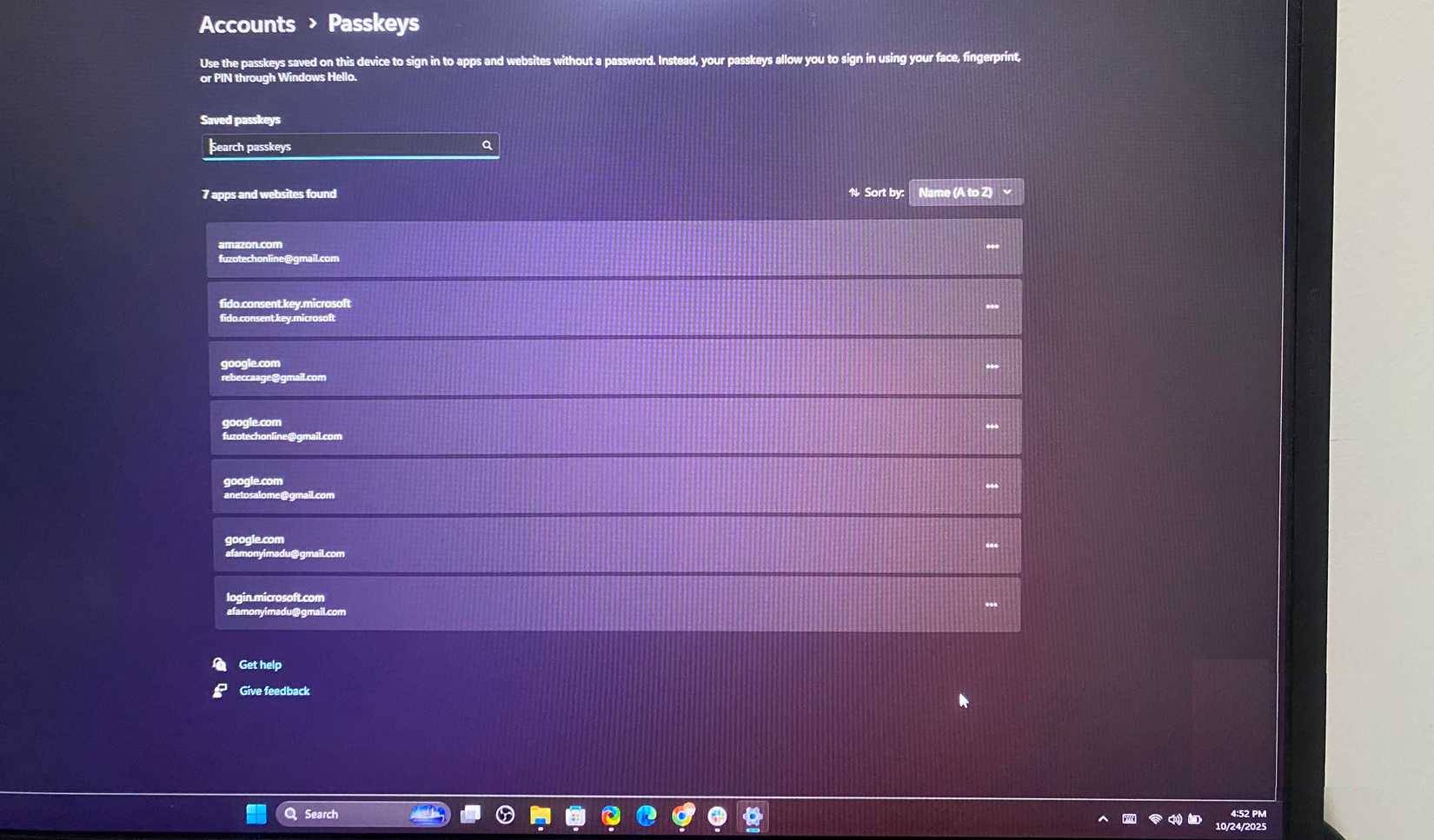
- At this point you will be prompted to tap on the lock to complete registration, then follow the next prompt and name your lock.
Setup takes less than 3 minutes. After that, logging in is easy: Enter your password, tap the lock, and you're done! You can also set a PIN for your security key to prevent access if it's lost or stolen. While YubiKey devices tend to work the best and offer strong anti-phishing protection, they do cost more. You can also turn a regular USB drive into a security key using dedicated software. However, this is a free, DIY method that only locks your local computer and doesn't include the secure element or FIDO/WebAuthn protocol support needed to log in to online accounts.
Choose the right type of security lock
Combine the lock with the device for the best experience
You can find a few connection formats that hardware keys come in, and you should choose a device based on the connection format you use most. USB-C is best for modern Android phones, tablets, and laptops, while USB-A is better for traditional computers. However, newer hardware keys may include both connectors.
NFC locks are convenient for mobile use, as you can simply tap your phone to authenticate. For iPhones and iPads, Lightning, USB-C (with adapter), or NFC options are perfect. Only Bluetooth Low Energy (BLE) locks can be more expensive and require charging, as most standard security locks are passive and draw power from the device.
That said, you should make sure that whatever hardware key you choose supports the FIDO2 and U2F standards, as this ensures wider cross-platform compatibility. Even if you change devices or ecosystems, your key will always be compatible.
FAQ
How do you set up hardware-based 2FA simply and easily: step-by-step guide?
In practical terms, setting it up isn't as complicated as you might think. With just a few taps and a few keystrokes, you'll be protecting your account from unexpected attacks.
What should you check before getting started?
Review the requirements, compatible device or software version, and any warnings described in the guide before making changes.
What should you do if the steps do not work?
Repeat the steps in order, confirm that your app or system is up to date, and review the troubleshooting details provided above.
Related Articles
 How to Cut and Split Images in PDF Files Simply and Easily4 minutes read
 How to View Computer ID, Check Hardware ID3 minutes read
 Why Should Apple Use a Year-based Hardware Naming System?7 minutes read
 Huawei Introduced the World's First 5G Hardware System5 minutes read
 What Is Hardware Hacking? Is It Worrisome?10 minutes read
 How to Remap Hardware Buttons on Smartwatch6 minutes read
Reader Comments 0
Sign in with email or Google to join the discussion.