Table of Contents
This updated guide explains how to reset system tray on Windows taskbar with clear steps, practical tips, and useful context. The icons in the System Tray that appear in the Taskbar can be customized by adding or removing icons according to the user's choice. If you have made changes to the icons in the System Tray, but do not like them anymore and want to return to the original interface, just follow.
How to Reset System Tray on Windows
Step 1:
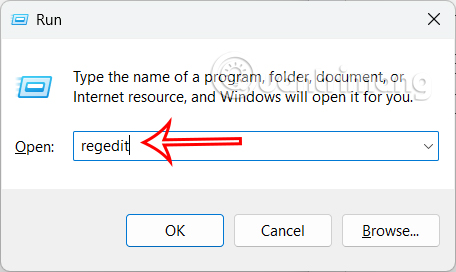
First, press Windows + R to open the Run dialog box, then type regedit and press OK.
Step 2:
Switch to the Registry Editor interface, users access the path below.
HKEY_CURRENT_USERSoftwareClassesLocal SettingsSoftwareMicrosoftWindowsCurrentVersionTrayNotify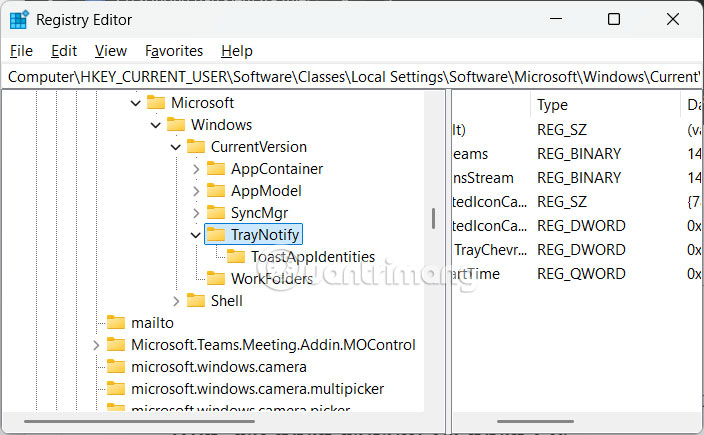
Step 3:
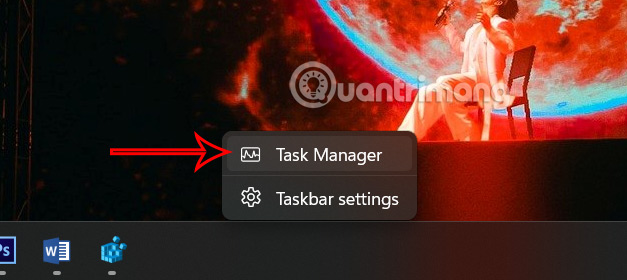
Right select the taskbar at the bottom and open the Task Manager shown in the menu.
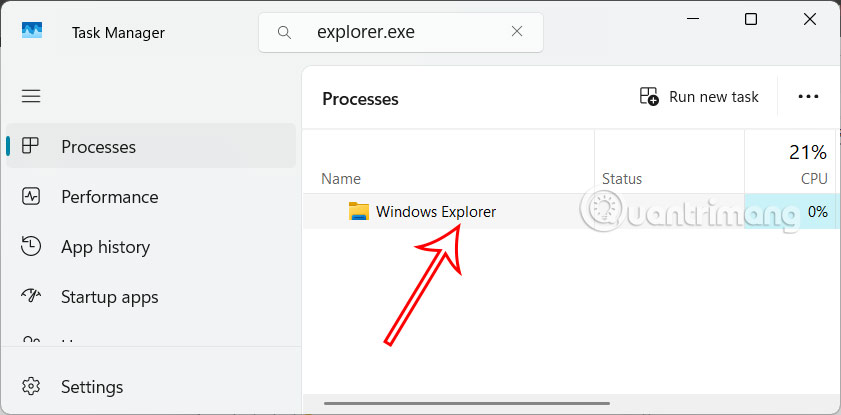
Next, we select the Processes tab and type explorer.exe in the search bar. Then select the Windows Explorer task and stop the task .
Step 4:
Go back to Registry Editor and find the IconStreams and PastIconStreams entries and delete them by right-clicking and selecting Delete .
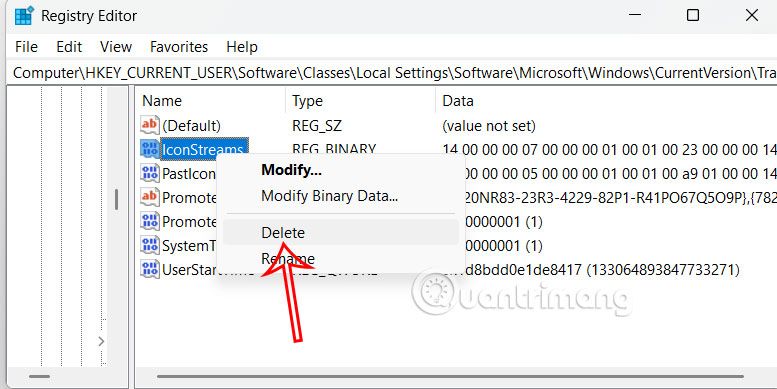
Step 5:
Back to the Task Manager interface , choose Run new task at the top. When the new interface appears, enter explorer as shown below. This action will make the desktop and taskbar reappear.
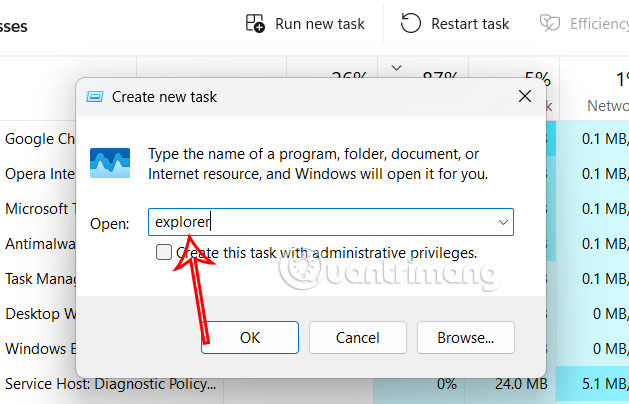
Finally you restart your computer and the System Tray is restarted.
FAQ
What should I prepare before I reset system tray on windows taskbar?
Review the requirements and options in the guide first. Having the correct device, app version, account access, or materials ready helps prevent avoidable errors.
How long does it take to reset system tray on windows taskbar?
The time depends on the task and your setup. Most basic steps can be completed quickly, while downloads, updates, scans, or troubleshooting may take longer.
What should I do if the steps do not work?
Repeat the instructions in order, confirm that your software or device is supported, and check permissions, connectivity, and available updates before trying again.
Related Articles
 This Small Change on Windows 11 Was So 'hated' That Microsoft Was3 minutes read
 5 Useful Hidden Taskbar Features on Windows 11: Practical Guide6 minutes read
 Windows 10 System Tray Icon Error, This Is a Fix4 minutes read
 How to Hide the System Tray on Windows 10?4 minutes read
 How to Add Recycle Bin to Windows 11 System Tray5 minutes read
 Do You Know What Is the Optimal Location of the Windows8 minutes read
Reader Comments 0
Sign in with email or Google to join the discussion.