Table of Contents
Explore 3 simple steps to change how you use Google maps on Android.
But Google Maps is more than just a step-by-step guide. Over time, you'll realize it can do much more than people think, especially in everyday use. With just a few tweaks and simple features enabled, the experience becomes smarter and more convenient. These small changes have completely transformed how people use Google Maps daily.
When walking directions make you dizzy
A smarter way to walk without getting lost
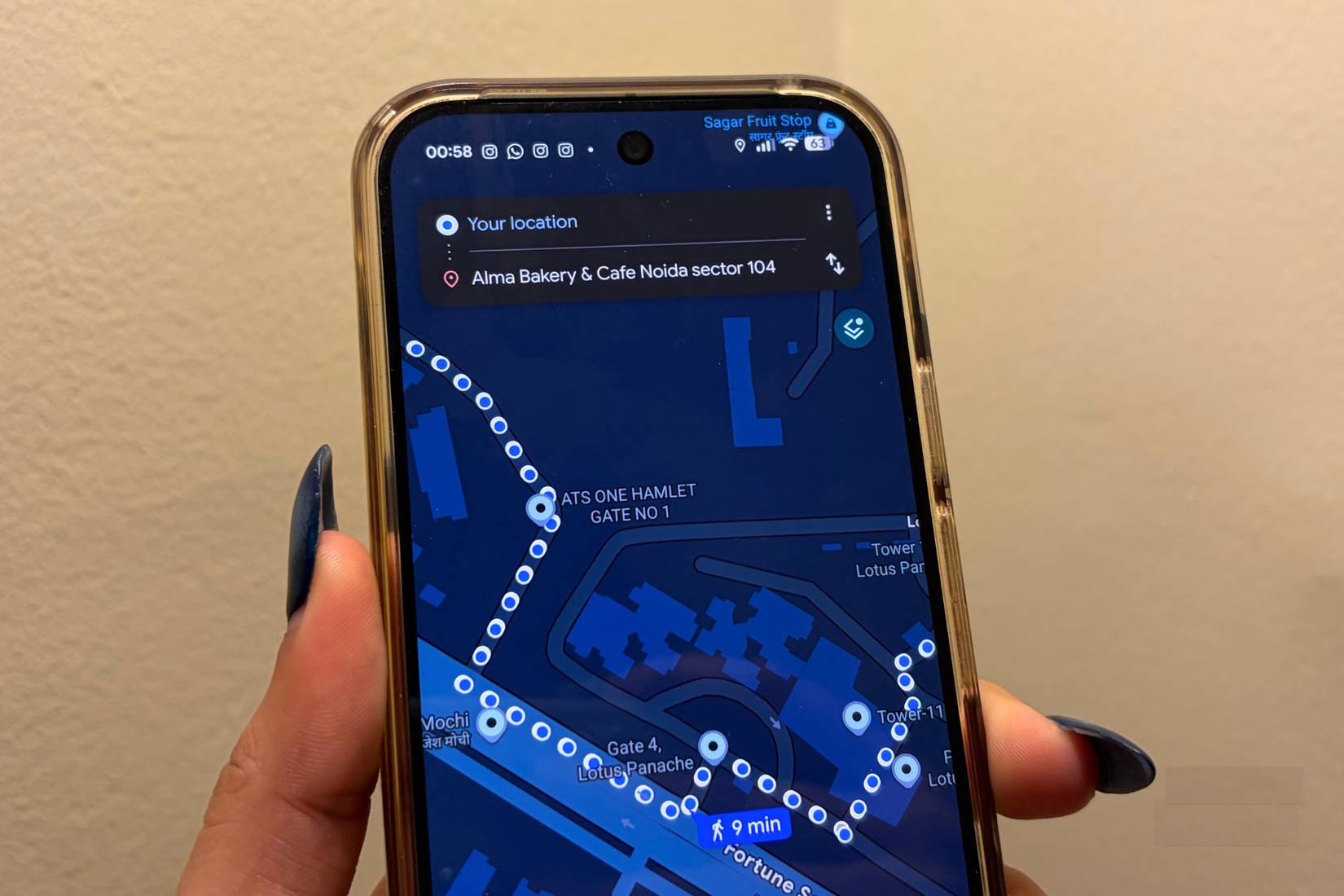
Most people struggle to understand how to follow walking directions on their phones. Turn left, turn right, veer, make a U-turn – everything becomes confusing. Many have gone a few extra kilometers or gotten completely lost simply because they misread the arrows on the screen.
This is where Google Maps quietly becomes a lifesaver. To make walking directions easier, Google lets you view navigation directly on your smartwatch, whether you're using an Apple Watch or a Galaxy Watch. Maps and step-by-step directions appear on your wrist, and the watch will vibrate gently when it's time to turn. You don't need to constantly take out your phone or stare at the screen. This is safer, more convenient, and especially useful when you're abroad and don't want your phone stolen on the street.
You can switch between regular map view and live view at any time. Tilting your phone up and down will make the experience more natural.
A consistently familiar experience
The comfort of knowing exactly where you're going
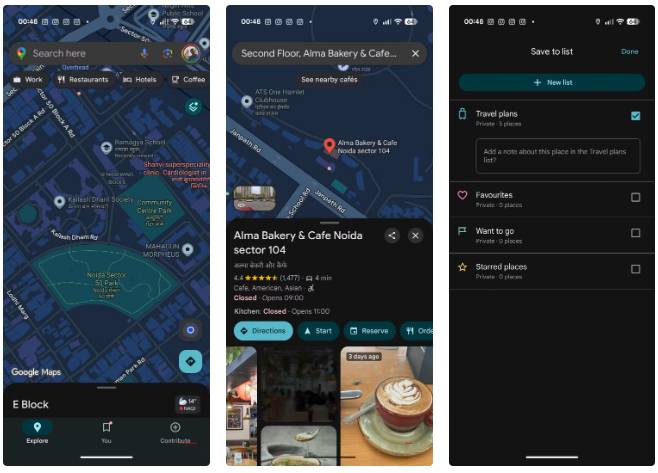
Many people genuinely enjoy returning to familiar places repeatedly because it provides a sense of comfort and confidence. Returning to familiar places means you already know what to expect and how long it will take to get there. This predictability is why Google Maps is so reliable, always delivering a familiar experience.
Saving locations on Google Maps solves all problems. Open the app, search for the location, and tap the Save icon. It's like marking a place you're sure to return to. Then, you can ask your smart assistant to navigate to that saved location. You should do the same when traveling abroad: Save cafes, landmarks, hotels, and must-see places in advance, so everything is organized and easy to find. This small habit eliminates hassles and ensures you never forget your destination.
Making trips easier for everyone
Check the details before going out
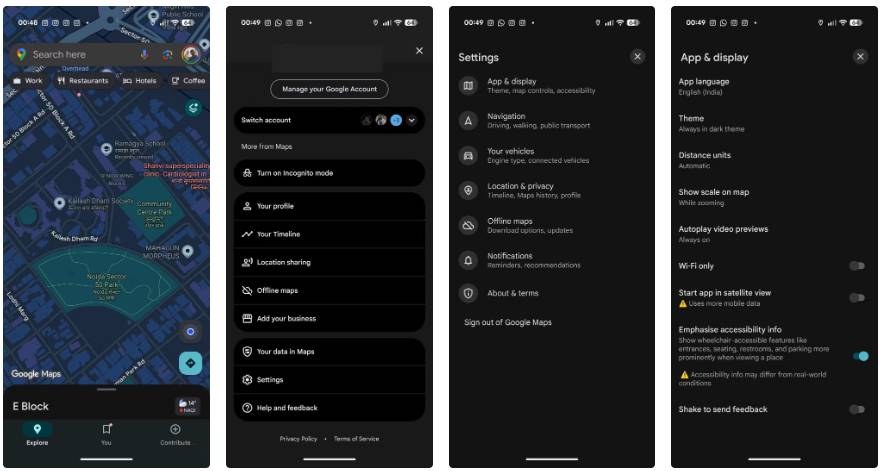
Many older adults can no longer walk long distances due to age, so having a wheelchair or suitable seating is essential whenever the family goes out. Previously, this meant a great deal of uncertainty. Families would arrive at a place only to find that it's full of stairs, no ramps, and no comfortable seating. That completely changed when people discovered this accessibility-focused setting in Google Maps. It helps users avoid choosing places that aren't senior-friendly.
With accessibility details enabled, Google Maps shows more than just directions.
To check these details before leaving home, follow these steps:
- Open the Google Maps app.
- Click on your profile icon in the upper right corner.
- Now, go to Settings .
- From there, go to App and display .
- Turn on the Emphasize accessibility info option.
Once enabled, Google Maps will begin highlighting accessibility details for the places you search for. Google Maps also notes that: "Accessibility information may sometimes differ from actual conditions."
See more:
- How to zoom infinitely on Google Maps
- How to use Google Maps without worrying about using up data.
- How to adjust the navigation volume in Google Maps
- Useful features on the Google Maps app that you didn't know about
Final Thoughts
Use this guide as a practical checklist for 3 simple steps to change how you use google maps on android. Work through the steps in order, verify each result, and adjust the options to match your needs.
FAQ
What do you need before following this 3 Simple Steps to Change How You Use Google Maps on Android guide?
Review the required tools, accounts, settings, or materials mentioned in the article. Explore 3 simple steps to change how you use Google maps on Android.
What are the main steps for 3 simple steps to change how you use google maps on android?
Follow the sections in order, especially When walking directions make you dizzy, A smarter way to walk without getting lost, A consistently familiar experience. Complete each step before continuing and verify the result as you go.
What should you do if the process does not work as expected?
Recheck the prerequisites, update the relevant app or service, review the settings, and repeat the step that caused the issue. Use any troubleshooting notes included in the guide.
Related Articles
 How to Change the Route on Google Maps4 minutes read
 Tips for Using Google Maps on Android11 minutes read
 Instructions for Using Google Maps Offline on Android5 minutes read
 How to Update Public Profiles in Google Maps on Android3 minutes read
 How to Find Your Way with Google Maps on Your Phone5 minutes read
 Apple Added Many New Features to Apple Maps in iOS 13, Resolving13 minutes read
Reader Comments 0
Sign in with email or Google to join the discussion.