Table of Contents
Even though the configuration is not too heavy, 2XKO players will sometimes encounter slight lag, so this is an effective way to configure the game.
Tired of stuttering frames or missing out on kills because of lag? While 2XKO is designed to run smoothly on most computers, some devices may experience slight stutters or FPS drops. This could be due to outdated drivers or too high graphics settings.
This article will guide you to optimize all 2XKO graphics settings on PC, helping to achieve the highest FPS and completely eliminate lag and stutter.
Best graphics settings for fighting game LOL
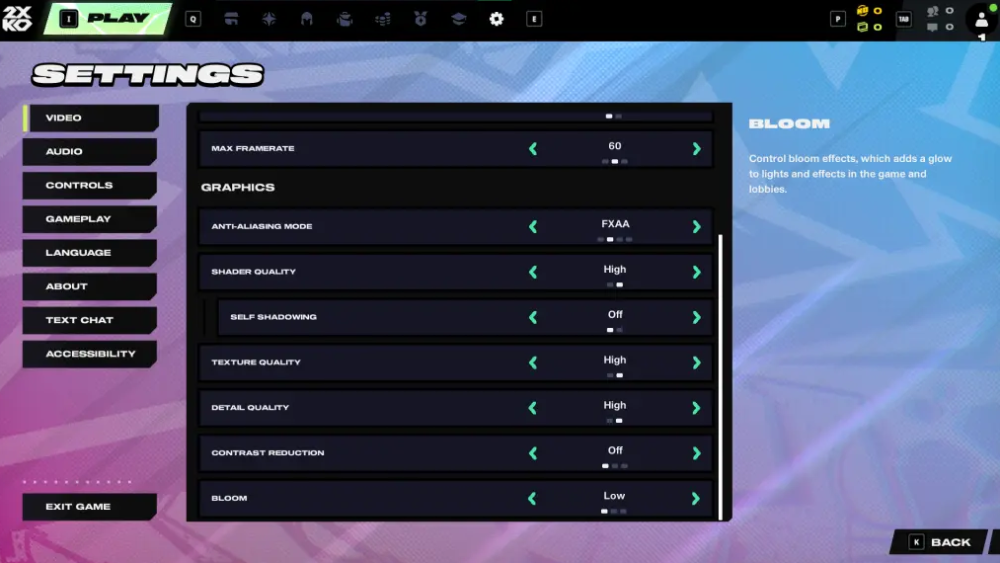
If you experience FPS drops or stuttering in 2XKO Season 0, chances are you have the graphics turned up too high.
No matter how powerful your device is, 2XKO can still lag or crash if the settings are wrong. Go to Settings → Video and adjust according to the suggestions below for optimal performance:
| Setting | Recommended Value |
|---|---|
| Screen options | Fullscreen |
| Resolution | Low |
| Max Framerate | Uncapped or 60 |
| Shader Quality | Low |
| Self Shadowing | Off |
| Bloom | Low |
| V-Sync | Off |
Once done, restart the game and check the actual FPS on your computer.
- Once setup is done, restart the game and check the actual FPS.
- If the game is still lagging, continue with the advanced optimization section below.
How to optimize graphics
Some players may still experience frame drops even with low graphics settings. Here are some advanced steps to optimize the overall performance of 2XKO on your PC:
Check the required configuration
- Before wondering why the game isn't running smoothly, make sure your PC meets 2XKO's minimum system requirements.
- Just one incompatible component (e.g. a weak GPU or CPU) can cause the game to stutter, freeze, or delay during gameplay.
Update driver

Even if your computer is powerful enough, always keep Windows and your graphics card (GPU) drivers up to date. This helps fix crashes, reduce FPS drops, and improve overall stability.
Basic steps:
- Open Device Manager or GPU control software (NVIDIA GeForce Experience / AMD Adrenalin).
- Update to the latest driver.
- Restart your computer to complete.
Clean Boot

If 2XKO still lags despite adjusting graphics and updating drivers, try a Clean Boot to remove conflicts between Riot Client, Vanguard, and other background applications.
Operation:
- Step 1: Press Windows + R, type
MsconfigAnd press Enter. - Step 2: Select the Services tab in the System Configuration window.
- Step 3: Check 'Hide all Microsoft services' then click 'Disable All'.
- Step 4: Find the vgc line, mark it again, then restart the computer.
After performing a Clean Boot, Vanguard will restart from the beginning, helping the game run more stably and minimizing system conflicts. Above is the entire guide to help you set up optimal graphics for 2XKO to achieve high FPS, reduce lag and increase the smoothest fighting experience.
If you still encounter errors or FPS drops, leave a comment describing your situation – the 2XKO community helps you find the most suitable solution.
FAQ
How do you optimize 2XKO configuration most effectively: step-by-step guide?
In practical terms, even though the configuration is not too heavy, 2XKO players will sometimes encounter slight lag, so this is an effective way to configure the game.
What should you check before getting started?
Review the requirements, compatible device or software version, and any warnings described in the guide before making changes.
What should you do if the steps do not work?
Repeat the steps in order, confirm that your app or system is up to date, and review the troubleshooting details provided above.
Related Articles
 2XKO Configuration, League of Legends Fighting Game on PC: Complete Guide4 minutes read
 Update 2XKO Version 1.0.1.1: What to Know6 minutes read
 Latest 2XKO Character Rankings: Complete Guide5 minutes read
 How to Fix Error 2XKO 2001 'Failed to Log in': Step-by-Step Guide5 minutes read
 Maintain & Optimize the Supported Operating Systems with PC Reviver3 minutes read
 Increase PUBG FPS Most for Low-configuration Devices4 minutes read
Reader Comments 0
Sign in with email or Google to join the discussion.