Table of Contents
Learn how to create infographics with AI simply with clear steps, practical tips, and troubleshooting guidance for a reliable result.
Here is a standardized, proven, and optimized process to maximize NotebookLM's potential.
1. Concept of Inforgraphics by NotebookLM AI

NotebookLM uses a large language model (LLM) to deeply analyze the source documents you provide. Instead of just generating a random image, the system performs Data Generalization , extracting key data points and transforming them into a visual structure. Understanding this mechanism helps you provide more accurate sources and statements.
2. How to create professional Infographics with NotebookLM
This process is arranged in an optimal sequence to ensure accuracy and efficient output.
Step 1: Enter information to create an Infographic on NotebookLM
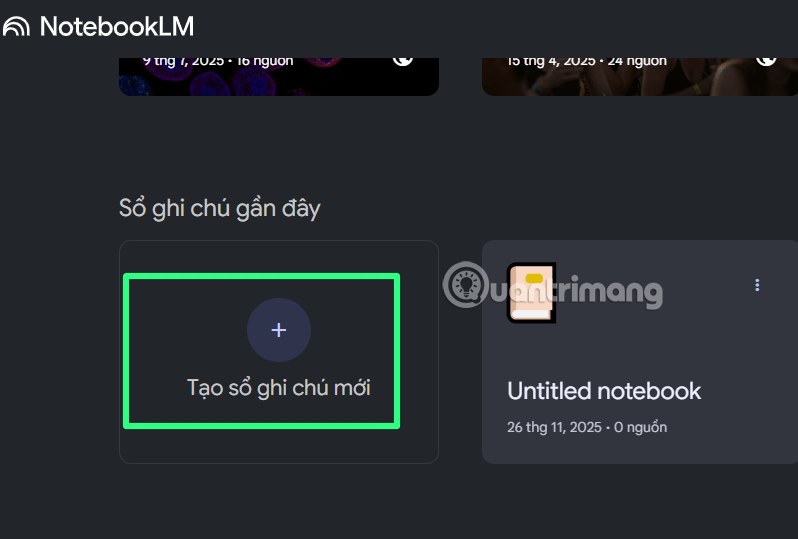
- System Access: Open your browser and access Google's NotebookLM tool at the link: https://notebooklm.google.com/
- Create Notebook: Select the 'Create New Notebook' option. This is the Digital Workspace where all your source documents and content creation sessions will be stored.
Step 2: Enter the data source you want to create Infographics from
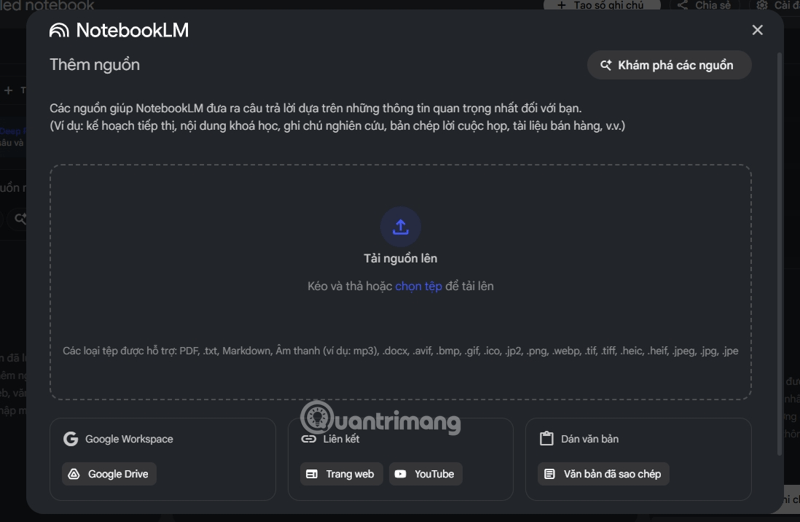
This is the most important step that determines the quality and accuracy of Infographics.
Enable Source Input: When the 'Add Source' panel pops up, proceed to insert the data that needs to be visualized.
Supported Formats: NotebookLM supports a variety of inputs for Multimodal Processing :
- Use content uploaded from Google Drive: Including content from document files such as Word, Excel, PP, TXT, images, PDF.
- Links (URLs): Paste links to articles, studies, or reputable websites with clear, visual content. Even YouTube videos with specific content.
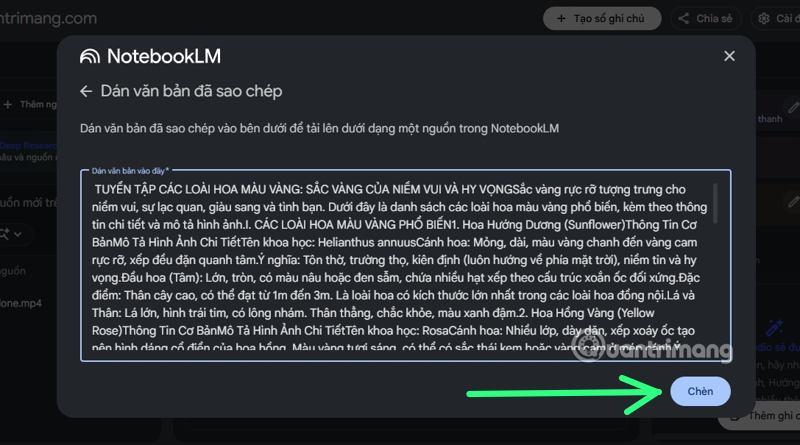
- Text Paste: Paste text, this is the simplest way for you to use the Infographics creation tool.
Source Management: You can add multiple sources. These sources will be displayed and managed in the left column of the screen, with a standard account having 50 sources and with a Pro account having 300. Once done, click 'Insert' .
Step 3: Configure and execute the command to create the Infographic
-
After completing the information entry to create Infographics, in the Studio column on the right side of the interface, select the 'Infographics' function.
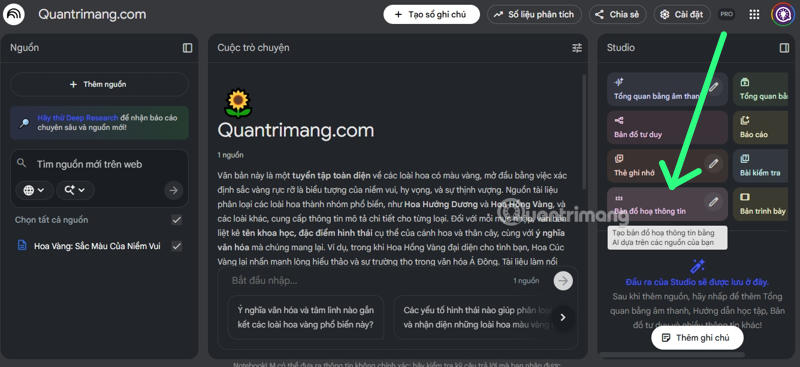
Refine the request: This is the step to control the AI output. Click the edit icon (pencil) next to the Infographics function. Then, enter the custom command in professional syntax:
- Recommended structure: Create an infographic on the topic [Topic name] in the style [Modern/Minimalist/Historical/Mythological/Modern Technological World]
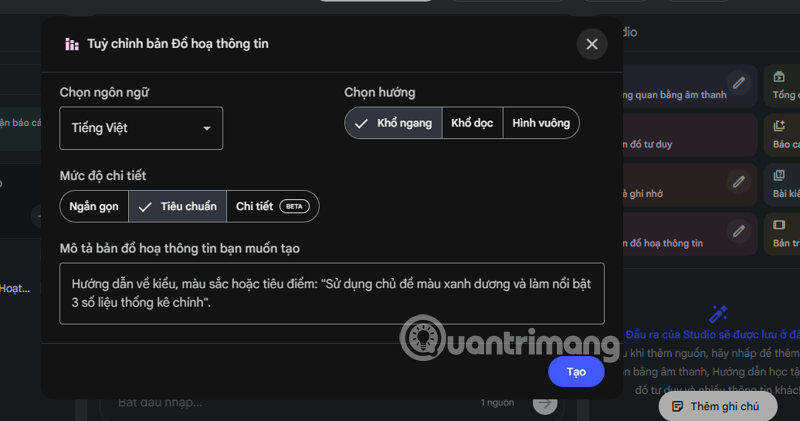
Output Control Note: If you want the Infographics to be strictly faithful to the source content without any AI additions or interpretation, emphasize this in your command (e.g. 'Use exact data from the provided source document' ).
Wait for System Generation: After entering the command, the system will proceed with the Data Processing & Image Generation process.
Step 4: Quality Control of Infographics
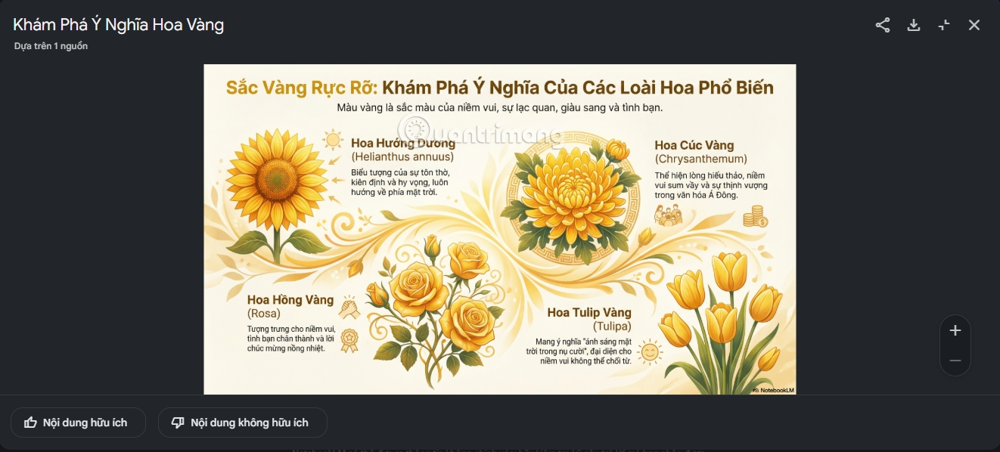
- Output Evaluation: Once the AI is created, click on the image to view the Infographics.
- Data Validation: This is a MANDATORY step. Since data-generated AI can still make mistakes or misinterpret context, users must carefully review all figures, names, and logical relationships in Infographics against the original source material.
- Publish: After confirming the accuracy, click on the option to download the image to your device and use it.
To optimize your Infomap, control the Quality of your input data sources. The content you provide to NotebookLM to create Infographics must be accurate and of high quality to produce an Infomap. Provide documents that are clearly structured, use technical terminology, and focus on the data you want to visualize.
Final Thoughts
Use this guide as a practical checklist for how to create infographics with ai simply. Work through the steps in order, verify each result, and adjust the options to match your needs.
FAQ
What do you need before following this How to Create Infographics with AI Simply guide?
Review the required tools, accounts, settings, or materials mentioned in the article. Learn how to create infographics with AI simply with clear steps, practical tips, and troubleshooting guidance for a reliable result.
What are the main steps for how to create infographics with ai simply?
Follow the sections in order, especially 1. Concept of Inforgraphics by NotebookLM AI, 2. How to create professional Infographics with NotebookLM. Complete each step before continuing and verify the result as you go.
What should you do if the process does not work as expected?
Recheck the prerequisites, update the relevant app or service, review the settings, and repeat the step that caused the issue. Use any troubleshooting notes included in the guide.
Related Articles
 Design Infographics in Canva AI from Data4 minutes read
 Create Infographics on Lovart Extremely Quickly3 minutes read
 Design Infographics on Gamma AI with Just Voice Commands3 minutes read
 Top 10 Websites to Create Beautiful Infographics5 minutes read
 Top 5 Websites for Creating Beautiful Online Infographics4 minutes read
 What Is ChatGPT Images 2?6 minutes read
Reader Comments 0
Sign in with email or Google to join the discussion.